
What Is Secure Boot? How It Works in Windows
Learn what Secure Boot does, how UEFI checks startup software, how it differs from TPM 2.0, and how to check its status safely in Windows.
Editorial Team
A modern unbranded PC and motherboard on a dark desk representing firmware startup security
Table of Contents (18 sections)
- What is Secure Boot?
- How Secure Boot works during startup
- What are the Secure Boot keys and databases?
- What does Secure Boot protect against?
- What Secure Boot does not do
- Secure Boot vs. TPM 2.0: what is the difference?
- How to check whether Secure Boot is enabled in Windows
- Should you enable Secure Boot?
- Does the 2026 Secure Boot certificate update mean Secure Boot is enabled?
- Common Secure Boot misconceptions
- Frequently asked questions
- Is Secure Boot necessary for Windows 11?
- Does Secure Boot stop viruses?
- Is Secure Boot the same as TPM 2.0?
- Can I use Linux with Secure Boot enabled?
- What if System Information says Secure Boot is unsupported?
- Does enabling Secure Boot update the 2023 certificates automatically?
- Sources and further reading
Secure Boot is a security feature in modern PC firmware that helps prevent untrusted software from running during startup. Before Windows loads, the computer's UEFI firmware checks digital signatures on supported boot components against its trusted and revoked signature databases. If a boot component is not trusted, firmware can refuse to launch it.
That makes Secure Boot one layer of protection against certain bootkits and other malware that tries to run before the operating system. It is not an antivirus, does not encrypt your files, and does not guarantee that every program which starts in Windows is safe. Microsoft's Windows 11 and Secure Boot guide (opens in new tab) explains the feature and how it fits into Windows device security.
What is Secure Boot?
Secure Boot is a capability of UEFI firmware, the modern system firmware that initializes a PC before handing control to an operating system. People often call this the computer's "BIOS," although traditional legacy BIOS and modern UEFI are different firmware interfaces.
During startup, UEFI Secure Boot checks supported EFI applications and drivers, including the Windows Boot Manager, against signature information stored in firmware. The system can run boot software whose signatures are trusted and have not been revoked. This helps stop an unauthorized or known-vulnerable boot component from taking control before Windows' own protections are running.
Microsoft describes Secure Boot as a way to help ensure that a device starts using software trusted by the PC manufacturer. See the Microsoft Secure Boot overview (opens in new tab) for technical details.
How Secure Boot works during startup
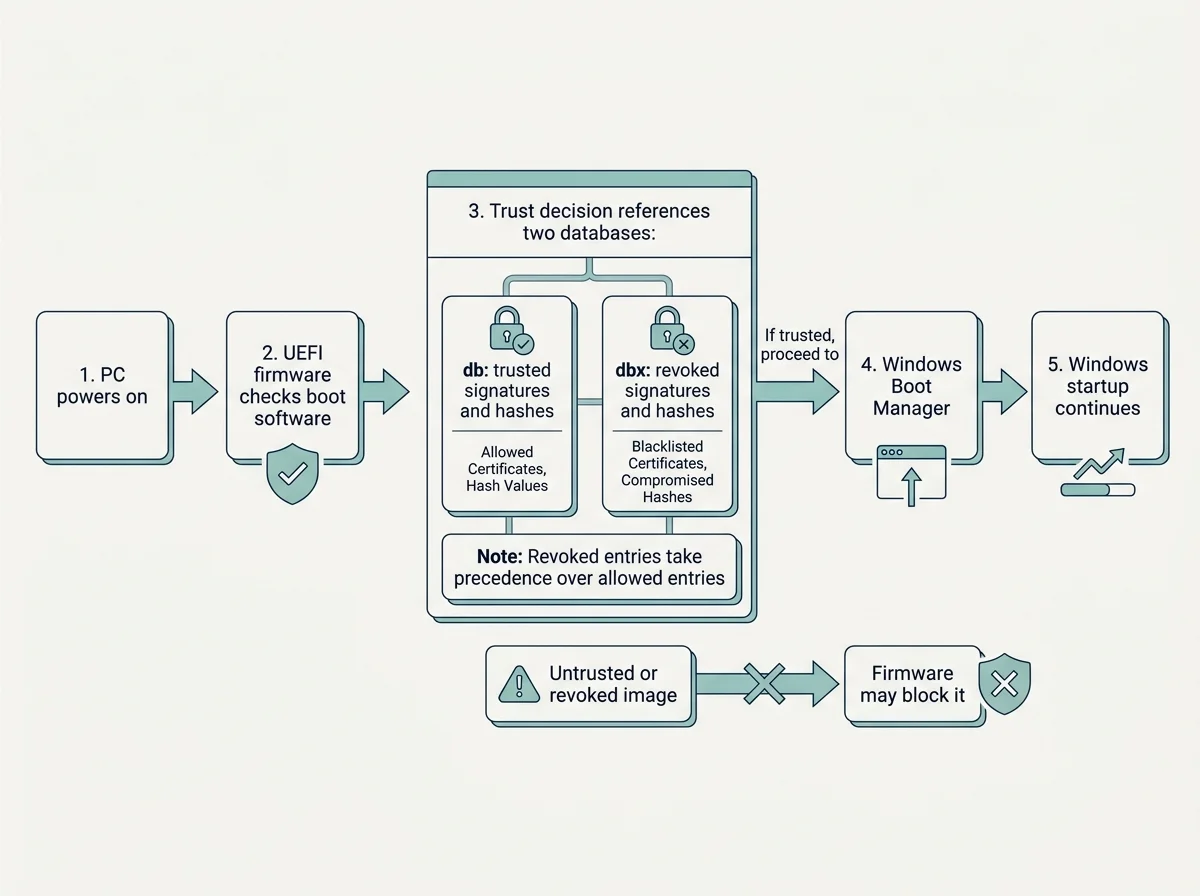
The details vary by device, but the basic process is:
- The PC powers on. UEFI firmware initializes the hardware and begins the boot process.
- Firmware checks a boot component. For supported UEFI drivers and EFI applications, it checks the component's digital signature or hash against the firmware's Secure Boot databases.
- The trust decision is applied. The allowed-signature database, called
db, records trusted signatures or hashes. The revoked-signature database, calleddbx, records signatures or hashes that should be blocked. A revoked entry takes precedence if the same item is also listed as allowed. - The boot process continues or is blocked. If a required boot component passes the checks, firmware can launch it and hand control to the next stage, such as Windows Boot Manager. If the component is untrusted or revoked, firmware may refuse to run it, and the PC may display a boot error or move to a recovery path depending on the device.
Secure Boot does not inspect every ordinary Windows application in the same way. Its central role is to establish trust during the firmware-to-operating-system startup path.
What are the Secure Boot keys and databases?
Secure Boot uses a small hierarchy of keys and signature databases held in firmware. Their exact provisioning and management depend on the computer and its firmware vendor.
| Component | What it does |
|---|---|
Platform Key (PK) |
Establishes the platform ownership relationship with firmware. It governs changes to the platform's key-exchange trust relationship. |
Key Exchange Key database (KEK) |
Holds keys authorized to update the allowed and revoked signature databases. |
Allowed signature database (db) |
Holds trusted certificates, signatures, or hashes for boot applications and drivers. |
Revoked signature database (dbx) |
Holds revoked signatures or hashes that firmware should block, including entries for software known to be vulnerable or untrusted. |
These components work together to manage which boot software firmware trusts. They are not the same as your Windows password, your Microsoft account, or your files' encryption keys. Microsoft's Secure Boot key management guidance (opens in new tab) provides the more technical details.
What does Secure Boot protect against?
Secure Boot helps prevent certain unauthorized or revoked boot components from running before Windows starts. This matters because malware that runs early in the boot sequence can be harder for ordinary operating-system security tools to detect or remove.
It is best understood as one part of a layered security setup. Antivirus and endpoint protection, operating-system updates, application security, strong account authentication, and careful software installation still matter.
What Secure Boot does not do
- It is not antivirus software. It does not replace Microsoft Defender or another reputable endpoint-protection product.
- It does not encrypt your files. BitLocker and Windows Device Encryption serve different purposes.
- It does not guarantee that all signed software is harmless. Trust can change over time, which is one reason revoked-signature updates matter.
- It does not protect against every attack after Windows starts. Its main job is to help establish trust in the boot path.
- It is not the same as TPM 2.0. These features complement each other but have different roles.
Secure Boot vs. TPM 2.0: what is the difference?
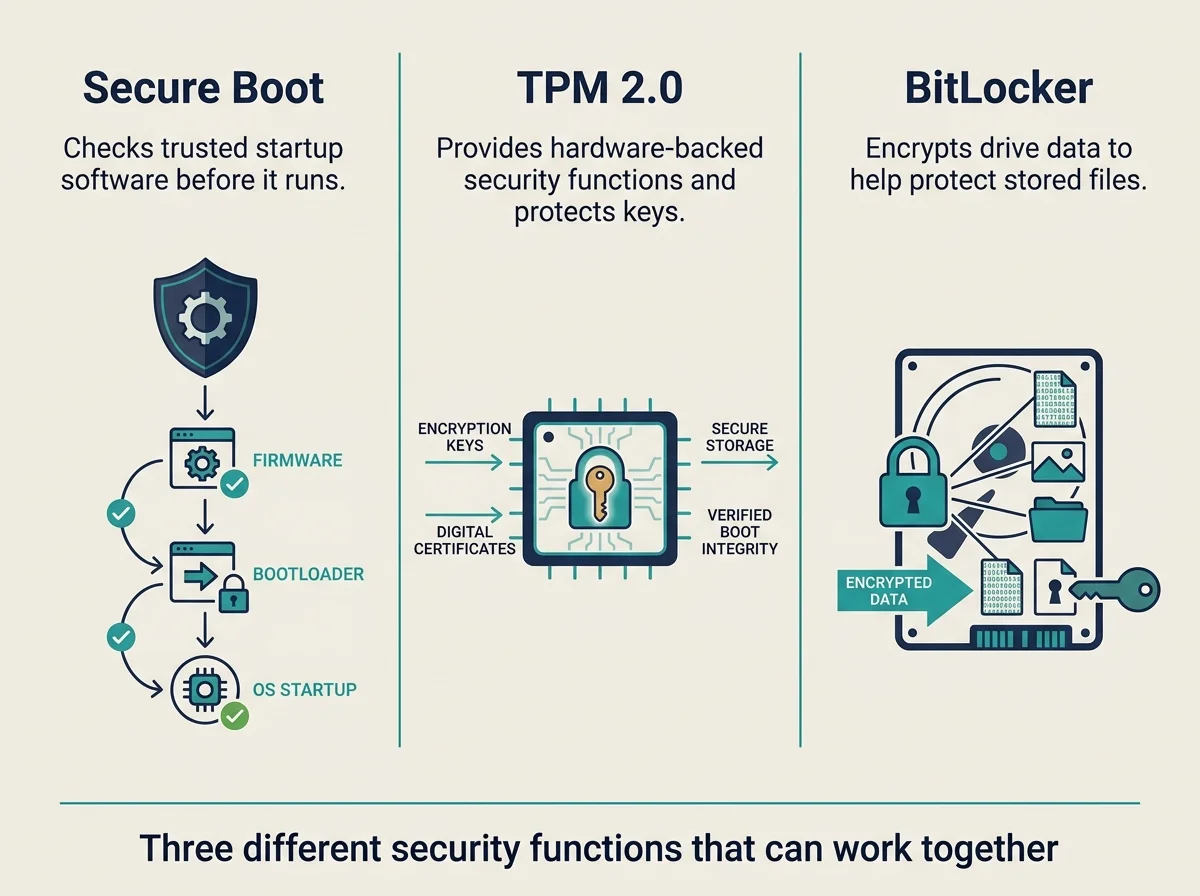
Secure Boot and the Trusted Platform Module (TPM) are related parts of PC security, but they are not interchangeable.
| Feature | Main role | Simple way to remember it |
|---|---|---|
| Secure Boot | Uses UEFI firmware trust databases to validate supported boot software before it runs. | Helps decide what boot software may start. |
| TPM 2.0 | Provides hardware-backed security functions, including protected key operations and support for measured-boot scenarios. | Helps protect keys and provide security measurements. |
| BitLocker or Device Encryption | Encrypts data on the drive so it is harder to read without the required recovery or unlock material. | Helps protect data at rest. |
Windows 11's published system requirements list UEFI firmware with Secure Boot capability and TPM 2.0 as separate requirements. A PC can therefore have a TPM but still need its Secure Boot configuration checked, or be Secure Boot-capable without having the required TPM available. Review Microsoft's Windows 11 system requirements (opens in new tab) for the full list.
How to check whether Secure Boot is enabled in Windows
You can inspect the reported firmware mode and Secure Boot state before changing any firmware settings.
- Press
Windows + Rto open the Run dialog. - Type
msinfo32and press Enter to open System Information. - In System Summary, find BIOS Mode.
- Find Secure Boot State and read the value shown.
On systems that support the reporting fields, BIOS Mode: UEFI indicates Windows was started in UEFI mode. Secure Boot State: On means Secure Boot is reported as enabled. Off means it is not enabled in the current configuration. If the state is listed as Unsupported, do not assume the hardware itself lacks the feature; the current boot mode, firmware, and device design may affect what Windows can report.
Windows Security may also show Secure Boot information under Device security. On supported, updated systems, a separate Secure Boot area can provide information about the 2023 certificate update status. That certificate status is not the same thing as whether Secure Boot itself is switched on. See the Microsoft Device Security guide (opens in new tab) and our Secure Boot certificate update status guide for more context.
Should you enable Secure Boot?
For a compatible modern Windows PC, keeping Secure Boot enabled is generally a sensible security choice. However, do not change firmware settings blindly just to make a status field change or satisfy an online checklist.
Before changing anything, confirm the PC's current boot mode and read the manufacturer's instructions for the exact model. Switching a Windows installation from Legacy/CSM boot to UEFI-only mode without preparing the installation can make Windows fail to boot. Clearing Secure Boot keys or loading default keys can also affect custom boot configurations and some dual-boot systems.
If your goal is to enable the feature, follow our step-by-step guide: How to enable Secure Boot in Windows 11. If Windows says the feature is enabled but not active, use our separate Secure Boot enabled but not active troubleshooting guide. If your firmware mentions User Mode or a Platform Key, read what the Secure Boot User Mode message means before changing keys. If startup halts with a signature error, see our guide on resolving a Secure Boot Violation.
If BitLocker or Device Encryption is enabled, make sure you can access your recovery key before firmware changes that could affect startup measurements. Do not disable Secure Boot, clear keys, or switch boot modes unless official instructions for your specific device call for it.
Does the 2026 Secure Boot certificate update mean Secure Boot is enabled?
No. The Secure Boot feature state and the Secure Boot certificate-update status are related, but they answer different questions.
- Secure Boot state indicates whether the firmware feature is enabled in the current boot configuration.
- Certificate-update status indicates whether the relevant updated Secure Boot trust certificates have been applied and whether further action is recommended.
A PC can have Secure Boot enabled and still need to check its certificate-update status. Microsoft is transitioning from older 2011 certificates to updated 2023 certificates, with deployment and device requirements varying. Read the complete status text in Windows Security rather than relying on the badge color alone. Our 2026 Secure Boot certificate update guide explains how to check that status and what to do if Windows reports that an update is pending or blocked.
Common Secure Boot misconceptions
| Misconception | What is accurate |
|---|---|
| Secure Boot is the same as TPM. | They provide different, complementary security functions. |
| Secure Boot scans every app for malware. | Its main job is to validate supported boot software during startup. |
| A PC with TPM 2.0 must have Secure Boot enabled. | TPM and Secure Boot are separate capabilities and settings. |
| Secure Boot being enabled proves certificates are current. | The feature state and certificate-update state should be checked separately. |
| It is always safe to switch Legacy to UEFI in firmware. | Boot configuration and disk layout matter; an unprepared change can prevent Windows from starting. |
| Clearing Secure Boot keys is a harmless reset. | Key changes can disrupt custom or dual-boot configurations and should follow model-specific guidance. |
Frequently asked questions
Is Secure Boot necessary for Windows 11?
Microsoft's published Windows 11 requirements specify UEFI firmware that is Secure Boot capable, and they list TPM 2.0 separately. Whether Secure Boot is currently enabled on an already-installed device is a distinct question from whether the device has the capability. Check Microsoft's current system requirements and your device's reported state.
Does Secure Boot stop viruses?
It helps block some untrusted or revoked software from loading during the early boot process. It does not replace antivirus protection and does not stop every virus or attack that runs after Windows starts.
Is Secure Boot the same as TPM 2.0?
No. Secure Boot is a UEFI firmware feature that validates supported boot software. TPM 2.0 provides hardware-backed security operations, including protecting keys and supporting measured boot. Windows can use both for different aspects of platform security.
Can I use Linux with Secure Boot enabled?
Many Linux distributions support Secure Boot through trusted, appropriately signed boot components, but compatibility depends on the distribution, bootloader, firmware trust configuration, and any custom drivers. Check your distribution's official guidance before changing keys or firmware settings, especially on a dual-boot PC.
What if System Information says Secure Boot is unsupported?
Check the BIOS Mode value and consult the PC or motherboard manufacturer's documentation. The message may reflect the current boot mode or firmware configuration; it is not enough by itself to identify a single fix. Do not switch modes or clear keys without understanding the existing Windows boot setup.
Does enabling Secure Boot update the 2023 certificates automatically?
Not necessarily. Enabling the feature and applying updated Secure Boot certificates are separate tasks. Check the Secure Boot certificate status in Windows Security and follow Microsoft's current device-specific guidance if it indicates that an update is pending or blocked.
Sources and further reading
- Microsoft Support: Windows 11 and Secure Boot (opens in new tab)
- Microsoft Learn: Secure Boot overview (opens in new tab)
- Microsoft Support: Windows 11 system requirements (opens in new tab)
- Microsoft Support: Device Security in the Windows Security app (opens in new tab)
- Microsoft Learn: Secure Boot key creation and management guidance (opens in new tab)
Verified Primary Sources & Citations
NextTechExplained verifies facts against official documentation, engineering whitepapers, and regulatory filings.
- Microsoft Support: Windows 11 and Secure BootView Official Source
- Microsoft Learn: Secure BootView Official Source
- Microsoft Support: Windows 11 system requirementsView Official Source
- Microsoft Support: Device Security in the Windows Security appView Official Source
- Microsoft Learn: Secure Boot key creation and management guidanceView Official Source
Published by NextTechExplained
Editorial Team • Institutional Publication Byline
Articles published under this byline are prepared through rigorous research and verified against official engineering specifications, standards documentation, and primary sources. Learn more about our process on our About page and Editorial Policy.
Related Explanations & Guides
How to Enable Secure Boot in Windows 11: Step-by-Step Guide
Check whether Secure Boot is supported, enable it safely in UEFI firmware, and troubleshoot common Windows 11 Secure Boot issues without risking your boot setup.
Secure Boot Violation: What It Means and How to Fix It Safely
Seeing a Secure Boot Violation at startup? Learn what the error means, common causes, safe checks, and when to use official PC recovery guidance.
Gigabyte Secure Boot: How to Enable It and Fix Common Errors
Learn how to check Secure Boot on Gigabyte and AORUS PCs, understand UEFI and key settings, and troubleshoot common BIOS messages safely.