
Secure Boot Violation: What It Means and How to Fix It Safely
Seeing a Secure Boot Violation at startup? Learn what the error means, common causes, safe checks, and when to use official PC recovery guidance.
Editorial Team
A modern unbranded desktop PC and motherboard on a dark desk illustrating a Windows startup security problem
Table of Contents (15 sections)
- What does a Secure Boot Violation mean?
- First: do these safe checks
- Common causes and what to check
- If the error started after a Secure Boot certificate update
- If you recently installed Linux or changed bootloaders
- If Windows can still start, check its reported status
- Should you disable Secure Boot to get Windows working?
- When to contact the PC manufacturer
- Frequently asked questions
- Is a Secure Boot Violation a sign of a virus?
- Can a Windows update cause a Secure Boot Violation?
- Should I restore factory Secure Boot keys?
- What if the PC asks for a BitLocker recovery key after the error?
- What if the error appears only with a USB drive?
- Sources and further reading
A Secure Boot Violation message means your PC's UEFI firmware refused to start a boot component because it did not satisfy the device's Secure Boot trust policy. It does not, by itself, prove that your computer has malware. The cause could be an external boot drive, a bootloader or operating-system change, a firmware setting, or a Secure Boot database problem.
The safest fix depends on when the message appeared and what the full error says. Before changing firmware settings, note the exact message, disconnect nonessential USB storage, and check the official guidance for your specific PC model. Do not start by clearing Secure Boot keys or changing boot mode at random. Those changes can leave Windows or another operating system unable to start.
What does a Secure Boot Violation mean?
Secure Boot is a feature in UEFI firmware that checks supported boot software against trusted and revoked signature information before allowing it to run. For a full breakdown of how UEFI validates startup components and how it differs from TPM 2.0, see our guide on what Secure Boot is and how it works. Microsoft's Windows 11 and Secure Boot guide (opens in new tab) explains how this protection helps prevent untrusted software from loading during startup.
Firmware maintains databases of allowed and revoked signatures. A boot component may be blocked if its signature is not trusted, it appears on a revocation list, or the system's firmware trust configuration does not match what the installed boot software expects. A message such as "Secure Boot Violation" or "Invalid signature detected" is therefore a symptom, not a complete diagnosis.
The exact wording matters. A vendor's firmware may display a general Secure Boot error, while Windows Security may show a separate message about certificate-update status. These are related topics, but they are not always the same issue. If your warning is specifically about the 2026 certificate transition, see our Windows Secure Boot certificate update status guide.
First: do these safe checks
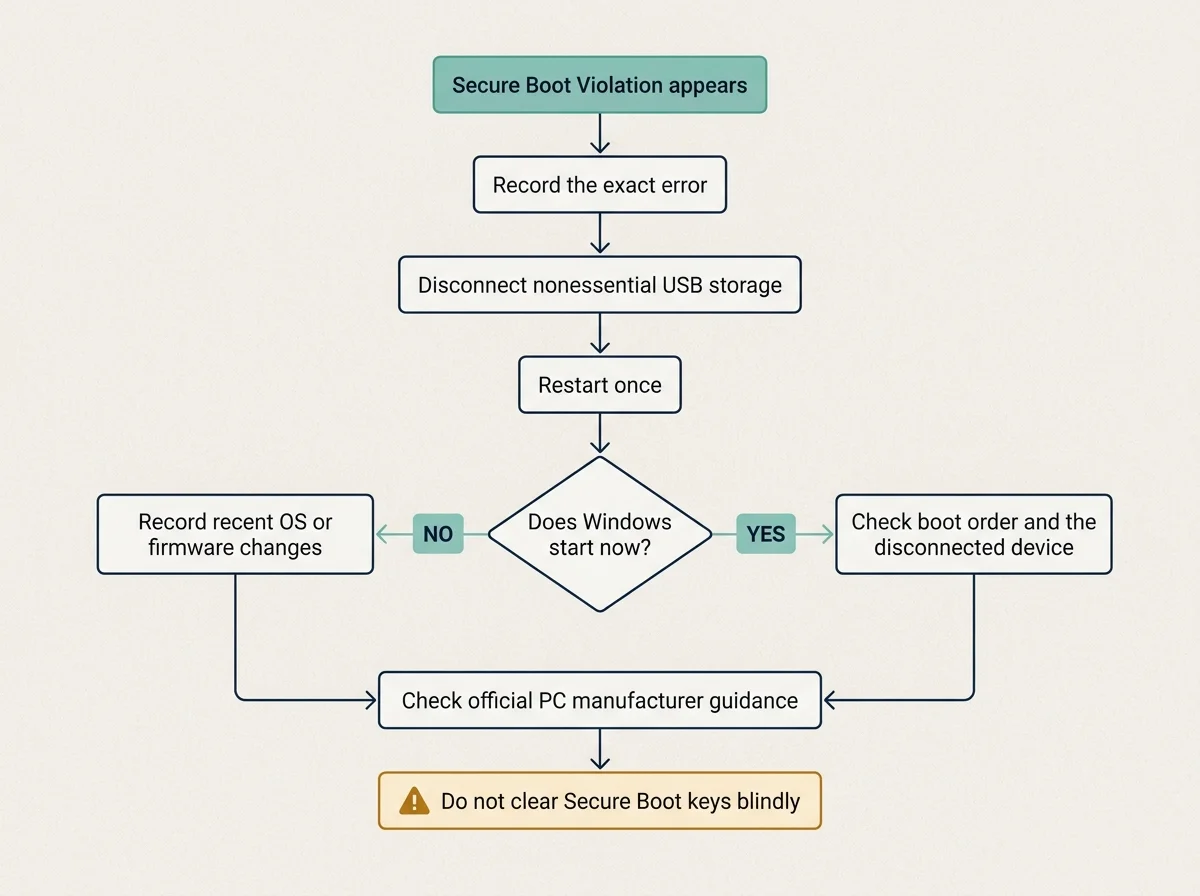
Before changing UEFI settings, work through these low-risk checks:
- Write down or photograph the exact error. Include any code, the full message, and whether it appeared immediately after a Windows update, firmware update, OS installation, or settings change.
- Remove nonessential boot media. Shut the PC down and disconnect USB drives, memory cards, external drives, and other storage that could be selected as a startup device. Leave the normal keyboard, mouse, display, and required accessories connected.
- Restart once. If the message disappears, the computer may have tried to start from an unintended device. If it returns, do not repeatedly toggle firmware settings to see what works.
- Check your recovery options. If the device uses BitLocker or Windows device encryption, locate your recovery key before making firmware changes. Microsoft's BitLocker recovery overview (opens in new tab) explains why Windows may ask for it after certain startup or hardware changes.
- Identify the exact model. Use the PC maker's support page or its model label. Firmware menus and recovery procedures differ among laptops and motherboards.
Common causes and what to check
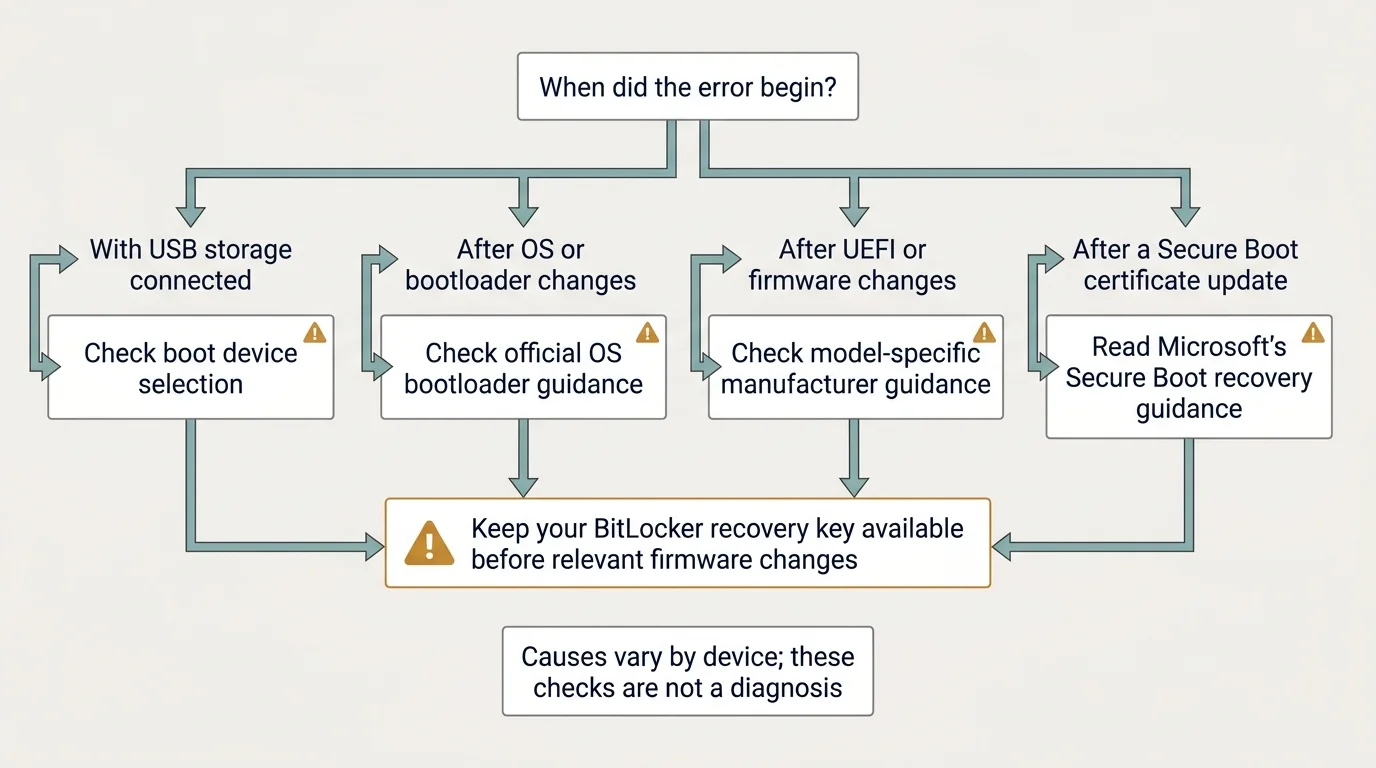
| When the error appears | Possible explanation | Safer next step |
|---|---|---|
| A USB drive or external disk is connected | Firmware may be trying to start from that device, or its bootloader may not be trusted | Disconnect external storage and restart. If you need that drive, check its official boot-media instructions. |
| After installing another OS or changing the bootloader | The bootloader may not be trusted by the current Secure Boot configuration | Follow the operating system vendor's current Secure Boot guidance. Avoid removing keys as a first step. |
| After changing UEFI, Legacy, CSM, or Secure Boot settings | The firmware's boot mode may no longer match the installed operating system | Do not switch modes blindly. Consult your PC manufacturer's instructions and verify the installation's boot configuration. |
| Immediately after a firmware update or Secure Boot certificate update | A firmware implementation or trust-database issue may have affected startup | Use the official PC-specific support instructions and Microsoft's current Secure Boot troubleshooting guidance. |
| After resetting firmware to defaults | The reset may have changed the boot order or Secure Boot trust configuration | Do not repeatedly reset settings. Contact the manufacturer or follow model-specific recovery steps. |
| Windows starts, but a tool says Secure Boot is off or inactive | The status may refer to a configuration state rather than a boot-time violation | Check System Information and compare the result with the exact firmware message. See our Secure Boot enabled but not active guide. |
These causes are possibilities, not proof of what happened on your PC. Use the timing and exact error text to select the next check.
If the error started after a Secure Boot certificate update
Microsoft documents cases where a Secure Boot certificate update can expose a device-specific UEFI firmware problem. For example, some firmware may handle an update to the allowed-signature database incorrectly and remove a certificate needed to trust the installed Windows Boot Manager. That is a specific firmware failure scenario, not the expected result on every PC.
If the error appeared directly after a Secure Boot certificate update or restart:
- Read Microsoft's Secure Boot troubleshooting guide (opens in new tab), especially the section that matches the timing and symptoms of your failure.
- Check the support page for your exact laptop, prebuilt PC, or motherboard model for relevant UEFI firmware updates and recovery instructions.
- Keep your BitLocker recovery key available. Do not assume the same recovery procedure applies to every firmware version.
- Do not reset Secure Boot databases or apply a recovery utility unless the official instructions match your situation.
Microsoft's Secure Boot certificate expiration and update guide (opens in new tab) explains the 2011-to-2023 certificate transition. If your issue is an update status rather than a boot-time violation, use the instructions for that status instead of applying a generic boot-error fix.
If you recently installed Linux or changed bootloaders
A dual-boot setup can be affected when the installed bootloader, its signature, or the firmware's trust configuration is not compatible with the current Secure Boot policy. The fix depends on the Linux distribution, bootloader version, and PC firmware.
Use your Linux distribution's official Secure Boot documentation and your computer manufacturer's instructions. Before changing keys or firmware settings, confirm that you understand how the change affects both Windows and Linux. Do not assume that reinstalling a bootloader or turning Secure Boot off is a safe universal workaround.
If the error appears only when booting a USB installer, confirm that you downloaded installation media from the operating-system publisher and follow its current UEFI boot instructions. Avoid third-party boot utilities unless you understand and trust their source.
If Windows can still start, check its reported status
If you can get into Windows, you can collect useful information without changing the firmware:
- Press
Windows + R, entermsinfo32, and press Enter. - In System Information, note BIOS Mode and Secure Boot State.
- Record the Windows edition, PC model, and firmware version shown in the system information.
- If the error appeared after an update, record the update date and any message shown by Windows Security.
If BIOS Mode says Legacy or the Secure Boot State is unavailable, that does not automatically mean you should switch boot modes or restore factory keys. The correct next step depends on how Windows was installed and on the manufacturer's firmware design. Our guides to enabling Secure Boot in Windows 11 and the User Mode firmware message explain those specific situations.
Should you disable Secure Boot to get Windows working?
Do not disable Secure Boot as your first troubleshooting step. Turning it off may change the behavior of the boot process, but it also removes a layer of startup verification and can hide the underlying problem rather than fix it.
Microsoft's Secure Boot troubleshooting material includes specific situations where a temporary firmware change or recovery procedure may be part of a defined repair. Those instructions are scenario-specific. If an official Microsoft or manufacturer guide tells you to take such a step for your exact failure, follow that guide carefully and understand how to restore the intended security configuration afterward.
Avoid these common mistakes:
- Do not clear or delete Secure Boot keys just to remove the warning.
- Do not switch between UEFI and Legacy/CSM modes without confirming the installed operating system's boot configuration.
- Do not reset firmware to defaults repeatedly; this can change trust settings and boot order.
- Do not follow a BIOS recovery video for a different model as though the menus and consequences will be identical.
- Do not ignore a BitLocker recovery screen or repeatedly guess recovery keys. Use the official recovery process.
When to contact the PC manufacturer
Contact your computer or motherboard manufacturer if the violation remains after you remove external boot media, if it began after a firmware or certificate update, if Windows no longer starts, or if the official recovery instructions do not clearly match your device. For work or school computers, contact your IT administrator before changing firmware settings.
When you contact support, provide the exact error text, PC model, firmware version, when the problem began, any recent OS or firmware changes, and whether BitLocker recovery appeared. That information helps support distinguish an untrusted boot medium from a boot configuration mismatch or firmware-level trust problem.
Frequently asked questions
Is a Secure Boot Violation a sign of a virus?
Not necessarily. The message means the firmware rejected a boot component under its current trust policy. An incompatible or revoked bootloader, an external boot device, or a configuration change can cause the message. Treat it seriously, but do not assume it proves a malware infection.
Can a Windows update cause a Secure Boot Violation?
A Secure Boot certificate or firmware-related update can coincide with startup problems on specific configurations. Microsoft's Secure Boot troubleshooting guide documents such edge cases. If the error began immediately after an update, use the official troubleshooting steps that match your symptoms rather than making unrelated firmware changes.
Should I restore factory Secure Boot keys?
Not as a general first step. The correct key-restoration procedure depends on your device, its current certificates, and whether you use Windows alone or a custom/dual-boot setup. Follow the exact manufacturer's or Microsoft's instructions for the diagnosed condition.
What if the PC asks for a BitLocker recovery key after the error?
Use the recovery key for that device and follow Microsoft's official BitLocker recovery guidance. Firmware or startup-measurement changes can trigger recovery in some configurations. Do not clear keys or alter encryption settings merely to bypass the prompt.
What if the error appears only with a USB drive?
The PC may be attempting to start from the USB drive, or the drive may contain boot software that the firmware does not trust. Disconnect it to see whether the normal Windows boot resumes. If the USB is intentionally bootable, verify how it was created and follow the operating-system publisher's UEFI instructions.
Sources and further reading
- Microsoft Support: Windows 11 and Secure Boot (opens in new tab)
- Microsoft Support: Secure Boot troubleshooting guide (opens in new tab)
- ASUS Support: Troubleshooting Secure Boot Violation errors at startup (opens in new tab)
- Microsoft Support: Windows Secure Boot certificate expiration and CA updates (opens in new tab)
- Microsoft Support: BitLocker recovery overview (opens in new tab)
- NextTechExplained: Windows Secure Boot certificate update status
Verified Primary Sources & Citations
NextTechExplained verifies facts against official documentation, engineering whitepapers, and regulatory filings.
- Microsoft Support: Windows 11 and Secure BootView Official Source
- Microsoft Support: Secure Boot troubleshooting guideView Official Source
- ASUS Support: Troubleshooting Secure Boot Violation errors at startupView Official Source
- Microsoft Support: Windows Secure Boot certificate expiration and CA updatesView Official Source
- Microsoft Support: BitLocker recovery overviewView Official Source
Published by NextTechExplained
Editorial Team • Institutional Publication Byline
Articles published under this byline are prepared through rigorous research and verified against official engineering specifications, standards documentation, and primary sources. Learn more about our process on our About page and Editorial Policy.
Related Explanations & Guides
How to Enable Secure Boot in Windows 11: Step-by-Step Guide
Check whether Secure Boot is supported, enable it safely in UEFI firmware, and troubleshoot common Windows 11 Secure Boot issues without risking your boot setup.
What Is Secure Boot? How It Works in Windows
Learn what Secure Boot does, how UEFI checks startup software, how it differs from TPM 2.0, and how to check its status safely in Windows.
Gigabyte Secure Boot: How to Enable It and Fix Common Errors
Learn how to check Secure Boot on Gigabyte and AORUS PCs, understand UEFI and key settings, and troubleshoot common BIOS messages safely.