
Battlefield 6 Secure Boot Error: How to Check and Fix It on PC
Getting a Secure Boot or EA Javelin Anti-Cheat error in Battlefield 6? Check UEFI, Secure Boot, TPM 2.0, and safe next steps for your PC.
Editorial Team
A modern gaming PC and motherboard on a dark desk, illustrating PC startup security
Table of Contents (15 sections)
- Before changing anything: check the exact error
- Step 1: Check BIOS Mode and Secure Boot State
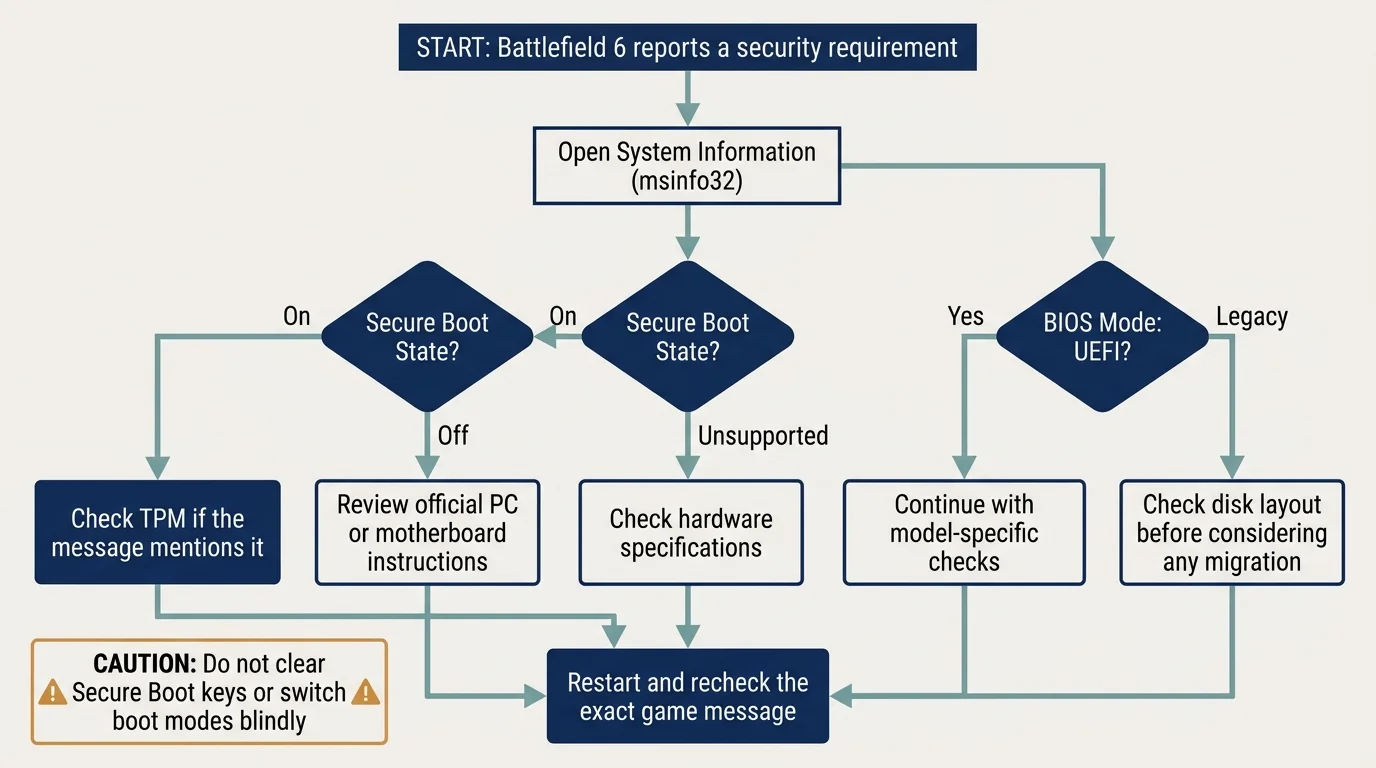
- What the results mean
- Step 2: Check whether TPM 2.0 is ready
- Step 3: Check whether Windows uses GPT or MBR if BIOS Mode is Legacy
- Step 4: Review Secure Boot settings in your PC's UEFI firmware
- Step 5: Recheck other EA requirements and the type of anti-cheat error
- Quick troubleshooting reference
- Frequently asked questions
- Does Battlefield 6 require Secure Boot on PC?
- Is Secure Boot enough if Battlefield 6 still shows an error?
- Can I enable Secure Boot without reinstalling Windows?
- Should I clear Secure Boot keys to fix Battlefield 6?
- What if msinfo32 says Secure Boot is On but the game still won't launch?
- Sources and further reading
If Battlefield 6 says Secure Boot is required, start by checking what Windows reports before changing any firmware settings. The most useful first check is System Information (msinfo32): look for BIOS Mode and Secure Boot State. EA also lists TPM 2.0, UEFI, and certain virtualization-based security capabilities among the PC requirements, so Secure Boot may not be the only item to verify. See EA's Secure Boot guide (opens in new tab) and the official Battlefield 6 FAQ (opens in new tab).
This guide helps you identify the condition Windows reports and choose a safe next step. It does not assume every error has the same cause, and it does not recommend disabling Secure Boot or clearing firmware keys as a first-line fix.
Before changing anything: check the exact error
Write down the complete message shown by Battlefield 6 or EA Javelin Anti-Cheat. An error specifically mentioning Secure Boot is different from a generic anti-cheat startup error, an error that mentions TPM, or a message about the game installation. Use EA's Battlefield 6 error-code guide (opens in new tab) if the message points to another component.
If the error appeared after a BIOS update, Windows update, hardware change, or certificate update, make a note of that too. Recent changes help narrow the investigation, but do not prove the cause on their own.
Step 1: Check BIOS Mode and Secure Boot State
- Press
Windows + Rto open Run. - Type
msinfo32and press Enter. - In System Summary, find BIOS Mode and Secure Boot State.
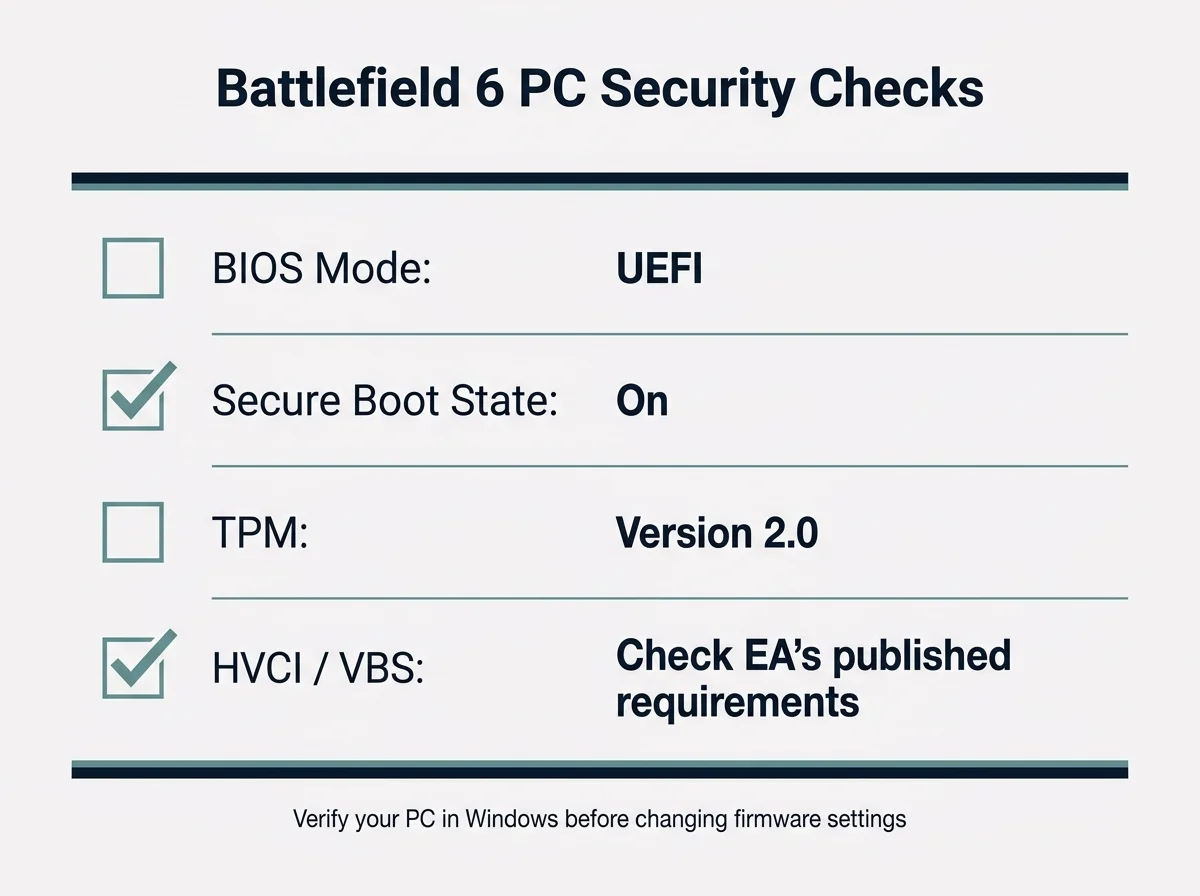
EA's instructions say BIOS Mode should be UEFI and Secure Boot State should be On. Microsoft also explains that Secure Boot depends on firmware configuration and that some settings can make the feature appear unavailable. See EA's Secure Boot guide (opens in new tab) and Microsoft's Windows 11 Secure Boot guidance (opens in new tab).
The checklist below outlines the key firmware and platform security checks to verify in Windows before altering any firmware settings:
What the results mean
| What System Information says | What to do next |
|---|---|
| BIOS Mode: UEFI; Secure Boot State: On | These two checks look correct. If Battlefield 6 still reports a Secure Boot error, check for a state mismatch where firmware says enabled but Windows reports inactive (see our Secure Boot enabled but not active guide), check TPM status, and review EA's error-specific guidance. |
| BIOS Mode: UEFI; Secure Boot State: Off | Your system starts in UEFI mode, but Secure Boot is currently off. Follow our step-by-step walkthrough on how to enable Secure Boot in Windows 11. |
| BIOS Mode: Legacy | Do not simply switch firmware from Legacy/CSM to UEFI. First check the Windows drive's partition style and follow the PC manufacturer's or Microsoft's migration guidance. An incompatible change can make Windows fail to start. |
| Secure Boot State: Unsupported | This can reflect hardware or configuration limitations. Check the manufacturer specifications and firmware documentation instead of assuming the PC needs a generic BIOS change. |
Step 2: Check whether TPM 2.0 is ready
EA's Secure Boot guidance also says TPM 2.0 needs to be turned on for the supported setup it describes. To check it:
- Press
Windows + R. - Type
tpm.mscand press Enter. - Check the TPM status and the Specification Version under TPM Manufacturer Information.
For Windows 11, Microsoft says the required TPM specification version is 2.0. If the console says that a compatible TPM cannot be found, that does not always mean the PC lacks TPM hardware; it can be disabled in firmware or unavailable on that device. Follow Microsoft's TPM 2.0 guidance (opens in new tab) and your manufacturer's instructions before changing settings.
You can also look in Windows Security > Device security > Security processor details. Microsoft explains this page in its Device Security guide (opens in new tab). To understand how Secure Boot and TPM 2.0 serve distinct, complementary security functions during startup, see our guide on what Secure Boot is and how it works in Windows.
Do not clear the TPM as a troubleshooting shortcut. Clearing it can affect keys and credentials protected by the TPM, including encryption-related protections.
Step 3: Check whether Windows uses GPT or MBR if BIOS Mode is Legacy
Secure Boot normally requires the Windows installation to boot through UEFI, and EA's guide specifies a GPT-formatted Windows disk for the setup it describes. If msinfo32 reports Legacy, inspect the disk before considering a firmware-mode change:
- Right-click Start and open Disk Management.
- Locate the disk containing the Windows installation.
- Right-click the disk label on the left side of the lower pane and select Properties.
- Open Volumes and look at Partition style.
A disk using Master Boot Record (MBR) may need a supported conversion before Windows can boot in UEFI mode. Do not switch the firmware to UEFI or disable CSM on a Legacy installation without a verified migration plan. Back up important files and use official instructions for your exact device and Windows setup. EA's Secure Boot guide (opens in new tab) describes the relationship between UEFI and GPT; the correct procedure can vary by system.
Step 4: Review Secure Boot settings in your PC's UEFI firmware
If BIOS Mode already says UEFI but Secure Boot State is Off, consult the manufacturer's instructions for your exact model. Many PCs let you open firmware settings through Windows:
- Open Settings > System > Recovery.
- Beside Advanced startup, select Restart now.
- Choose Troubleshoot > Advanced options > UEFI Firmware Settings > Restart, if that option is available.
- Find the Secure Boot option using the PC or motherboard manual. Menu names and locations differ.
Microsoft documents this general route in its Windows 11 and Secure Boot guide (opens in new tab). Do not assume all firmware uses the same menus or default settings.
Before changing firmware, make sure you can access your device-encryption or BitLocker recovery key if encryption is enabled. Changes to boot configuration or Secure Boot keys can trigger recovery on some systems. Do not clear or replace Secure Boot keys simply because Battlefield 6 shows an error; only follow key-management instructions published for your exact device and situation.
If your motherboard firmware displays a prompt about key enrollment or setup states, consult our guide on what the Secure Boot User Mode message means. If the computer halts at startup with a signature error after enabling the feature, see how to troubleshoot a Secure Boot Violation.
Step 5: Recheck other EA requirements and the type of anti-cheat error
EA's current Battlefield 6 PC requirements list TPM 2.0 enabled, UEFI Secure Boot enabled, HVCI capable, and VBS capable. "Capable" is not identical to saying every related Windows setting must be manually enabled on every machine. If the game's message mentions a particular security feature, follow the corresponding current EA instructions rather than changing every setting at once. Review the Battlefield 6 FAQ (opens in new tab) for the requirements in effect when you troubleshoot.
If Windows reports UEFI and Secure Boot On and TPM 2.0 is ready, but the game still fails to launch:
- Restart Windows and try the game again.
- Check for pending Windows updates and updates from your PC or motherboard manufacturer.
- Read the precise error and compare it with EA's Battlefield 6 error-code guide (opens in new tab).
- If the error specifically names EA Javelin Anti-Cheat, follow EA's instructions for that error. EA notes that some Javelin Anti-Cheat errors relate to starting the anti-cheat component or locating the game installation, not to Secure Boot itself.
- If the issue began immediately after a firmware update, consult the manufacturer's support page for the exact model.
Avoid third-party "driver updater" tools, random PowerShell scripts, and forum instructions that ask you to delete firmware keys. They can introduce new problems and are not a substitute for a documented fix.
Quick troubleshooting reference
| Symptom | Safest next check |
|---|---|
| The game says Secure Boot is required | Check BIOS Mode and Secure Boot State in msinfo32. |
| Secure Boot State is Off | Check model-specific UEFI settings after confirming the system boots in UEFI mode. |
| BIOS Mode is Legacy | Check the Windows disk's partition style before considering migration. Do not just flip the firmware setting. |
| TPM is missing or not ready | Check tpm.msc and official TPM guidance for your device. Do not clear the TPM. |
| Secure Boot and TPM appear correct | Use the exact Battlefield 6 or Javelin Anti-Cheat error text to choose the next step. |
| The error started after a BIOS or certificate update | Keep the recovery key accessible, consult the PC manufacturer's support guidance, and review our Windows Secure Boot certificate update status guide. |
Frequently asked questions
Does Battlefield 6 require Secure Boot on PC?
Yes. EA's Battlefield 6 FAQ says Secure Boot is required to play on PC. Check EA's current requirements and Secure Boot guide for the specific conditions expected on your system.
Is Secure Boot enough if Battlefield 6 still shows an error?
Not necessarily. EA also lists TPM 2.0 and HVCI/VBS capability in the PC requirements. The error might also be related to the anti-cheat component or installation. Read the exact message and check each relevant requirement individually.
Can I enable Secure Boot without reinstalling Windows?
That depends on your current boot configuration. A PC already using UEFI may only need a supported firmware setting change. A Windows installation booting in Legacy mode may need its disk layout and boot configuration addressed first. Do not switch modes blindly; follow verified instructions for your device.
Should I clear Secure Boot keys to fix Battlefield 6?
No, not as a general fix. Key management can change the PC's trust configuration and may affect startup or encrypted-drive recovery. Only use manufacturer-specific instructions when they explicitly call for it.
What if `msinfo32` says Secure Boot is On but the game still won't launch?
Check TPM 2.0 with tpm.msc, review EA's current requirements, restart the PC, and use the exact error message to identify whether the problem is Secure Boot, another requirement, or EA Javelin Anti-Cheat.
Sources and further reading
- EA Help: How do I use Secure Boot on my PC? (opens in new tab)
- EA: Battlefield 6 FAQ and PC requirements (opens in new tab)
- EA Help: Troubleshoot error messages in Battlefield 6 (opens in new tab)
- Microsoft Support: Windows 11 and Secure Boot (opens in new tab)
- Microsoft Support: Enable TPM 2.0 on your PC (opens in new tab)
- Microsoft Support: Device Security in the Windows Security app (opens in new tab)
Verified Primary Sources & Citations
NextTechExplained verifies facts against official documentation, engineering whitepapers, and regulatory filings.
- EA Help: How do I use Secure Boot on my PC?View Official Source
- EA: Battlefield 6 FAQView Official Source
- EA Help: Troubleshoot error messages in Battlefield 6View Official Source
- Microsoft Support: Windows 11 and Secure BootView Official Source
- Microsoft Support: Enable TPM 2.0 on your PCView Official Source
Published by NextTechExplained
Editorial Team • Institutional Publication Byline
Articles published under this byline are prepared through rigorous research and verified against official engineering specifications, standards documentation, and primary sources. Learn more about our process on our About page and Editorial Policy.
Related Explanations & Guides
Gigabyte Secure Boot: How to Enable It and Fix Common Errors
Learn how to check Secure Boot on Gigabyte and AORUS PCs, understand UEFI and key settings, and troubleshoot common BIOS messages safely.
How to Enable Secure Boot in Windows 11: Step-by-Step Guide
Check whether Secure Boot is supported, enable it safely in UEFI firmware, and troubleshoot common Windows 11 Secure Boot issues without risking your boot setup.
Secure Boot Can Be Enabled When System Is in User Mode: What It Means
Seeing the Secure Boot user mode or Platform Key message in BIOS? Learn what it means and how to check your Windows PC safely.