
How to Hide the Taskbar in Windows 11
Hide the Windows 11 taskbar automatically to free up screen space. Follow the Settings steps and fix common auto-hide problems safely.
Editorial Team
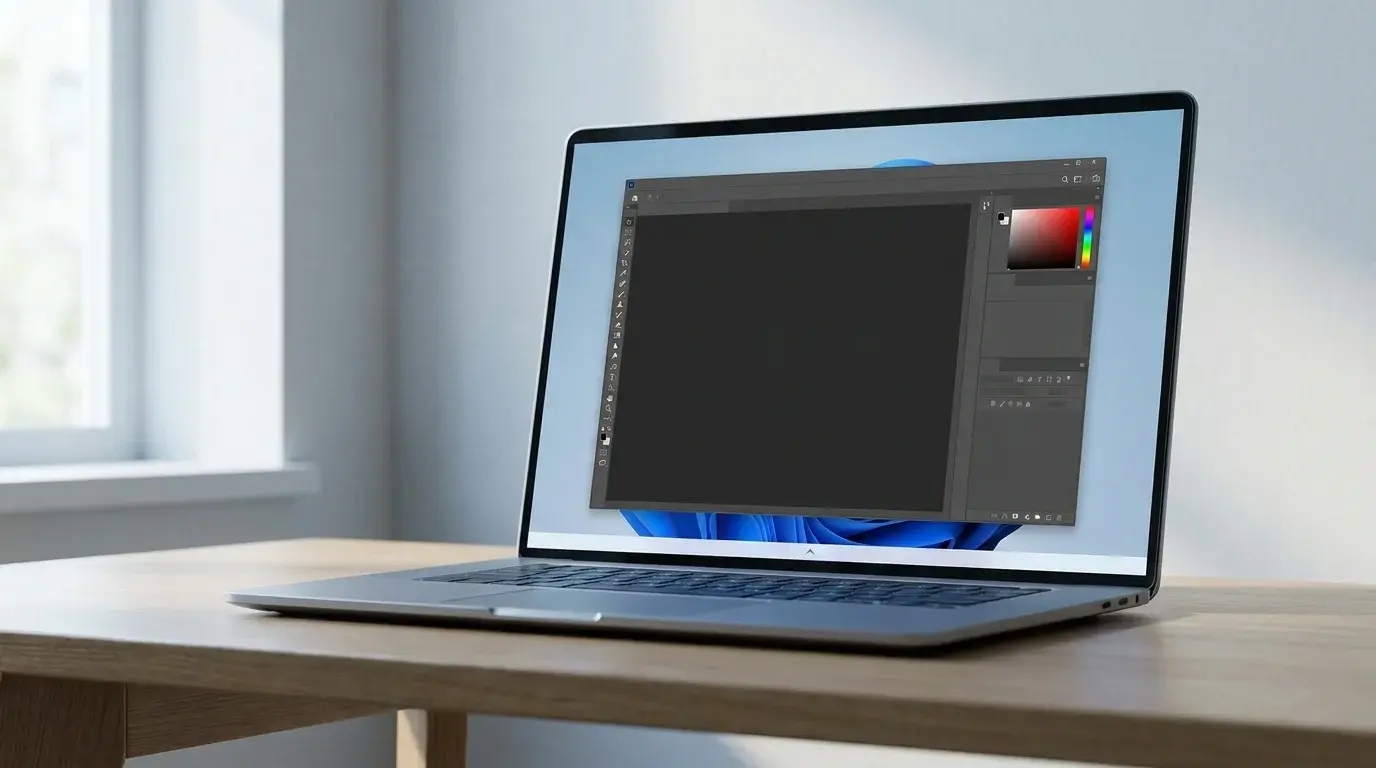
A Windows 11-inspired desktop with the taskbar hidden to leave more space for an open window
Table of Contents (21 sections)
- The quickest way to hide the taskbar in Windows 11
- How to make the hidden taskbar appear again
- How to turn taskbar auto-hide off
- Why is the Windows 11 taskbar not hiding?
- 1. Check whether an app needs your attention
- 2. Move the pointer completely away from the taskbar
- 3. Check the auto-hide setting again
- 4. Close or minimize the window that seems to block auto-hide
- 5. Restart Windows Explorer if the taskbar appears stuck
- 6. Install available Windows updates and restart
- Can you hide only some taskbar icons?
- Does hiding the taskbar improve performance?
- Frequently asked questions
- What is the keyboard shortcut to hide the Windows 11 taskbar?
- Can I hide the taskbar automatically only when using a full-screen app?
- Does auto-hide work on more than one monitor?
- Will hiding the taskbar close my apps?
- What if the Automatically hide the taskbar option is missing?
- Bottom line
- Related guides
- Sources
You can hide the taskbar in Windows 11 without installing another app or changing the Registry. The built-in Automatically hide the taskbar setting keeps the taskbar out of view when you are not using it, giving windows and apps more visible screen space. Move your mouse pointer to the bottom edge of the screen, or touch that edge on a touchscreen, to bring the taskbar back.
This guide explains the normal Settings method, how to undo it, and what to check if the taskbar refuses to hide. The exact layout can vary slightly between Windows 11 builds, but the option is in Taskbar settings under Taskbar behaviors. See Microsoft's taskbar customization guide (opens in new tab) for the current Windows instructions.
The quickest way to hide the taskbar in Windows 11
- Right-click an empty area of the taskbar.
- Select Taskbar settings.
- Scroll to Taskbar behaviors and expand it if needed.
- Select the checkbox for Automatically hide the taskbar.
- Move the pointer away from the taskbar and wait a moment for it to slide out of view.
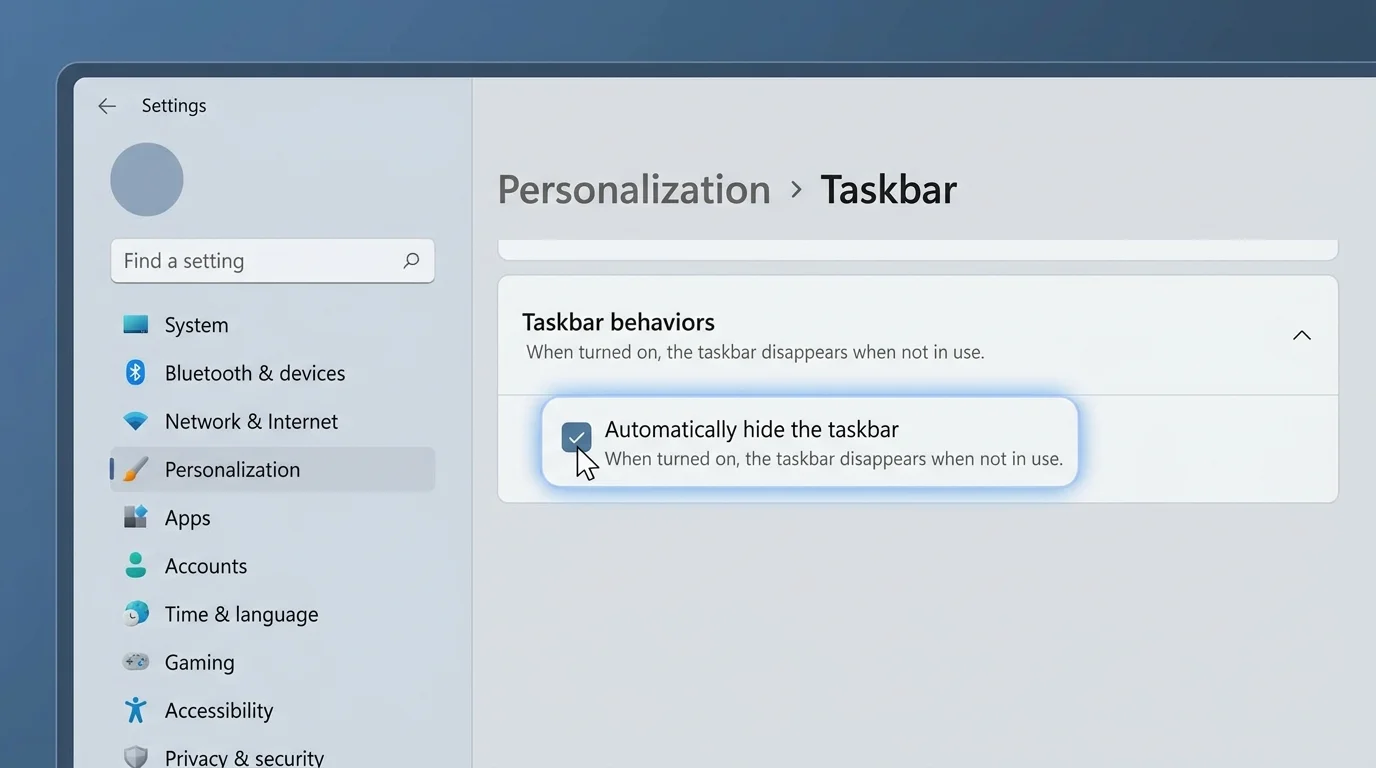
You do not need to restart the computer for this preference to take effect. The taskbar should hide when you move the pointer away from it and show again when you move to the bottom edge of the display.
How to make the hidden taskbar appear again
A hidden taskbar is not turned off or removed. To reveal it:
- Move your mouse pointer to the very bottom edge of your primary display.
- Pause briefly for the taskbar to appear.
- Move the pointer onto the taskbar to use Start, pinned apps, notifications, or the system tray.
On a touchscreen device, touch the bottom edge to bring the taskbar into view. If you use multiple monitors, move the pointer to the screen edge where the taskbar is configured to appear.
How to turn taskbar auto-hide off
If you prefer the taskbar to remain visible, reverse the setting:
- Right-click the taskbar and choose Taskbar settings.
- Expand Taskbar behaviors.
- Clear Automatically hide the taskbar.
The taskbar should remain visible again. This setting controls whether the taskbar hides when it is not in use; it does not remove the Start menu, uninstall apps, or change your desktop files.
Why is the Windows 11 taskbar not hiding?
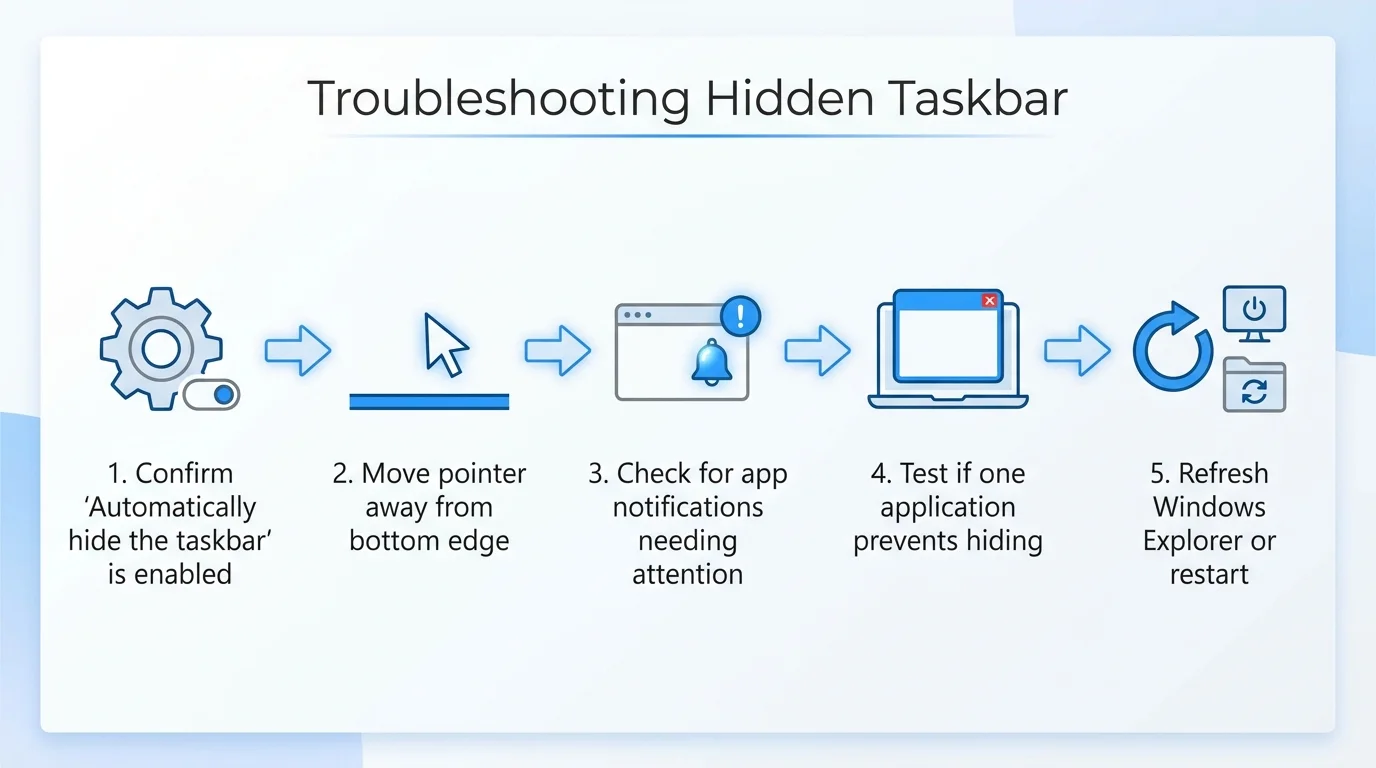
If you enabled auto-hide but the taskbar stays visible, work through these checks in order. Avoid changing Registry values or downloading a taskbar utility before trying the built-in options.
1. Check whether an app needs your attention
An application can signal that something needs attention, for example by flashing its taskbar button or showing a badge. Select the app and inspect its notification or prompt, then check whether the taskbar hides normally afterward. Do not dismiss an alert you do not understand just to hide the taskbar.
2. Move the pointer completely away from the taskbar
Auto-hide cannot activate while the pointer is resting over the taskbar or at its activation edge. Move the pointer toward the center of the screen and wait a moment. If you use a touchpad, make sure the pointer has not been left at the bottom edge accidentally.
3. Check the auto-hide setting again
Open Taskbar settings > Taskbar behaviors and confirm that Automatically hide the taskbar is still selected. Windows updates, configuration changes, or a user switching profiles can sometimes leave you looking at a different setting state than expected.
4. Close or minimize the window that seems to block auto-hide
If the issue happens only with one application, switch to another window or minimize the app to see whether the taskbar hides. The behavior may relate to that app's notifications or full-screen mode rather than the taskbar setting itself. If it is a browser or media app, exit full-screen mode and test again.
5. Restart Windows Explorer if the taskbar appears stuck
If the taskbar and other Windows shell elements are unresponsive, restarting Windows Explorer can refresh them. Save your work first, because the desktop and taskbar may disappear briefly while Explorer restarts.
- Press Ctrl + Shift + Esc to open Task Manager.
- Find Windows Explorer in the process list. You may need to look under Processes.
- Select Windows Explorer, then choose Restart if that option is available.
- Wait for the desktop and taskbar to return, then test auto-hide again.
Do not end unrelated processes just because their names are unfamiliar. If Windows Explorer is not listed or the restart option is unavailable, skip this step and continue with Windows Update or a normal restart.
6. Install available Windows updates and restart
If the problem persists across apps, check Settings > Windows Update for available updates. Install updates that are appropriate for your computer, then use Restart from the Start menu and test the taskbar again. A restart may resolve a temporary shell issue, but it is not guaranteed to fix every cause.
Can you hide only some taskbar icons?
Yes, but that is different from hiding the entire taskbar. If you want the taskbar to remain visible while removing items such as Search, Widgets, or Task View, open Settings > Personalization > Taskbar and review the Taskbar items options. To control which notification-area icons appear, review the system-tray sections on the same settings page. Available controls can vary by device and Windows build.
Microsoft's taskbar customization documentation (opens in new tab) describes the controls for taskbar items, behaviors, and notification-area icons.
Does hiding the taskbar improve performance?
Auto-hide is primarily a screen-space preference, not a performance optimization. It can make a small display feel less crowded, particularly while working in maximized apps, but it does not meaningfully reduce the resources used by Windows on its own. If your PC is slow, investigate startup apps and system resource use instead of expecting auto-hide to make the computer faster.
Frequently asked questions
What is the keyboard shortcut to hide the Windows 11 taskbar?
Windows 11 does not provide a standard built-in keyboard shortcut that directly toggles taskbar auto-hide. Use Taskbar settings > Taskbar behaviors to turn the option on or off. You can still use keyboard shortcuts such as Windows + T to focus taskbar apps when you need keyboard navigation.
Can I hide the taskbar automatically only when using a full-screen app?
Windows manages taskbar visibility differently when an app enters full-screen mode. The standard Automatically hide the taskbar setting controls its ordinary behavior when not in use; it is not a separate per-app rule. If a full-screen app keeps the taskbar visible, exit full-screen mode and check for notifications or app-specific behavior.
Does auto-hide work on more than one monitor?
Windows supports taskbar behavior across multiple displays, although the exact options depend on your display setup and Windows version. Open Taskbar settings and review the multiple-display options if you need taskbars on more than one screen. Test the bottom edge on the display where you expect the taskbar to appear.
Will hiding the taskbar close my apps?
No. Auto-hide only changes taskbar visibility. It does not close applications, remove pinned shortcuts, or disable background programs.
What if the Automatically hide the taskbar option is missing?
Check that you opened Settings > Personalization > Taskbar and expanded Taskbar behaviors. If it is still missing, install applicable Windows updates and consult Microsoft's current taskbar documentation for your device and build. Avoid using Registry edits or third-party utilities to force an option you cannot find.
Bottom line
To hide the taskbar in Windows 11, right-click the taskbar, open Taskbar settings, expand Taskbar behaviors, and enable Automatically hide the taskbar. Move the pointer to the bottom edge whenever you need the taskbar back. If it will not hide, check app alerts and pointer position first, then restart Windows Explorer or Windows if necessary.
Related guides
- How to Fix Slow Startup in Windows 11
- How to Stop Apps from Opening on Startup in Windows
- What Is Windows Fast Startup? Should You Disable It?
Sources
Verified Primary Sources & Citations
NextTechExplained verifies facts against official documentation, engineering whitepapers, and regulatory filings.
- Microsoft Support: Customize the taskbar in WindowsView Official Source
- Microsoft Support: Make it easier to focus on tasksView Official Source
Published by NextTechExplained
Editorial Team • Institutional Publication Byline
Articles published under this byline are prepared through rigorous research and verified against official engineering specifications, standards documentation, and primary sources. Learn more about our process on our About page and Editorial Policy.
Related Explanations & Guides
How to Make the Taskbar Transparent in Windows 11
Make the Windows 11 taskbar look more transparent using built-in Transparency effects, or use TranslucentTB for more control over its appearance.
How to Pin a Website to the Taskbar in Windows 11
Pin a favorite website to the Windows 11 taskbar with Microsoft Edge. Learn the standard steps, an app-style alternative, and fixes if pinning is missing.
How to Boot from USB on a Windows PC
Learn how to boot a Windows PC from a USB drive using the one-time boot menu, create official Windows installation media, and troubleshoot when the USB is not listed.