
How to Pin a Website to the Taskbar in Windows 11
Pin a favorite website to the Windows 11 taskbar with Microsoft Edge. Learn the standard steps, an app-style alternative, and fixes if pinning is missing.
Editorial Team
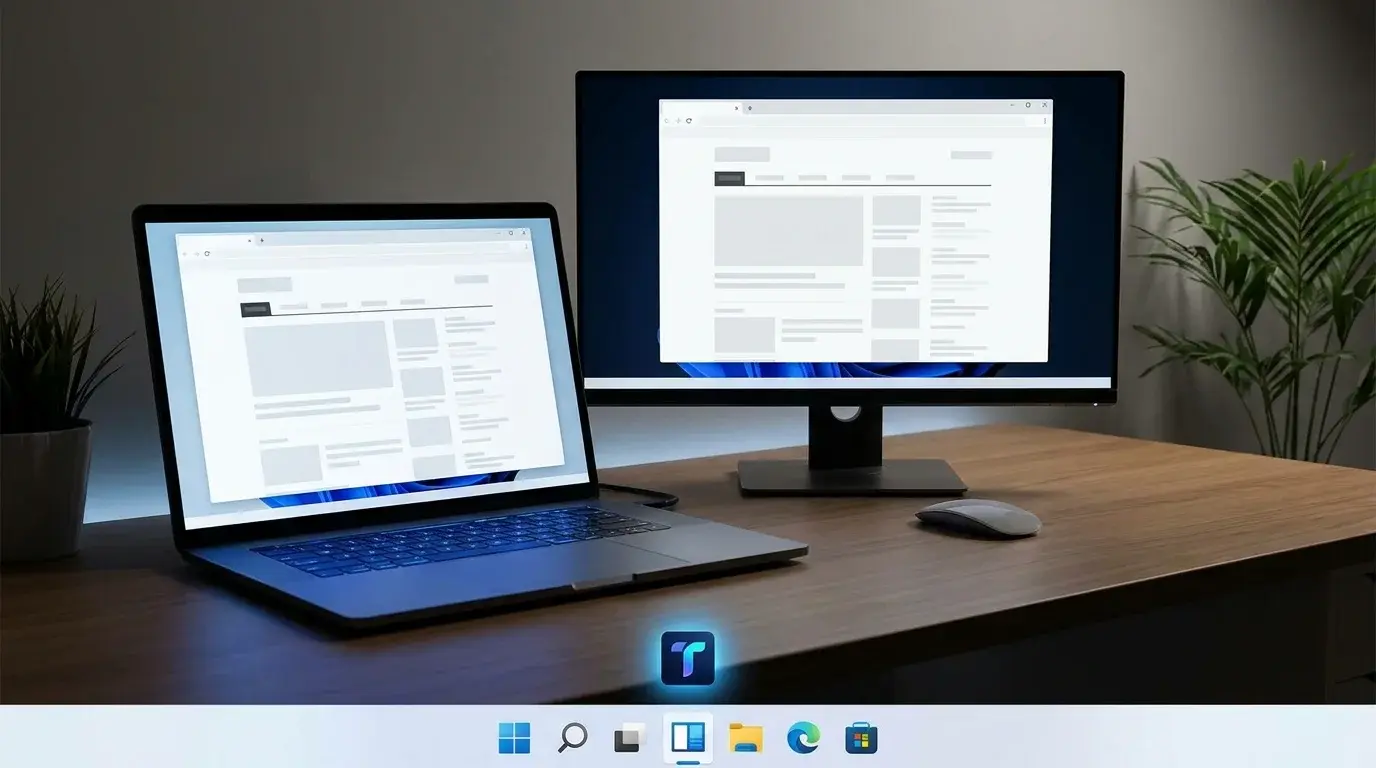
A Windows 11-inspired desktop with a favorite website shortcut pinned to the taskbar
Table of Contents (18 sections)
- The quickest method: Pin a website from Microsoft Edge
- Alternative: Install the website as an app
- How to pin a website you use for work or school
- How to remove a pinned website
- Troubleshooting: Website pinning is not working
- "Pin to taskbar" is missing
- The shortcut does not appear
- The website opens in the wrong browser profile
- Your work computer blocks pinning
- You use a different browser
- Frequently asked questions
- Can I pin more than one website?
- Does pinning a website make it open faster?
- Is pinning a website the same as bookmarking it?
- Can I unpin a website later?
- Summary
- Related guides
- Sources
Pinning a website to the taskbar gives you a quick way to open a site you use regularly without first opening a new tab or searching through bookmarks. It can be useful for webmail, calendars, work dashboards, online classes, news sites, and other services you visit every day.
On Windows 11, Microsoft Edge includes a built-in option for pinning websites. The exact menu wording can vary with the Edge version and device policies, so this guide also explains an alternative way to install a website as an app.
The quickest method: Pin a website from Microsoft Edge
Use this method first. It adds a website shortcut to your Windows taskbar.
- Open Microsoft Edge.
- Go to the website you want to pin.
- Select Settings and more (the three-dot menu) in the upper-right corner.
- Open More tools.
- Select Pin to taskbar if the option appears.
- Follow any confirmation prompt shown by Windows or Edge.
- Look along the taskbar for the new website shortcut.
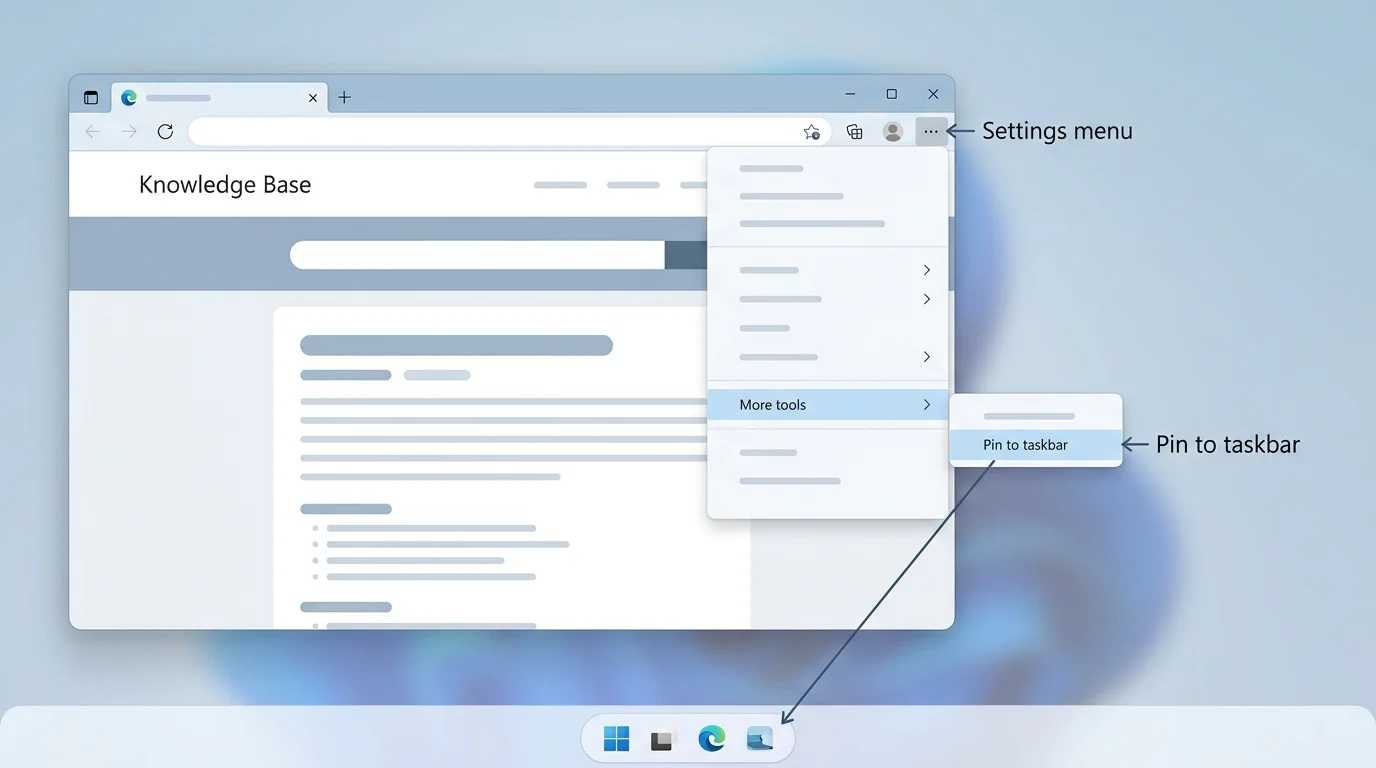
You can repeat these steps for other sites. Each pinned shortcut provides a direct way to open its website; it does not download the website or make it available offline.
Can't find "Pin to taskbar"? Edge menus can differ across versions, and some options may be restricted on organization-managed computers. Try the install-as-an-app method below, or check whether your browser is up to date and whether your device administrator manages browser policies.
Alternative: Install the website as an app
Some websites work well as app-like windows. Microsoft Edge can install many websites as apps, even when a site is not a traditional Progressive Web App. You can then pin the installed app to the taskbar.
- Open the website in Microsoft Edge.
- Select Settings and more (three dots).
- Choose More tools, then Apps.
- Select Install this site as an app, if available.
- Give the app a recognizable name if Edge asks, then select Install.
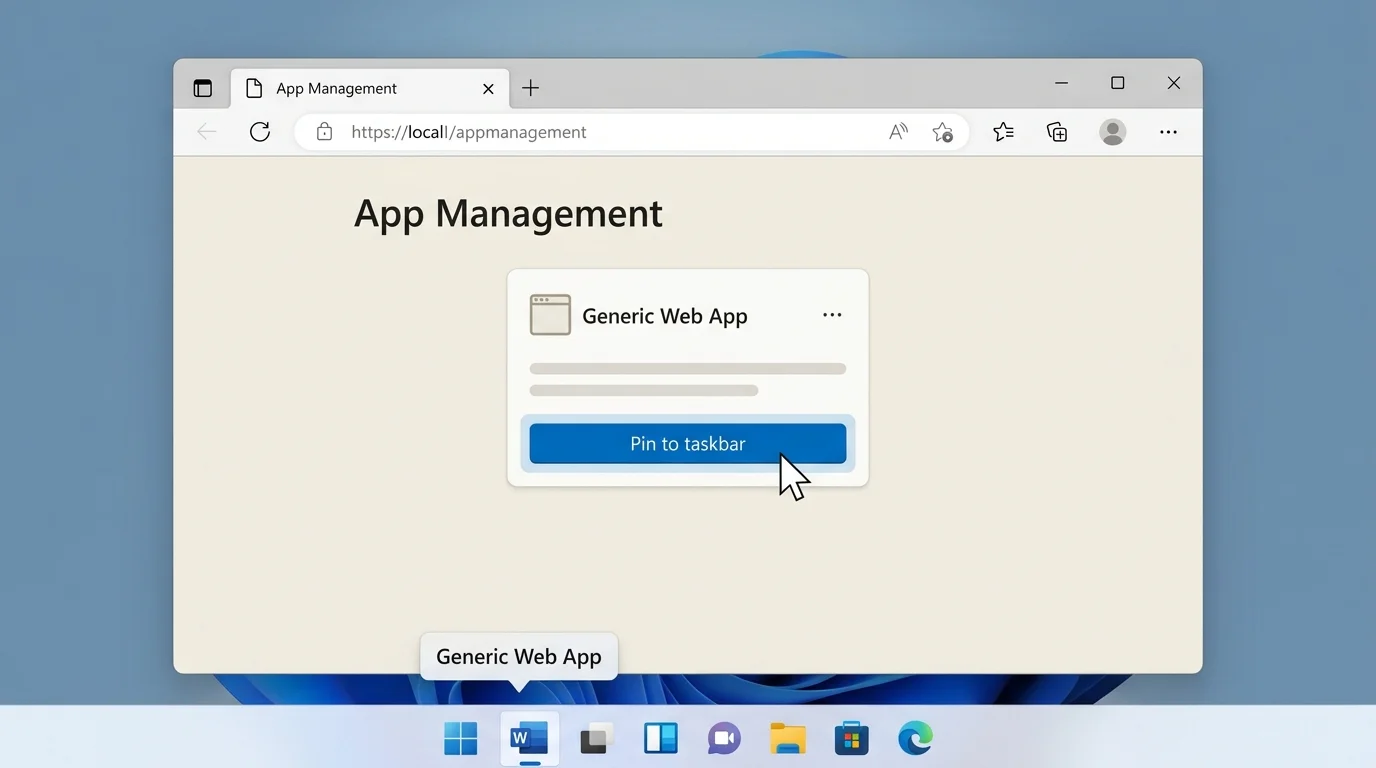
- After installation, open
edge://appsin Edge. - Find the installed website and open its Details page.
- Select Pin to taskbar.
The installed site may open in its own window instead of a normal browser tab. That can make it feel more like a desktop app, but it still relies on the website and an internet connection when the site requires one.
How to pin a website you use for work or school
The same process works for common web services, such as email, calendars, learning portals, project dashboards, and collaboration tools. Open the exact page you want to reach, then pin it from Edge or install the site as an app.
For a service that requires signing in, make sure you use the correct account and profile before pinning it. If you have separate personal and work profiles in Edge, install or pin the site from the profile you intend to use. Your organization's policies may limit which apps or shortcuts you can install.
How to remove a pinned website
If you no longer need the shortcut:
- Find its icon on the Windows taskbar.
- Right-click the icon.
- Choose Unpin from taskbar.
Removing a taskbar shortcut does not delete your account or remove the website from the internet. If you installed the site as an app and want to remove the app itself, open edge://apps, select the app's Details, and choose Uninstall. Review the prompt before confirming.
Troubleshooting: Website pinning is not working
"Pin to taskbar" is missing
Try the More tools > Apps > Install this site as an app path. After installation, open edge://apps, choose the app's Details, and check for Pin to taskbar. The available options can depend on your Edge version and device configuration.
The shortcut does not appear
Check the taskbar carefully, including icons that may be grouped with other apps. If the pinning action showed an error or no confirmation, repeat the steps. Restart Edge and try again after saving anything important in open tabs.
The website opens in the wrong browser profile
Open the site in the intended Edge profile and create the shortcut or installed app from that profile. If it is a work or school device, your organization may control browser profiles, installed apps, and taskbar behavior.
Your work computer blocks pinning
Some browsers and taskbar features can be controlled by organization policy. If the relevant options are missing only on a managed device, contact your IT administrator rather than changing policy or registry settings yourself.
You use a different browser
The steps above describe Microsoft Edge's documented Windows pinning workflow. Other browsers may offer different site-installation or shortcut features, and their menus can change between versions. If you cannot find the same options, use that browser's current help documentation rather than assuming its steps are identical to Edge's.
Frequently asked questions
Can I pin more than one website?
Yes. You can pin multiple websites and web apps, then arrange the taskbar shortcuts to suit your routine.
Does pinning a website make it open faster?
It mainly saves navigation steps by giving you a direct shortcut. It does not guarantee that a slow website, network connection, or computer will load faster.
Is pinning a website the same as bookmarking it?
No. A bookmark lives in your browser's bookmarks or favorites. A taskbar pin is a shortcut accessible from the Windows desktop even before you navigate through your open browser tabs.
Can I unpin a website later?
Yes. Right-click its taskbar icon and select Unpin from taskbar. This removes the shortcut, not the website itself.
Summary
To pin a website in Windows 11, open it in Microsoft Edge, select Settings and more > More tools > Pin to taskbar, and follow the prompt. If that option is unavailable, try installing the site as an app through More tools > Apps, then pin it from edge://apps. Menu availability may vary by Edge version or device policy.
Related guides
- How to Hide the Taskbar in Windows 11
- How to Make the Taskbar Transparent in Windows 11
- How to Stop Apps from Opening on Startup in Windows
Sources
Verified Primary Sources & Citations
NextTechExplained verifies facts against official documentation, engineering whitepapers, and regulatory filings.
- Microsoft Edge: Pin Websites to Your TaskbarView Official Source
- Microsoft Support: Install, manage, or uninstall apps in Microsoft EdgeView Official Source
- Microsoft Support: Customize the taskbar in WindowsView Official Source
Published by NextTechExplained
Editorial Team • Institutional Publication Byline
Articles published under this byline are prepared through rigorous research and verified against official engineering specifications, standards documentation, and primary sources. Learn more about our process on our About page and Editorial Policy.
Related Explanations & Guides
How to Hide the Taskbar in Windows 11
Hide the Windows 11 taskbar automatically to free up screen space. Follow the Settings steps and fix common auto-hide problems safely.
How to Make the Taskbar Transparent in Windows 11
Make the Windows 11 taskbar look more transparent using built-in Transparency effects, or use TranslucentTB for more control over its appearance.
How to Boot from USB on a Windows PC
Learn how to boot a Windows PC from a USB drive using the one-time boot menu, create official Windows installation media, and troubleshoot when the USB is not listed.