
How to Stop Apps from Opening on Startup in Windows
Stop unwanted apps from opening automatically when you sign in to Windows 11. Use Startup settings, Task Manager, and the Startup folders safely.
Editorial Team
A Windows-inspired laptop desktop with a clean startup-app management view
Table of Contents (19 sections)
- The quickest way: turn off startup apps in Settings
- Use Task Manager to see which apps have the most startup impact
- Which startup apps should you disable?
- What should you leave enabled?
- If an app keeps opening after you disable it
- 1. Check the app's own settings
- 2. Check the Startup folder
- 3. Look for a duplicate startup entry
- 4. Check for unwanted software
- Should you edit the Windows Registry?
- Did disabling startup apps make Windows faster?
- Frequently asked questions
- How do I stop apps from opening on startup in Windows 11?
- Will disabling a startup app delete it?
- Why is an app missing from the Startup apps list?
- Can I disable every app listed in Startup?
- Does turning off startup apps fix a slow computer?
- Related guides
- Official sources
Apps that launch every time you sign in can make your desktop feel crowded and may add background activity. You do not need to uninstall an app just to stop it from opening automatically. In most cases, you can change its startup setting and still open it whenever you need it.
This guide focuses on Windows 11. The same basic Settings and Task Manager options are also available in Windows 10, although menu layouts may differ. Microsoft ended standard Windows 10 support on October 14, 2025, so use a supported Windows version where possible.
The quickest way: turn off startup apps in Settings
- Open Start and select Settings.
- Go to Apps > Startup.
- Find the app you do not want to launch automatically.
- Switch its toggle to Off.
- Repeat for other nonessential apps, then restart or sign out and back in to check the result.
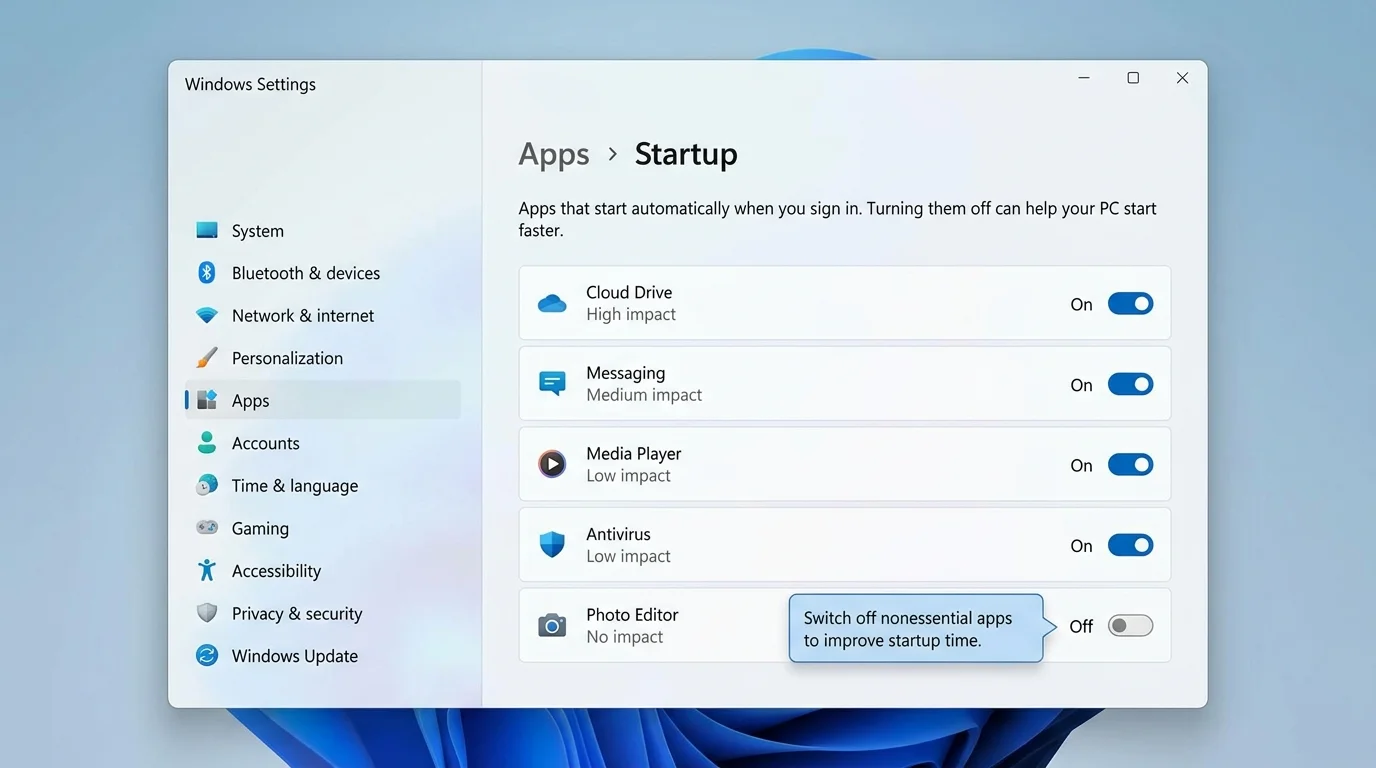
Turning a startup toggle off does not normally uninstall the app or prevent you from opening it manually. If the app has its own setting for launching at sign-in, you may also need to change that setting inside the app.
Use Task Manager to see which apps have the most startup impact
Task Manager is useful when you have many startup entries and want to prioritize which ones to review.
- Press Ctrl + Shift + Esc to open Task Manager. You can also right-click Start and select Task Manager.
- Select Startup apps in the left navigation. On some Windows builds, the layout or label may look slightly different.
- Review the Startup impact information where it is available.
- Select a nonessential app, then choose Disable.
- Leave Task Manager open if you want to review more entries; changes take effect for future sign-ins.
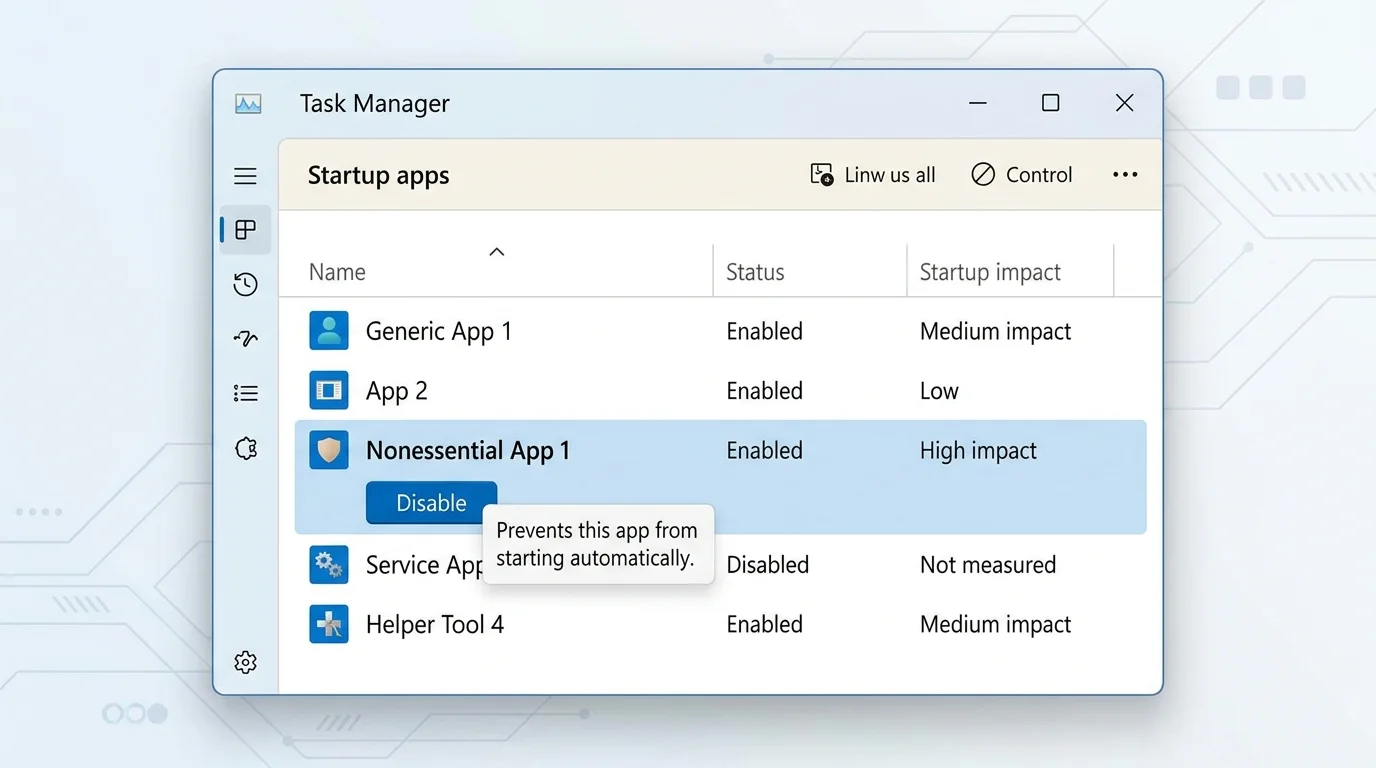
Startup impact is a useful clue, not a universal performance score. An app marked as high impact may deserve attention, but decide based on whether you need it to run immediately after sign-in. Impact data may also be unavailable for some entries.
Which startup apps should you disable?
The right choice depends on your routine and the software installed on your computer. Consider turning off apps that you do not need immediately when you sign in, such as:
- Game launchers that you only use occasionally.
- Chat or meeting apps that you prefer to open manually.
- Music or media apps that do not need to start automatically.
- Update helpers for software you rarely use, provided the app remains updateable through its normal process.
Before disabling an entry, check its publisher or app name. If you do not recognize it, search for the name or check the software publisher's guidance rather than guessing from an unfamiliar process name.
What should you leave enabled?
Do not blindly disable everything in the list. Keep apps enabled when you rely on them for a specific startup function, such as:
- Security software you trust and intentionally use.
- Accessibility tools you need as soon as you sign in.
- Input, audio, touchpad, or device utilities if disabling them affects features you rely on.
- Work tools that must be ready at sign-in, such as a sync client you actively use.
Windows and drivers do not all appear in the Startup apps list, and this list is not a complete inventory of every background service. Avoid disabling unfamiliar system components or changing services just to make the list shorter.
If an app keeps opening after you disable it
If an app comes back after a restart, work through these checks in order.
1. Check the app's own settings
Open the app and look for an option such as Start when I sign in, Launch at startup, or Open on login. If it has its own launch preference, turn it off there as well. Labels differ between apps, and some apps may re-enable their preference after an update.
2. Check the Startup folder
Some older or manually configured shortcuts are managed through File Explorer instead of the usual Startup apps list.
- Press Windows + R to open Run.
- Type
shell:startupand press Enter to open your personal Startup folder. - If the unwanted app has a shortcut there, remove only that shortcut if you are sure you do not want it to launch at sign-in.
- If the app is not there, you can also check
shell:common startup, which opens the Startup folder used for all users of the computer.
Removing a shortcut from a Startup folder does not uninstall the app. Be careful not to delete unrelated files or shortcuts.
3. Look for a duplicate startup entry
An app can sometimes have more than one way to launch, such as an entry in Task Manager and a shortcut in a Startup folder. Check the relevant places above and turn off only the entries you recognize and no longer need.
4. Check for unwanted software
If an unfamiliar app launches repeatedly, changes your settings, or returns even after you remove a known startup shortcut, run a scan with Windows Security and review recently installed apps. Do not download random "startup cleaner" utilities or follow instructions to delete registry entries from an unverified source.
Should you edit the Windows Registry?
Usually, no. Startup-related registry entries exist, but changing them manually can cause unintended problems. Begin with Settings, Task Manager, and the Startup folders. Only consider registry troubleshooting when you understand the exact entry and have reliable instructions for that specific problem.
Did disabling startup apps make Windows faster?
It can reduce the work Windows performs while signing in, particularly when several resource-heavy apps start together. The change may be subtle on a fast computer, and it will not fix every cause of a slow startup. If Windows still takes a long time to become usable, check available storage, Windows updates, and CPU, memory, or disk activity in Task Manager. Hardware limits or another software issue may be responsible.
Frequently asked questions
How do I stop apps from opening on startup in Windows 11?
Open Settings > Apps > Startup, then switch off the apps you do not want to launch automatically. You can also use Task Manager > Startup apps.
Will disabling a startup app delete it?
No. Disabling a startup entry normally prevents automatic launch. You can still open the installed app manually, and you can usually re-enable it later.
Why is an app missing from the Startup apps list?
Some apps use a Startup folder shortcut or an in-app setting rather than a standard registered startup entry. Check the app's own preferences and the Startup folders if needed.
Can I disable every app listed in Startup?
That is not recommended. Some apps provide security, accessibility, device, synchronization, or other functions you may need immediately after sign-in. Review each entry before changing it.
Does turning off startup apps fix a slow computer?
It may help with sign-in delays and background activity, but it is not a complete performance fix. Low storage, pending updates, malware, heavy processes, or aging hardware can also affect performance.
Related guides
Official sources
Verified Primary Sources & Citations
NextTechExplained verifies facts against official documentation, engineering whitepapers, and regulatory filings.
- Microsoft Support: Configure startup applications in WindowsView Official Source
- Microsoft Support: Tips to improve PC performance in WindowsView Official Source
Published by NextTechExplained
Editorial Team • Institutional Publication Byline
Articles published under this byline are prepared through rigorous research and verified against official engineering specifications, standards documentation, and primary sources. Learn more about our process on our About page and Editorial Policy.
Related Explanations & Guides
How to Fix Slow Startup in Windows 11
Is your Windows PC taking too long to start? Use these safe steps to check startup apps, free storage, install updates, and narrow down the cause of a slow Windows 11 startup.
Battlefield 6 Secure Boot Error: How to Check and Fix It on PC
Getting a Secure Boot or EA Javelin Anti-Cheat error in Battlefield 6? Check UEFI, Secure Boot, TPM 2.0, and safe next steps for your PC.
Gigabyte Secure Boot: How to Enable It and Fix Common Errors
Learn how to check Secure Boot on Gigabyte and AORUS PCs, understand UEFI and key settings, and troubleshoot common BIOS messages safely.