
How to Make the Taskbar Transparent in Windows 11
Make the Windows 11 taskbar look more transparent using built-in Transparency effects, or use TranslucentTB for more control over its appearance.
Editorial Team
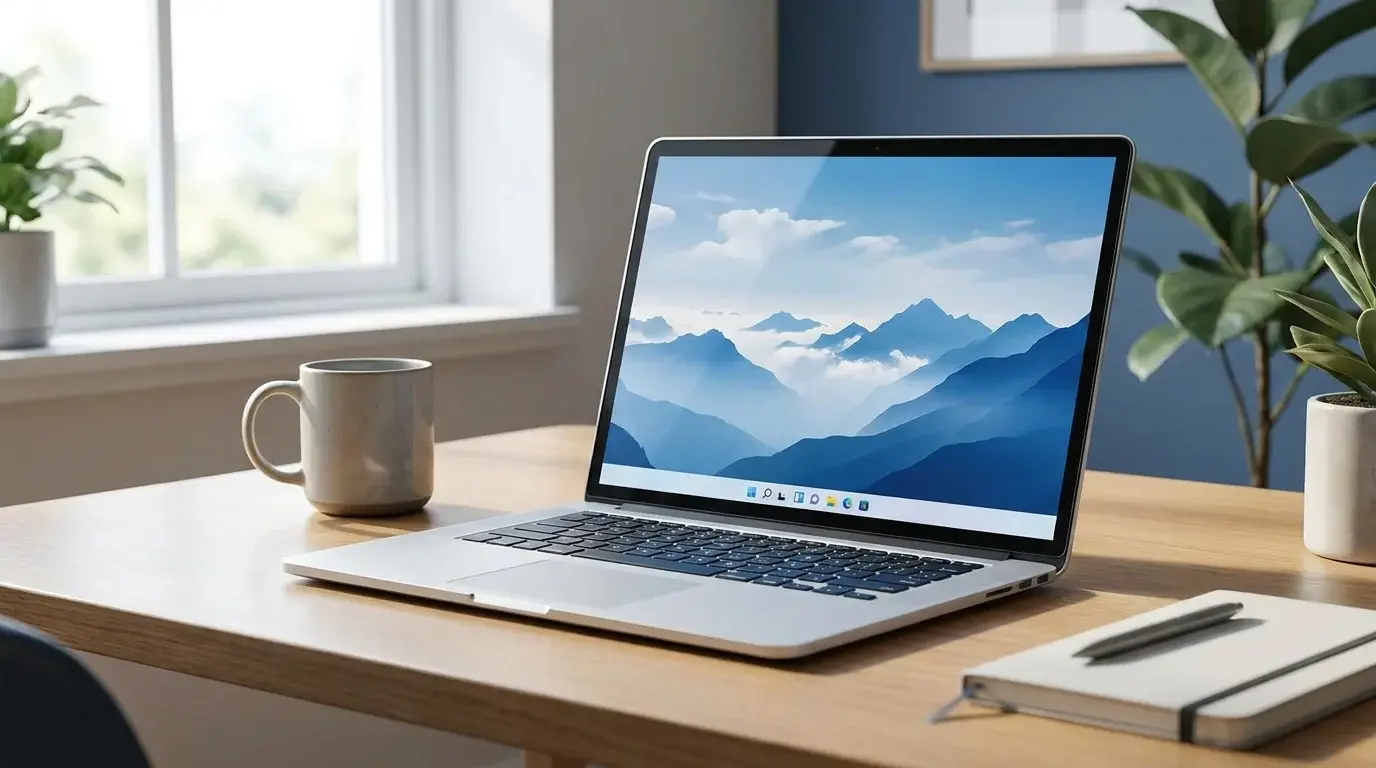
A Windows 11-inspired desktop with a translucent taskbar that blends with the wallpaper
Table of Contents (15 sections)
- Method 1: Turn on Transparency effects in Windows 11
- Why the taskbar is still not fully transparent
- Method 2: Use TranslucentTB for a clearer taskbar
- Install and configure TranslucentTB
- Is TranslucentTB required?
- How to turn taskbar transparency off
- Frequently asked questions
- Can I make the Windows 11 taskbar 100% transparent without an app?
- Is TranslucentTB part of Windows?
- Will making the taskbar transparent make my PC faster?
- Why does the taskbar become opaque when I open an app?
- Is changing the Registry necessary?
- Bottom line
- Related guides
- Sources
You can make the Windows 11 taskbar look more transparent, but the result depends on which effect you want. Windows includes a built-in Transparency effects setting that gives supported surfaces a subtle translucent, acrylic-style appearance. It does not always make the taskbar completely clear. If you want more control over the taskbar's appearance, a utility such as TranslucentTB offers additional styles.
This guide starts with Windows' own settings, then explains the optional third-party method. Try the built-in option first; it does not require installing another app. Microsoft's guide to personalizing colors (opens in new tab) explains how Transparency effects change the appearance of Windows surfaces.
Method 1: Turn on Transparency effects in Windows 11
Use this method if you want a subtle translucent look without installing an extra app.
- Press Windows + I to open Settings.
- Select Personalization.
- Open Colors.
- Turn on Transparency effects.
- Look at the taskbar and other supported Windows surfaces to see the effect.
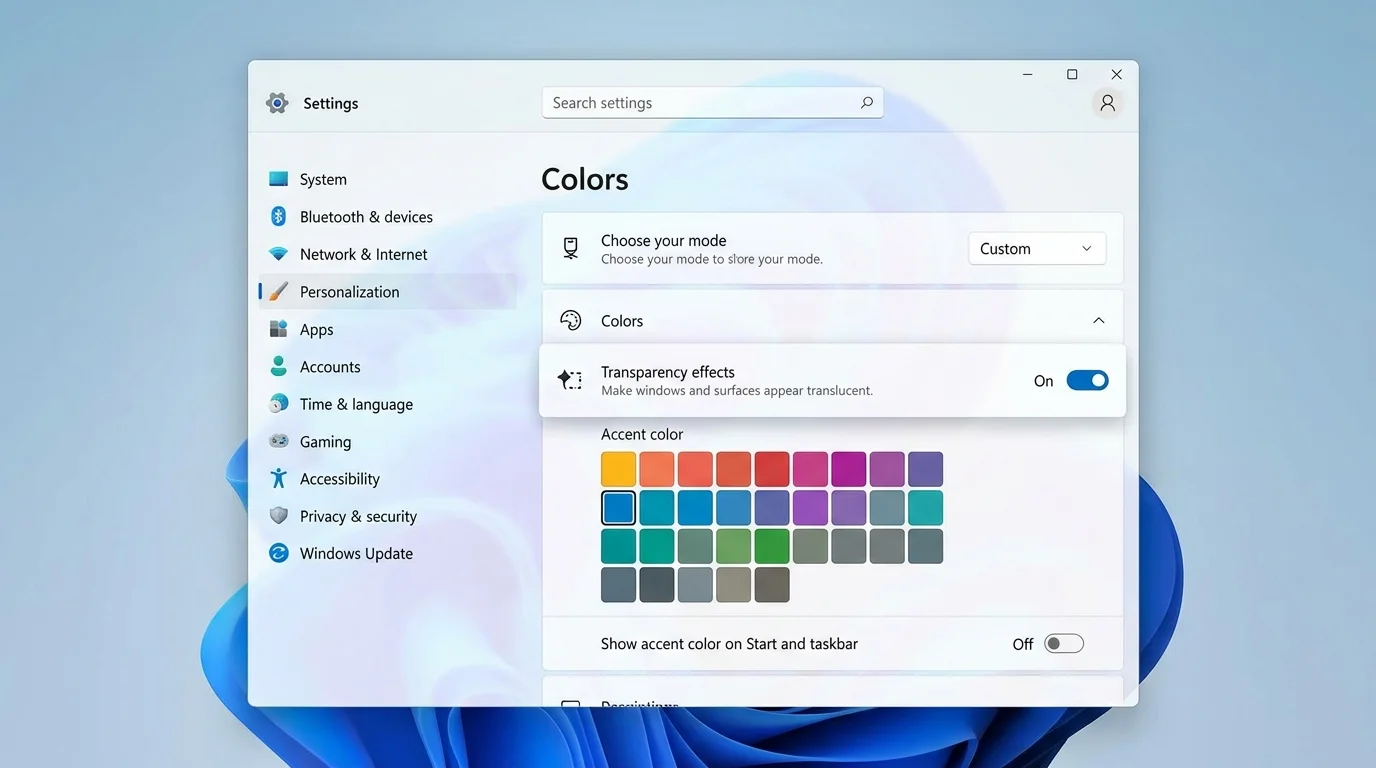
The effect is intentionally subtle. Depending on your wallpaper, color mode, display, accessibility settings, and Windows build, the taskbar may still look mostly tinted or dark. Turning on this option does not guarantee a completely clear taskbar.
Why the taskbar is still not fully transparent
The built-in setting applies a translucent appearance and acrylic-style blur to supported UI surfaces. It is mainly a Windows appearance effect, not a control for setting the taskbar's transparency to zero.
If you enabled Transparency effects and the taskbar still looks solid, check these points:
- Confirm the setting is on: Open Settings > Personalization > Colors and check Transparency effects.
- Check Accessibility settings: Open Settings > Accessibility > Visual effects and review the available visual-effect settings. Do not turn off accessibility features you rely on just to change the taskbar appearance.
- Compare against another wallpaper: A dark or busy background can make translucency difficult to notice. Temporarily use a simpler wallpaper to judge the effect.
- Restart Windows normally: If the setting appears to have no effect after you change it, save your work and restart Windows, then check again.
If you want a more obvious or more customizable effect, use the optional method below. You do not need to edit the Registry to try either method described in this article.
Method 2: Use TranslucentTB for a clearer taskbar
TranslucentTB is an optional utility that lets you choose different taskbar appearances, including clear, tinted, blurred, and acrylic-style states. It is separate software, not a built-in Windows setting. Review the project's options and compatibility notes before installing it.
Download it from the TranslucentTB page on the Microsoft Store (opens in new tab) or the project's official GitHub repository and releases (opens in new tab). Avoid third-party download sites and repackaged installers.
Install and configure TranslucentTB
- Open the Microsoft Store listing or official GitHub releases page linked above.
- Install the current stable release that is appropriate for your Windows system. The Microsoft Store is the simplest option for most users.
- Launch TranslucentTB and locate its icon in the notification area near the clock. If you do not see it, check the hidden system-tray icons.
- Right-click the TranslucentTB icon to open its menu.
- Open the Desktop state or equivalent appearance option, then choose Clear if that option is shown in your version.
- If the result is too tinted, review the utility's color or transparency controls, if available, and adjust them gradually.
- Test the taskbar with the Start menu, Search, maximized windows, and ordinary desktop windows. Some versions support changing the appearance based on these different states.
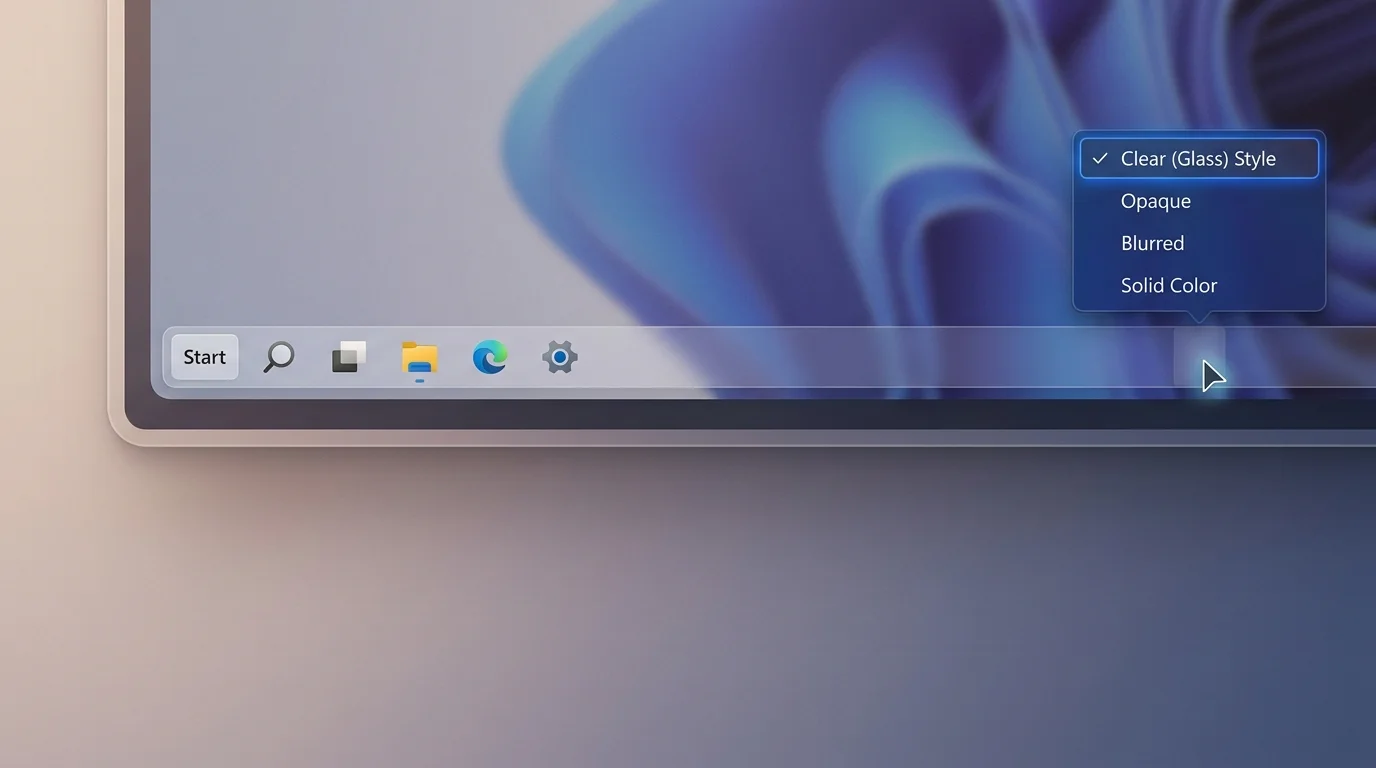
Menu labels and available effects can change between releases. If you do not see the exact option described here, consult the current documentation in the official TranslucentTB repository (opens in new tab). Do not install an older or unofficial build simply to match an illustration.
Is TranslucentTB required?
No. If you only want the standard translucent look, Windows' built-in Transparency effects may be enough. Use an extra utility only if the built-in appearance does not meet your needs and you are comfortable running a third-party program that customizes the taskbar.
Taskbar-customization utilities can conflict with other programs that also change the taskbar. If the taskbar behaves strangely after installing one, temporarily disable other taskbar-modification utilities and test again. If the problem remains, close or uninstall the customization app and return to Windows' default appearance.
How to turn taskbar transparency off
To return to Windows' standard appearance:
- Open Settings > Personalization > Colors.
- Turn Transparency effects off if you want Windows' supported surfaces to appear more opaque.
- If you installed TranslucentTB, right-click its notification-area icon and exit the app, or use its normal uninstall process in Windows Settings.
- Restart Windows if the appearance does not return to normal immediately.
Turning off Transparency effects changes more than the taskbar: other supported Windows surfaces can also become more opaque. Exiting a third-party taskbar utility is a separate step.
Frequently asked questions
Can I make the Windows 11 taskbar 100% transparent without an app?
Windows' built-in Transparency effects provides a subtle translucent or acrylic-style appearance; it does not offer a universal control for making the taskbar completely clear. For more control, you can evaluate a taskbar customization utility such as TranslucentTB from its official distribution channels.
Is TranslucentTB part of Windows?
No. It is a separate, open-source utility maintained by its project contributors. Download it from the Microsoft Store listing or the project's official GitHub repository, and review its release notes and compatibility information before installation.
Will making the taskbar transparent make my PC faster?
No performance improvement should be expected. Transparency is an appearance preference. Choose the effect you prefer, and turn it off if it makes interface elements harder to read or if you notice a compatibility issue.
Why does the taskbar become opaque when I open an app?
Some taskbar utilities support different appearances depending on whether a window is open, maximized, or the Start or Search interface is active. Check the utility's dynamic-state settings and documentation. The behavior may be intentional rather than a Windows error.
Is changing the Registry necessary?
No. The built-in setting and the optional TranslucentTB method described here do not require manual Registry edits. Avoid copying Registry changes from unrelated tutorials to force a visual effect.
Bottom line
Start with Settings > Personalization > Colors > Transparency effects for Windows' built-in translucent look. If you specifically want a clearer, more configurable taskbar, consider TranslucentTB and obtain it from the Microsoft Store or its official GitHub releases. The built-in Windows effect is the simpler option; a third-party utility adds customization but can introduce compatibility considerations.
Related guides
- How to Hide the Taskbar in Windows 11
- How to Fix Slow Startup in Windows 11
- How to Stop Apps from Opening on Startup in Windows
Sources
Verified Primary Sources & Citations
NextTechExplained verifies facts against official documentation, engineering whitepapers, and regulatory filings.
- Microsoft Support: Personalize your colors in WindowsView Official Source
- TranslucentTB: Official GitHub repository and release downloadsView Official Source
- TranslucentTB: Project features and documentationView Official Source
Published by NextTechExplained
Editorial Team • Institutional Publication Byline
Articles published under this byline are prepared through rigorous research and verified against official engineering specifications, standards documentation, and primary sources. Learn more about our process on our About page and Editorial Policy.
Related Explanations & Guides
How to Hide the Taskbar in Windows 11
Hide the Windows 11 taskbar automatically to free up screen space. Follow the Settings steps and fix common auto-hide problems safely.
How to Pin a Website to the Taskbar in Windows 11
Pin a favorite website to the Windows 11 taskbar with Microsoft Edge. Learn the standard steps, an app-style alternative, and fixes if pinning is missing.
How to Boot from USB on a Windows PC
Learn how to boot a Windows PC from a USB drive using the one-time boot menu, create official Windows installation media, and troubleshoot when the USB is not listed.