
Windows Hello PIN Not Working in Windows 11: How to Fix It
Fix a Windows Hello PIN that is not working in Windows 11. Learn when to restart, sign in with your password, reset the PIN, and contact your administrator.
Editorial Team
A Windows laptop on a desk with a generic sign-in screen and a security PIN symbol
Table of Contents (17 sections)
- First, identify the Windows Hello PIN problem
- 1. Restart Windows and check the sign-in screen
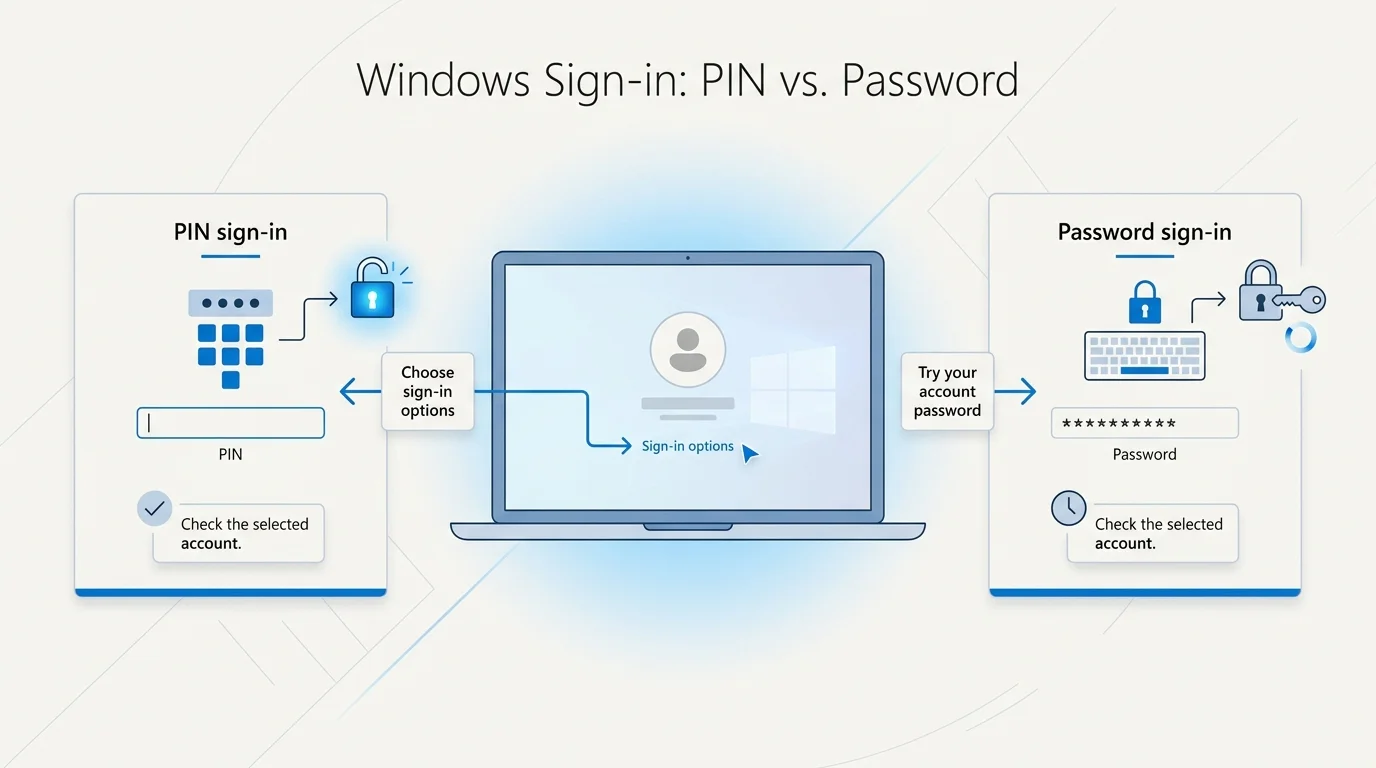
- 2. Try your account password instead of the PIN
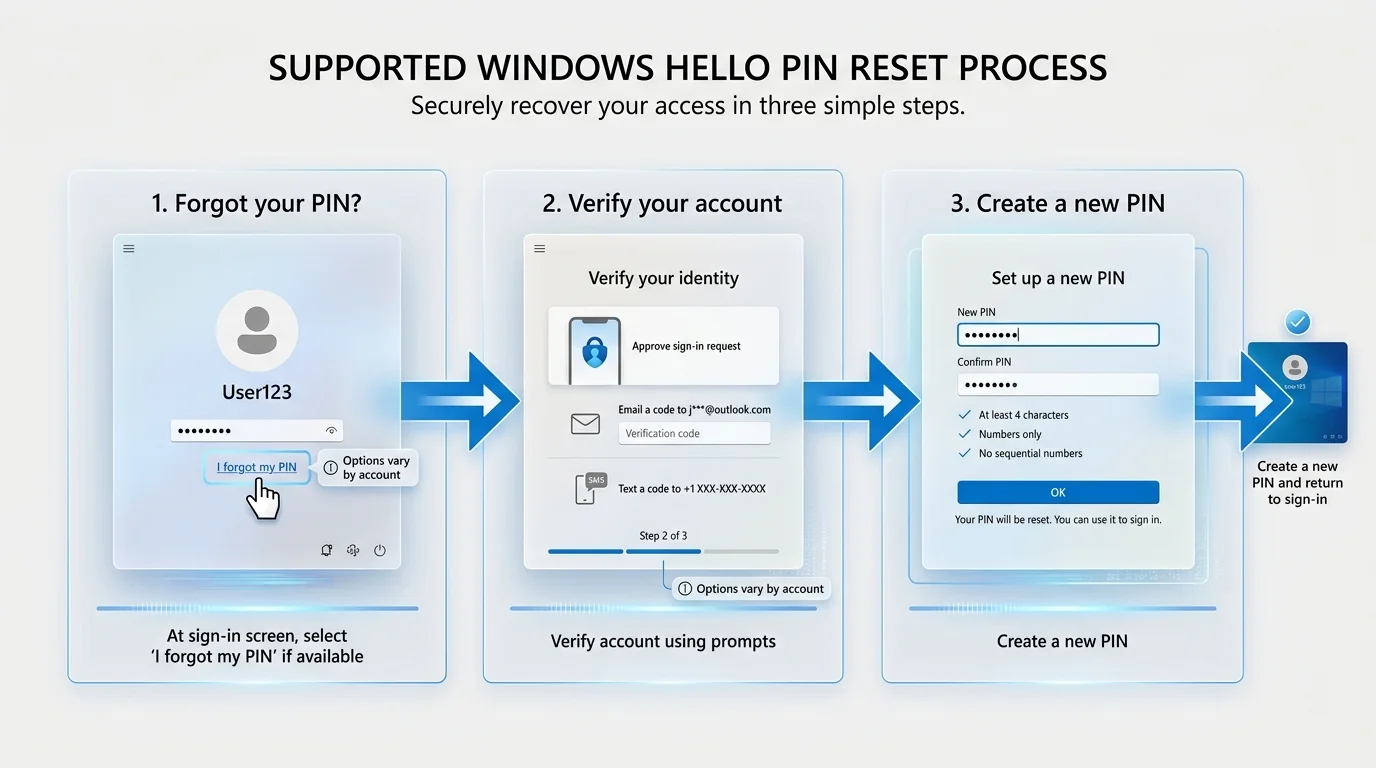
- 3. Reset the PIN from the Windows sign-in screen
- 4. Change or reset the PIN from Settings
- 5. Install applicable Windows updates
- 6. What if the Windows Hello PIN option is missing?
- 7. If PIN creation keeps failing
- Windows Hello PIN troubleshooting checklist
- Frequently asked questions
- Is a Windows Hello PIN the same as my Microsoft account password?
- Why is Windows asking me to create my PIN again?
- Why can't I see "I forgot my PIN"?
- Can I reset my Windows Hello PIN without signing in?
- Should I clear the TPM or delete the NGC folder to fix a PIN error?
- What should I do if my work or school PIN will not set up?
- Official Microsoft sources
If your Windows Hello PIN is not working in Windows 11, start with the safest checks: restart the PC, confirm you are using the PIN for that device, and try signing in with your account password. If Windows offers I forgot my PIN, you can use Microsoft's reset flow. You usually do not need to delete system folders, clear the TPM, or reset Windows to solve a PIN problem.
The right fix depends on what you see. A forgotten PIN, a missing PIN sign-in option, and an error while creating a new PIN are different problems. Work through the matching steps below rather than trying advanced fixes at random.
First, identify the Windows Hello PIN problem
Look at the sign-in screen or the message shown in Settings. The following cases need different next steps.
| What you see | Safest first step |
|---|---|
| You forgot the PIN | Use I forgot my PIN if it appears, or sign in with your password and reset it in Settings. |
| The PIN is rejected even though you believe it is correct | Check the selected account and keyboard input, restart, then use the supported reset flow if needed. |
| The PIN option is missing | Select Sign-in options and see whether password sign-in is available. After signing in, review Windows Hello settings and updates. |
| Windows asks you to create a PIN again | Follow the on-screen setup flow. If setup fails, restart and try again before attempting advanced repair steps. |
| You see an error while creating a work or school PIN | Record the complete error message and contact your organization's IT administrator if the device is managed. |
1. Restart Windows and check the sign-in screen
A temporary Windows sign-in problem may clear after a normal restart. If you can reach the sign-in screen, select the power icon, then choose Restart. If you are already signed in, save your work first and restart from Start > Power > Restart.
When the PC returns to the sign-in screen, check which account is selected. If the computer has more than one account, make sure you are trying to sign in to the intended one. Windows Hello PINs are associated with a particular device, so the PIN you use on one PC is not simply the password for your Microsoft account or the PIN you use on a different PC. Microsoft explains the available Windows Hello sign-in methods (opens in new tab).
Also check that the keyboard is entering the expected characters. If your PIN contains numbers, confirm that the number keys work as expected. When using a physical keyboard, check Num Lock where applicable (if your physical keyboard is completely unresponsive, see our guide on what to do when your keyboard is not typing in Windows 11). Do not keep guessing repeatedly if Windows reports a lockout or asks you to wait; follow the prompt on the screen.
2. Try your account password instead of the PIN
If the PIN sign-in method is unavailable or repeatedly fails, check whether Windows offers password sign-in.
- At the sign-in screen, select Sign-in options.
- Choose the password option if it is available. It may appear as a key-shaped icon or an option labelled Password. (If you normally sign in with biometric authentication but the sensor failed to respond, see our guide on how to fix Windows Hello fingerprint not working in Windows 11).
- Enter the password for the selected Windows account, rather than the Windows Hello PIN.
- After signing in, you can reset or reconfigure the PIN through Settings.
The available options can differ depending on account type, device configuration, and workplace policy. If you use a work or school PC, your organization may restrict some sign-in and recovery options.
If you also forgot your Microsoft account password, reset the password through Microsoft's official account recovery process before continuing. Do not use third-party tools that promise to bypass Windows sign-in.
3. Reset the PIN from the Windows sign-in screen
If you cannot remember the PIN and the option is available, you can reset it without first reaching the desktop.
- At the sign-in screen, select I forgot my PIN below the PIN entry area.
- If Windows asks you to confirm the account, select the correct account.
- Follow the identity-verification prompts. You may need access to the security information associated with your Microsoft account.
- Create a new PIN and finish the on-screen instructions.
Microsoft notes that I forgot my PIN is available for Microsoft accounts, not local accounts. If the option is missing, sign in with your password and reset the PIN from Settings. Do not interpret the missing link as proof that Windows Hello is unsupported. Read Microsoft's current PIN reset instructions (opens in new tab) for the account type you use.
4. Change or reset the PIN from Settings
If you can sign in using your password or another available method, use the supported Windows settings rather than manually changing system files.
- Open Start > Settings.
- Select Accounts > Sign-in options.
- Open PIN (Windows Hello).
- Select Change PIN if you know the current PIN, or I forgot my PIN if that option is offered.
- Follow the account-verification and setup steps shown by Windows.
If you choose Change PIN, Windows may require the existing PIN. If you have forgotten it, use the reset option instead. Settings wording can vary slightly between Windows releases. (If you prefer to remove biometric or PIN sign-in altogether rather than reset it, see our guide on how to disable Windows Hello in Windows 11).
If the reset fails, note the exact error code or message. Restart the PC once and try the supported reset flow again. Microsoft's general Windows Hello guidance recommends retrying the PIN setup or signing out and back in for some transient errors. Persistent errors may need more specific troubleshooting.
5. Install applicable Windows updates
If the PIN stopped working after a Windows update or system change, check for applicable updates once you can sign in through another supported method.
- Open Start > Settings > Windows Update.
- Select Check for updates.
- Install applicable updates and restart if Windows requests it.
- Return to Accounts > Sign-in options and check the Windows Hello PIN status.
Updates are not a guaranteed fix for every PIN issue. If the problem began immediately after a specific update, driver change, or organization policy change, note when it happened and include that information if you contact support (if an update gets stuck downloading or installing, see our guide on what to do when Windows Update is stuck, or how to fix Windows Update error 0x80070005). Do not uninstall security updates without a clear, applicable instruction from Microsoft or your administrator.
6. What if the Windows Hello PIN option is missing?
First, select Sign-in options at the login screen and look for another method, such as your account password. If you can sign in, open Settings > Accounts > Sign-in options and review the PIN (Windows Hello) section.
The section or setup button may be unavailable for reasons including account state, device policy, or a problem with the sign-in configuration. A work or school computer may be controlled by an administrator, and a personal PC may show different options depending on how Windows is configured.
If the PIN section is available, follow its setup or reset flow. If it is missing or reports an error after a restart and Windows Update check, use Microsoft's Windows Hello troubleshooting guidance (opens in new tab). For a managed device, ask your IT administrator before changing organizational account connections or sign-in policy.
7. If PIN creation keeps failing
If Windows repeatedly displays a message that it could not set up the PIN, record the exact message and any error code. Then:
- Restart the PC.
- Sign out and sign in again if that option is available.
- Try the supported PIN creation flow again.
- Check whether the device is managed by your employer or school.
- Contact Microsoft Support or your organization's IT team if the error persists.
Some errors are specific to Windows Hello for Business, Microsoft Entra ID, device enrollment, or a security processor configuration. Enterprise remedies do not always apply to a personal PC. Do not disconnect a work account, change organizational enrollment, or alter TPM settings based on generic advice copied from a forum.
Avoid manually deleting the NGC folder, clearing the TPM, editing the Registry, or disabling security controls as routine first-line fixes. Those steps can affect credentials or other security-dependent functions and should not be attempted unless current instructions for your exact situation specifically require them.
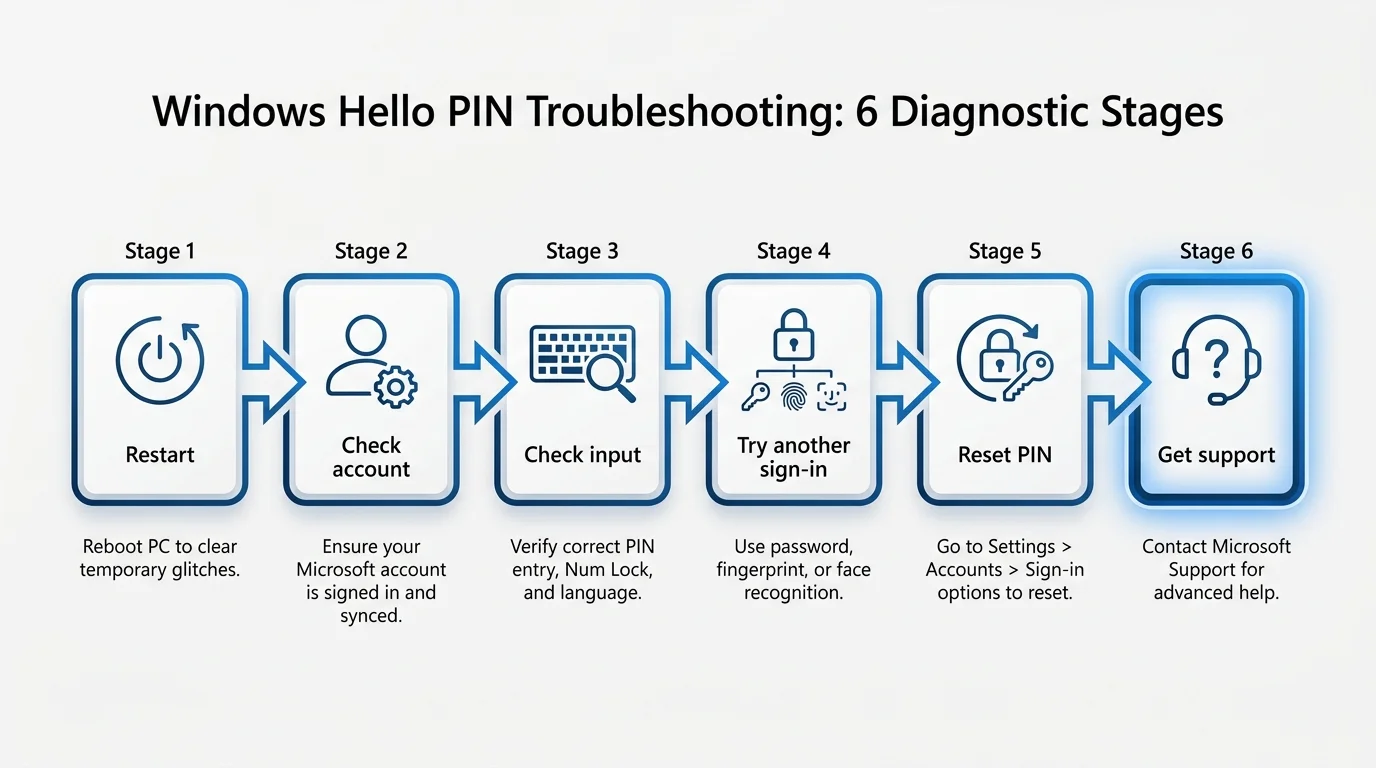
Windows Hello PIN troubleshooting checklist
Use this quick sequence before trying more disruptive changes:
- Restart Windows normally.
- Confirm the correct account is selected.
- Check keyboard input and read the entire error message.
- Try Sign-in options and use your account password if available.
- Reset the PIN through I forgot my PIN or Settings.
- Install applicable Windows updates.
- Record the error and contact Microsoft Support or your organization's IT team if the reset still fails.
Frequently asked questions
Is a Windows Hello PIN the same as my Microsoft account password?
No. The Windows Hello PIN is used to sign in to that particular Windows device. Your Microsoft account password is a separate sign-in credential and may be available as an alternative on the sign-in screen.
Why is Windows asking me to create my PIN again?
Windows Hello may ask you to set up a PIN again after a system or security change, or when the existing sign-in configuration needs attention. Follow the on-screen setup instructions, restart if appropriate, and check updates. If setup fails repeatedly, record the exact error rather than trying unrelated advanced fixes.
Why can't I see "I forgot my PIN"?
Microsoft documents this option for Microsoft accounts, not local accounts. If it is not available, sign in with your password and open Settings > Accounts > Sign-in options to reset the PIN. Follow the instructions for your account type.
Can I reset my Windows Hello PIN without signing in?
For a Microsoft account, the sign-in screen may offer I forgot my PIN and guide you through verification. If it is unavailable, use another supported sign-in method or Microsoft's account-recovery instructions. A local account follows different recovery steps.
Should I clear the TPM or delete the NGC folder to fix a PIN error?
Do not start there. These are advanced actions and may affect security credentials or other functions. First use Microsoft's supported sign-in and PIN-reset flows. Only follow advanced instructions if they specifically apply to your device and error, or after guidance from Microsoft Support or your organization's IT administrator.
What should I do if my work or school PIN will not set up?
Record the exact error and contact your IT administrator. Windows Hello for Business errors can involve organization enrollment, policy, authorization, or security hardware requirements, so consumer troubleshooting steps may not be sufficient.
Official Microsoft sources
- Change or reset your PIN in Windows (opens in new tab)
- Windows Hello common issues and troubleshooting tips (opens in new tab)
- Troubleshoot problems signing in to Windows (opens in new tab)
- Configure Windows Hello (opens in new tab)
- Windows Hello errors during PIN creation (opens in new tab) (for work or school administrators and managed-device scenarios)
Verified Primary Sources & Citations
NextTechExplained verifies facts against official documentation, engineering whitepapers, and regulatory filings.
- Microsoft Support: Change or reset your PIN in WindowsView Official Source
- Microsoft Support: Windows Hello common issues and troubleshooting tipsView Official Source
- Microsoft Support: Troubleshoot problems signing in to WindowsView Official Source
- Microsoft Support: Configure Windows HelloView Official Source
- Microsoft Learn: Windows Hello errors during PIN creationView Official Source
Published by NextTechExplained
Editorial Team • Institutional Publication Byline
Articles published under this byline are prepared through rigorous research and verified against official engineering specifications, standards documentation, and primary sources. Learn more about our process on our About page and Editorial Policy.
Related Explanations & Guides
How to Disable Windows Hello in Windows 11
Learn how to turn off Windows Hello face and fingerprint sign-in, remove a PIN when Windows allows it, and restore password sign-in in Windows 11.
Windows Hello Face Not Working in Windows 11: How to Fix It
Fix Windows Hello face recognition problems in Windows 11. Check lighting and camera visibility, improve face recognition, review compatible hardware, and troubleshoot drivers safely.
Windows Hello Fingerprint Not Working in Windows 11: How to Fix It
Fix Windows Hello fingerprint sign-in problems in Windows 11 with safe checks for the sensor, enrolled fingerprints, drivers, Windows Update, and missing fingerprint settings.