
Windows Hello Face Not Working in Windows 11: How to Fix It
Fix Windows Hello face recognition problems in Windows 11. Check lighting and camera visibility, improve face recognition, review compatible hardware, and troubleshoot drivers safely.
Editorial Team
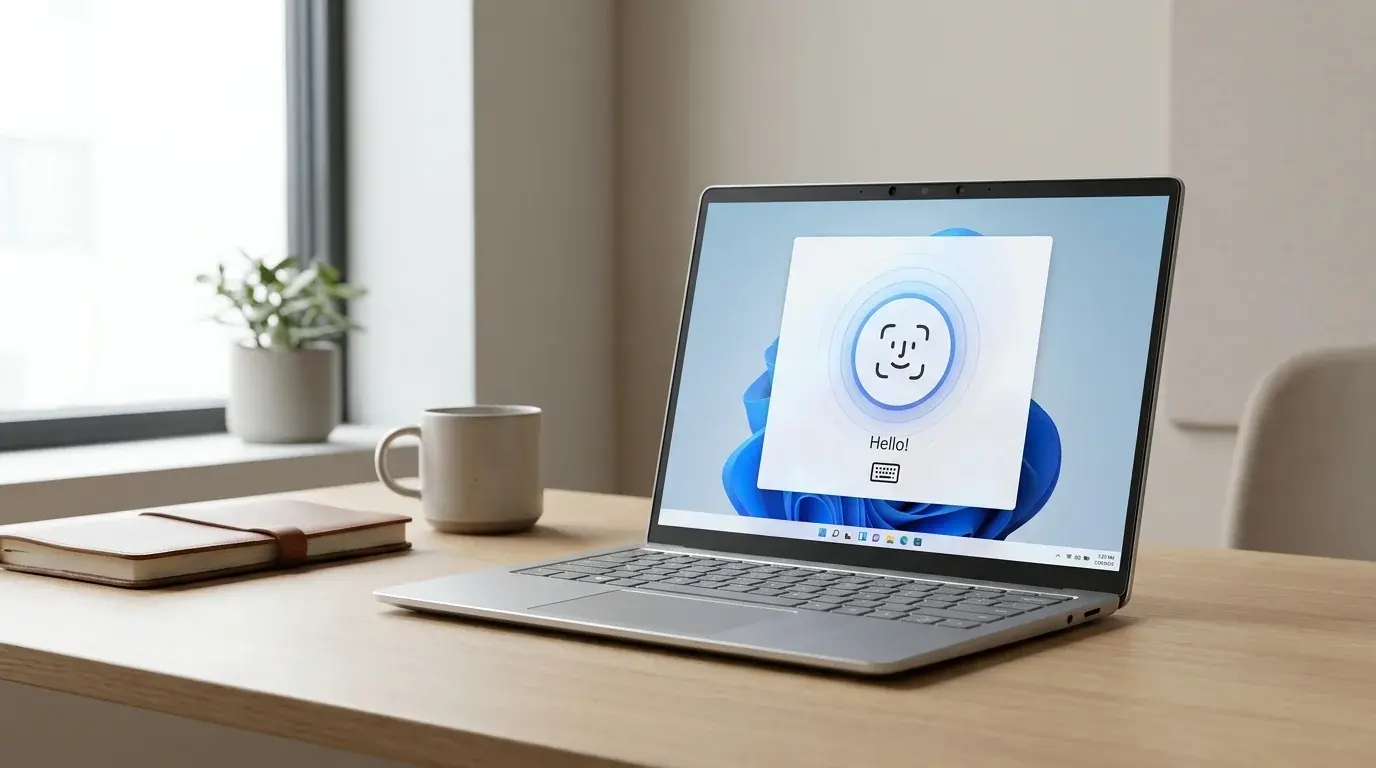
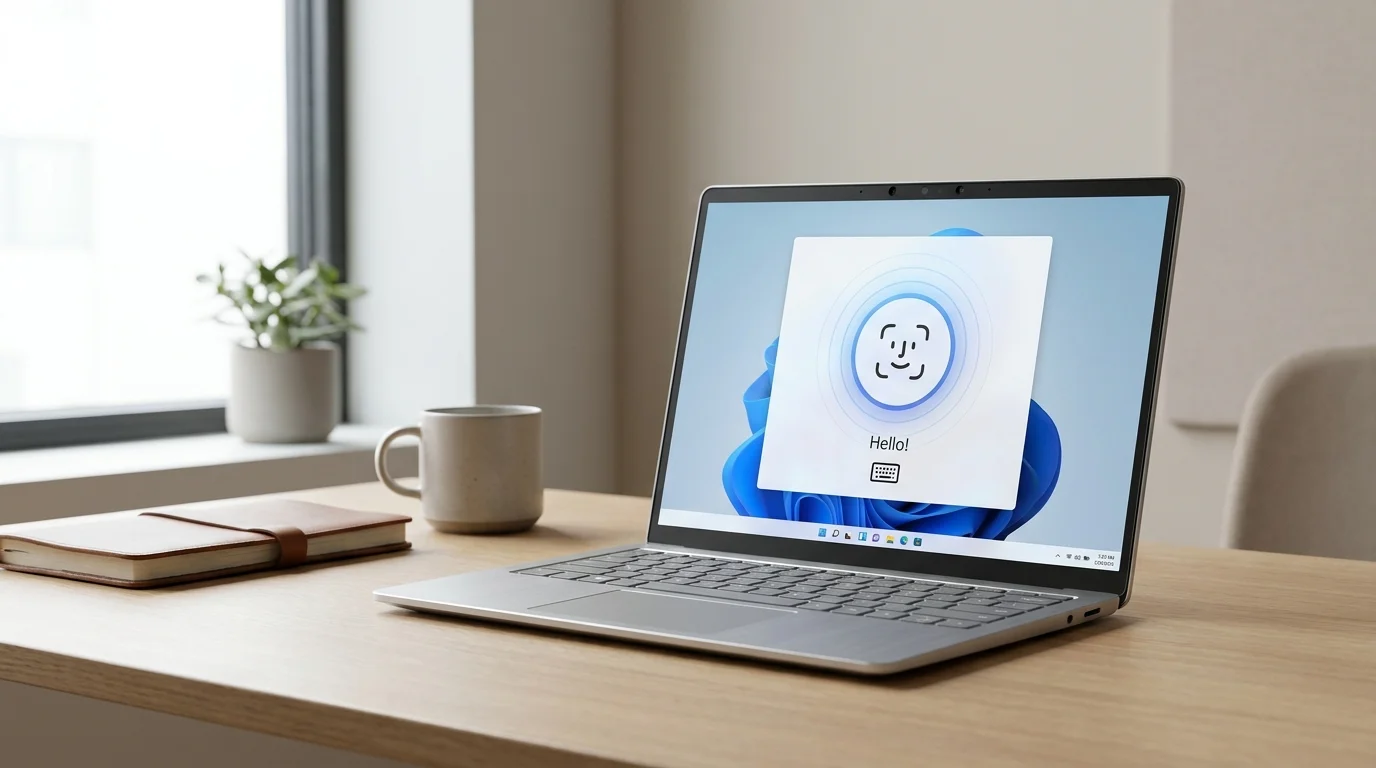
Windows 11 laptop showing a face sign-in option during Windows Hello troubleshooting
Table of Contents (18 sections)
- Identify the problem first
- 1. Sign in with your PIN or password
- 2. Clean the camera area and improve lighting
- 3. Use Improve recognition in Settings
- 4. Remove and set up facial recognition again
- 5. Confirm the computer supports Windows Hello Face
- 6. Check whether Windows detects the camera hardware
- 7. Install appropriate Windows and manufacturer updates
- 8. Understand camera privacy settings and work-device policies
- 9. When to contact the device manufacturer
- Frequently asked questions
- Why does Windows Hello say it could not recognize me?
- Can any webcam be used for Windows Hello Face?
- Why is Facial recognition missing from Sign-in options?
- Should I turn on camera permissions to fix Windows Hello?
- Does improving recognition delete my current face scan?
- Can a camera driver update break Windows Hello Face?
- Final checklist
If Windows Hello face recognition is not working in Windows 11, first sign in with your PIN or password, then check the camera view, lighting, face-recognition settings, and Windows updates. If Windows says it cannot find a compatible camera, the issue may be different: face sign-in needs supported Windows Hello hardware, not just any webcam.
The best fix depends on the symptom. If Windows sees your face but does not recognize you, improve the capture conditions and re-scan your face. If the Facial recognition option is missing, check device compatibility, drivers, and whether the computer is managed by your school or employer. Work through the checks below in order before attempting advanced changes.
Identify the problem first
| What you see | What to check first |
|---|---|
| Windows says it could not recognize you | Clean the camera area, improve the lighting, and select Improve recognition. |
| Facial recognition is missing from Sign-in options | Confirm the PC has a compatible Windows Hello camera and check Device Manager and manufacturer updates. |
| Windows says it cannot find a compatible camera | Verify the camera hardware supports Windows Hello Face, rather than assuming a regular webcam is sufficient. |
| Face sign-in stopped after a driver or Windows update | Check Windows Update and the computer manufacturer's support page for the exact model. |
| Recognition works in one room but not another | Check for strong backlighting, shadows, distance, and changes in appearance. |
| This is a work- or school-managed PC | Ask the IT administrator whether biometric sign-in settings or enhanced anti-spoofing policies are managed. |
Windows Hello Face uses compatible camera hardware that includes near-infrared (IR) imaging. A webcam that works for video calls does not necessarily support face sign-in. See Microsoft's Windows Hello face authentication overview (opens in new tab) for the hardware distinction.
1. Sign in with your PIN or password
If face recognition fails at the lock screen, use another sign-in method instead of repeatedly attempting recognition.
- On the Windows sign-in screen, select Sign-in options if it is available.
- Choose the PIN or password method offered for your account.
- Sign in and continue the troubleshooting steps from Settings.
The options shown depend on your account, device, and organization settings. If you cannot sign in with an alternative method, follow the account recovery steps for your account before changing biometric settings (if your PIN is also failing, see our step-by-step guide on how to fix Windows Hello PIN not working in Windows 11). Never share your password, PIN, or recovery codes with someone offering to fix the problem.
2. Clean the camera area and improve lighting
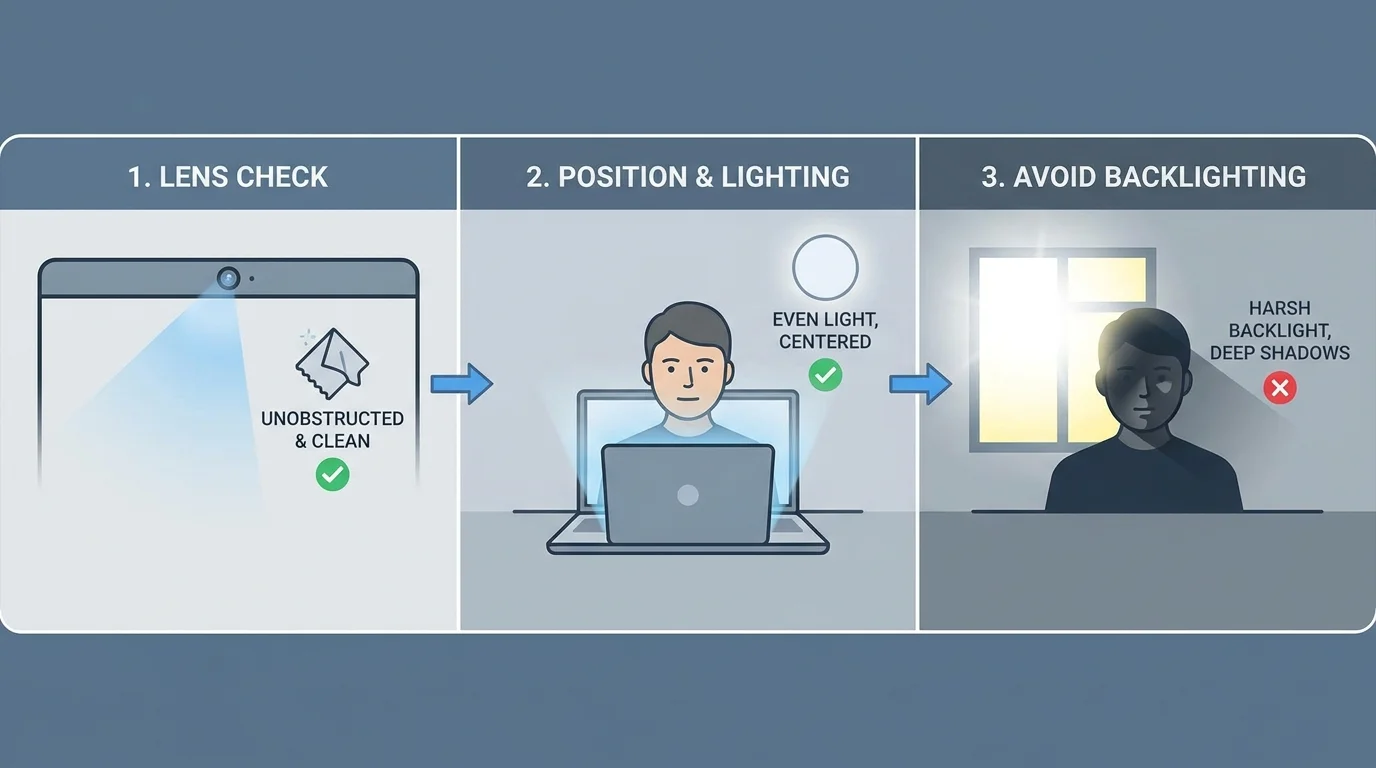
Windows Hello needs a clear view of your face. A covered camera, smudged lens, strong backlight, or shadows across your face can make recognition less reliable.
- Check the camera area above the display and remove anything that blocks it, such as a privacy slider, tape, or dust cover.
- Wipe the exterior camera area gently with a clean, soft cloth. Follow the manufacturer's cleaning instructions and do not apply liquid directly to the camera.
- Face the screen with your face clearly visible. Avoid a bright window or strong light source directly behind you.
- Try even lighting from the front rather than harsh light from one side.
- If you changed your glasses, facial hair, or other appearance details since enrollment, consider improving or redoing the face scan in Sign-in options.
Some work- or school-managed devices use enhanced anti-spoofing policies that may make recognition stricter in low light. Do not weaken a workplace security policy to get around a camera problem; contact IT if the device is managed.
3. Use Improve recognition in Settings
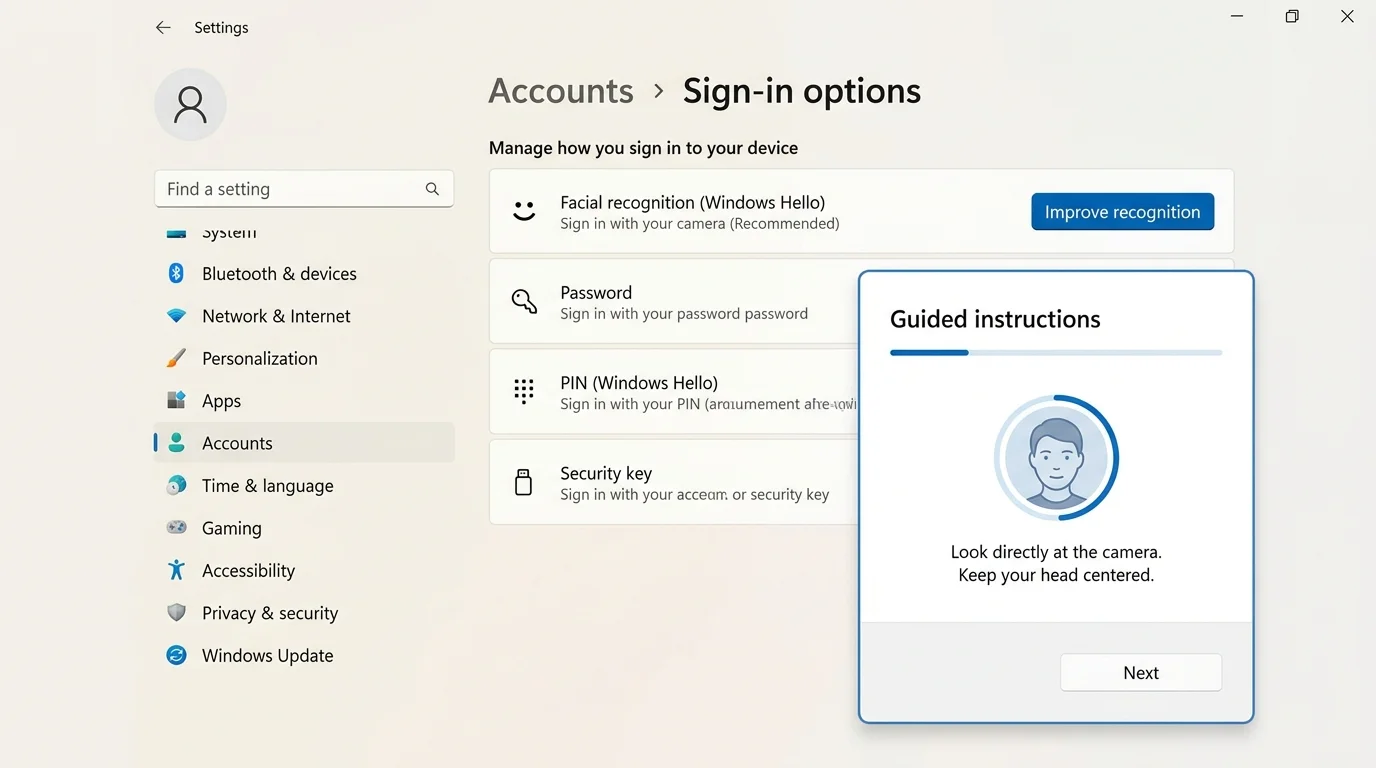
If Windows Hello recognizes you inconsistently, the Improve recognition option can add another face template. Microsoft recommends this when you have changed your appearance or recognition has become less reliable.
- Press Windows + I to open Settings.
- Select Accounts > Sign-in options.
- Expand Facial recognition (Windows Hello).
- Select Improve recognition, if that option is available.
- Follow the on-screen instructions in good, even lighting and hold your face where the setup prompts indicate.
- Lock the PC and test face sign-in again.
The exact controls can vary by device and Windows configuration. Improving recognition adds a scan; removing and setting up facial recognition again replaces the existing scan. Try Improve recognition first when it is available, instead of deleting the current enrollment straight away.
4. Remove and set up facial recognition again
If improving recognition does not help, you can remove and create a new facial-recognition enrollment, provided Windows offers those controls. Before you start, make sure you can sign in with your PIN or password.
- Open Settings > Accounts > Sign-in options.
- Expand Facial recognition (Windows Hello).
- Select Remove if available and confirm the prompts.
- Select Set up and follow the guided scan.
- Return to the lock screen and test face sign-in.
Removing the face enrollment changes this sign-in method; it does not mean you have to remove your PIN or fingerprint enrollment. If Remove or Set up is missing or unavailable, continue to the hardware and driver checks instead of trying to force the change (if your laptop also has a fingerprint sensor, check our guide on how to fix Windows Hello fingerprint not working; alternatively, if you want to turn off biometric login entirely and revert to a password, see how to disable Windows Hello in Windows 11).
5. Confirm the computer supports Windows Hello Face
Windows Hello Face requires a compatible camera system with near-infrared capabilities. A standard RGB webcam may work in apps such as Camera or a video meeting app but still not be a supported face-authentication camera.
To check:
- Review the specifications for your exact laptop, all-in-one PC, monitor, or external camera.
- Look specifically for Windows Hello facial recognition support, not just a webcam listing.
- Open Settings > Accounts > Sign-in options and see whether Facial recognition (Windows Hello) is available.
- If this is a recent PC that previously supported face sign-in, check the hardware manufacturer's support page for firmware, chipset, camera, or Windows Hello updates.
If the computer never supported Windows Hello Face, Windows settings cannot add the missing IR hardware. Use another available sign-in method or a compatible Windows Hello device rather than assuming a software change will enable face recognition.
6. Check whether Windows detects the camera hardware
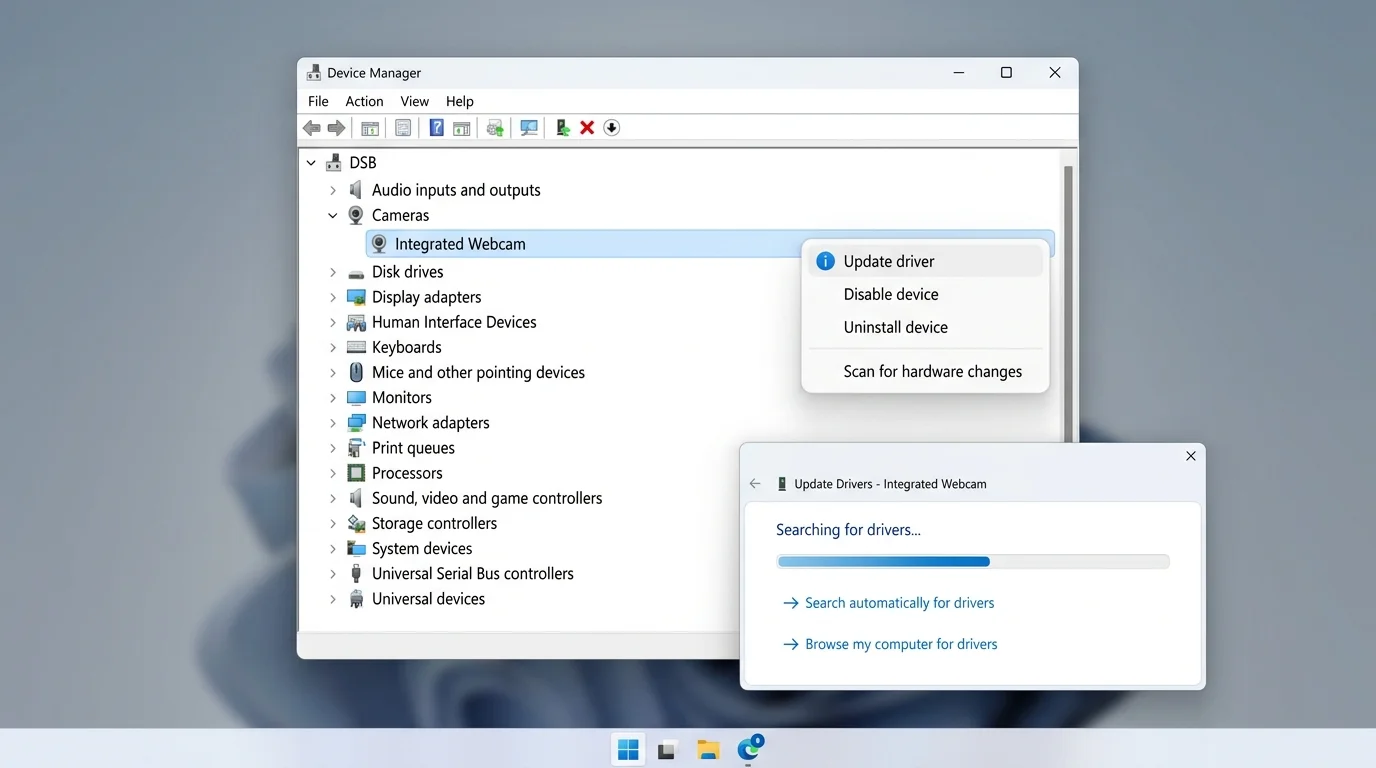
If the face-recognition option has disappeared or Windows reports that it cannot find a compatible camera, check whether the device is detected.
- Right-click Start and open Device Manager.
- Expand Cameras or another relevant device category shown on your system.
- Look for the camera or camera components listed for your exact computer. Some infrared cameras may not appear on the same Settings page as ordinary cameras.
- If a device shows a warning icon or an error, open its Properties and record the message for troubleshooting.
- Check Windows Update and the PC manufacturer's support page for a driver or firmware update intended for your model.
Do not assume every device uses the same category name. If the camera is missing, disabled, or reported as unavailable, consult the manufacturer's instructions. On company- or school-managed computers, ask the IT administrator before changing device policies or drivers.
7. Install appropriate Windows and manufacturer updates
A compatible camera can still fail if its driver or firmware has a problem. Use the normal Windows update process and the device manufacturer's official support page before experimenting with driver changes.
- Open Settings > Windows Update.
- Select Check for updates and install relevant available updates.
- If Advanced options > Optional updates is available, review any camera, firmware, or system-device driver listed there.
- Restart if Windows asks you to, then test face sign-in.
- If the problem began immediately after an update, check the manufacturer's guidance for your exact model. A rollback may be available for a recently changed driver, but do not roll back unrelated drivers at random.
Avoid generic third-party driver sites and driver-updater utilities. Also be careful about switching a camera to a generic driver just to make the webcam work: Microsoft notes that an in-box USB Video Class driver may not support all camera features, and Windows Hello Face can stop working if the manufacturer's driver relies on custom extensions (if updates stall or fail to install, see our guide on what to do when Windows Update is stuck). Follow Microsoft's camera troubleshooting guidance (opens in new tab) and the PC manufacturer's instructions.
8. Understand camera privacy settings and work-device policies
Windows camera privacy controls primarily govern camera access for apps. They are not a universal fix for the separate infrared hardware used by Windows Hello Face, and infrared Hello cameras may not appear on the ordinary Camera settings page.
If your problem is with camera apps as well as Windows Hello, review Settings > Privacy & security > Camera and check the device and app access settings that apply to your situation. If video calls work but Windows Hello Face does not, that alone does not prove privacy permissions are the cause; verify Windows Hello hardware support and driver status.
On a work- or school-managed device, a policy may control biometric setup or enhanced anti-spoofing. Contact your IT administrator if the relevant settings are unavailable or recognition fails only under organizational conditions. Do not disable security features simply to bypass a policy.
9. When to contact the device manufacturer
Contact the manufacturer's support team if the device supports Windows Hello Face but its compatible camera is still missing, reports an error, or fails after the supported updates and enrollment steps. Hardware, firmware, or model-specific driver issues may require device-specific troubleshooting.
Provide the exact PC model, Windows version, the error wording, when the issue started, and the steps you already tried. Do not include passwords, PINs, recovery codes, or biometric data. If the device is managed by an organization, contact its IT support before attempting advanced repairs.
Avoid Registry edits, deleting Windows Hello system folders, running unknown scripts, or resetting Windows as first-line fixes. These actions can create new problems and should not replace the supported diagnostic path.
Frequently asked questions
Why does Windows Hello say it could not recognize me?
The camera may be obstructed, lighting may be uneven, or your current appearance may differ from the original enrollment. Clean the camera area, improve front lighting, and try Improve recognition in Sign-in options.
Can any webcam be used for Windows Hello Face?
No. Windows Hello Face needs compatible hardware with near-infrared capabilities. A regular webcam that works for video calls may not support Windows Hello sign-in.
Why is Facial recognition missing from Sign-in options?
Your device may not have a compatible camera, Windows may not detect the necessary hardware or driver, or an organization may manage the setting. Check the PC specifications, Device Manager, Windows Update, and manufacturer support resources.
Should I turn on camera permissions to fix Windows Hello?
Camera privacy permissions matter for apps that use the camera, but they are not a universal fix for Windows Hello Face. If ordinary camera apps work while face sign-in fails, check compatible IR hardware, face-recognition settings, and drivers.
Does improving recognition delete my current face scan?
Microsoft describes Improve recognition as adding another face template. Removing and scanning again keeps only the latest scan, so try improving recognition first when the option is available.
Can a camera driver update break Windows Hello Face?
It can happen if the new driver does not support features needed by the camera. Use Windows Update or the manufacturer's driver for your exact model, and avoid switching to a generic driver unless the relevant troubleshooting instructions recommend that change for your situation.
Final checklist
Before moving to advanced repair, sign in using your PIN or password, clean and uncover the camera area, improve lighting, use Improve recognition, confirm that the camera supports Windows Hello Face, check Device Manager, install applicable Windows or manufacturer updates, and consult IT or device support when the hardware remains unavailable. Avoid disabling security policies or applying destructive system fixes just to restore face sign-in.
Verified Primary Sources & Citations
NextTechExplained verifies facts against official documentation, engineering whitepapers, and regulatory filings.
- Microsoft Support: Windows Hello common issues and troubleshooting tipsView Official Source
- Microsoft Support: Why didn't Windows Hello facial recognition recognize me?View Official Source
- Microsoft Support: Configure Windows HelloView Official Source
- Microsoft Support: Camera doesn't work in WindowsView Official Source
- Microsoft Support: Windows camera, microphone, and privacyView Official Source
- Microsoft Learn: Windows Hello face authenticationView Official Source
Published by NextTechExplained
Editorial Team • Institutional Publication Byline
Articles published under this byline are prepared through rigorous research and verified against official engineering specifications, standards documentation, and primary sources. Learn more about our process on our About page and Editorial Policy.
Related Explanations & Guides
How to Disable Windows Hello in Windows 11
Learn how to turn off Windows Hello face and fingerprint sign-in, remove a PIN when Windows allows it, and restore password sign-in in Windows 11.
Windows Hello Fingerprint Not Working in Windows 11: How to Fix It
Fix Windows Hello fingerprint sign-in problems in Windows 11 with safe checks for the sensor, enrolled fingerprints, drivers, Windows Update, and missing fingerprint settings.
Windows Hello PIN Not Working in Windows 11: How to Fix It
Fix a Windows Hello PIN that is not working in Windows 11. Learn when to restart, sign in with your password, reset the PIN, and contact your administrator.