
How to Disable Windows Hello in Windows 11
Learn how to turn off Windows Hello face and fingerprint sign-in, remove a PIN when Windows allows it, and restore password sign-in in Windows 11.
Editorial Team
Windows 11 laptop with an illustrative sign-in screen showing password and Windows Hello options
Table of Contents (17 sections)
- Before you disable Windows Hello
- 1. Open Windows Hello settings
- 2. Turn off Windows Hello face recognition
- 3. Turn off Windows Hello fingerprint recognition
- 4. Remove the Windows Hello PIN if the option is available
- 5. Allow password sign-in for your Microsoft account
- 6. Test your preferred sign-in method
- What if Windows Hello cannot be disabled?
- Should you disable Windows Hello?
- Frequently asked questions
- Can I disable Windows Hello with one switch?
- How do I stop Windows 11 from asking me to use a PIN?
- Can I use a password instead of Windows Hello?
- Does removing Windows Hello delete my Microsoft account?
- Why is the Remove button greyed out?
- Can I turn Windows Hello back on later?
- Official Microsoft sources
To disable Windows Hello in Windows 11, open Settings > Accounts > Sign-in options and remove the Hello sign-in methods you no longer want to use. You can remove face recognition and fingerprint recognition from their own sections. The PIN option may have different controls depending on your Windows configuration, and your organization may manage sign-in settings on a work or school PC.
Windows Hello is not a single on/off switch. It includes PIN, face recognition, and fingerprint recognition. If your goal is to sign in with a password instead, you should also check whether Windows allows password sign-in for your account. The steps below explain each option and what to do if a control is missing or unavailable.
Before you disable Windows Hello
Make sure you know another supported way to sign in before removing a method you use every day. For a Microsoft account, keep access to the account password and the recovery information needed to verify your identity. If you use a work or school computer, check with your IT administrator before changing sign-in methods because some options may be controlled by policy.
Also, distinguish between turning off a particular sign-in method and removing the passwordless sign-in requirement. Removing face recognition does not automatically remove your PIN, and turning off a passwordless setting does not itself delete the Hello methods you have already configured.
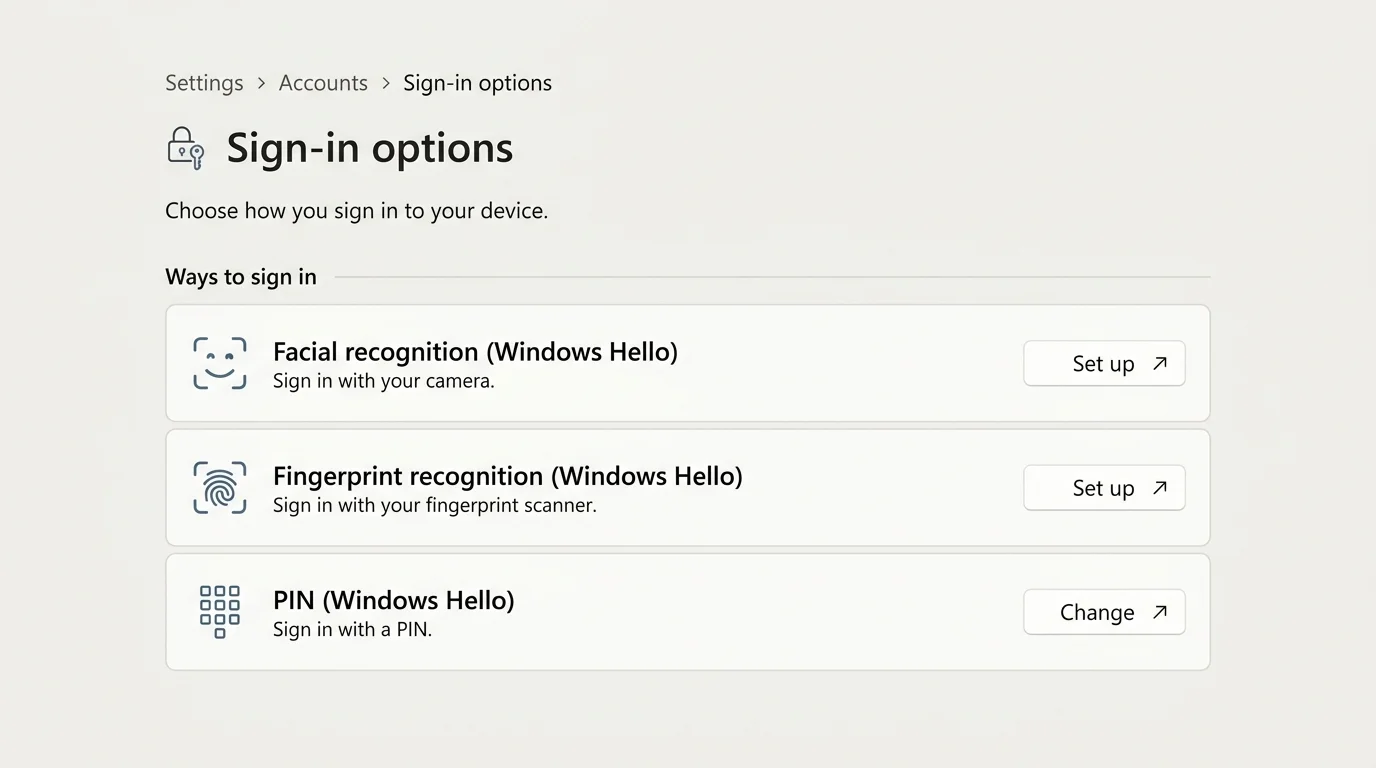
1. Open Windows Hello settings
- Press Windows + I to open Settings.
- Select Accounts.
- Open Sign-in options.
- Find the Ways to sign in section.
Depending on your computer, the available methods can include Facial recognition (Windows Hello), Fingerprint recognition (Windows Hello), and PIN (Windows Hello). You will only see biometric methods supported by your device and current configuration. Microsoft's Windows sign-in options guide (opens in new tab) explains where these controls live.
2. Turn off Windows Hello face recognition
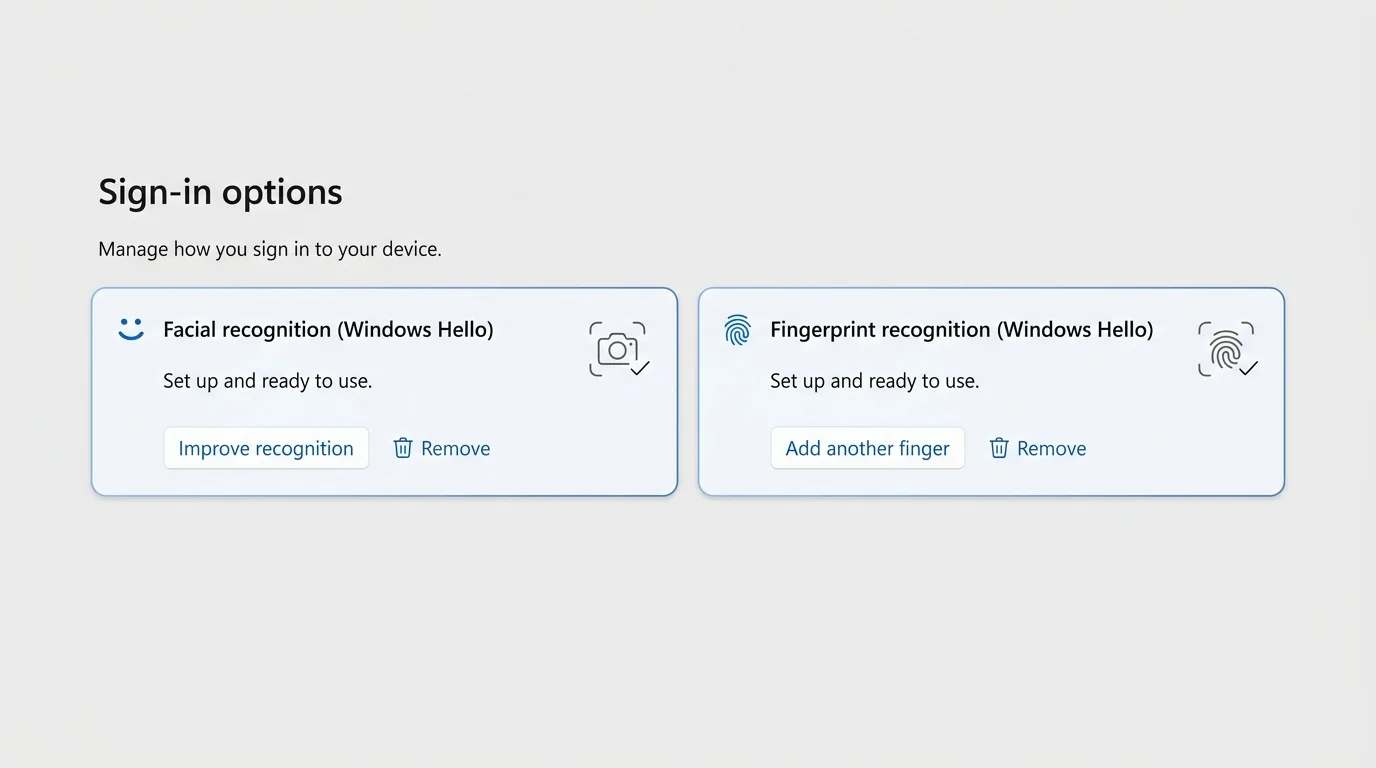
If Windows Hello Face is configured and you no longer want to sign in with your face:
- In Settings > Accounts > Sign-in options, expand Facial recognition (Windows Hello).
- Select Remove if the option is available.
- Confirm the action if Windows asks you to.
This removes the configured face-recognition sign-in method from that Windows installation. It does not remove your Windows account, delete your files, or automatically change your PIN. You can set up face recognition again later from the same Sign-in options page if you change your mind. (If you want to keep face sign-in but the camera is failing or not recognizing you, see our guide on how to fix Windows Hello Face not working in Windows 11).
If Remove is missing or unavailable, don't try to force the change by deleting system files or editing the Registry. Check whether this is a managed PC and whether the available settings are restricted. Microsoft documents the supported controls in its Windows Hello configuration and troubleshooting guidance (opens in new tab).
3. Turn off Windows Hello fingerprint recognition
To stop using a fingerprint to sign in:
- Open Settings > Accounts > Sign-in options.
- Expand Fingerprint recognition (Windows Hello).
- Select Remove if it appears.
- Follow any confirmation prompt.
This removes the enrolled fingerprint sign-in method available through that Windows Hello section. It does not disable a physical fingerprint reader for every possible use in every app, and it does not remove your PIN or password. The exact settings depend on the PC and its hardware. (If you want to keep using your fingerprint but the sensor is failing or rejecting your scan, see our guide on how to fix a Windows Hello fingerprint reader that is not working).
If the fingerprint section is not listed, your device may not have a compatible reader, or the feature may not be available under the current configuration. If the section appears but the control is locked, contact the administrator for a managed device rather than bypassing the policy.
4. Remove the Windows Hello PIN if the option is available
The PIN is a separate Windows Hello method, so removing face and fingerprint recognition does not remove the PIN. To review the PIN setting:
- Go to Settings > Accounts > Sign-in options.
- Expand PIN (Windows Hello).
- Check whether a Remove button is available. If it is, follow the on-screen prompts and confirm the change.
- If Windows only offers change or reset controls, or Remove is unavailable, do not assume the PIN can be removed on that PC using the same steps.
Options can vary with account type, Windows configuration, and organization policy. Microsoft's public PIN guidance focuses on changing or resetting a PIN, so use the actual controls displayed on your device instead of following scripts that claim to force PIN removal. See Microsoft's PIN change and reset guidance (opens in new tab) for the supported PIN workflows. (If you are troubleshooting a broken PIN or need to recover your login credentials first, see our comprehensive guide on how to fix Windows Hello PIN not working in Windows 11).
If your main goal is to use your password at the sign-in screen, continue to the next section. You may be able to choose a password without removing every Hello method.
5. Allow password sign-in for your Microsoft account
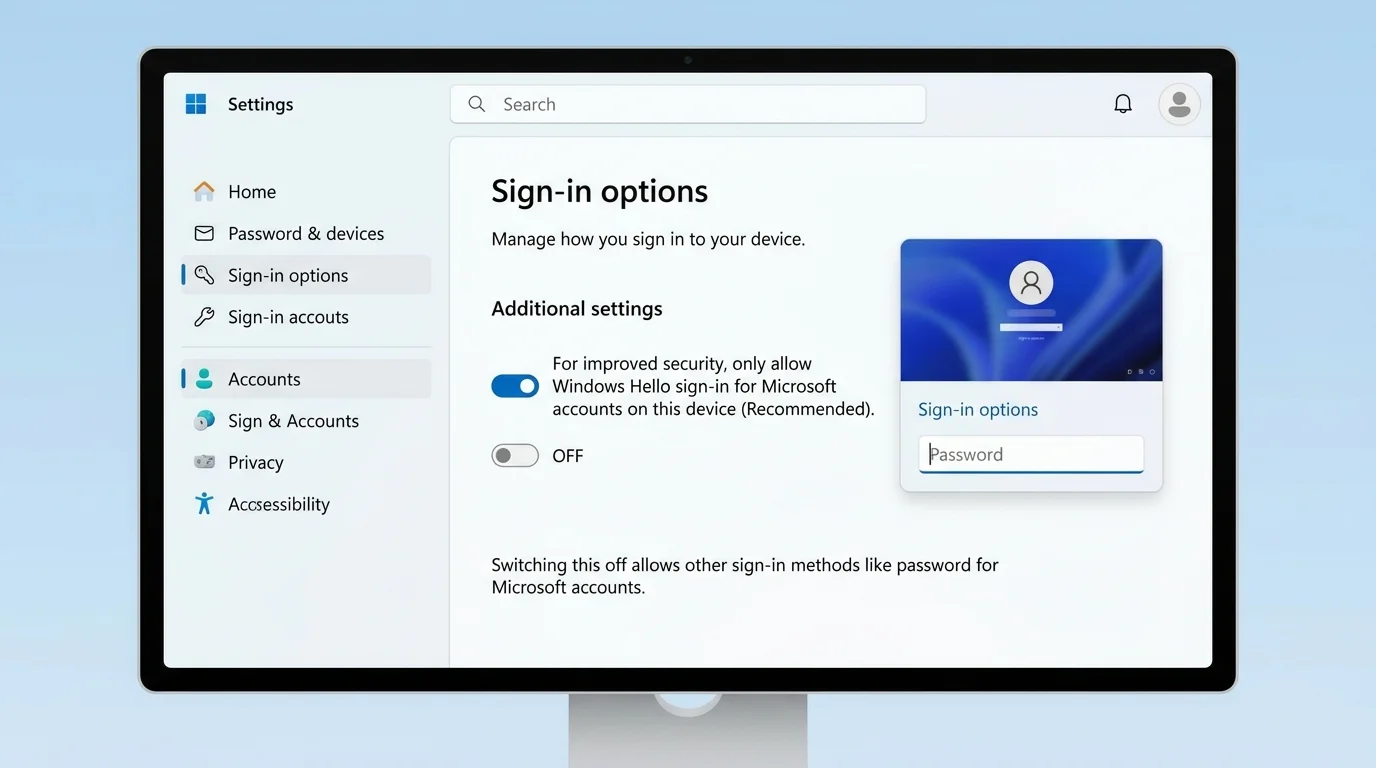
Windows 11 has an additional setting that can restrict a Microsoft account to Windows Hello sign-in on that device. If that option is enabled, the password option may not be offered at sign-in.
- Open Settings > Accounts > Sign-in options.
- Scroll to Additional settings.
- Look for For improved security, only allow Windows Hello sign-in for Microsoft accounts on this device.
- If the option is present and you want to allow password sign-in, switch it Off.
- Return to the sign-in screen and select Sign-in options to see which methods are available.
This setting controls whether password sign-in is allowed for your Microsoft account on that device. It does not, by itself, remove your face, fingerprint, or PIN configuration. It may also be absent or unavailable on some devices, accounts, or managed computers. Microsoft's Go passwordless in Windows (opens in new tab) article explains how this setting works when enabled. (If you switch to password sign-in but find your physical keyboard is unresponsive on the lock screen, consult our troubleshooting guide on what to do when your keyboard is not typing in Windows 11).
6. Test your preferred sign-in method
Before you finish, lock the PC and check the available methods at the sign-in screen. Press Windows + L, select Sign-in options, and look for the password option if you want to use your account password.
If you see a password option, select it and sign in with the password for the selected Windows account, not the Windows Hello PIN. Remember that a Windows Hello PIN is not the same as your Microsoft account password. If the password option is missing, return to Sign-in options in Settings and review the additional setting described above. On a work or school device, policy may restrict the choices.
Do not remove your only working sign-in method before verifying that you have a reliable alternative. If you are uncertain which credential you have, confirm your account recovery options before changing settings.
What if Windows Hello cannot be disabled?
If Remove is missing, greyed out, or changes back after a restart, use these checks rather than trying unofficial workarounds:
- Check the account and device type. Work and school PCs can be managed by an administrator, and some settings may be enforced.
- Review Additional settings. Confirm whether the Windows Hello-only sign-in option is enabled if your goal is to regain password sign-in.
- Check Windows updates. Open Settings > Windows Update and install applicable updates, then restart if requested. This is a general check, not a guaranteed fix for policy restrictions.
- Read the specific message. If Windows explains that a setting is managed or unavailable, note the exact wording.
- Contact the administrator or Microsoft Support. Do this if a policy prevents changes or a setting repeatedly fails.
Avoid guides that ask you to delete the NGC folder, clear the TPM, disable security services, or make broad Registry changes just to turn off Windows Hello. These are not appropriate first-line steps for changing ordinary sign-in preferences and may affect credentials or security features.
Should you disable Windows Hello?
Windows Hello offers PIN and biometric sign-in methods that can be more convenient than typing a password. A Windows Hello PIN is tied to the device and is different from your Microsoft account password. Whether you should remove it depends on your needs, the computer's security requirements, and any organization policy that applies.
If you only dislike face recognition, remove that method and keep another working sign-in option. If you want to stop using a fingerprint reader, remove the enrolled fingerprint. If you want to use a password instead of Windows Hello, check the passwordless setting and the available sign-in options before removing credentials. You do not need to disable every method to change how you sign in each time.
Frequently asked questions
Can I disable Windows Hello with one switch?
Not always. Windows Hello includes face recognition, fingerprint recognition, and a PIN, which have separate controls. The passwordless sign-in setting affects whether password sign-in is allowed for a Microsoft account on the device; it does not automatically remove all Hello methods.
How do I stop Windows 11 from asking me to use a PIN?
Open Settings > Accounts > Sign-in options and inspect PIN (Windows Hello). Use a Remove option only if Windows provides it. If you want to use your account password, also review the Windows Hello-only sign-in toggle under Additional settings when it is available. Device or organizational policy may limit these options.
Can I use a password instead of Windows Hello?
You may be able to. Check Settings > Accounts > Sign-in options and review the Windows Hello-only sign-in setting under Additional settings. If password sign-in is available, select it from Sign-in options on the lock or sign-in screen. Exact choices can differ by account and device configuration.
Does removing Windows Hello delete my Microsoft account?
No. Removing a configured face or fingerprint method changes a sign-in method on the device. It does not delete your Microsoft account, remove your files, or cancel your account.
Why is the Remove button greyed out?
The available controls can depend on account configuration, Windows settings, or a work or school policy. Check the displayed message and ask your organization's IT administrator if the device is managed. Avoid forcing the change with Registry edits or system-folder deletion.
Can I turn Windows Hello back on later?
Usually, you can return to Settings > Accounts > Sign-in options and set up an available Windows Hello method again. Face recognition requires compatible camera hardware, and fingerprint recognition requires a compatible reader. Setup may be restricted on a managed device.
Official Microsoft sources
Verified Primary Sources & Citations
NextTechExplained verifies facts against official documentation, engineering whitepapers, and regulatory filings.
- Microsoft Support: Sign-in options in WindowsView Official Source
- Microsoft Support: Configure Windows HelloView Official Source
- Microsoft Support: Go passwordless in WindowsView Official Source
- Microsoft Support: Windows Hello common issues and troubleshooting tipsView Official Source
- Microsoft Support: Change or reset your PIN in WindowsView Official Source
Published by NextTechExplained
Editorial Team • Institutional Publication Byline
Articles published under this byline are prepared through rigorous research and verified against official engineering specifications, standards documentation, and primary sources. Learn more about our process on our About page and Editorial Policy.
Related Explanations & Guides
Windows Hello Face Not Working in Windows 11: How to Fix It
Fix Windows Hello face recognition problems in Windows 11. Check lighting and camera visibility, improve face recognition, review compatible hardware, and troubleshoot drivers safely.
Windows Hello Fingerprint Not Working in Windows 11: How to Fix It
Fix Windows Hello fingerprint sign-in problems in Windows 11 with safe checks for the sensor, enrolled fingerprints, drivers, Windows Update, and missing fingerprint settings.

Windows Hello PIN Not Working in Windows 11: How to Fix It
Fix a Windows Hello PIN that is not working in Windows 11. Learn when to restart, sign in with your password, reset the PIN, and contact your administrator.