
How to Fix Windows Update Error 0x80070005 (Access Denied)
Fix Windows Update error 0x80070005 by checking administrator access, running the Windows Update troubleshooter, and diagnosing permission problems safely.
Editorial Team

A laptop representing troubleshooting for Windows Update access denied error 0x80070005
Table of Contents (14 sections)
- 1. Confirm the failed update and error code
- 2. Check whether you have administrator access
- 3. Run the Windows Update troubleshooter
- 4. Check security software and device-management policies
- 5. Check whether Windows Update files or system components need repair
- 6. Retry the update and record what changes
- 7. When to get more specific help
- Frequently asked questions
- What does Windows Update error 0x80070005 mean?
- Is 0x80070005 the same as not running Windows Update as administrator?
- Should I turn off antivirus to fix 0x80070005?
- Can I reset Windows folder permissions to fix this error?
- What if the error keeps returning?
- Official sources
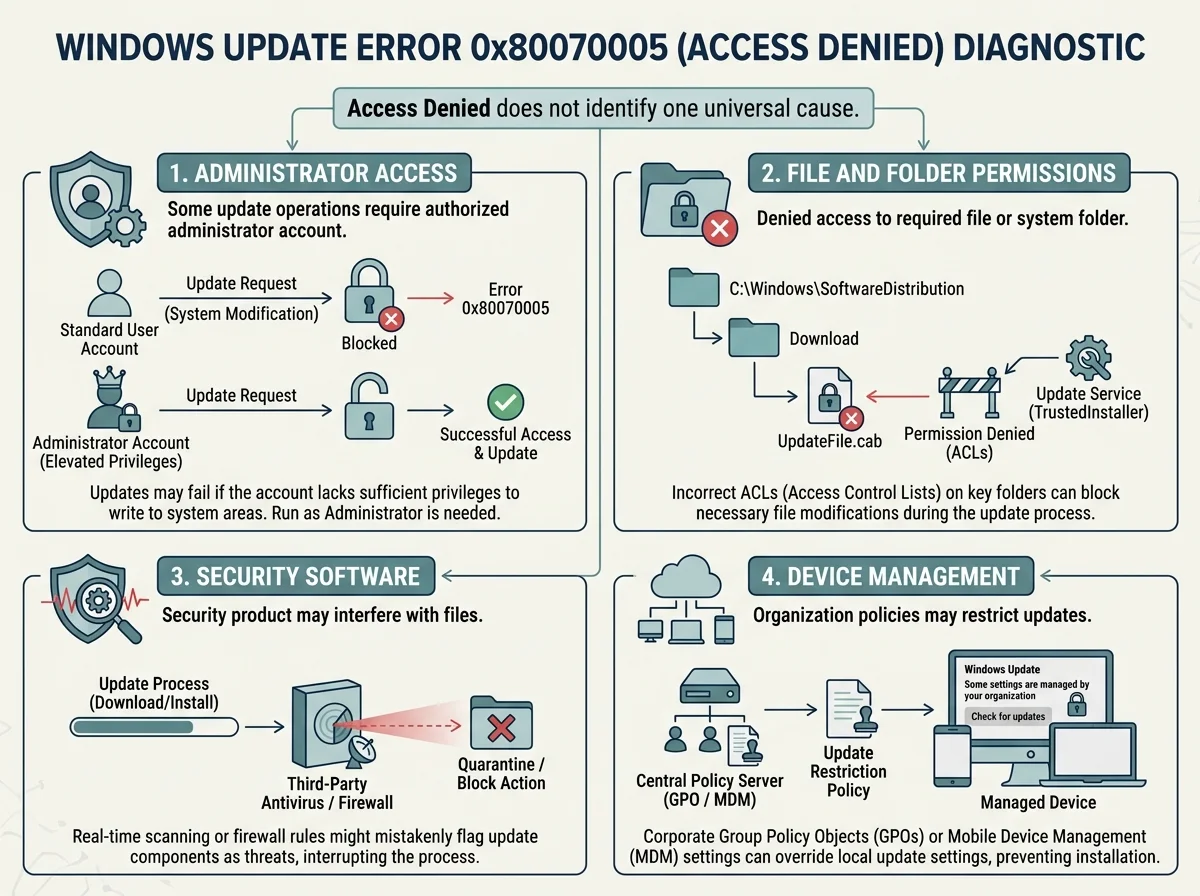
Windows Update error 0x80070005 is an Access Denied error. It means the update process could not access something it needed, such as a file, folder, or registry entry. Microsoft documents several possible causes, including incorrect permissions on Windows servicing folders, interference from security software, and restrictions set by an organization's management policies. The code alone does not prove which cause applies to your PC.
Start with the low-risk checks below. Avoid blanket permission resets, registry edits, or disabling security controls unless evidence points to a specific cause and you understand the consequences.
1. Confirm the failed update and error code
First, make sure that Windows actually reported 0x80070005 and identify the update that failed.
- Open Settings.
- Select Windows Update. In Windows 11, open Update history to find the failed update.
- Record the update name or KB number and the date of the failure.
- Check whether the failure happened during download, installation, or after a restart.
- If another error code appears in the same attempt, record that too.
Microsoft describes 0x80070005 as a general access-denied error. The related details in Windows Update history or servicing logs can help identify which file, folder, registry key, or operation was denied access. Don't apply a fix intended for a different error code just because it appeared during the same update session.
2. Check whether you have administrator access
Some updates and repair actions require an administrator account. If you use a standard account, Windows may not have the permissions needed to complete a particular change.
- Open Settings and go to Accounts.
- Check your account information to see whether it is an administrator account.
- If this is a personal PC and your account is a standard account, sign in with an authorized administrator account or ask the device's administrator to install the update.
- Retry Windows Update from Settings > Windows Update.
Do not change account privileges on a work- or school-managed device without permission. Administrator access is one possible factor, not a guarantee that it is the cause of 0x80070005.
3. Run the Windows Update troubleshooter
For Windows 11, use Microsoft's automated Windows Update troubleshooter in the Get Help app first.
- Open Start and search for Get Help.
- Open the app and follow its Windows Update troubleshooting prompts.
- Let the diagnostic finish and apply any relevant recommendations.
- Restart only if prompted or when Windows has returned to a usable desktop and a restart is safe.
- Try the failed update again.
Depending on your Windows build, a troubleshooter shortcut may also appear under Settings > System > Troubleshoot > Other troubleshooters > Windows Update. Names and placement can vary. Follow Microsoft's Windows Update Troubleshooter instructions (opens in new tab) if your menus differ.
4. Check security software and device-management policies
Microsoft notes that third-party security software can sometimes lock update-related files, while Group Policy or management agents can restrict access to system directories.
- If this is a work or school device, contact IT. An update policy, endpoint protection tool, or managed configuration may intentionally control installation access.
- On a personal PC, check whether recently installed security software or a recent configuration change coincides with the first failure.
- Keep Microsoft Defender or your security product enabled. Do not broadly disable your firewall or antivirus as a first step. If a security product is strongly suspected, follow its vendor's documented troubleshooting guidance and restore protection immediately after any permitted test.
- Do not unload file-system filter drivers or change security settings based only on the error code.
A temporary security conflict is one possibility, but 0x80070005 can also indicate permissions problems unrelated to security software.
5. Check whether Windows Update files or system components need repair
If the basic checks do not help, determine whether the error is tied to Windows servicing components. Microsoft's dedicated troubleshooting article identifies permission issues affecting folders such as %windir%\WinSxS and %windir%\SoftwareDistribution, along with related servicing resources.
For ordinary home users, don't start by manually changing ownership or recursively resetting permissions on Windows folders. These operations can alter important system access controls if used in the wrong context.
A safer next step is to use the official Microsoft guidance for the precise error and compare it with the evidence in the servicing logs. If Microsoft guidance and your logs indicate system-file corruption, Microsoft's System File Checker procedure explains how to run supported integrity checks. Open an elevated Command Prompt only when the instructions require it, and follow the steps exactly.
Microsoft's dedicated article for Windows Update error 0x80070005 (opens in new tab) contains advanced permission repair and Windows Update component reset procedures. Before following those procedures, make sure important data is backed up. If you are not comfortable with system permissions, registry-related servicing issues, or command-line repair, get qualified help rather than improvising commands.
6. Retry the update and record what changes
After completing the checks that fit your situation:
- Save your work and restart Windows normally if the desktop is responsive and no full-screen installation is active.
- Open Settings > Windows Update.
- Retry the failed update or select Check for updates if appropriate.
- If it fails again, record the exact error, KB number, and whether the same error appears.
If Windows is in a full-screen installation phase with instructions not to turn off the device, keep it powered. Do not force a shutdown just because progress is slow.
7. When to get more specific help
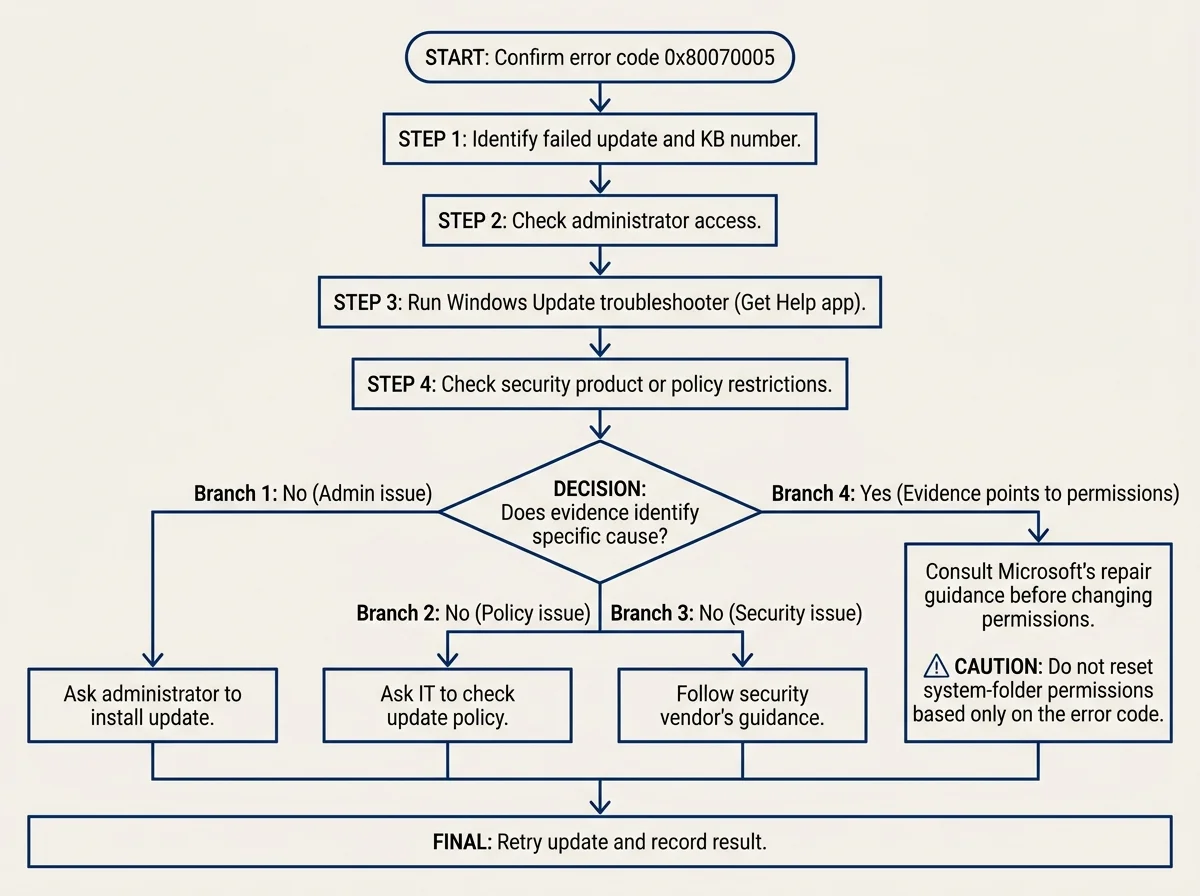
Use the evidence to choose the next step instead of repeating every possible repair.
- Administrator access is missing: ask an authorized administrator to install the update.
- A work or school policy may be involved: ask IT to confirm the update policy and permissions.
- A security tool appears to block a required file: consult the security vendor or your organization's administrator.
- Logs name a specific Windows folder, file, or registry key: use Microsoft's error-specific guidance for that object rather than resetting permissions everywhere.
- System-file or component-store corruption is suspected: use Microsoft's official repair procedure and follow the prerequisites.
Avoid generic registry cleaners, unofficial repair utilities, and scripts that recursively change permissions without explaining precisely what they affect.
For a general update that stays at 0%, 100%, or Checking for updates, see our guide to fixing a stuck Windows Update. If the code you see is 0x800f0922 rather than 0x80070005, use the separate Windows Update error 0x800f0922 guide, because the relevant diagnostic branches can differ.
Frequently asked questions
What does Windows Update error 0x80070005 mean?
It means access was denied while Windows Update tried to access a required resource. Microsoft identifies possible permission problems involving files, folders, or registry entries, but the code does not identify one universal cause.
Is 0x80070005 the same as not running Windows Update as administrator?
Not always. An account without administrator access can prevent some operations, but the error can also involve servicing-folder permissions, security software, or management policies. Check the device and error context before changing account settings.
Should I turn off antivirus to fix 0x80070005?
Not as a routine first step. Microsoft documents security-software interference as one possible cause, but disabling protection broadly can increase risk and may not address the underlying issue. Use the security vendor's guidance or contact IT on a managed device.
Can I reset Windows folder permissions to fix this error?
Microsoft documents advanced permission-repair steps for this specific error, but resetting permissions on system folders is not a safe universal fix. Back up important data, follow the official procedure only when the evidence supports it, and seek qualified help if you are unsure.
What if the error keeps returning?
Record the failed KB number and consult Microsoft's dedicated 0x80070005 troubleshooting article. The servicing logs may identify the particular file, folder, or registry resource that was denied access. For a different error code, use guidance written for that code instead.
Official sources
- Microsoft Learn: Troubleshoot Windows Update error 0x80070005 (opens in new tab)
- Microsoft Learn: Common Windows Update errors (opens in new tab)
- Microsoft Support: Troubleshoot problems updating Windows (opens in new tab)
- Microsoft Support: Windows Update Troubleshooter (opens in new tab)
- Microsoft Support: Use the System File Checker tool (opens in new tab)
Verified Primary Sources & Citations
NextTechExplained verifies facts against official documentation, engineering whitepapers, and regulatory filings.
- Microsoft Learn: Troubleshoot Windows Update error 0x80070005View Official Source
- Microsoft Learn: Common Windows Update errorsView Official Source
- Microsoft Support: Troubleshoot problems updating WindowsView Official Source
- Microsoft Support: Windows Update TroubleshooterView Official Source
- Microsoft Learn: Use the System File Checker tool to repair missing or corrupted system filesView Official Source
Published by NextTechExplained
Editorial Team • Institutional Publication Byline
Articles published under this byline are prepared through rigorous research and verified against official engineering specifications, standards documentation, and primary sources. Learn more about our process on our About page and Editorial Policy.
Related Explanations & Guides

How to Fix Windows Update Error 0x80070643
Troubleshoot Windows Update error 0x80070643 by identifying the failed KB update, checking for a known WinRE issue, and choosing safe next steps before changing recovery partitions.

How to Fix Windows Update Error 0x800f0922
Troubleshoot Windows Update error 0x800f0922 by checking the failed update, network or VPN access, available storage, and Microsoft's current guidance before attempting advanced repairs.

Windows Update Stuck? How to Fix 0%, 100%, and Download Issues
Fix a Windows Update that appears stuck at 0% or 100%, stays on Checking for updates, or will not finish downloading or restarting with these practical steps.