
Windows Update Stuck? How to Fix 0%, 100%, and Download Issues
Fix a Windows Update that appears stuck at 0% or 100%, stays on Checking for updates, or will not finish downloading or restarting with these practical steps.
Editorial Team

A laptop on a desk showing an abstract update progress screen, illustrating Windows Update troubleshooting
Table of Contents (19 sections)
- First, make sure the update is actually stuck
- 1. Run the Windows Update troubleshooter
- 2. Check power, internet, and available storage
- 3. Restart Windows normally and check for updates again
- 4. What to do when Windows Update is stuck at 0% or 100%
- Stuck at 0% or 0% downloading
- Stuck at 100%
- Stuck on Checking for updates
- Stuck on Restarting or Working on updates
- 5. Clear the Windows Update download cache
- 6. If the update still will not install
- Windows 10 note
- Frequently asked questions
- Why is Windows Update stuck at 0%?
- Why does Windows Update stay at 100%?
- Is it safe to restart when Windows Update is stuck?
- Should I delete the SoftwareDistribution folder?
- Does this guide also apply to Windows 10?
- Official sources
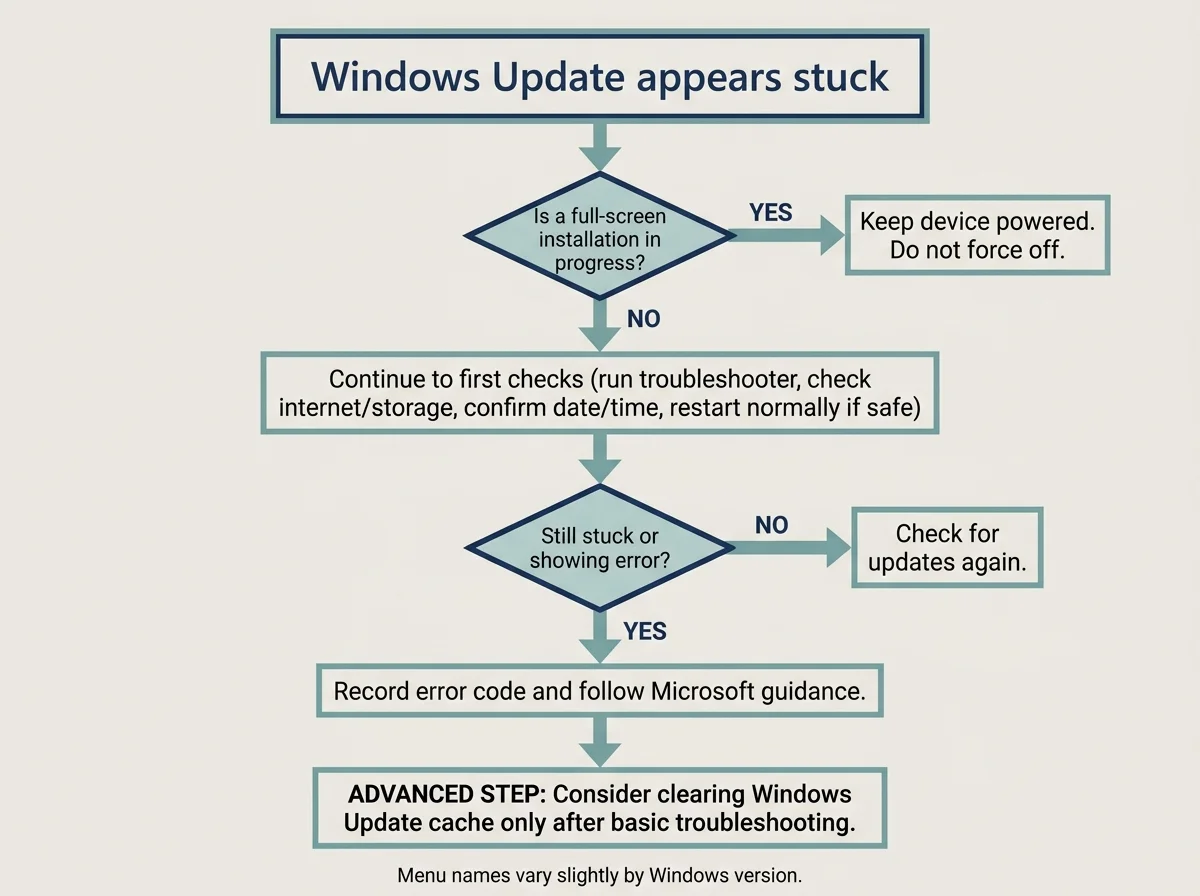
If Windows Update is stuck at 0% or 100%, stays on Checking for updates, or seems unable to finish downloading, the progress display alone does not always mean the process has failed. Some updates take longer while Windows downloads, prepares, or installs files. Start with the low-risk checks below. Move to cache repair only if the update remains stuck or Windows reports an error.
First, make sure the update is actually stuck
Before changing update files or restarting services, check what the PC is doing.
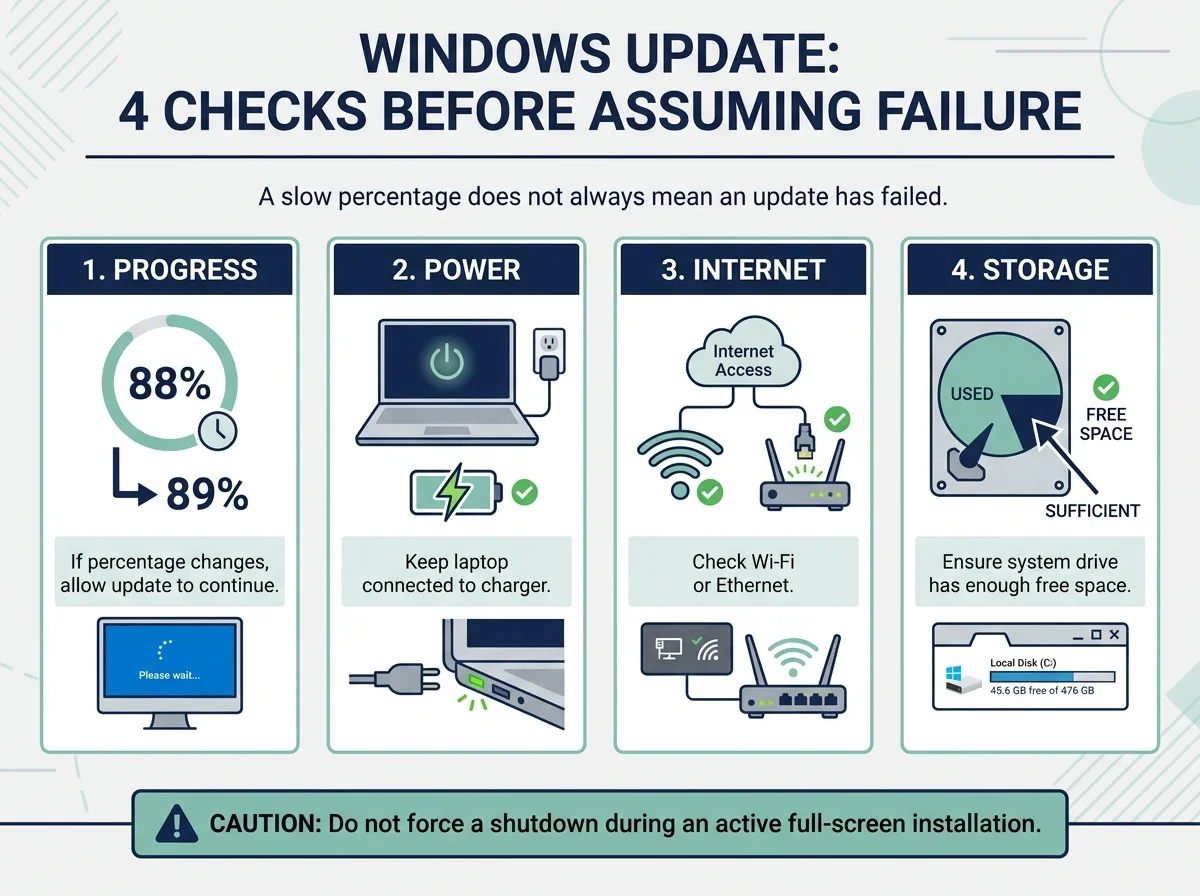
- If the percentage changes occasionally, leave the update running.
- If Windows says Working on updates or warns you not to turn off the PC, keep the device connected to power and do not force it off just because progress looks slow.
- If Windows is still usable and the update has clearly stopped progressing, save your work and try the steps below.
- If the screen is unresponsive during installation, avoid repeatedly forcing shutdowns. Check your device maker's recovery guidance or contact support if the system remains unresponsive.
Microsoft notes that update time varies with connection speed, network settings, and update size. A fixed percentage is therefore not enough by itself to prove that an update has failed.
1. Run the Windows Update troubleshooter
On Windows 11, Microsoft recommends starting with the automated Windows Update troubleshooter in the Get Help app.
- Open Start and search for Get Help.
- Open the app and search for the Windows Update troubleshooter, or follow the Windows Update troubleshooting prompts.
- Let the diagnostic finish and follow any instructions it provides.
- Restart only if prompted or when Windows is back at the desktop and it is safe to do so.
- Open Settings > Windows Update and select Check for updates again.
If Get Help does not resolve the issue, Windows 11 also lists the troubleshooter under Settings > System > Troubleshoot > Other troubleshooters > Windows Update > Run. The exact wording can vary slightly with the Windows version.
Microsoft's Windows Update Troubleshooter guide (opens in new tab) explains the supported troubleshooting path.
2. Check power, internet, and available storage
A download can stall or fail if the connection is unstable, the laptop loses power, or the device does not have enough free storage to complete the update.
- Connect a laptop to its charger.
- Confirm that Wi-Fi or Ethernet is working by opening a few normal websites. If the connection drops, resolve that first.
- If you use a VPN or a managed work network, check whether it is affecting access to update services. Do not disable security protection broadly; on a managed device, ask the administrator before changing network or security settings.
- Open Settings > System > Storage and check whether the system drive is nearly full. Use Windows' storage tools to remove files you no longer need.
- Disconnect nonessential external storage, docks, or other hardware while troubleshooting, unless the device maker says it is required.
- Check Settings > Time & language > Date & time and enable automatic time and time-zone settings if they are incorrect.
After making a change, return to Windows Update and try again. Make one change at a time so you can identify which step helps.
3. Restart Windows normally and check for updates again
If Windows is responsive and you are not in the middle of a full-screen installation phase, a normal restart can clear a temporary problem with update services or other running processes.
- Save open work and close applications.
- Select Start > Power > Restart.
- After signing in, open Settings > Windows Update.
- Select Check for updates and follow the displayed instructions.
If the update screen explicitly says not to turn off the PC, do not interrupt it just to try this step. Wait for Windows to return to a usable state first.
4. What to do when Windows Update is stuck at 0% or 100%
The same percentage can have different causes. Check the basics first rather than jumping straight to a manual reset.
Stuck at 0% or 0% downloading
Confirm that the device has internet access and enough free storage. Run the Windows Update troubleshooter, restart Windows normally if it is safe, and check for updates again. If the download repeatedly returns to 0% or fails with an error code, record the exact code before trying advanced repair.
Stuck at 100%
A download reaching 100% does not necessarily mean installation is finished. Windows may still be preparing or applying the update. If the device remains responsive, check Windows Update for a status message. If a full-screen installation is underway, keep the device powered and avoid forcing a shutdown.
Stuck on Checking for updates
Check internet access, automatic date and time, available storage, and whether an organization manages the PC. Run the troubleshooter and restart only when Windows is back at the desktop. If it still cannot check for updates, proceed to the cache-repair step below.
Stuck on Restarting or Working on updates
Keep the laptop connected to power and do not repeatedly interrupt the restart. If the computer eventually returns to Windows, check update history and the displayed error. If it remains unresponsive for an extended period, follow the device manufacturer's recovery guidance rather than trying repeated forced restarts.
5. Clear the Windows Update download cache
Use this as an advanced step after the troubleshooter, connection, storage, and normal-restart checks have not helped. Stopping the Windows Update service is required before clearing cached update files. This causes Windows to download needed update files again.
Before continuing, save your work and make sure you have administrator access. If this is a work or school PC managed by IT, ask the administrator first.
- Press Windows + R, type
services.msc, and press Enter. - In the Services window, find Windows Update.
- Right-click it and select Stop. If Windows cannot stop the service, do not try to delete the cache while it is still running.
- Open File Explorer and enter
C:\Windows\SoftwareDistributionin the address bar. - Open the folder and delete its contents, not the
SoftwareDistributionfolder itself. If a file is in use or Windows denies access, skip that item instead of forcing it. - Return to Services, right-click Windows Update, and select Start.
- Restart the PC normally, then open Settings > Windows Update and select Check for updates.
This removes cached update download data; it does not remove your personal documents. Windows may take longer while it recreates the cache and downloads update files again. If you are unsure about this step, use Microsoft's official troubleshooting instructions instead of deleting system files manually.
6. If the update still will not install
At this point, the exact error code or update name matters more than repeating the same general fixes.
- Open Settings > Windows Update > Update history and note which update failed, if an entry is shown.
- Write down the complete error code, including letters and digits.
- Check Microsoft's official Troubleshoot problems updating Windows (opens in new tab) page for instructions matching that code.
- If the code points to a permissions issue, a component-store problem, a driver conflict, or a particular servicing component, follow the specific documented fix rather than running unrelated command-line resets.
- On a work or school PC, contact IT before resetting services, permissions, or update components.
Do not download update-fix utilities from third-party sites or run scripts that promise to fix every update error. If you need command-line repair, use Microsoft-documented commands that match the specific failure and understand what they change before running them.
Windows 10 note
The core checks above can still help with Windows 10, but the Settings paths differ. Windows 10 standard support ended on October 14, 2025. Devices that are not covered by an applicable Extended Security Updates arrangement no longer receive the normal free security updates and technical support. See Microsoft's Windows 10 support status (opens in new tab) for current options.
Frequently asked questions
Why is Windows Update stuck at 0%?
Possible causes include a connection problem, limited storage, cached update data, or another update-service issue. Start with the troubleshooter, connection, and storage checks before attempting a cache reset.
Why does Windows Update stay at 100%?
Windows may still be preparing or applying the update after a progress indicator reaches 100%. Keep the device powered and do not force it off during a full-screen installation. If Windows returns to the desktop and reports a failure, check Update history for the error code.
Is it safe to restart when Windows Update is stuck?
A normal restart is reasonable when Windows is responsive and no active full-screen installation warns you not to turn off the PC. Do not force a shutdown simply because a progress percentage has not changed.
Should I delete the SoftwareDistribution folder?
Do not delete the folder itself. Microsoft's cache troubleshooting process stops the Windows Update service and clears cached contents so Windows can recreate what it needs. Use this as a later troubleshooting step, not the first fix.
Does this guide also apply to Windows 10?
Some checks are similar, but menu paths differ and Windows 10 standard support ended on October 14, 2025. Check Microsoft's current support-status page to understand whether your device is covered by an applicable update program.
Official sources
Verified Primary Sources & Citations
NextTechExplained verifies facts against official documentation, engineering whitepapers, and regulatory filings.
- Microsoft Support: Troubleshoot problems updating WindowsView Official Source
- Microsoft Support: Windows Update TroubleshooterView Official Source
- Microsoft Support: Windows 10 support has ended on October 14, 2025View Official Source
- Microsoft Learn: Additional resources for Windows UpdateView Official Source
Published by NextTechExplained
Editorial Team • Institutional Publication Byline
Articles published under this byline are prepared through rigorous research and verified against official engineering specifications, standards documentation, and primary sources. Learn more about our process on our About page and Editorial Policy.
Related Explanations & Guides

How to Fix Windows Update Error 0x80070005 (Access Denied)
Fix Windows Update error 0x80070005 by checking administrator access, running the Windows Update troubleshooter, and diagnosing permission problems safely.

How to Fix Windows Update Error 0x80070643
Troubleshoot Windows Update error 0x80070643 by identifying the failed KB update, checking for a known WinRE issue, and choosing safe next steps before changing recovery partitions.

How to Fix Windows Update Error 0x800f0922
Troubleshoot Windows Update error 0x800f0922 by checking the failed update, network or VPN access, available storage, and Microsoft's current guidance before attempting advanced repairs.