
Windows Hello Fingerprint Not Working in Windows 11: How to Fix It
Fix Windows Hello fingerprint sign-in problems in Windows 11 with safe checks for the sensor, enrolled fingerprints, drivers, Windows Update, and missing fingerprint settings.
Editorial Team
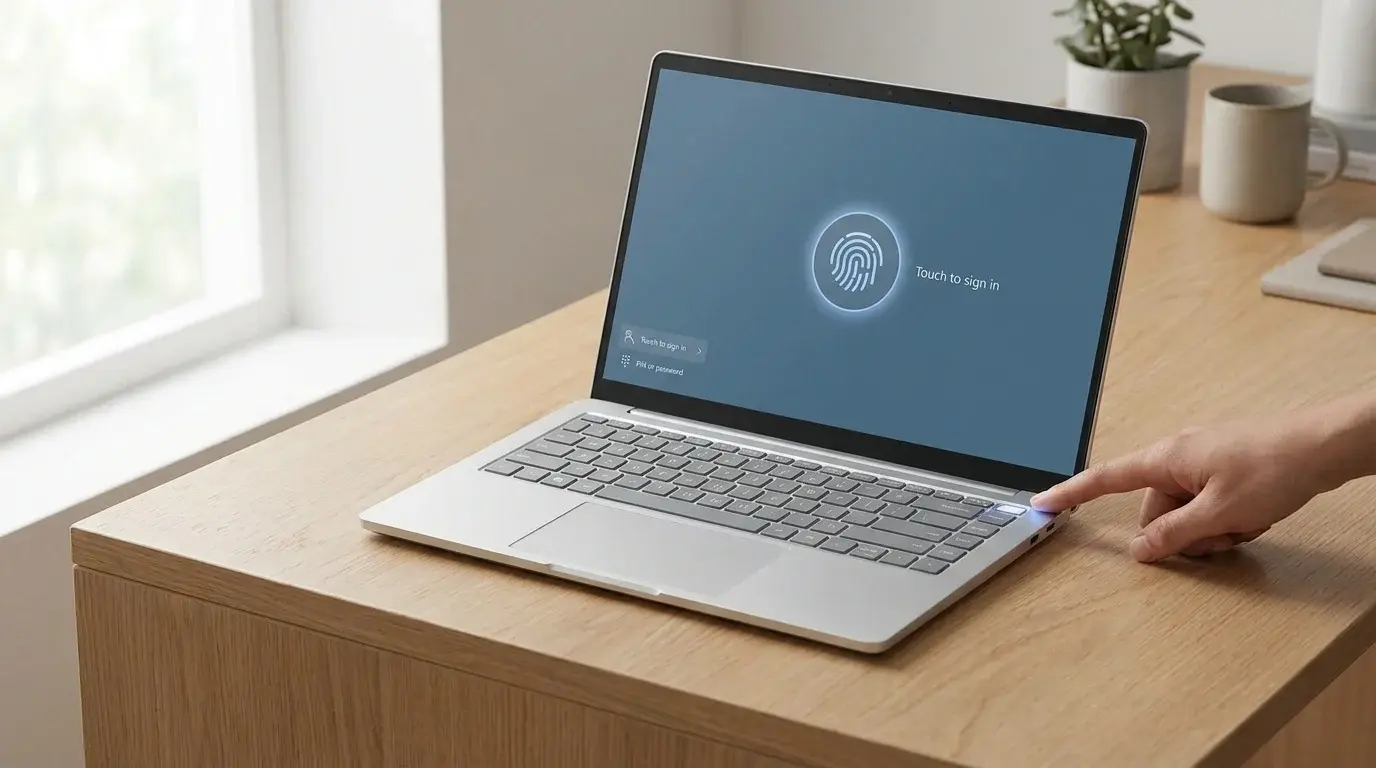
Windows 11 laptop with a fingerprint sign-in prompt on its screen
Table of Contents (18 sections)
- Identify the fingerprint problem first
- 1. Clean the fingerprint reader and your finger
- 2. Sign in with your PIN or password
- 3. Restart Windows and try again
- 4. Add or re-register your fingerprint
- 5. Check Windows Update for driver updates
- 6. Update the fingerprint reader in Device Manager
- 7. If the problem started after a driver update, review the recent change
- 8. Fingerprint recognition is missing from Settings or Device Manager
- 9. Contact the device manufacturer when Windows still cannot detect the reader
- Frequently asked questions
- Why does Windows Hello say my fingerprint could not be recognized?
- Why is fingerprint recognition missing from Windows 11 Settings?
- Can I sign in if my fingerprint reader stops working?
- Should I uninstall the fingerprint driver?
- Will registering my fingerprint again delete my files?
- Why does my external fingerprint reader work in some apps but not at the Windows sign-in screen?
- Official Microsoft sources
If Windows Hello fingerprint sign-in is not working in Windows 11, start by cleaning and drying the fingerprint reader, then try signing in with your PIN or password. If you can access Windows, check the fingerprint settings, remove and register the fingerprint again, and install an appropriate driver update if needed. These steps address common recognition problems without jumping straight to risky system changes.
The right fix depends on what you see. A reader that rejects your finger is different from a fingerprint option that has disappeared from Settings, or a reader that stopped working after an update. Use the section that matches your symptoms and move from simple checks to driver troubleshooting.
Identify the fingerprint problem first
| What you see | What to check first |
|---|---|
| Windows says your fingerprint could not be recognized | Clean and dry the sensor, try the enrolled finger again, and re-register it if needed. |
| Fingerprint sign-in is missing from the sign-in screen | Use Sign-in options to choose your PIN or password, then check the fingerprint settings in Windows. |
| Fingerprint recognition is missing from Settings | Check whether the reader is detected in Device Manager and whether your PC supports Windows Hello fingerprint sign-in. |
| The reader stopped working after an update | Check Windows Update and the reader manufacturer's support page; consider rolling back a recently changed driver if that option is available. |
| You use an external fingerprint reader | Check its Windows Hello compatibility and whether Enhanced Sign-in Security affects that device. |
Windows Hello fingerprint sign-in requires a compatible fingerprint reader. Not every laptop includes one, and an ordinary fingerprint reader is not automatically compatible with Windows Hello. Microsoft explains the supported setup in its Windows Hello configuration guide (opens in new tab).
1. Clean the fingerprint reader and your finger
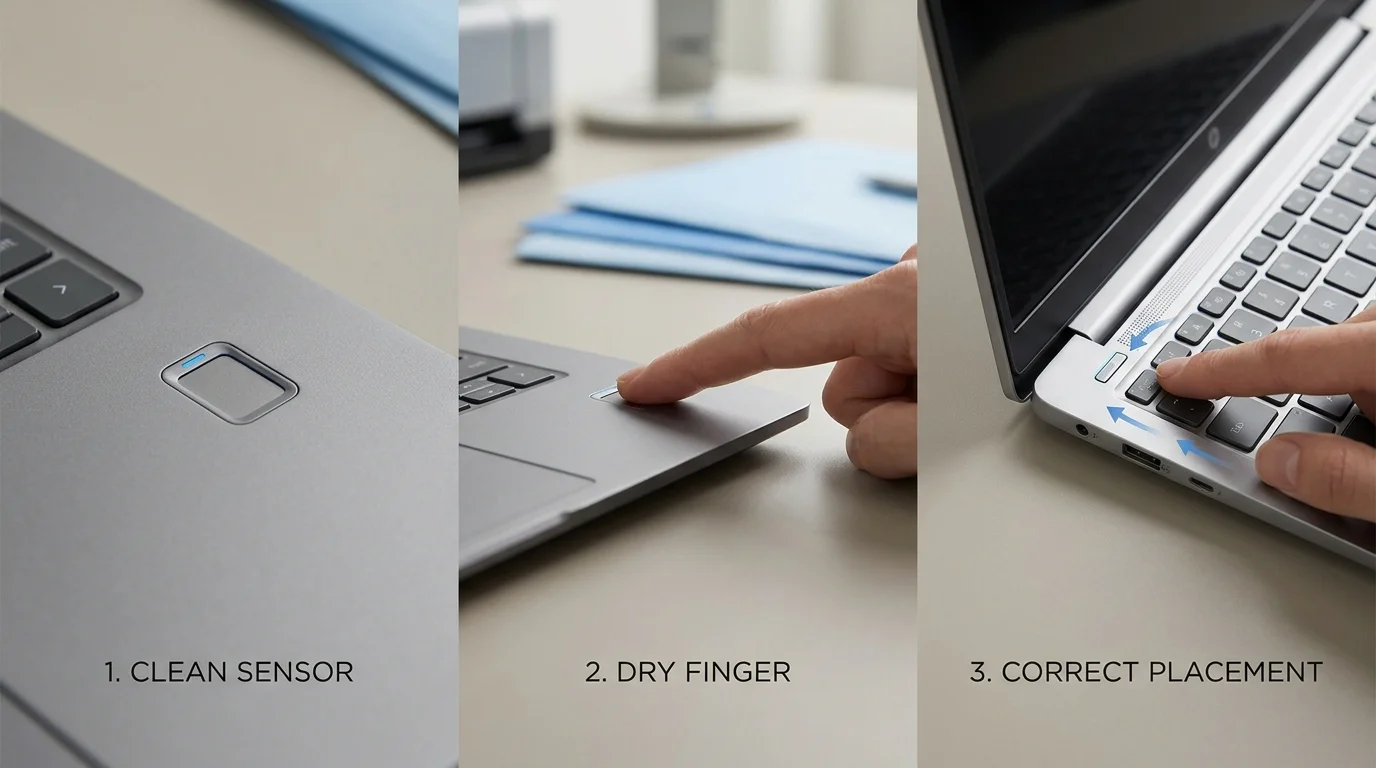
A smudge, moisture, oil, dust, or a damp finger can interfere with a scan. Start with the simplest physical checks before changing Windows settings.
- If the reader is built into a power button or laptop surface, follow the device manufacturer's cleaning instructions.
- Make sure the sensor is clean and dry. Use a soft, non-abrasive cloth and avoid pouring liquid directly onto the sensor.
- Dry your finger and try again using the finger you enrolled.
- Place your finger on the sensor as instructed by the device manufacturer. Avoid repeatedly sliding or moving it unless the reader's instructions call for that motion.
- If the reader is part of a detachable keyboard, check that the keyboard is fully connected and seated correctly.
If the sensor is physically damaged, loose, or still does not respond after cleaning, software steps may not solve the issue. Check the manufacturer's hardware support options.
2. Sign in with your PIN or password
If fingerprint recognition is failing at the lock screen, use another sign-in method instead of repeatedly attempting the scan.
- On the Windows sign-in screen, select Sign-in options if it appears.
- Choose the PIN or password option available for your account.
- Sign in to Windows and continue troubleshooting from Settings.
The alternate method shown can vary by account and device configuration. If neither the PIN nor password works, use the account recovery or sign-in help appropriate to your account before changing fingerprint settings (if your PIN is also failing, see our step-by-step guide on how to fix Windows Hello PIN not working in Windows 11, or see how to fix Windows Hello Face not working if you use facial recognition). Do not share your PIN or password with anyone helping you troubleshoot.
3. Restart Windows and try again
A restart can clear a temporary device or Windows issue. Save open work, then select Start > Power > Restart. After Windows restarts, test the fingerprint reader again.
If you are using an external USB fingerprint reader, disconnect it only if the manufacturer's instructions allow hot-unplugging, wait several seconds, and reconnect it directly to another available USB port. If it is connected through a dock or hub, test it directly on the computer where possible. Then return to the sign-in options and try again.
4. Add or re-register your fingerprint
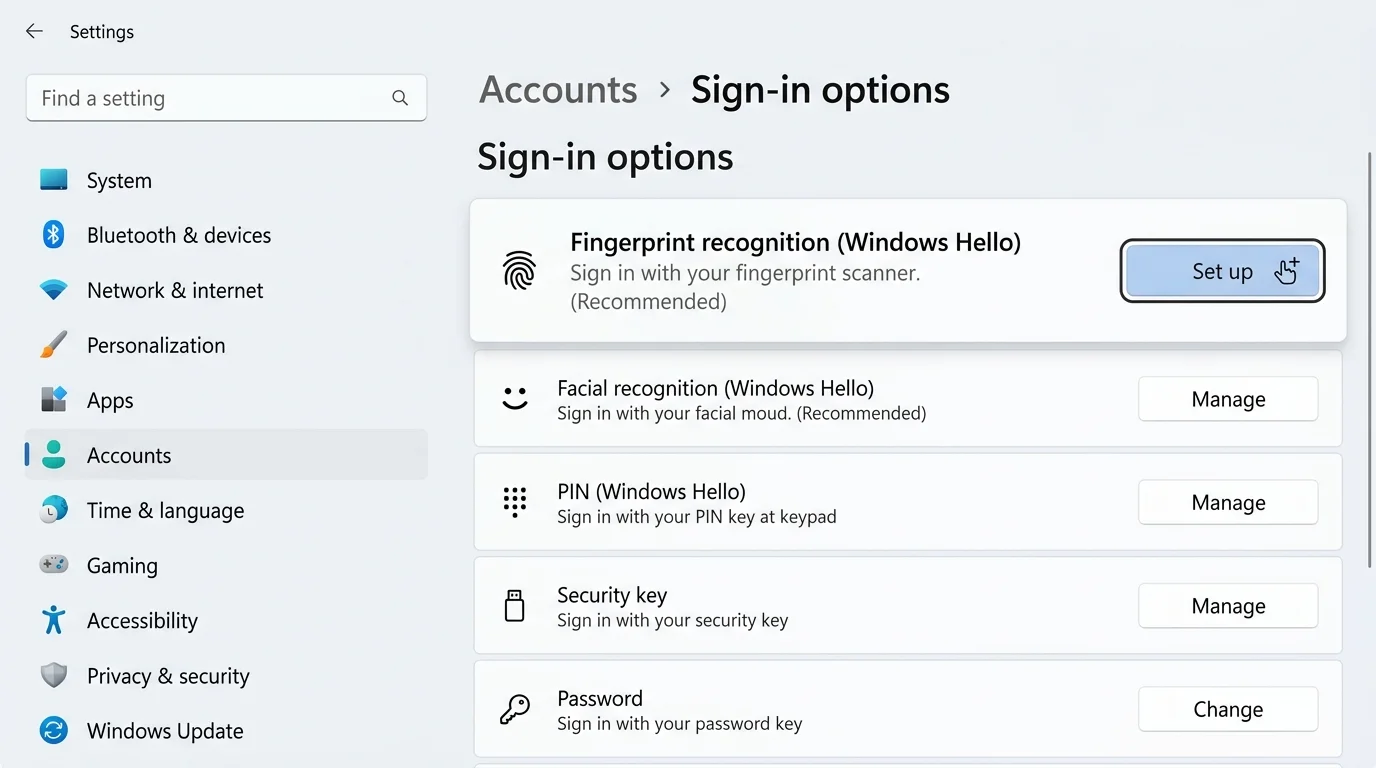
If Windows can detect the fingerprint reader but does not recognize your finger consistently, re-registering the fingerprint can help. Make sure you can sign in with your PIN or password first.
- Press Windows + I to open Settings.
- Select Accounts > Sign-in options.
- Expand Fingerprint recognition (Windows Hello).
- If Windows offers Remove, select it and follow the prompts to remove the existing fingerprint enrollment.
- Select Set up or Add a finger, depending on the options shown.
- Follow the on-screen instructions and touch the reader from different angles when asked. Keep your finger dry and follow the prompts rather than lifting or moving it too early.
- Test sign-in again. If supported, register a second finger as a backup.
The precise buttons available depend on your PC and Windows configuration. If the fingerprint section is missing or its controls are unavailable, continue to the next steps instead of trying to force an enrollment (if you prefer to remove biometric sign-in altogether and sign in with a standard password, see our guide on how to disable Windows Hello in Windows 11).
5. Check Windows Update for driver updates
Windows Update can provide drivers for hardware devices, including biometric hardware. Use Windows' built-in update path before downloading a driver from another website.
- Open Settings > Windows Update.
- Select Check for updates and install relevant available updates.
- Open Advanced options > Optional updates if that section is available.
- Look under driver updates for a fingerprint, biometric, or system-device driver that matches your hardware.
- Install an appropriate update and restart if Windows requests it.
Optional driver updates are not necessarily offered on every device. Do not install a driver simply because its name contains a similar word; it should match your specific computer or fingerprint-reader model (if updates stall or fail to install, see our guide on what to do when Windows Update is stuck). See Microsoft's guidance for recommended and updated hardware drivers (opens in new tab).
6. Update the fingerprint reader in Device Manager
If fingerprint recognition still fails, check whether Windows detects the hardware and can find a driver update.
- Right-click Start and open Device Manager.
- Look for a category such as Biometric devices. Depending on the hardware and driver, the device may appear under a different category or with a more specific manufacturer name.
- If the reader is listed, right-click it and select Update driver.
- Choose Search automatically for drivers and follow any instructions.
- Restart the computer if the update or Windows asks you to.
Windows may report that the best driver is already installed even when the computer manufacturer offers a more recent model-specific driver. If so, visit the official support page for your exact laptop, keyboard, or fingerprint-reader model and confirm the driver is intended for your version of Windows. Avoid third-party driver-download utilities and unofficial driver websites.
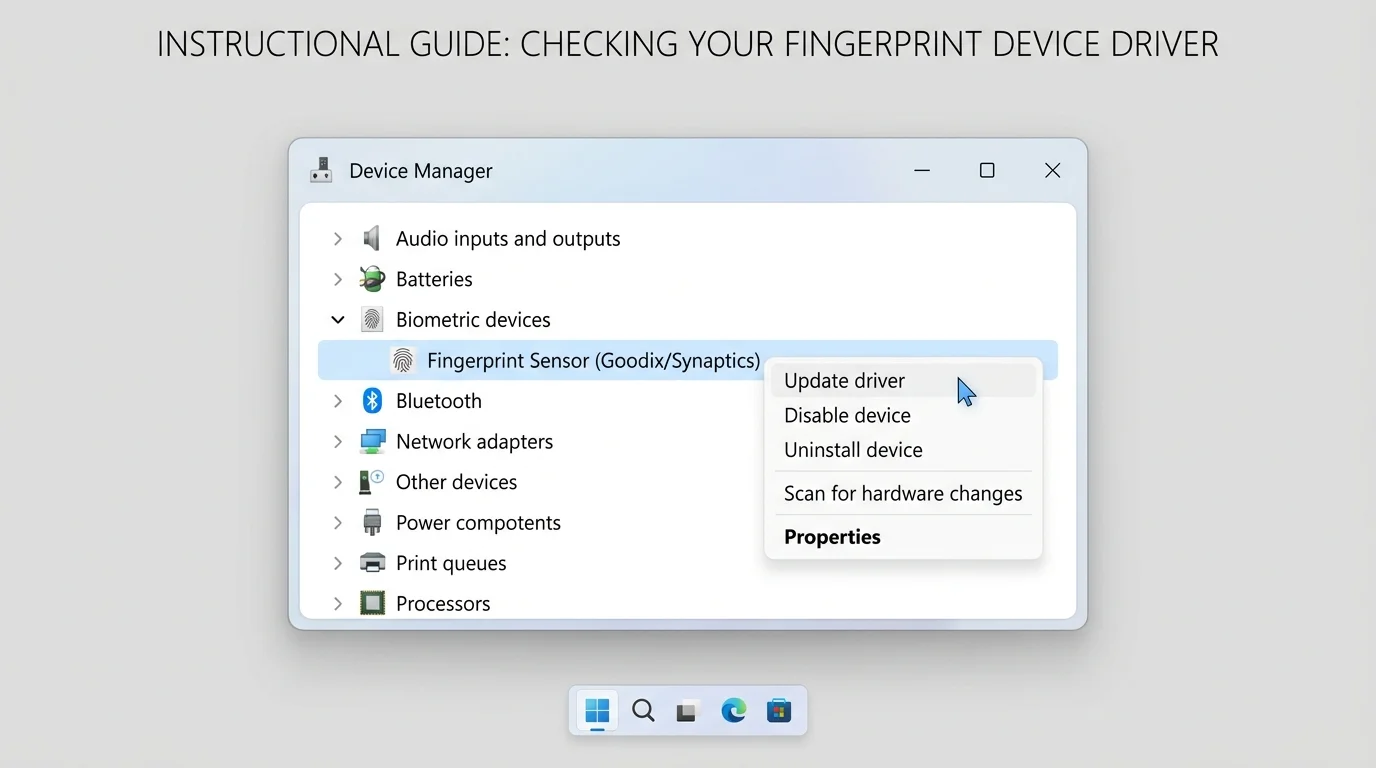
7. If the problem started after a driver update, review the recent change
If fingerprint sign-in worked normally and failed immediately after a driver update, a recently changed driver may be involved.
- Open Device Manager and locate the fingerprint reader.
- Right-click it and select Properties.
- Open the Driver tab.
- If Roll Back Driver is available, review whether returning to the previous driver is appropriate, then follow the prompts.
- Restart and test fingerprint sign-in.
The rollback option may be unavailable, and the problem may have another cause. Do not uninstall unrelated devices or delete driver files to make the button appear. Microsoft's Device Manager driver guidance (opens in new tab) explains supported update, reinstall, and rollback options.
8. Fingerprint recognition is missing from Settings or Device Manager
If Fingerprint recognition (Windows Hello) is not shown under Settings > Accounts > Sign-in options, work through these checks:
- Confirm hardware support. Check the computer or reader specifications for Windows Hello fingerprint support. Some devices have no fingerprint reader, and some general-purpose readers are not supported for Windows Hello sign-in.
- Check Device Manager. Look for a biometric device or an unknown device that appeared around the time the reader stopped working. Do not assume an unknown device is the fingerprint reader without checking the model or hardware documentation.
- Install the correct OEM driver. Use Windows Update or the official support page for your exact device model.
- Check for managed-device restrictions. A work or school administrator may control Windows Hello enrollment and available sign-in methods. Ask the administrator rather than bypassing a policy.
- For external readers, review Enhanced Sign-in Security compatibility. On supported Windows 11 versions, Enhanced Sign-in Security can prevent some third-party readers that do not support that security mode from being used for Hello sign-in. Settings and availability vary by device, version, and organization policy.
Do not disable security features as a first step. Microsoft's guidance for third-party fingerprint readers and Windows Hello (opens in new tab) explains the compatibility issue and notes that changing Enhanced Sign-in Security can remove existing enhanced-security enrollments and associated credentials, such as passkeys. Check the implications before changing that setting.
9. Contact the device manufacturer when Windows still cannot detect the reader
If the fingerprint reader is not detected after a restart and the correct driver has been installed, the cause may be hardware failure, firmware, a device-specific issue, or a policy that cannot be changed from your Windows account.
Use the support page for your exact PC or reader model. Provide the model name, Windows version, when the problem began, and the troubleshooting steps already tried. Do not send passwords, PINs, recovery codes, or biometric data in a support request. If the computer is managed by an employer or school, contact its IT support first.
Avoid Registry edits, deleting biometric system folders, running unknown scripts, or resetting Windows solely to fix a fingerprint reader. These steps can introduce additional problems and should not replace the supported troubleshooting path.
Frequently asked questions
Why does Windows Hello say my fingerprint could not be recognized?
The sensor or finger may be dirty or damp, the enrolled finger may not match the angle used, or the enrollment may need to be recreated. Clean and dry the reader, try the registered finger, and re-register it from Sign-in options if Windows can detect the device.
Why is fingerprint recognition missing from Windows 11 Settings?
Your PC may not have a compatible fingerprint reader, Windows may not currently detect the hardware, a driver may be missing, or an organization may restrict enrollment. Check the device specifications, Device Manager, Windows Update, and your manufacturer's support page.
Can I sign in if my fingerprint reader stops working?
Use another available sign-in method, such as your Windows Hello PIN or account password, by selecting Sign-in options on the sign-in screen. The methods displayed depend on your account and device setup.
Should I uninstall the fingerprint driver?
Not as the first step. Start with Windows Update, the manufacturer's supported driver, and the update or rollback options in Device Manager. Reinstalling a device driver may be appropriate in some cases, but confirm the exact device and have a compatible driver source available before doing so.
Will registering my fingerprint again delete my files?
Removing and registering a Windows Hello fingerprint enrollment is intended to manage the sign-in method, not delete personal files. Still, ensure you can sign in another way before removing an enrollment, especially if fingerprint sign-in is your usual method.
Why does my external fingerprint reader work in some apps but not at the Windows sign-in screen?
App support and Windows Hello sign-in compatibility are not the same. A third-party reader may not support the security mode required by your Windows 11 configuration. Check the device manufacturer's documentation and Microsoft's Enhanced Sign-in Security guidance before changing any security setting.
Official Microsoft sources
- Windows Hello common issues and troubleshooting tips (opens in new tab)
- Configure Windows Hello (opens in new tab)
- Sign-In Options in Windows (opens in new tab)
- Update drivers through Device Manager in Windows (opens in new tab)
- Automatically get recommended and updated hardware drivers (opens in new tab)
- Using third-party fingerprint readers and cameras with Windows Hello (opens in new tab)
Verified Primary Sources & Citations
NextTechExplained verifies facts against official documentation, engineering whitepapers, and regulatory filings.
- Microsoft Support: Windows Hello common issues and troubleshooting tipsView Official Source
- Microsoft Support: Configure Windows HelloView Official Source
- Microsoft Support: Sign-In Options in WindowsView Official Source
- Microsoft Support: Update drivers through Device Manager in WindowsView Official Source
- Microsoft Support: Automatically get recommended and updated hardware driversView Official Source
- Microsoft Support: Using third-party fingerprint readers and cameras with Windows HelloView Official Source
Published by NextTechExplained
Editorial Team • Institutional Publication Byline
Articles published under this byline are prepared through rigorous research and verified against official engineering specifications, standards documentation, and primary sources. Learn more about our process on our About page and Editorial Policy.
Related Explanations & Guides
How to Disable Windows Hello in Windows 11
Learn how to turn off Windows Hello face and fingerprint sign-in, remove a PIN when Windows allows it, and restore password sign-in in Windows 11.
Windows Hello Face Not Working in Windows 11: How to Fix It
Fix Windows Hello face recognition problems in Windows 11. Check lighting and camera visibility, improve face recognition, review compatible hardware, and troubleshoot drivers safely.
Windows Hello PIN Not Working in Windows 11: How to Fix It
Fix a Windows Hello PIN that is not working in Windows 11. Learn when to restart, sign in with your password, reset the PIN, and contact your administrator.