
How to Change the Keyboard on Android (Gboard and Samsung)
Learn how to change your Android keyboard, set Gboard or Samsung Keyboard as default, switch back, and troubleshoot missing keyboard options.
Editorial Team
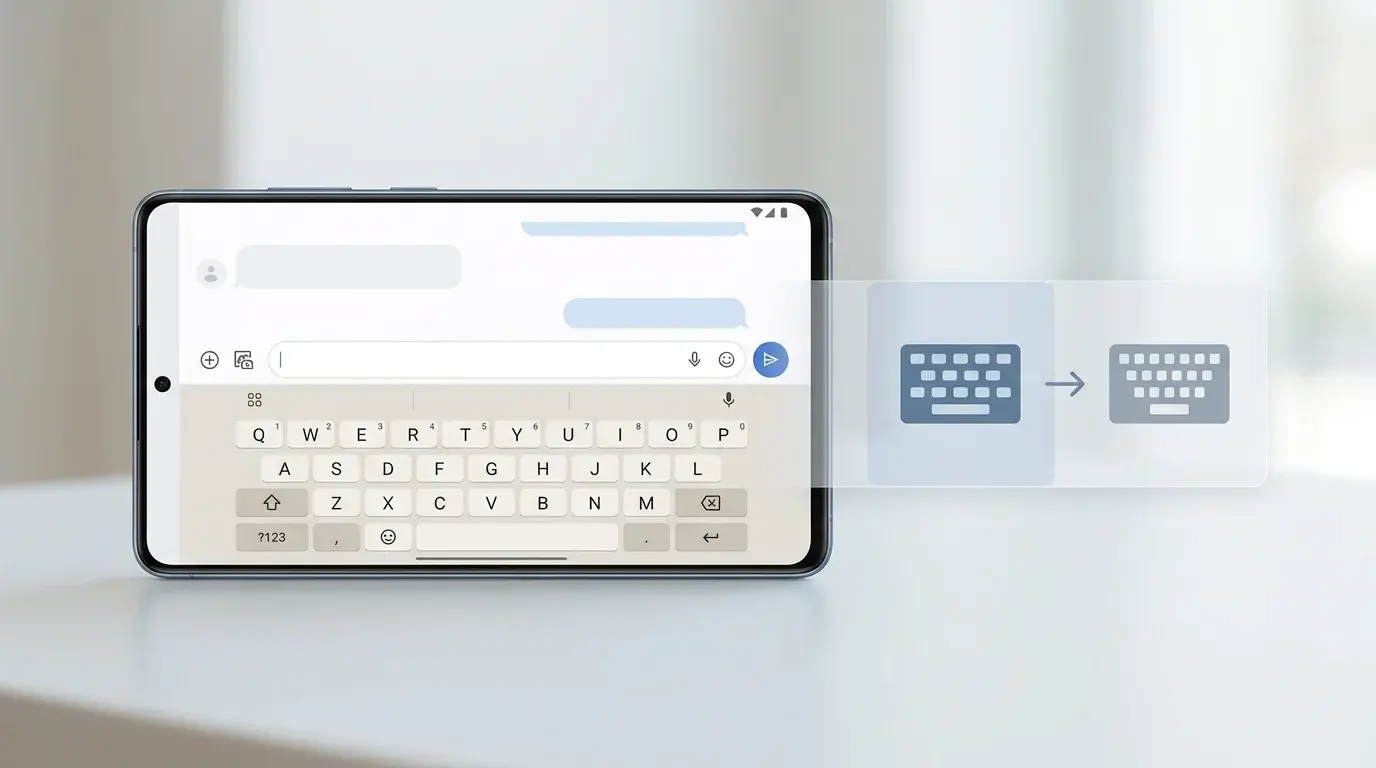
Android phone showing a keyboard input-method selector beside an on-screen keyboard
Table of Contents (30 sections)
- Quick answer: change the default keyboard
- Before you change your keyboard
- Method 1: Change the keyboard on a standard Android phone
- Step 1: Install a keyboard app
- Step 2: Open keyboard settings
- Step 3: Enable the keyboard
- Step 4: Select it as the default
- Step 5: Test it
- Method 2: Change the keyboard on a Samsung Galaxy phone
- Step 1: Open Keyboard list and default
- Step 2: Enable the keyboard you want
- Step 3: Set the default keyboard
- Step 4: Confirm it works
- How to switch keyboards without changing the default permanently
- How to change languages inside Gboard
- How to switch back to your old keyboard
- Troubleshooting: keyboard options are missing
- The new keyboard does not appear in the list
- Android keeps using the old keyboard
- The keyboard opens but looks different
- You wanted to change the typing language, not the app
- You enabled a keyboard and are unsure whether to trust it
- Frequently asked questions
- Can I use Gboard on a Samsung phone?
- Does changing the keyboard change my Android language?
- Do I need to uninstall my old keyboard?
- Why are my settings different from these steps?
- Conclusion
- Related guides
- Sources and further reading
Changing the keyboard on an Android phone usually means choosing a different keyboard app, such as Gboard or Samsung Keyboard, and setting it as the default input method. You can also keep more than one keyboard enabled and switch between them when you type.
The exact menu names depend on your phone brand and Android version. The steps below cover common Android settings and Samsung Galaxy phones. If a menu path does not match your device, open Settings and search for keyboard or default keyboard.
Important distinction: Changing the keyboard app is different from changing the language or layout inside your current keyboard. If you only want to add another language to Gboard, see Google's instructions for changing languages in Gboard (opens in new tab).
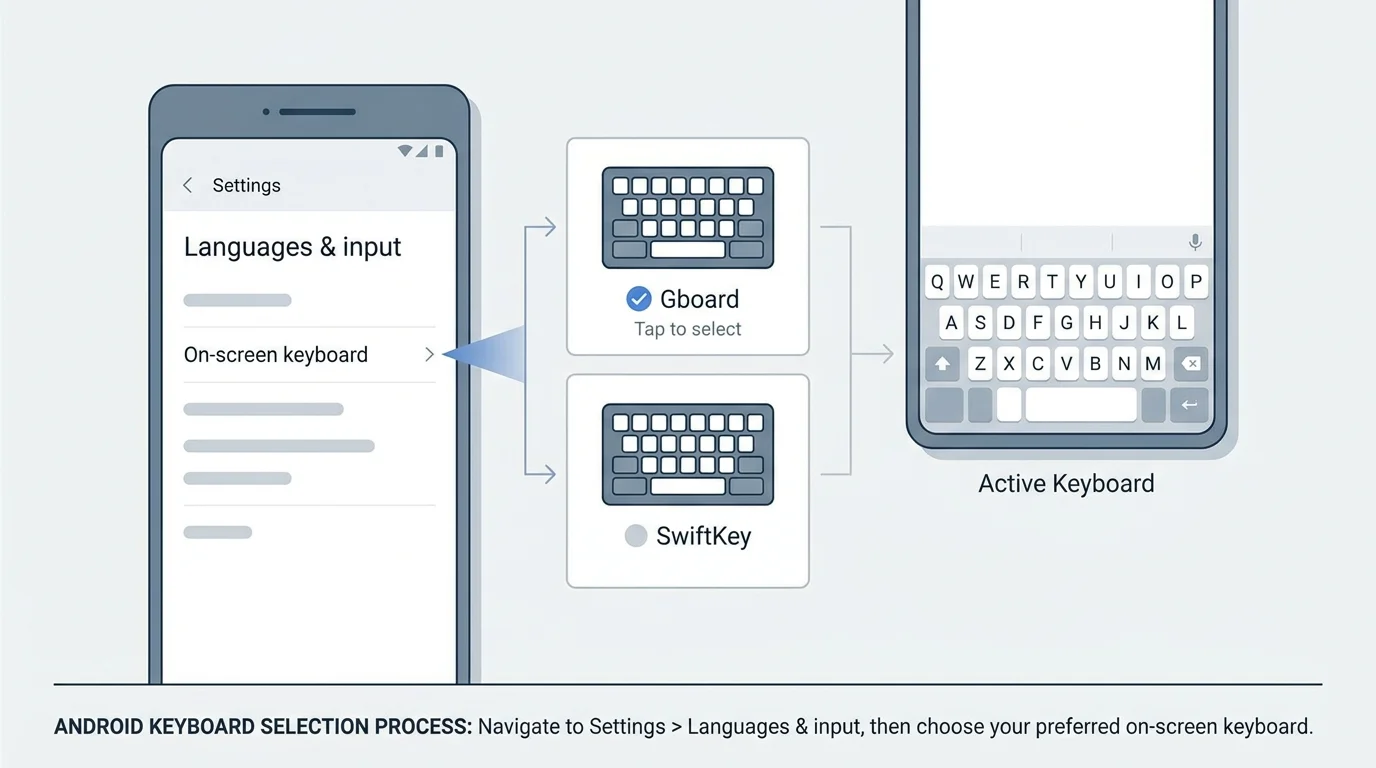
Quick answer: change the default keyboard
- Install the keyboard app you want from Google Play, if it is not already on your phone.
- Open Settings and search for Default keyboard or On-screen keyboard.
- Enable the keyboard in the device's keyboard list if Android asks you to.
- Open Default keyboard or the input-method selector and choose the keyboard you want to use.
- Open a text field and type a few words to confirm the new keyboard works.
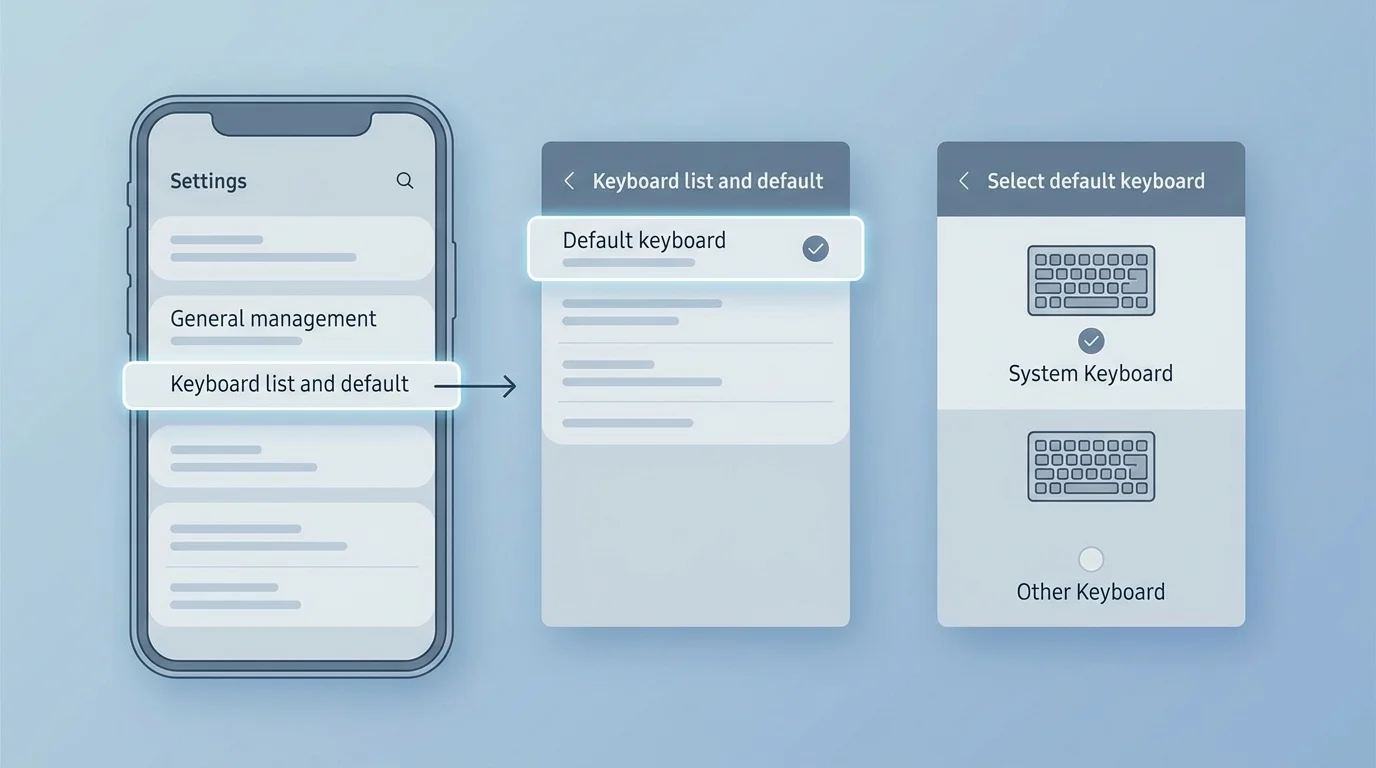
On Samsung Galaxy phones, the usual route is Settings > General management > Keyboard list and default > Default keyboard. Other Android phones may place these controls under System > Keyboard. Labels vary by device and software version.
Before you change your keyboard
Choose a keyboard from a developer you trust. A keyboard is an input method, so it operates while you type. Before enabling a third-party keyboard, review its Play Store listing, developer, privacy policy, and requested permissions. If you want to review what installed apps can access, follow our guide on how to audit smartphone app permissions. Avoid installing keyboard apps from random download sites or enabling an app you do not recognize.
If you only need another language, emoji, or a different layout, you may not need to replace the keyboard app at all. Gboard and Samsung Keyboard both support configurable languages and layouts. Changing your keyboard's language does not necessarily change the language used by Android's menus. If you are comparing mobile and desktop settings, note that PC keyboards handle layouts at the operating system level; see our guide on how to change keyboard language in Windows 11.
Method 1: Change the keyboard on a standard Android phone
These steps are a general guide for Pixel-style Android menus. Other manufacturers may use different labels.
Step 1: Install a keyboard app
If the keyboard you want is not already installed, open Google Play and install it from the app's official listing. Gboard is Google's keyboard app, and some Android phones already have it installed. You do not need to install another keyboard if the one you want is already available.
Do not install multiple look-alike apps just to try to find the correct one. Check the developer name and app information before installing.
Step 2: Open keyboard settings
Open Settings and look for a path similar to:
System > Keyboard > On-screen keyboard
Depending on your Android version, you may see Manage on-screen keyboards, Virtual keyboard, or another similar label. Settings search is often the quickest way to find the correct page: search for on-screen keyboard or the keyboard app's name.
Step 3: Enable the keyboard
Find the keyboard in the list of available input methods and enable it if it is switched off. Android may show a warning when you enable a third-party keyboard. Read that warning and continue only if you trust the app.
Enabling a keyboard makes it available; it does not always make it the default keyboard automatically.
Step 4: Select it as the default
Return to the keyboard settings and select Default keyboard if that option appears. Choose the app you want to use.
On some devices, you can also open any app with a text field, tap the field to show the keyboard, and use the keyboard-switcher icon on the navigation bar or in the input-method controls. Choose the desired keyboard from the list. The exact switcher and its location vary by phone.
Step 5: Test it
Open a notes app or another simple text field and type a short test sentence. Confirm that the keyboard appears, the expected keys work, and the layout is correct. If it does not appear, check that it is enabled and selected as default.
Method 2: Change the keyboard on a Samsung Galaxy phone
Samsung Galaxy devices have a dedicated keyboard settings page. Samsung notes that available screens and options can vary by model, software version, and carrier.
Step 1: Open Keyboard list and default
- Open Settings.
- Tap General management.
- Open Keyboard list and default.
If these labels differ, use Settings search for default keyboard.
Step 2: Enable the keyboard you want
Under the keyboard list, enable the input method you want to use, if it is not already enabled. For a third-party keyboard, confirm that you recognize and trust the app before allowing it.
Step 3: Set the default keyboard
Tap Default keyboard, then choose the keyboard you want. For example, you may select Samsung Keyboard or Gboard, provided the app is installed and enabled.
Step 4: Confirm it works
Open Messages, Notes, or another app with a text field. Tap the field, type a short test, and confirm that the selected keyboard appears. If the old keyboard still appears, return to Keyboard list and default and check the selected default.
For Samsung's own options, see Samsung's keyboard settings guide (opens in new tab).
How to switch keyboards without changing the default permanently
If two or more keyboards are enabled, you may be able to switch input methods only for the current typing session or return to the system keyboard selector. This does not require uninstalling either app.
- Open an app where you can type.
- Tap a text field so the keyboard appears.
- Look for a keyboard icon on the navigation bar or an input-method option. On some phones, the selector appears only while a text field is active.
- Select the keyboard you want to use.
If the selector is missing, return to the keyboard settings and make sure more than one keyboard is enabled. Menu placement depends on the device. You can also use Settings search to locate the default input method.
How to change languages inside Gboard
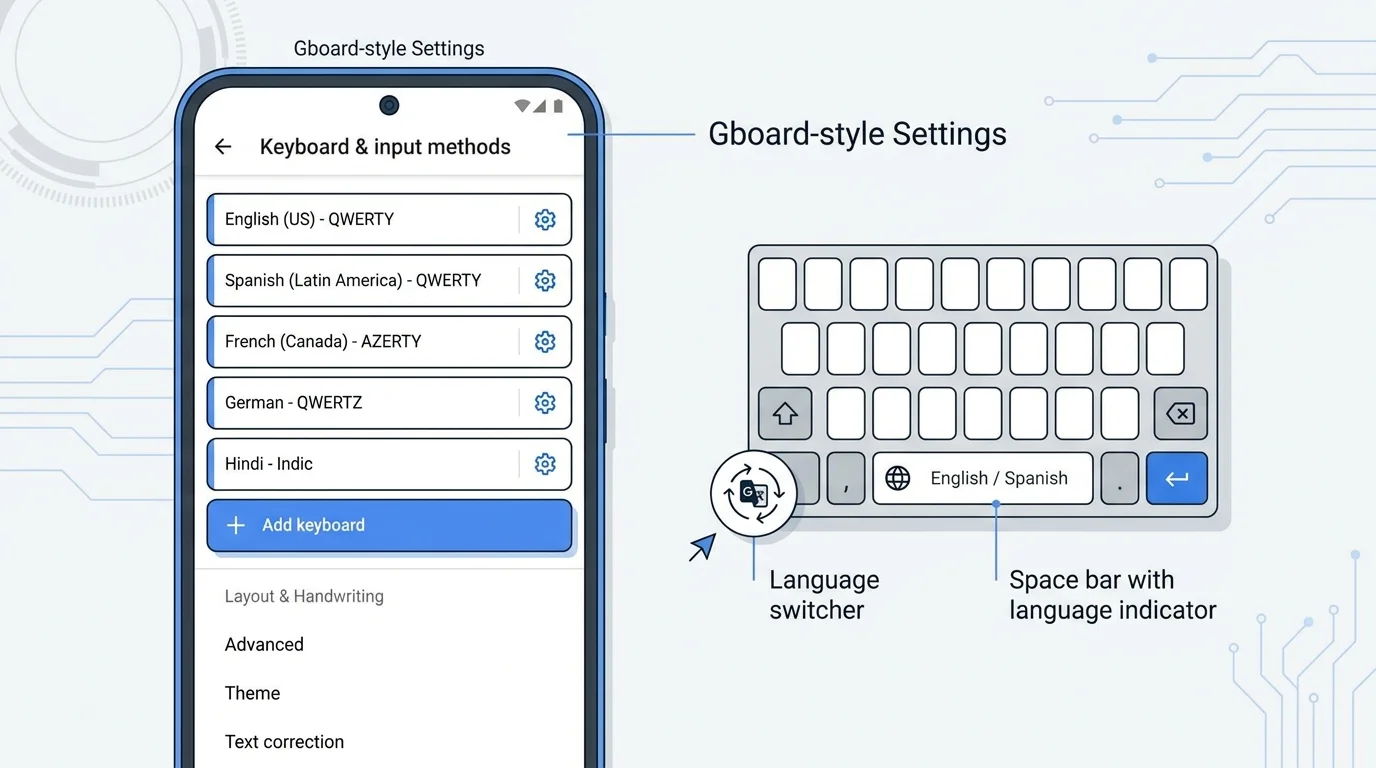
If your goal is to type in another language, you can usually keep Gboard and add a language rather than installing a new keyboard app.
- Open an app where you can type and tap a text field.
- Tap the Settings icon on Gboard. If it is not visible, open the keyboard's feature menu and find Settings.
- Tap Languages, then Add keyboard.
- Choose a language and the layout you prefer.
- Tap Done.
To switch between configured languages, touch and hold the space bar. You can also enable a language-switch key in Gboard's preferences. These settings change the keyboard's input language; they do not, by themselves, change Android's display language. See Google's Gboard language instructions (opens in new tab).
How to switch back to your old keyboard
You usually do not need to remove the new app. Open Settings and go back to Default keyboard or, on Samsung, General management > Keyboard list and default > Default keyboard. Select your previous keyboard.
If the old keyboard is no longer listed, check the enabled-keyboards screen. Re-enable it if it is installed and you want to keep using it. If you no longer need the other keyboard, you can uninstall it through Android's app settings, but switch back to your preferred keyboard first.
Troubleshooting: keyboard options are missing
The new keyboard does not appear in the list
Confirm that installation finished and that you installed the intended app. Then search Settings for on-screen keyboard, manage keyboards, or default keyboard. Some devices separate enabling an input method from selecting the default one.
Android keeps using the old keyboard
Return to Default keyboard and check the selection. If a keyboard-switcher icon is available while typing, you may have changed the temporary input method rather than the system default. Close and reopen the text field, then test again.
The keyboard opens but looks different
You may have changed the keyboard app, theme, or layout. Open that keyboard's own settings to adjust size, appearance, languages, and other available options. These controls are separate from the Android default-keyboard setting.
You wanted to change the typing language, not the app
Keep your current keyboard and open its language settings. In Gboard, add the language and layout under Languages. On Samsung Keyboard, look for Languages and types or Manage input languages. Names can vary across versions.
You enabled a keyboard and are unsure whether to trust it
Do not select an unfamiliar keyboard just to dismiss the warning. Review the developer, source, privacy policy, and permissions, and disable or uninstall it if you cannot establish that it is trustworthy. Choose a well-known keyboard from an official app store.
Frequently asked questions
Can I use Gboard on a Samsung phone?
Yes, if Gboard is available for your device and installed. Enable it in the keyboard list, then choose it as the default keyboard. Samsung Keyboard remains available if you want to switch back.
Does changing the keyboard change my Android language?
No, changing the keyboard app does not normally change the Android system language. Changing the input language inside Gboard or Samsung Keyboard is also separate from the language used for system menus.
Do I need to uninstall my old keyboard?
No. You can keep more than one keyboard installed and select the one you want to use. Uninstall a keyboard only if you no longer need it.
Why are my settings different from these steps?
Android manufacturers and software versions use different menu names and layouts. Search Settings for keyboard or check your device manufacturer's support site if the path in this guide does not match your phone.
Conclusion
Changing your Android keyboard lets you choose the typing experience, predictions, and gestures that best fit your workflow. Start by installing a trusted keyboard from Google Play, enable it in your device's keyboard list, and set it as the default input method in Settings. If you only need to type in a different language, remember that both Gboard and Samsung Keyboard let you add languages and switch layouts directly without replacing the keyboard app entirely.
Related guides
- How to Audit Smartphone App Permissions
- How to Check Battery Health on Android
- How to Change Keyboard Language in Windows 11
- How to Clean a Keyboard Safely: Laptop and Desktop Guide
Sources and further reading
Verified Primary Sources & Citations
NextTechExplained verifies facts against official documentation, engineering whitepapers, and regulatory filings.
- Google Support: Set up GboardView Official Source
- Google Support: Use your keyboard and manage languages in GboardView Official Source
- Samsung Support: Adjust keyboard settings on your Galaxy phone or tabletView Official Source
Published by NextTechExplained
Editorial Team • Institutional Publication Byline
Articles published under this byline are prepared through rigorous research and verified against official engineering specifications, standards documentation, and primary sources. Learn more about our process on our About page and Editorial Policy.
Related Explanations & Guides

How to Change Keyboard Language in Windows 11
Switch keyboard languages in Windows 11, add a new layout, use the Windows + Space shortcut, and fix missing language options.

How to Clean a Keyboard Safely: Laptop and Desktop Guide
Learn how to clean a laptop or desktop keyboard safely, remove dust and crumbs, wipe the keys, and avoid liquid or keycap damage.
How to Fix Sticky Keyboard Keys on a Laptop or PC
Fix sticky keyboard keys safely with step-by-step cleaning, connection checks, and spill advice for laptops and external keyboards.