
How to Add SharePoint to File Explorer in Windows 11
Access a SharePoint document library from Windows 11 File Explorer using Add shortcut to OneDrive or Sync, with setup and troubleshooting steps.
Editorial Team
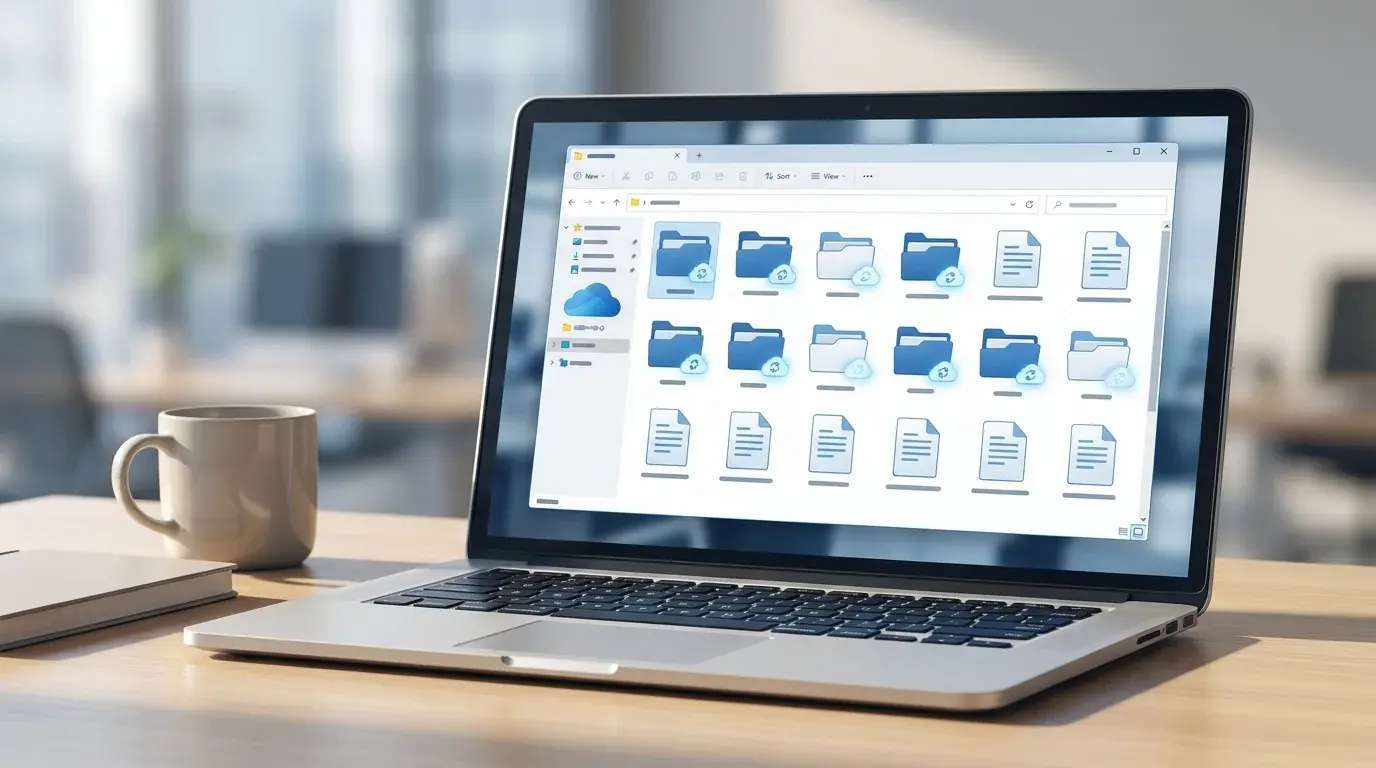
Windows 11 File Explorer showing a synced SharePoint document library under an organization account
Table of Contents (19 sections)
- Before you begin
- Method 1: Add the SharePoint library to OneDrive
- Method 2: Sync the SharePoint library to this PC
- Add shortcut or Sync: which should you use?
- Make files available offline
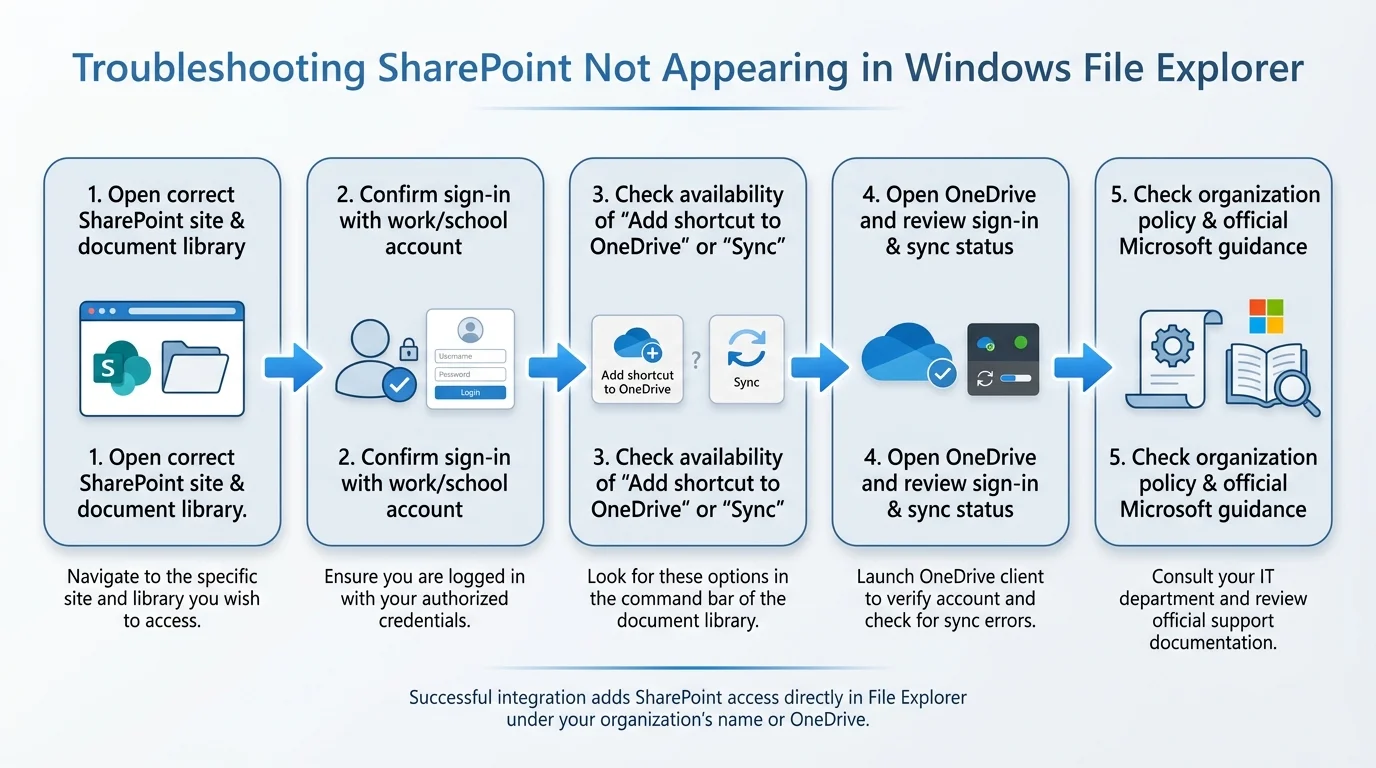
- Fix SharePoint if it does not appear in File Explorer
- 1. Confirm that you are in the document library
- 2. Confirm account access
- 3. Check that OneDrive is running
- 4. Check the sync status and available storage
- 5. Try the other supported connection method
- 6. Avoid the legacy "View in File Explorer" route for modern SharePoint
- Frequently asked questions
- Does SharePoint automatically appear in File Explorer?
- Do I need OneDrive to see SharePoint files in File Explorer?
- Should I choose Add shortcut to OneDrive or Sync?
- Will SharePoint files take up space on my computer?
- If I delete a file in File Explorer, will it disappear from SharePoint?
- Official sources
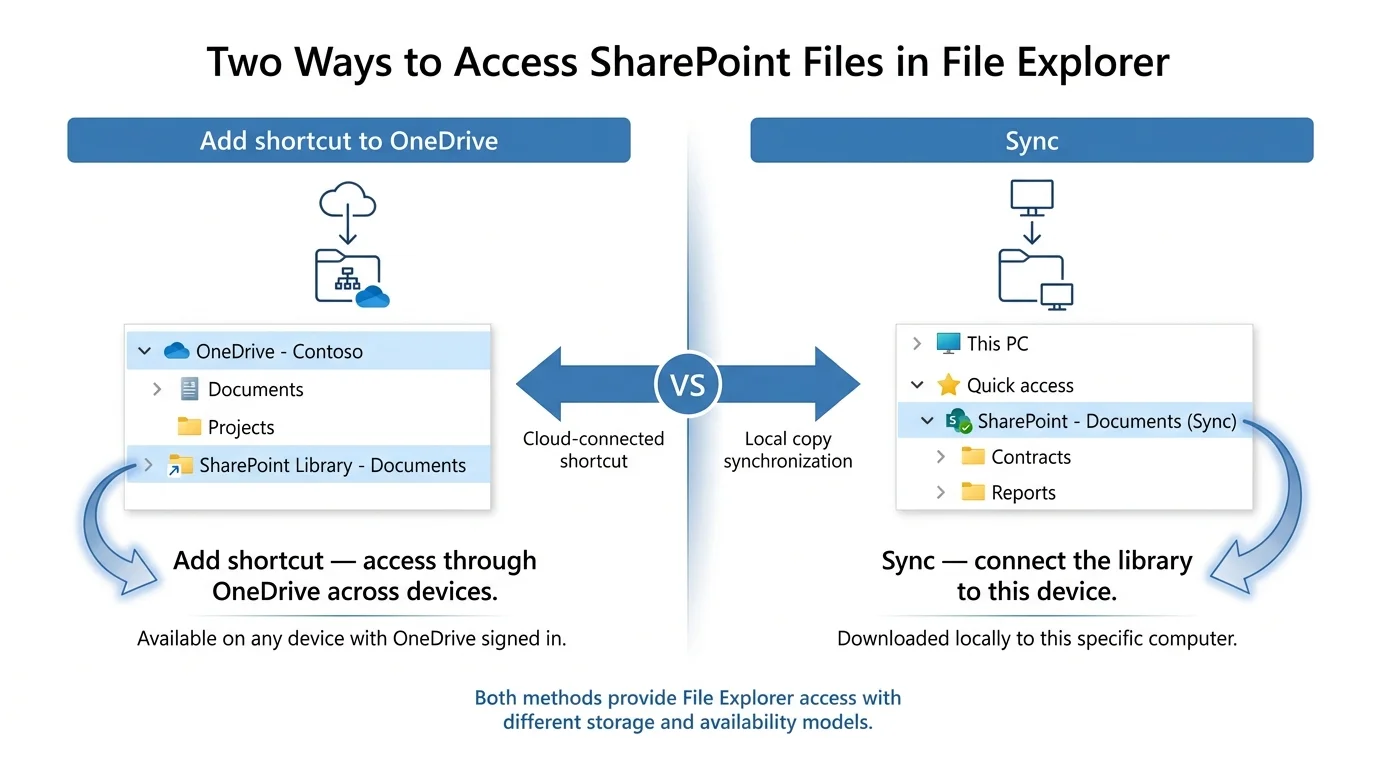
You can access a SharePoint document library from Windows 11 File Explorer without repeatedly opening the site in a browser. Microsoft supports two modern options: add a shortcut to the library or folder in OneDrive, or use the Sync command to connect that SharePoint library to a specific computer.
For most people, adding a shortcut to OneDrive is the more flexible choice when the option is available. Sync is useful when you want that library connected to a particular device. Both methods rely on the OneDrive sync app, and your organization's Microsoft 365 settings and permissions can affect which options appear.
Before you begin
Make sure you have access to the SharePoint site and document library with your work or school account. SharePoint in Microsoft 365 is commonly managed by an organization, so a personal Microsoft account may not have permission to open the library.
You should also have the OneDrive desktop app set up on your Windows PC (if needed, see our guide on how to add OneDrive to File Explorer in Windows 11). If your organization manages the device, some sync options may be disabled by its administrator. Do not try to bypass those restrictions; ask your Microsoft 365 administrator if an expected option is missing.
Method 1: Add the SharePoint library to OneDrive
This is generally the most flexible method when Add shortcut to OneDrive is available. The shortcut becomes visible through OneDrive and can be available on other devices where you use the same OneDrive account.
- Open your organization's SharePoint site in a browser and sign in with the account that has access to the files.
- Navigate to the document library or shared folder you want to access. In many sites, the main library is named Documents.
- Select the library or folder and look for Add shortcut to OneDrive. Depending on the current page layout, it may be in the toolbar or an overflow menu.
- Select the command and wait for SharePoint to confirm that the shortcut was added.
- Open OneDrive in your browser and check My files if you want to confirm that the shortcut appears.
- On your Windows PC, open File Explorer with
Windows + E. Select your OneDrive location in the navigation pane and find the SharePoint shortcut there.
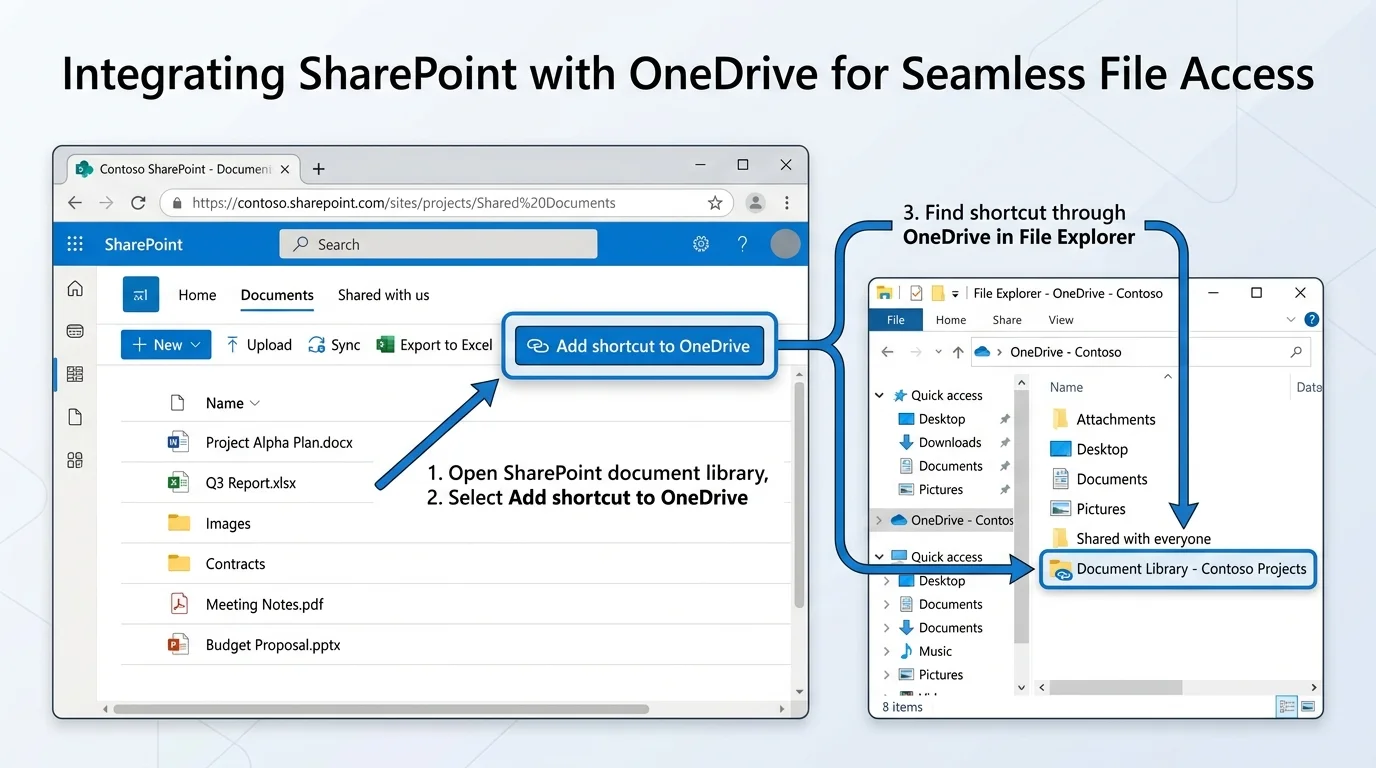
The shortcut points to content in the SharePoint library; it does not create an independent copy of the library. Your access still depends on the original SharePoint permissions. If the site owner removes your access, the shortcut does not grant access by itself.
If the option is missing, check whether you have opened a document library or folder, rather than a general site page. The command may also be unavailable because of organization policy, library limitations, or the current selection.
Method 2: Sync the SharePoint library to this PC
Use Sync when you want to connect a document library to a particular computer. Microsoft notes that this method and OneDrive shortcuts both make files available through File Explorer, but a shortcut is more versatile when you want the content accessible across devices.
- Open the SharePoint site in your browser and sign in with your work or school account.
- Open the document library you want to use.
- Select Sync in the library toolbar. If it is under an overflow menu, open that menu and choose Sync.
- If the browser asks whether to open Microsoft OneDrive, approve the request only when it is triggered by the SharePoint sync action you just selected.
- Sign in to OneDrive if prompted and follow any setup instructions.
- Wait for the sync app to connect the library. Then open File Explorer and look in the navigation pane for your organization's name or the synced SharePoint library.
The library is associated with this device's OneDrive sync setup. If you use multiple PCs, you may need to configure sync on each device separately. The OneDrive cloud icon in the Windows notification area lets you review sync status and settings.
Add shortcut or Sync: which should you use?
| Option | Best for | Important difference |
|---|---|---|
| Add shortcut to OneDrive | Accessing a library or folder through your OneDrive files across devices | The shortcut follows your OneDrive account and is generally Microsoft's more flexible recommendation when available. |
| Sync | Connecting a SharePoint library to a specific computer | The library is configured for that device through the OneDrive sync app. |
| Open in File Explorer / Open with Explorer | Older guidance or classic SharePoint scenarios | Microsoft's modern SharePoint guidance no longer recommends the legacy browser-based command for modern sites. Prefer a shortcut or Sync. |
Both modern methods connect File Explorer to the SharePoint content. Neither should be treated as a separate backup. Changes made in a synced or shortcut-linked location can sync back to SharePoint, depending on the user's permissions and sync state.
Make files available offline
Seeing a file in File Explorer does not always mean its contents are stored fully on the PC. With OneDrive Files On-Demand, files can appear in File Explorer while taking up little local storage until they are opened or downloaded.
If you need a file or folder available without internet access, use the OneDrive options to keep the selected item on the device, where supported. Wait until the download and sync finish before relying on the local copy. Available status labels can vary with the app version and organization policy.
Be careful when moving or deleting files inside a synced SharePoint location. Edits and deletions can synchronize to the SharePoint library and other connected devices. If you are unsure whether a file is shared or locally stored, verify its location and sync status before deleting it.
Fix SharePoint if it does not appear in File Explorer
Try these checks in order. Avoid deleting local folders or disconnecting an account as an initial troubleshooting step.
1. Confirm that you are in the document library
Open the correct SharePoint site, then select its document library, commonly Documents. The Add shortcut to OneDrive and Sync commands are generally available from the library interface, not necessarily from the site's home page.
2. Confirm account access
Make sure you are signed in with the work or school account that has permission to the library. If you can browse the library but cannot sync it, your organization may apply a policy that restricts syncing. Ask the site owner or IT administrator to verify permissions and policy.
3. Check that OneDrive is running
Open Start, search for OneDrive, and launch the desktop app if needed. Look for its cloud icon in the Windows notification area. If the icon is hidden, open the notification area's hidden-icons menu. Check whether the app is signed in, paused, or showing a sync error. If OneDrive does not launch when you sign in, see our guide on how to stop apps from opening on startup in Windows 11 to ensure your cloud sync client is enabled.
4. Check the sync status and available storage
Open OneDrive's settings and review the account and sync information. A large library may take time to finish processing. Make sure the system drive has adequate free space if you plan to keep files locally. Use Microsoft's official SharePoint sync troubleshooting steps if the library does not connect or stays in an error state.
5. Try the other supported connection method
If Add shortcut to OneDrive is available but the shortcut does not appear as expected, check OneDrive's My files and let it finish processing. If that method is unavailable, try Sync from the SharePoint document library, provided your organization permits it. Avoid setting up both methods for the same content without checking Microsoft's guidance, because duplicate links or sync locations can become confusing.
6. Avoid the legacy "View in File Explorer" route for modern SharePoint
Older instructions may refer to Open with Explorer or View in File Explorer. Microsoft no longer recommends the legacy browser-based command for the modern SharePoint experience. Use Add shortcut to OneDrive or Sync instead. Classic SharePoint environments may have different requirements, so follow your organization's instructions if it specifically uses a legacy setup.
For further assistance, use Microsoft's official guide to fix SharePoint Online sync problems (opens in new tab).
Frequently asked questions
Does SharePoint automatically appear in File Explorer?
Not always. You usually need to add a shortcut to OneDrive or sync the SharePoint document library. Your organization may also restrict these options.
Do I need OneDrive to see SharePoint files in File Explorer?
For the modern supported methods described here, yes: the OneDrive sync app provides the integration between the SharePoint library and File Explorer.
Should I choose Add shortcut to OneDrive or Sync?
Use Add shortcut to OneDrive when available if you want the content accessible across devices through your OneDrive account. Use Sync when you want to connect the library to a particular device. Follow your organization's policy if it recommends one method.
Will SharePoint files take up space on my computer?
Not necessarily. With Files On-Demand, items can appear in File Explorer without all file contents being downloaded locally. Files you make available offline require local storage.
If I delete a file in File Explorer, will it disappear from SharePoint?
A deletion in a synced or shortcut-linked location can be reflected in the SharePoint library and other connected locations. Verify the file's location and sync state, and follow your organization's retention or recovery procedures before deleting important shared content.
Official sources
- Microsoft Support: View SharePoint files in File Explorer (opens in new tab)
- Microsoft Learn: Sync in SharePoint and OneDrive (opens in new tab)
- Microsoft Support: Sync SharePoint files and folders (opens in new tab)
- Microsoft Support: Fix SharePoint Online sync problems (opens in new tab)
For related Windows cloud-storage instructions, see how to add OneDrive to File Explorer or add Google Drive to File Explorer.
Verified Primary Sources & Citations
NextTechExplained verifies facts against official documentation, engineering whitepapers, and regulatory filings.
- Microsoft Support: View SharePoint files in File ExplorerView Official Source
- Microsoft Learn: Sync in SharePoint and OneDriveView Official Source
- Microsoft Support: Sync SharePoint files and foldersView Official Source
- Microsoft Support: Fix SharePoint Online sync problemsView Official Source
Published by NextTechExplained
Editorial Team • Institutional Publication Byline
Articles published under this byline are prepared through rigorous research and verified against official engineering specifications, standards documentation, and primary sources. Learn more about our process on our About page and Editorial Policy.
Related Explanations & Guides
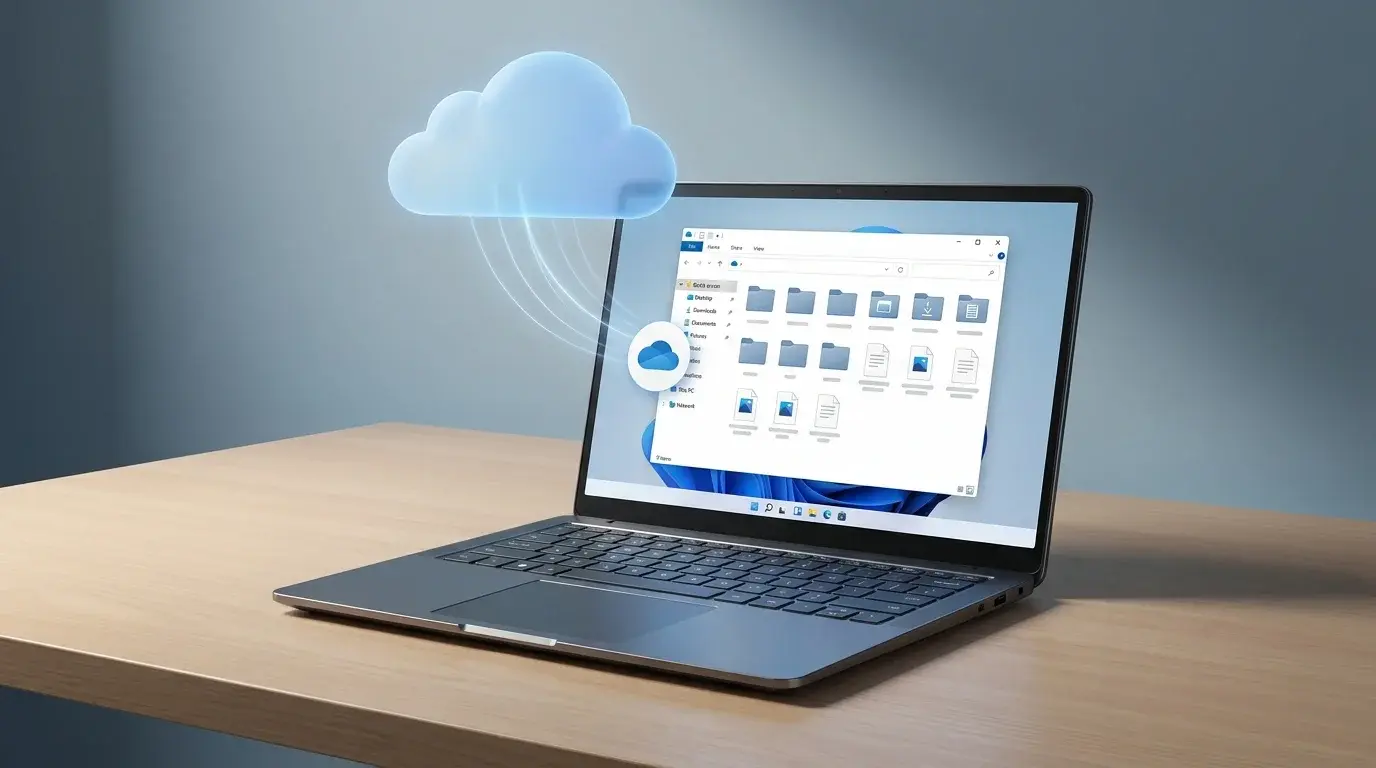
How to Add OneDrive to File Explorer in Windows 11
Set up OneDrive in Windows 11 File Explorer, sign in to your Microsoft account, manage Files On-Demand, and fix a missing OneDrive folder.
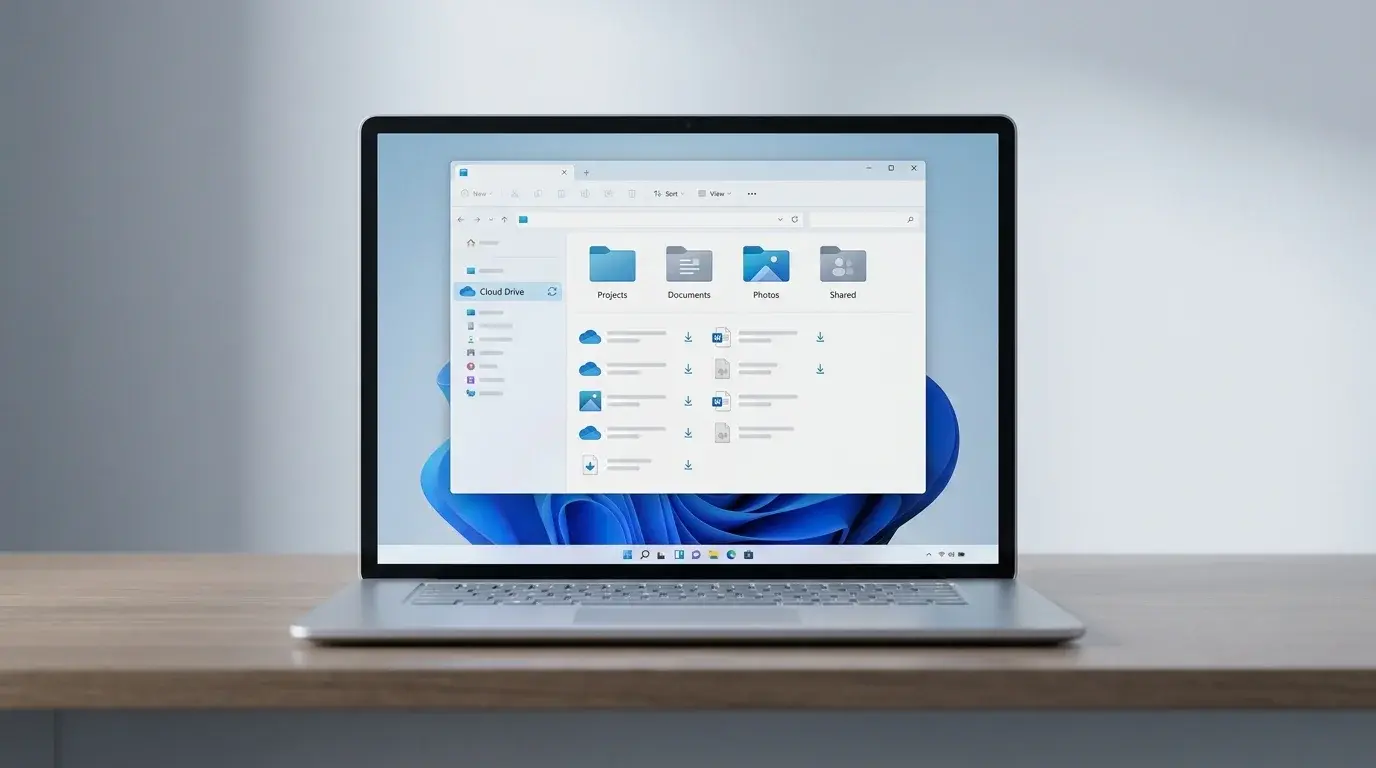
How to Add Google Drive to File Explorer in Windows 11
Add Google Drive to Windows File Explorer with Google Drive for desktop. Learn how to install it, choose streaming or mirroring, and fix common problems.
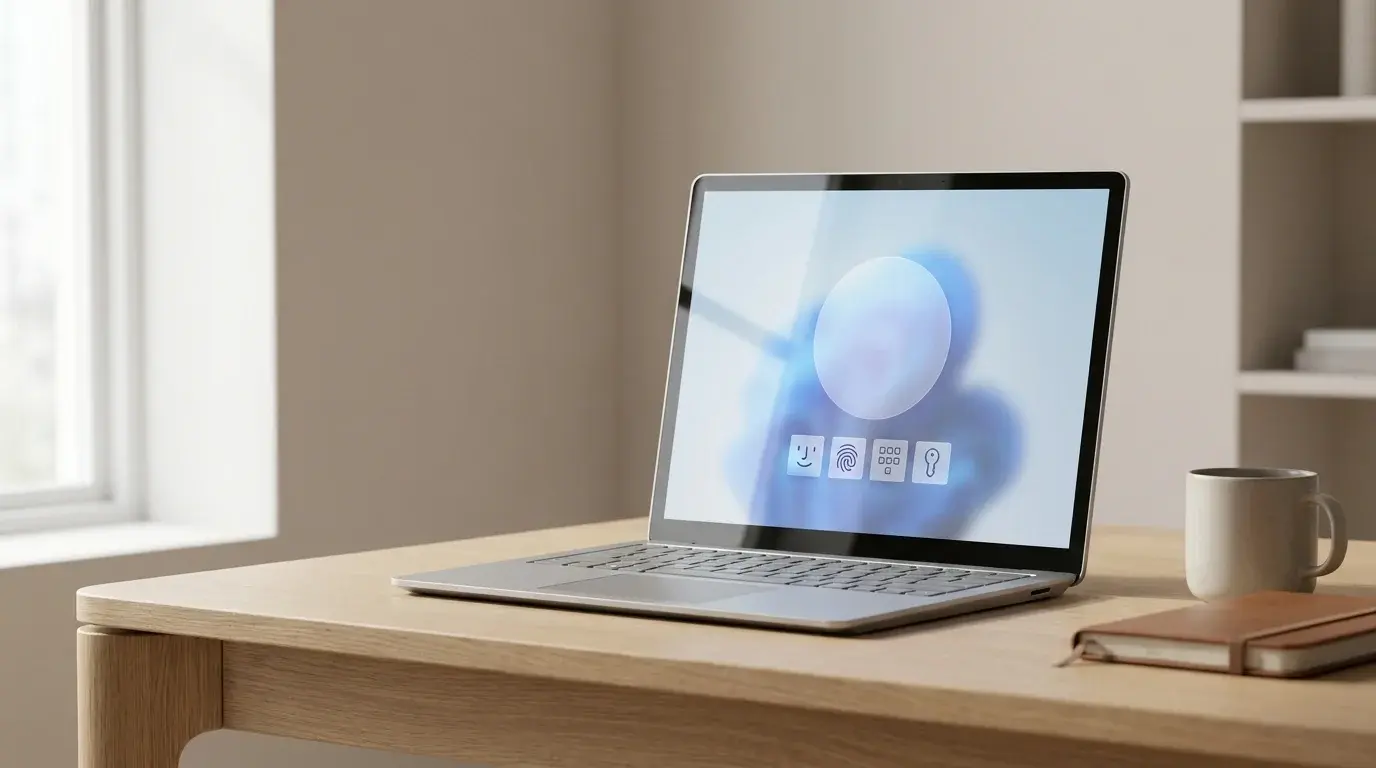
How to Disable Windows Hello in Windows 11
Learn how to turn off Windows Hello face and fingerprint sign-in, remove a PIN when Windows allows it, and restore password sign-in in Windows 11.