
How to Add OneDrive to File Explorer in Windows 11
Set up OneDrive in Windows 11 File Explorer, sign in to your Microsoft account, manage Files On-Demand, and fix a missing OneDrive folder.
Editorial Team
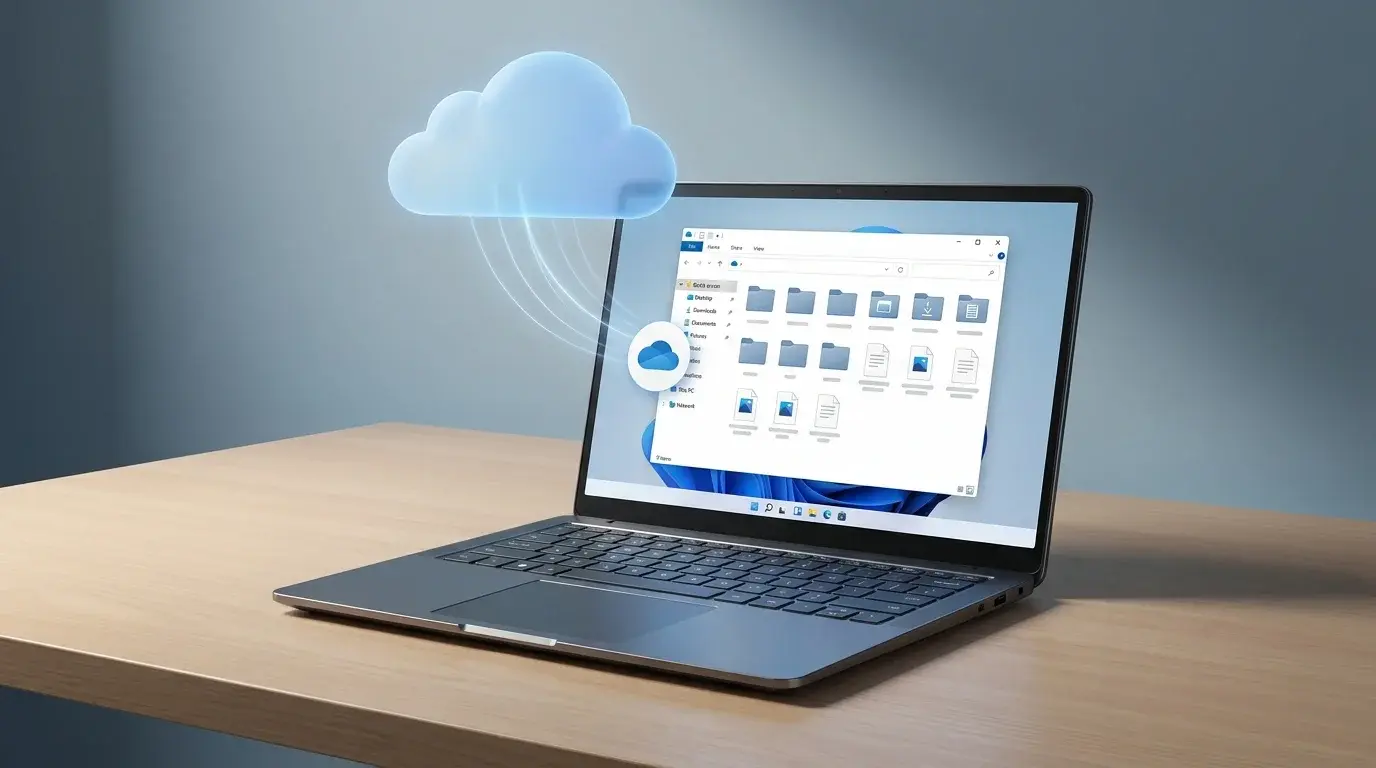
Windows 11 File Explorer showing a OneDrive folder beside a laptop
Table of Contents (17 sections)
- 1. Check whether OneDrive is already installed
- 2. Sign in to OneDrive
- 3. Find your OneDrive files in File Explorer
- 4. Understand OneDrive Files On-Demand
- 5. Choose which OneDrive folders sync to your PC
- 6. Fix OneDrive if it is missing from File Explorer
- Start OneDrive manually
- Check whether OneDrive is signed in or paused
- Restart the app and File Explorer
- Check the OneDrive folder and account
- Update or reinstall only if needed
- 7. OneDrive is different from adding a website shortcut
- Frequently asked questions
- Is OneDrive already installed in Windows 11?
- Why can't I see OneDrive in File Explorer?
- Can I use OneDrive files without an internet connection?
- Does removing a file from the OneDrive folder remove it online too?
OneDrive can appear directly in Windows 11 File Explorer, letting you work with synced cloud files alongside folders stored on your PC. In most cases, you do not need to add it manually: you need to start OneDrive, sign in, and finish its setup. If OneDrive is missing, a setup or sync issue may be the reason.
This guide shows how to set up OneDrive, choose which files stay on your computer, and troubleshoot a missing OneDrive folder. The exact labels can vary slightly by Windows version and whether you use a personal or work or school account.
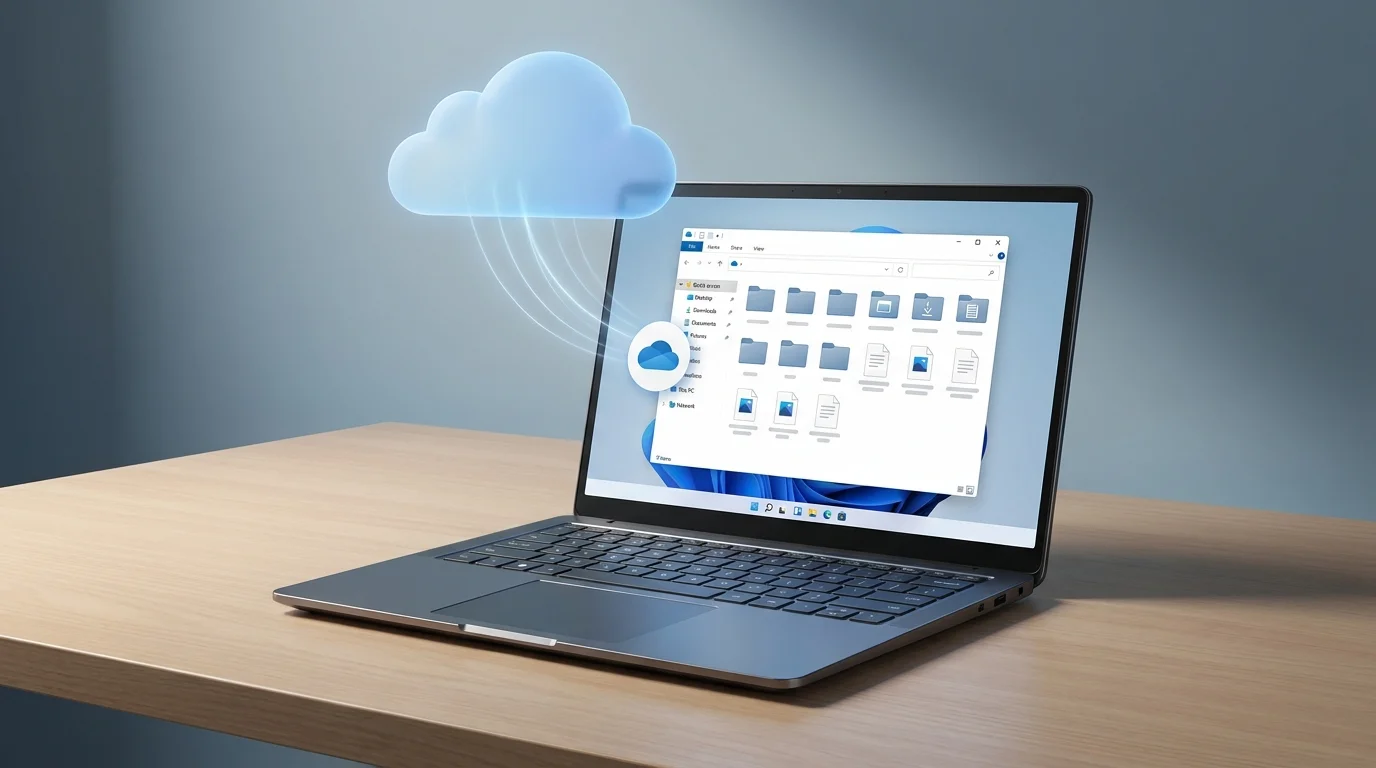
1. Check whether OneDrive is already installed
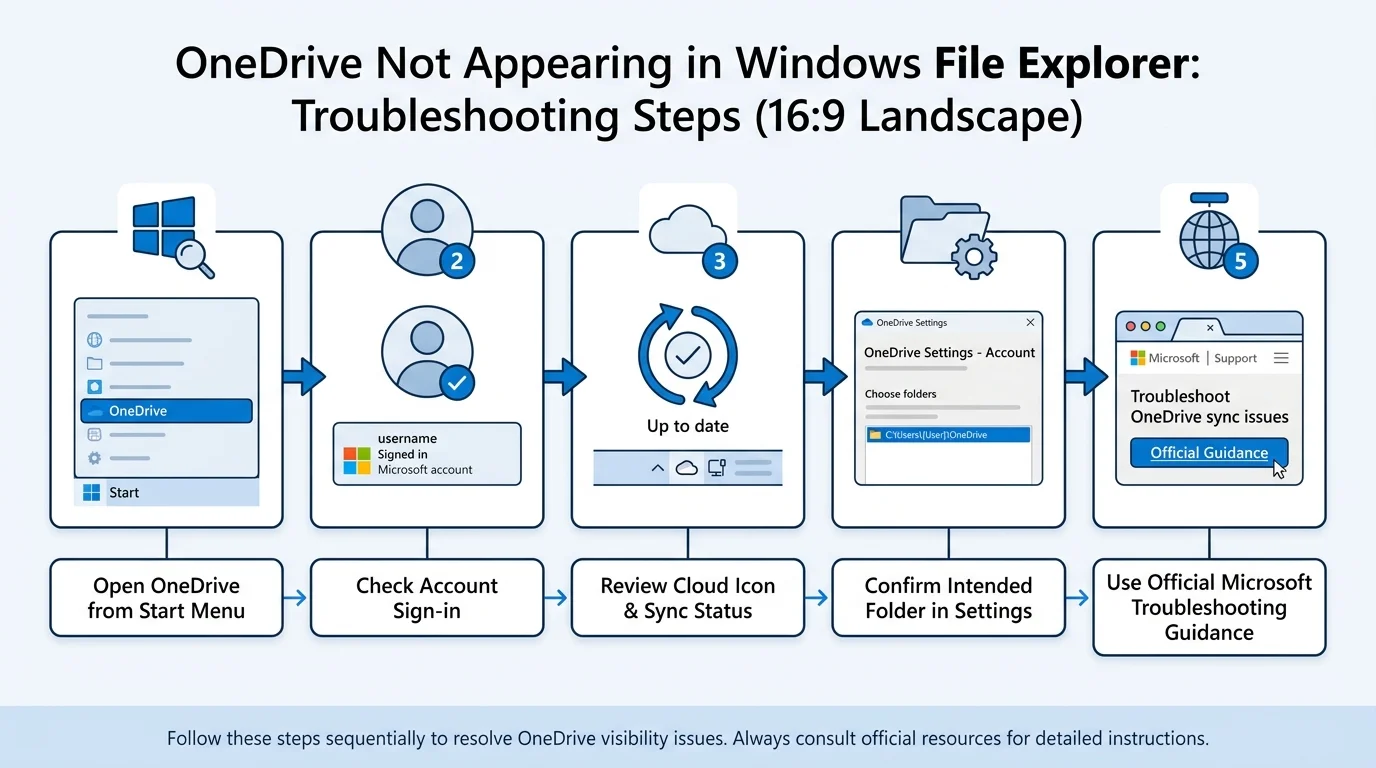
OneDrive is included with many Windows 11 installations. Check before downloading anything:
- Open Start and type OneDrive.
- Select the OneDrive desktop app if it appears.
- If the setup window opens, continue to the sign-in steps below.
- If OneDrive is already configured, open File Explorer with
Windows + Eand look for OneDrive in the navigation pane. A work or school account may appear under a name such as OneDrive - OrganizationName.
If OneDrive is not installed, use Microsoft's official download page: Download OneDrive (opens in new tab). Avoid third-party installer websites.
2. Sign in to OneDrive
OneDrive must be signed in and set up before its folder is available for normal use in File Explorer.
- Open the OneDrive app from Start.
- Enter the Microsoft account you want to use and select Sign in.
- For a work or school account, use the account provided by your organization.
- Follow the setup prompts. Confirm the location of your OneDrive folder. If you want a different folder location, choose the location option during setup rather than moving the folder casually afterward.
- Review the Files On-Demand information and finish setup.
- Open File Explorer and look for OneDrive in the navigation pane.
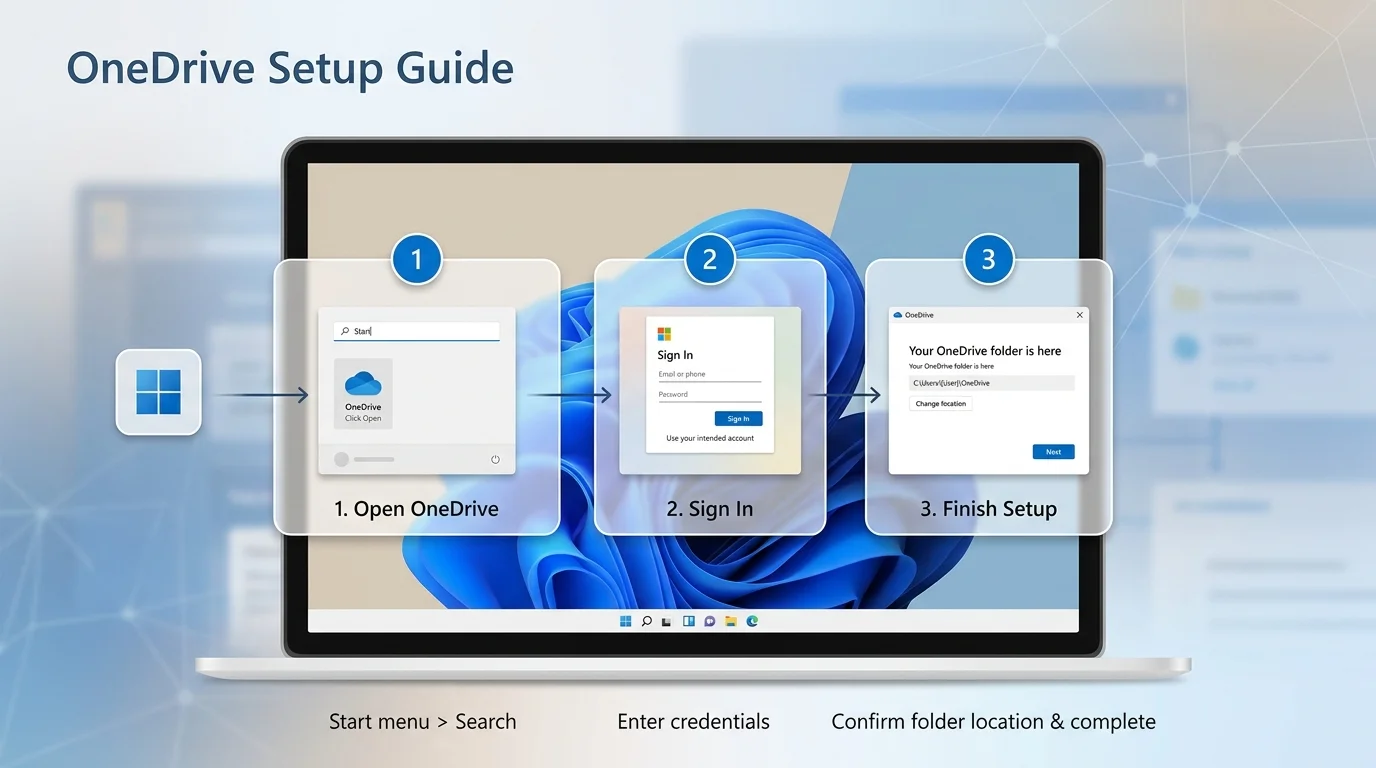
If setup completes but the folder does not appear immediately, wait for the app to finish starting and check the OneDrive cloud icon in the notification area. A paused or signed-out app may not show current sync status.
3. Find your OneDrive files in File Explorer
Press Windows + E to open File Explorer. Select OneDrive in the navigation pane. Depending on your account, it may be labelled OneDrive - Personal or OneDrive - Your organization.
You can open, copy, move, rename, and create files in the synced OneDrive folder in much the same way as in other folders. Changes can sync to the cloud and to other connected devices. That also means deletions or moves inside a synced folder may sync elsewhere, so check where a file is stored before deleting it.
For more detail about the difference between online and local files, see Microsoft's guide to syncing OneDrive files and folders (opens in new tab).
4. Understand OneDrive Files On-Demand
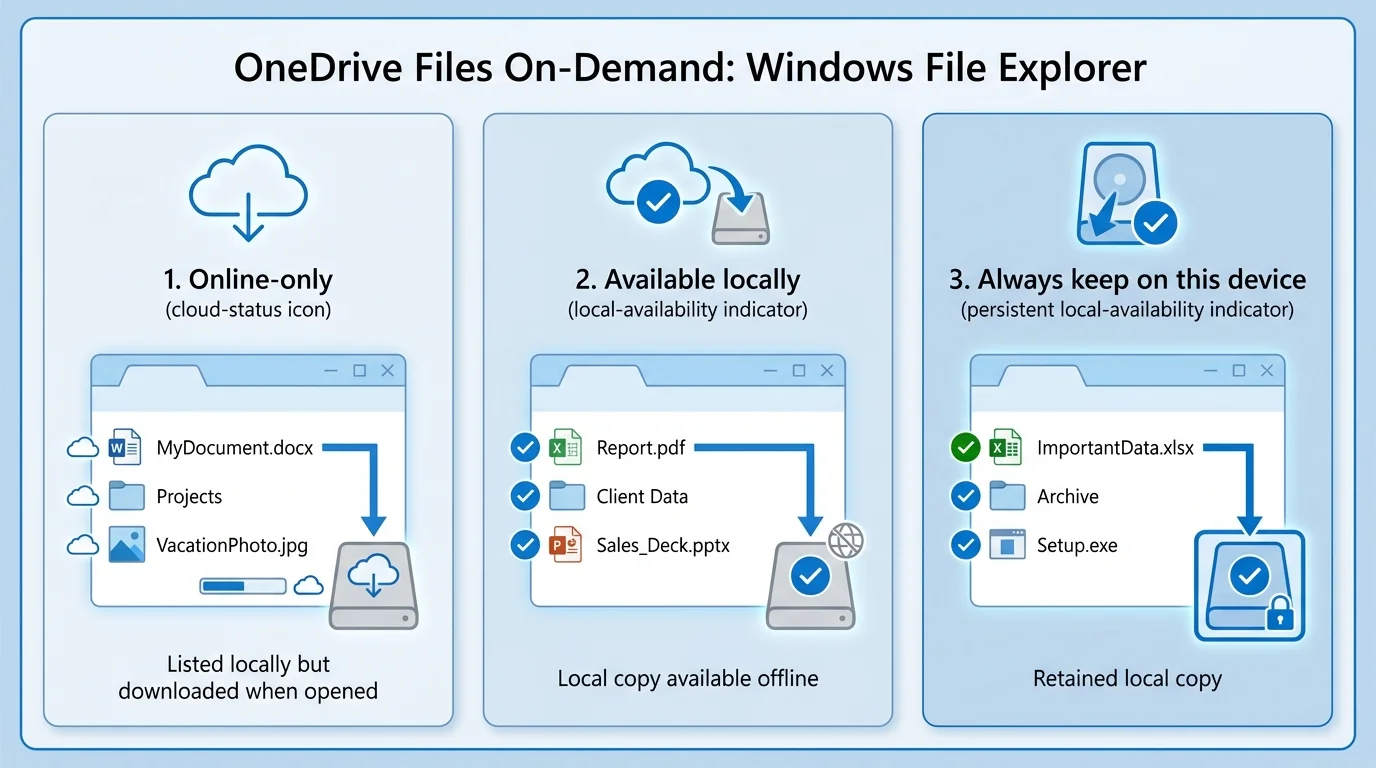
You do not have to download every cloud file to your PC to see it in File Explorer. Files On-Demand lets Windows display files that are stored online, while you choose which items should be available locally.
Common status symbols include cloud or availability icons. Their exact appearance can vary, so use the status shown by your current OneDrive app as the source of truth.
- Online-only: The file is listed in File Explorer but downloads when you open it, so you need a connection to retrieve it.
- Available locally: The file has been downloaded and can be opened offline for now. Windows may manage local availability depending on settings and storage needs.
- Always keep on this device: Right-click a file or folder and choose this option when you need a local copy to remain available offline.
- Free up space: For supported synced files, this option removes the local copy while leaving the file available in OneDrive online. Confirm that the item has synced before relying on its cloud copy.
Be careful when moving or deleting files in a synced folder. OneDrive synchronization is not the same thing as an independent backup: a deletion can propagate to the cloud and other synced devices.
5. Choose which OneDrive folders sync to your PC
If you only want certain folders stored locally, adjust the sync selection from OneDrive settings:
- Select the OneDrive cloud icon in the Windows notification area. If you do not see it, open Start and launch OneDrive.
- Open Help & Settings and then Settings.
- Open the Account tab.
- Select Choose folders if that option is available for your account.
- Select the folders you want to sync to this PC and confirm.
The available settings can differ by account type and OneDrive version. Microsoft notes that unchecking a folder can remove that folder from the local PC while leaving it in OneDrive online. Read the confirmation carefully before changing the selection. See Microsoft's guide to choosing OneDrive folders to sync (opens in new tab).
6. Fix OneDrive if it is missing from File Explorer
Work through these checks in order. Avoid deleting your OneDrive folder or unlinking the account as a first step.
Start OneDrive manually
Open Start, search for OneDrive, and launch the desktop app. If prompted, sign in and finish the setup. Then reopen File Explorer. If OneDrive does not open automatically at sign-in, see our guide on how to stop apps from opening on startup in Windows 11 to inspect your enabled startup entries.
Check whether OneDrive is signed in or paused
Select the OneDrive cloud icon in the notification area. Review the account and sync status, and resume syncing if it is paused. If you use a work or school account, your organization may restrict certain setup or sync options; contact its IT support if needed.
Restart the app and File Explorer
Save your work first. Quit OneDrive from its menu, start it again from Start, and check whether it reports a sync problem. You can also restart Windows and check File Explorer again. Do not end random system processes or remove files from the OneDrive directory to force the folder to appear.
Check the OneDrive folder and account
If setup was interrupted or the wrong Microsoft account was used, the expected folder may not be connected. Open OneDrive settings and review the Account tab. Avoid moving the OneDrive folder manually while it is configured; changing its location normally involves unlinking and relinking through the supported setup process. See Microsoft's guide on changing the OneDrive folder location (opens in new tab) before attempting that change.
Update or reinstall only if needed
Install available Windows and OneDrive updates. If the app is missing or damaged, use Microsoft's official OneDrive download page to repair or reinstall it. Before unlinking an account or reinstalling, confirm that unsynced files are safe and that you know which files exist only on the PC.
7. OneDrive is different from adding a website shortcut
Pinning OneDrive's website in a browser only creates a shortcut to the web app (see our guide on how to pin a website to the taskbar in Windows 11). Setting up OneDrive for Windows connects your account to a synced folder in File Explorer and enables its sync features.
If you also use Google Drive, its desktop app provides a similar File Explorer integration, but its settings and storage behavior are different. Read our guide to adding Google Drive to File Explorer if that is the service you want to set up. For team collaboration sites in Microsoft 365, learn how to add SharePoint to File Explorer in Windows 11 using OneDrive shortcuts or library sync.
Frequently asked questions
Is OneDrive already installed in Windows 11?
OneDrive is included with many Windows 11 PCs. If it is missing, search Start first, then use Microsoft's official download page if necessary.
Why can't I see OneDrive in File Explorer?
OneDrive may not be running, may not be signed in, or may not have completed setup. Start the desktop app, check the account and sync status, and then reopen File Explorer.
Can I use OneDrive files without an internet connection?
Files marked as online-only need to be downloaded when you open them. You can mark supported files or folders as Always keep on this device to retain local copies for offline access.
Does removing a file from the OneDrive folder remove it online too?
In a synced folder, deleting a file can sync that deletion to OneDrive and other connected devices. Confirm its location and sync state before deleting anything you need to keep.
Verified Primary Sources & Citations
NextTechExplained verifies facts against official documentation, engineering whitepapers, and regulatory filings.
- Microsoft Support: Sync your computer's files and folders with OneDriveView Official Source
- Microsoft Support: Choose which OneDrive folders to syncView Official Source
- Microsoft Support: Change the location of your OneDrive folderView Official Source
- Microsoft official OneDrive downloadView Official Source
Published by NextTechExplained
Editorial Team • Institutional Publication Byline
Articles published under this byline are prepared through rigorous research and verified against official engineering specifications, standards documentation, and primary sources. Learn more about our process on our About page and Editorial Policy.
Related Explanations & Guides
How to Add Google Drive to File Explorer in Windows 11
Add Google Drive to Windows File Explorer with Google Drive for desktop. Learn how to install it, choose streaming or mirroring, and fix common problems.
How to Add SharePoint to File Explorer in Windows 11
Access a SharePoint document library from Windows 11 File Explorer using Add shortcut to OneDrive or Sync, with setup and troubleshooting steps.
How to Add Photos to Google Photos from a Phone or Computer
Learn how to add photos to Google Photos manually, enable phone backup, upload files from a computer, and check that your pictures have finished uploading.