
Windows 11 Laptop Battery Drains While Shut Down? How to Find the Cause
Does your Windows 11 laptop lose battery overnight while shut down? Learn how to distinguish sleep from shutdown and diagnose battery drain safely.
Editorial Team
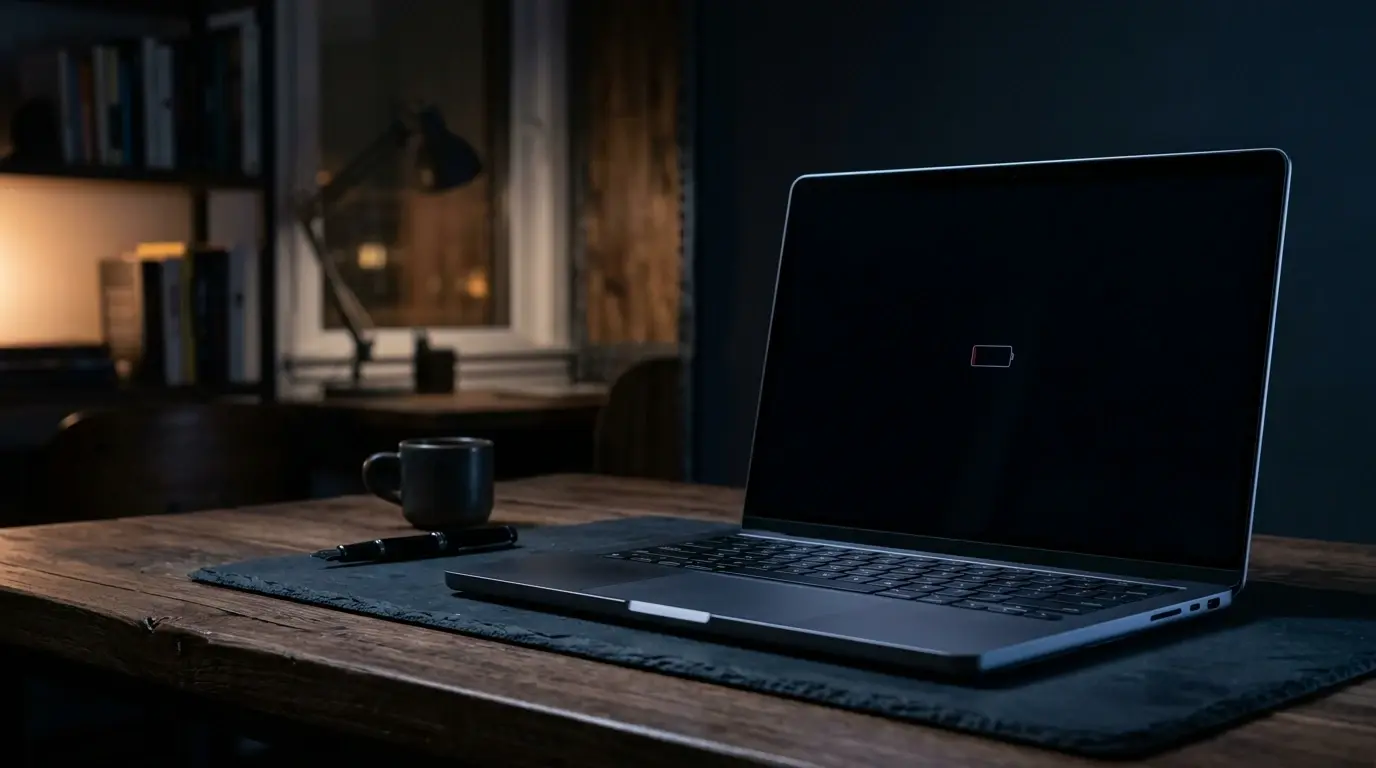
A sleek modern laptop resting closed on a dark home office desk in quiet moody night lighting with a dim battery symbol
Table of Contents (20 sections)
- Confirm what actually happened: sleep vs shutdown
- Run a controlled overnight test
- Check the battery report with powercfg /batteryreport
- Installed batteries
- Recent usage and its diagnostic limits
- Check supported sleep states with powercfg /a
- Use SleepStudy when Modern Standby is active
- Check power-related firmware settings
- Check peripherals, docks, and external displays
- Test Fast Startup as a temporary diagnostic
- Update system drivers and UEFI firmware
- Troubleshooting decision table
- When to seek professional diagnostics or repair
- Frequently asked questions
- Why does my laptop battery drain overnight when it is shut down?
- Is a small battery drop while powered off always a problem?
- How can I tell whether my laptop uses Modern Standby?
- Does disabling Fast Startup always fix battery drain?
- When should I contact the laptop manufacturer?
- Sources and further reading
A shut-down Windows 11 laptop is expected to retain most of its charge overnight. However, there is no single percentage threshold that applies to every laptop model, because natural chemical self-discharge, ambient temperature, battery age, and motherboard firmware features vary across devices.
When a laptop loses an unexpected amount of battery power while apparently turned off, the cause usually falls into one of four areas: the computer entered a low-power standby state rather than shutting down; Fast Startup left hardware controllers primed in a hybrid state; firmware settings continued supplying power to external ports; or the battery has experienced physical wear. Finding the exact cause requires isolating operating system activity from firmware and hardware behavior through repeatable, device-specific testing.
Confirm what actually happened: sleep vs shutdown
On many Windows 11 laptops, closing the lid or pressing the physical power button is configured by default to place the computer into sleep rather than shutting down. However, these actions are configurable in Windows Power Options, allowing you to choose whether closing the lid or pressing the power button triggers sleep, hibernation, a complete shutdown, or no action at all. Microsoft explains these behaviors and configuration options in its shutdown, sleep, and hibernate guide (opens in new tab), distinguishing three different resting states:
- Sleep keeps your active session in system memory (RAM) while placing the processor and display into a low-power state. This allows the computer to resume within seconds, but maintaining memory contents requires continuous power draw from the battery.
- Hibernate saves your open applications and system state to your storage drive (
hiberfil.sys) and turns off power to memory. It uses virtually no power while preserving your open windows for when you turn the machine back on. - Shut down closes all active desktop programs, logs out user accounts, and closes the operating system session.
Windows 11 also enables Fast Startup by default on many portable computers. Fast Startup logs off the user session but saves the core Windows kernel and loaded system driver state into a hibernation file before powering down. When Fast Startup encounters a driver issue or an active wake configuration, hardware components can remain in an unexpected power state even after the screen turns black.
To test whether battery loss occurs during a genuine shutdown, you can force Windows to perform a full power-down that bypasses Fast Startup for that single session:
- Click the Start button.
- Select the Power icon.
- Hold down the physical Shift key on your keyboard while clicking Shut down.
- Keep holding the Shift key while Windows shuts down and the display turns off. Indicator-light behavior varies by laptop model, so do not use it as the only confirmation that the computer has powered down.
Holding the Shift key while selecting Shut down is the preferred first test because it allows open applications to prompt you to save your work before closing.
[!WARNING] Save all open files before using command-line shutdown options. Running
shutdown /s /f /t 0from the Run dialog or Command Prompt uses the/fflag, which immediately forces running applications to close without giving them time to prompt you to save unsaved documents.
Run a controlled overnight test
Before altering device drivers or changing system configurations, establish a clear baseline measurement through a controlled overnight test.
Without an isolated test, you cannot know whether battery loss comes from background operating system tasks, connected USB accessories, or natural battery aging. Perform this test over a consistent overnight period:
- Charge the laptop to a comfortable level (such as 70 to 80 percent), then disconnect the AC charger.
- Unplug all external accessories, including USB flash drives, wireless mouse receivers, memory cards, external displays, and USB-C docks.
- Record the exact battery percentage shown in the Windows taskbar.
- Perform a complete shutdown by holding Shift while clicking Shut down.
- Close the lid and leave the laptop unplugged at normal room temperature (between 65 and 75 degrees Fahrenheit or 18 to 24 degrees Celsius) for seven to eight hours.
- Power on the laptop the next morning, log in, and record the new battery percentage.
Repeat this test across two or three nights to establish a consistent pattern for your specific device. All lithium-ion batteries exhibit some degree of natural self-discharge, and internal circuits like the real-time clock draw minute amounts of standby power. If repeated tests show an unexpected, consistent drop that limits your daily use, proceed through the following diagnostic steps to identify where the energy is going.
Check the battery report with powercfg /batteryreport
Windows 11 includes a native battery diagnostic utility that records battery capacity, recent charge states, and power transitions reported to the operating system. Microsoft outlines battery care practices and report generation in its Windows battery care guide (opens in new tab).
To generate the battery report:
- Right-click the Start button or press
Windows + Xand select Terminal (Admin) or Command Prompt (Admin). - Type the following command and press Enter:
powercfg /batteryreport /output "%USERPROFILE%\battery-report.html"
- Open your user profile folder (typically
C:\Users\YourUsername) and double-clickbattery-report.htmlto view it in your browser.
The report provides valuable context, but understanding what it can and cannot record is essential for troubleshooting:
Installed batteries
Compare the Design Capacity with the Full Charge Capacity. Design capacity reflects the energy storage capacity the battery had when manufactured, measured in milliwatt-hours (mWh). Full charge capacity shows the current maximum capacity calculated by the battery's fuel gauge.
Over time, chemical wear reduces the maximum energy a battery can store. Comparing Full Charge Capacity against Design Capacity provides context on battery health. While capacity loss alone does not cause overnight battery drain, a battery with reduced capacity will show larger percentage drops for any given amount of energy consumed, and heavily worn cells can exhibit higher self-discharge. Our guide on evaluating laptop processors and battery endurance details how hardware architecture and battery pack size impact long-term device longevity.
Recent usage and its diagnostic limits
The Recent usage table logs power state transitions reported to Windows over the past several days, detailing whether the operating system recorded an Active state, a Suspended state, or operated on Battery versus AC power.
Review the timestamps corresponding to the overnight testing period, keeping these reporting limits in mind:
- An Active entry during the night indicates that Windows recorded an active session during those hours. This can occur if an intended shutdown failed to complete, if a scheduled task or wake timer powered the system on, or if the laptop was booted earlier than remembered. It does not provide real-time hardware telemetry on its own.
- A Suspended entry confirms that Windows logged a transition into a standby or sleep state rather than a complete shutdown.
- An unlogged timeline gap between an evening shutdown and a morning startup only reflects that no operating-system power events were recorded during that period. The battery report only captures information available to Windows while it is running; a gap alone cannot conclusively establish the device's physical power state throughout the interval, nor can it pinpoint the exact timing or cause of energy loss. If the battery reading upon morning startup is substantially lower than when shutting down, treat that difference as a diagnostic clue to investigate across firmware settings, connected accessories, and battery health, rather than conclusive proof of offline discharge.
Check supported sleep states with powercfg /a
Not all Windows 11 laptops manage standby in the same way. As detailed in Microsoft's Modern Standby validation documentation (opens in new tab), modern systems generally use one of two different sleep architectures: traditional S3 sleep or Modern Standby (S0 Low Power Idle).
To check which sleep modes your laptop firmware and processor support, run this command in an elevated terminal:
powercfg /a
The terminal displays a list of available and unavailable sleep states on your system.
If the output lists Standby (S0 Low Power Idle) Network Connected or Network Disconnected, your laptop uses Modern Standby. Under Modern Standby, the laptop operates similarly to a smartphone: when the screen turns off, the operating system manages background network activity and keeps hardware drivers initialized in low-power states.
If the output shows Standby (S3) as supported and S0 Low Power Idle as unsupported, your laptop uses legacy ACPI sleep. In legacy sleep, the processor stops executing instructions and system fans turn off, while system memory remains powered to hold your session.
Identifying your system's sleep architecture prevents misdiagnoses. On a laptop that supports Modern Standby, closing the lid or selecting sleep can result in noticeable overnight battery consumption if background network activity, pending updates, or active drivers prevent the system from staying in its lowest-power idle state.
Use SleepStudy when Modern Standby is active
If powercfg /a confirms that your laptop uses Modern Standby, and your overnight battery loss occurs after putting the laptop to sleep or closing the lid, Windows can generate a specialized diagnostic report called SleepStudy.
As detailed in Microsoft's SleepStudy documentation (opens in new tab), the report provides an overview of Modern Standby (S0 Low Power Idle) sessions over several days. Each session displays its start time, session duration, total energy consumed (measured in both percent and milliwatt-hours), average power consumption rate in milliwatts (mW), and the percentage of time the system remained in low-power idle states (such as DRIPS, or Deepest Runtime Idle Power State).
To generate a SleepStudy report, run this command in an administrator terminal:
powercfg /sleepstudy /output "%USERPROFILE%\sleepstudy-report.html"
Open the resulting HTML file in your web browser. To investigate a session with elevated battery loss:
- Locate the standby session corresponding to the overnight period.
- Inspect the session duration, total energy consumed, average power consumption rate, and low-power-state time.
- Click on the session to expand its detailed breakdown.
- Review the list of hardware blockers where reported, which identifies devices or subsystems that prevented the processor and platform from staying in low-power idle.
- Review the Top Offenders table where available, which highlights specific components (such as wireless networking adapters, audio endpoints, Bluetooth controllers, or active software processes) that accounted for the highest active time or energy draw during that standby window.
Common contributors identified in SleepStudy include wireless network adapters maintaining active connections, audio endpoints or Bluetooth controllers failing to enter low-power states, and background software processes holding active power requests.
SleepStudy has a clear diagnostic boundary: it is built specifically for systems supporting Modern Standby, and it monitors standby and sleep sessions. If your laptop loses charge after a confirmed, complete shutdown, SleepStudy will not have data for those offline hours.
Check power-related firmware settings
Many modern laptops include motherboard firmware (UEFI/BIOS) features that supply battery power to USB ports even when the computer is completely turned off.
Manufacturers describe this capability with terms like Always On USB, USB Charging in Sleep/Off State, HP Sleep and Charge, or Dell PowerShare. When this setting is enabled, internal power delivery circuits remain active, delivering power to designated USB-A or USB-C ports.
When an external accessory, wireless mouse transceiver, or USB flash drive remains plugged into a port supporting powered-off charging, that device can draw continuous standby power from the battery.
To check and adjust this setting:
- Restart your laptop and press the manufacturer's designated setup key during boot (commonly
F2,F10,F12, orDel, depending on the brand). - Navigate to the Power, System Configuration, or Advanced menu.
- Look for options labeled Always On USB, USB PowerShare, or Charge USB Devices in Power Off.
- Disable the setting, save your configuration, and restart into Windows.
Firmware interfaces and menu labels differ across manufacturers and models, so refer to your exact laptop manufacturer's documentation for specific setup instructions.
Check peripherals, docks, and external displays
Connected accessories can contribute to battery consumption even when the laptop itself appears to be turned off.
When a laptop port is configured for powered-off charging or power output, attached USB accessories, dongles, or unpowered hubs can continue drawing power. Furthermore, docking stations, USB-C hubs, and external displays vary widely in their power design and host communication protocols; not every dock interacts with a laptop's USB-C port in the same manner. Some accessories draw parasitic power when left plugged in without an active host, while others enter low-power standby.
When connecting external hardware, consult our guide to USB-C wattage and Thunderbolt specifications to ensure chargers and hubs match your system's power requirements.
During your troubleshooting process, disconnect all cables, adapters, and accessories before shutting down. If the overnight battery drop decreases noticeably when nothing is plugged into the ports, that provides evidence that an attached accessory or port-power setting may be contributing to the drain, rather than conclusive proof of causation on its own. To confirm this finding, repeat the comparison over multiple nights under similar conditions: test once with accessories disconnected, and then re-introduce devices one at a time to observe whether the drain recurs.
Test Fast Startup as a temporary diagnostic
If your laptop loses substantial battery charge after a standard Start menu shutdown with all external devices disconnected, testing Fast Startup can provide useful diagnostic clues.
Fast Startup logs off user sessions and saves the Windows kernel session and device driver state to storage (hiberfil.sys) so the computer boots faster. On certain hardware configurations, transitions into or out of this hybrid state can interact unexpectedly with particular device drivers or power controllers.
To test whether Fast Startup relates to your overnight drain, disable it temporarily:
- Press
Windows + R, typecontrol, and press Enter to open the classic Control Panel. - Set the view mode in the upper-right corner to Large icons, then select Power Options.
- In the left-hand column, click Choose what the power buttons do.
- Click Change settings that are currently unavailable at the top of the window. This step requires administrative privileges.
- In the Shutdown settings section at the bottom, uncheck Turn on fast startup (recommended).
- Click Save changes.
After saving the change, shut down normally from the Start menu and repeat your overnight test under the same conditions. If battery retention improves noticeably while Fast Startup is off, that provides useful evidence that the hybrid shutdown process warrants further investigation, such as checking for updated drivers or firmware for your specific system. It does not definitively prove that a particular driver is defective.
If disabling Fast Startup produces no observable difference in battery behavior, return to the Power Options menu and re-check the box to turn it back on. Fast Startup reduces boot times on many systems, so there is no reason to leave it disabled if it does not affect your overnight battery drain.
Update system drivers and UEFI firmware
Coordinated power management requires close communication between Windows 11 and your laptop's motherboard firmware.
The Embedded Controller (EC) and Unified Extensible Firmware Interface (UEFI) manage power rails, battery charging thresholds, and sensor inputs. When a device manufacturer identifies an ACPI power-state bug or unintended power rail behavior, they address it through updated firmware and chipset drivers.
To keep power management software up to date:
- Open Settings > Windows Update and install all pending quality updates.
- Check Advanced options > Optional updates for hardware drivers released for your machine.
- Open your laptop manufacturer's official support application (such as Dell Command Update, Lenovo Vantage, HP Support Assistant, or ASUS Armoury Crate).
- Check for available BIOS/UEFI updates and chipset driver packages.
Apply firmware updates only using the official tools and instructions provided by your device manufacturer for your exact model. Keep your laptop connected to AC wall power throughout any BIOS installation, and never interrupt the process while firmware is flashing.
Troubleshooting decision table
Use this reference table to map observed symptoms to logical diagnostic steps.
| What You Observe | Likely Explanation | Immediate Diagnostic Step | Recommended Action |
|---|---|---|---|
| Battery drops substantially overnight after closing the lid | Laptop entered Modern Standby or sleep rather than shutting down | Run powercfg /a to check sleep mode; run powercfg /sleepstudy |
Use Start menu to shut down or adjust lid close settings |
| Battery drops overnight with USB receiver, drive, or dongle attached | Always-On USB port power or connected accessory may contribute | Check UEFI/BIOS for USB charging settings; test with devices detached | Disable Always-On USB in firmware or unplug accessories; repeat comparison under similar conditions |
| Battery drops after standard shutdown, but Shift + Shut down stops the drain | Fast Startup or a power-state transition may be contributing. Repeat the test under comparable conditions and investigate further if the result is consistent | Turn off Fast Startup temporarily in Control Panel Power Options | Test standard shutdown and check for driver or firmware updates |
| Battery drops consistently during isolated tests regardless of shutdown method | Elevated cell self-discharge, aging battery pack, or hardware behavior | Run powercfg /batteryreport to evaluate capacity retention |
Run manufacturer diagnostics; consult repair options if drop recurs |
| Laptop feels warm inside a bag after being shut down | System woke up for maintenance or failed to complete power-off sequence | Inspect Recent usage in battery-report.html for active periods |
Review Windows Update active hours and wake configurations |
When to seek professional diagnostics or repair
If repeated controlled tests show that your laptop continues to lose an unexpected, substantial amount of charge during an isolated full shutdown with all external accessories disconnected, the issue warrants deeper investigation.
When the operating system is completely offline, continuous power loss is typically governed by firmware-level power distribution, embedded controller activity, motherboard hardware behavior, or internal battery cell wear:
- Motherboard hardware behavior: A malfunctioning power-delivery component, damaged power rail, or failing embedded controller can draw continuous current from the battery pack even when the system is powered off.
- Internal battery cell wear: As lithium-ion cells age or suffer manufacturing defects, internal self-discharge rates can increase, causing measurable capacity loss over time even with minimal external load.
To gather diagnostic information before contacting support:
- Run the hardware diagnostics built into your laptop's firmware. Many laptops from Dell, HP, Lenovo, and other manufacturers provide pre-boot diagnostic utilities accessible by pressing a key such as
F12,Esc, orF2during startup. - Run the dedicated battery test. If the diagnostic tool reports an error code, failing cells, or recommends service, record the error code.
- Review battery wear in context: Compare Full Charge Capacity against Design Capacity in
battery-report.html. Battery wear reflects cycle count and age; individual manufacturers establish their own warranty criteria for when capacity loss qualifies for replacement under warranty. - Check for physical warning signs: Inspect the laptop chassis carefully. If the trackpad is lifting, the keyboard deck is bulging, or the lower casing does not sit flat on a table, the battery may be swelling. Stop using the device immediately, disconnect it from wall power, and contact the manufacturer or an authorized repair facility.
Frequently asked questions
Why does my laptop battery drain overnight when it is shut down?
Common reasons include the laptop entering sleep or Modern Standby instead of completing a shutdown, Fast Startup leaving hardware controllers in an active hybrid state, firmware settings keeping USB ports powered to charge external devices, or the battery pack experiencing physical capacity degradation.
Is a small battery drop while powered off always a problem?
No. All lithium-ion batteries experience a small amount of chemical self-discharge over time, and motherboard monitoring circuits draw tiny amounts of power. Because battery health, ambient room temperature, and firmware features differ across laptop models, no single percentage threshold applies to every device. A minor, gradual change is routine, but a repeated, noticeable loss that limits your morning battery runtime indicates an unintended drain or declining battery health.
How can I tell whether my laptop uses Modern Standby?
Open Windows Terminal or Command Prompt as an administrator and type powercfg /a. If the output lists Standby (S0 Low Power Idle) as available, your laptop uses Modern Standby. If it lists Standby (S3) and shows S0 Low Power Idle as unavailable, your laptop uses traditional sleep.
Does disabling Fast Startup always fix battery drain?
No. Disabling Fast Startup is a diagnostic test that helps determine whether the hybrid shutdown state interacts poorly with hardware or drivers on your specific system. If the battery drain is caused by Always-On USB port power, Modern Standby background activity, or battery cell wear, changing Fast Startup will not affect the drain rate.
When should I contact the laptop manufacturer?
Contact the manufacturer if your laptop consistently loses a significant amount of charge overnight during repeated, isolated full shutdowns with all external accessories disconnected, or if the Windows battery report shows capacity declining rapidly while still covered by warranty. Check your device manufacturer's specific battery warranty terms, which define their official criteria for battery replacement. Contact support immediately if you notice physical swelling near the trackpad or bottom casing.
Sources and further reading
- Microsoft Support: Shut down, sleep, or hibernate your PC (opens in new tab)
- Microsoft Support: Caring for your battery in Windows (opens in new tab)
- Microsoft Learn: Modern Standby SleepStudy documentation (opens in new tab)
- Microsoft Learn: Overview of Modern Standby validation (opens in new tab)
- Google Search Central: Creating helpful, reliable, people-first content (opens in new tab)
Verified Primary Sources & Citations
NextTechExplained verifies facts against official documentation, engineering whitepapers, and regulatory filings.
- Microsoft Support: Shut down, sleep, or hibernate your PCView Official Source
- Microsoft Support: Caring for your battery in WindowsView Official Source
- Microsoft Learn: Modern Standby SleepStudyView Official Source
- Microsoft Learn: Overview of Modern Standby ValidationView Official Source
Published by NextTechExplained
Editorial Team • Institutional Publication Byline
Articles published under this byline are prepared through rigorous research and verified against official engineering specifications, standards documentation, and primary sources. Learn more about our process on our About page and Editorial Policy.
Related Explanations & Guides
How Passkeys Work: Setup, Recovery, and What to Do If You Lose Your Phone
A complete guide to WebAuthn mechanics, synced vs hardware passkeys, Apple and Google recovery paths, and protecting accounts when a device is lost.
How to Audit and Lock Down App Permissions on iOS and Android
A step-by-step security walkthrough to stop apps from tracking your location in the background, eavesdropping on your local network, or scanning your entire photo library.
Daylight Saving Time 2026: Check Your Phone, Computer, and Smart-Home Settings
Before US clocks fall back on November 1, check automatic time settings on your phone, computer, calendar, and smart-home devices. Learn how to fix clocks that do not update.