
What Is a Realtek Audio Driver? Do You Need It?
Learn what a Realtek audio driver does, how to check whether your PC uses Realtek audio, and when you should update or leave the driver alone.
Editorial Team
A laptop with headphones and desktop speakers illustrating how a computer handles audio
Table of Contents (15 sections)
- What does a Realtek audio driver do?
- Why does Realtek appear in Device Manager?
- Do you need a Realtek audio driver?
- You probably need a compatible driver if...
- You probably do not need to install a new one if...
- Is a Realtek audio driver the same as Realtek Audio Console?
- Can Windows work without a Realtek driver?
- What is the safest way to get a Realtek audio driver?
- Common questions about Realtek audio drivers
- Is Realtek audio a virus?
- Should I uninstall the Realtek audio driver?
- Why does my computer have Realtek audio but no sound?
- Is the Realtek driver different for Windows 10 and Windows 11?
- Related guides
- Official sources
A Realtek audio driver is software that helps Windows communicate with compatible Realtek audio hardware. Depending on the computer, that hardware may handle built-in speaker and microphone connections, headphone jacks, or other onboard audio functions. The driver is part of the audio system; it is not the speakers themselves and is not the same thing as a sound-control app.
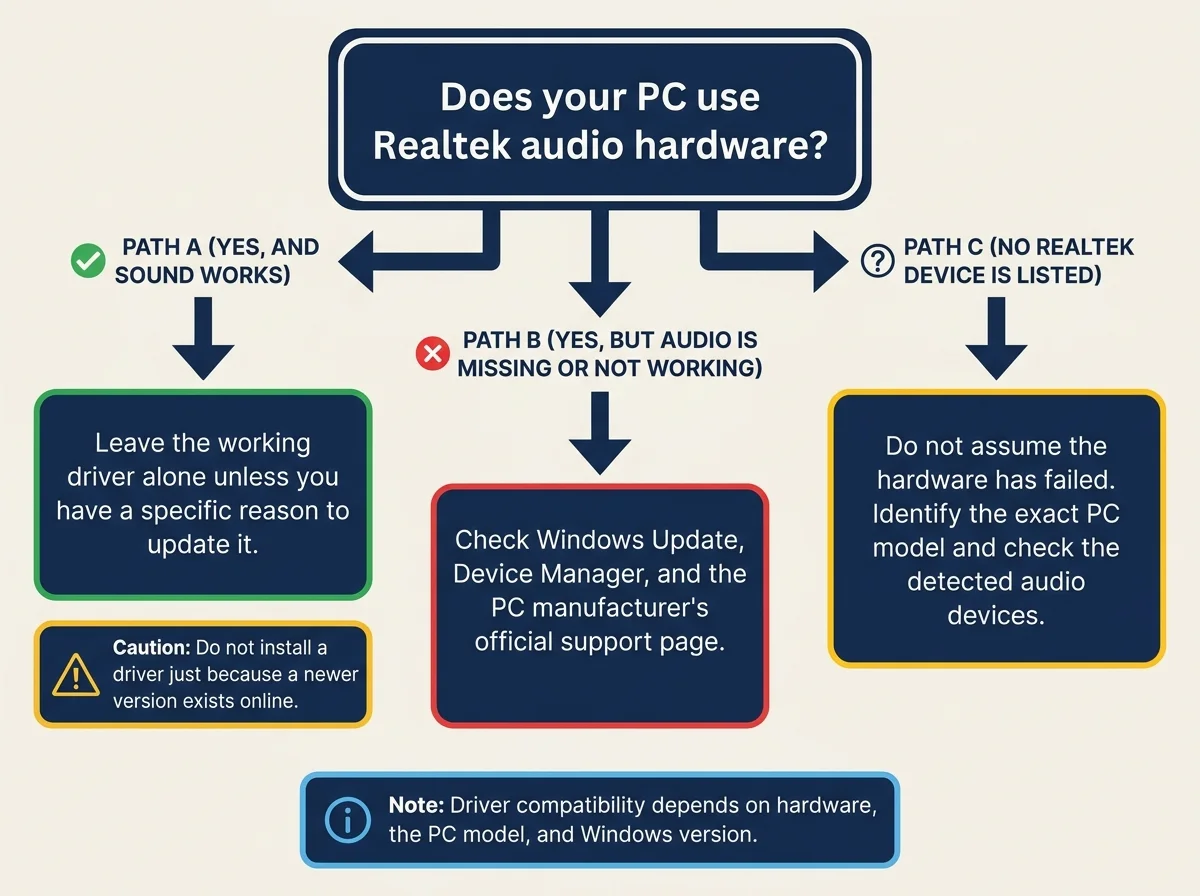
You do not automatically need to download a new Realtek driver just because you see the name in Windows. If your PC uses Realtek audio and sound works as expected, you can usually leave the installed driver alone. If audio is missing, a device is not detected, or sound broke after an update, check Windows Update and your computer manufacturer's support page before installing anything manually.
What does a Realtek audio driver do?
Windows uses an audio system made up of software components, drivers, and audio hardware. Drivers help Windows send playback audio to supported devices and receive audio input from microphones. A Realtek driver supports the specific Realtek audio hardware and implementation installed in a compatible PC.
Depending on the computer and its driver package, the supported functions can include onboard speaker output, analog headphone or microphone jacks, jack detection, and device-specific audio features. The exact functions are not identical across every desktop, laptop, motherboard, or driver version.
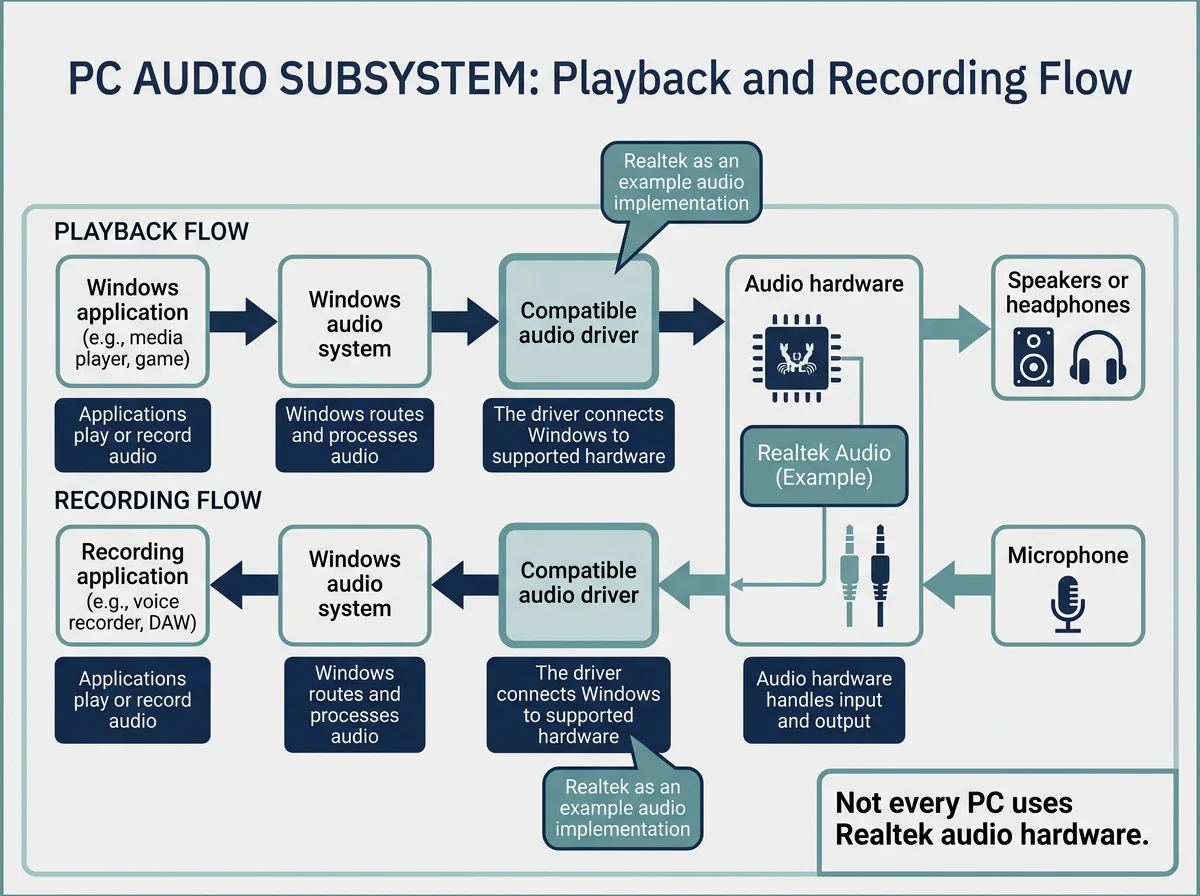
A simplified way to think about the relationship is:
- Audio hardware is the physical audio circuitry and connections in the PC.
- The driver lets Windows use that hardware through its supported audio stack.
- The Windows audio system routes and processes audio from apps to the selected output or from an input device to an app.
- An audio control app, when available, may expose additional settings, but it is not the driver itself.
Not every audio device in Windows uses a Realtek driver. USB headsets, Bluetooth headphones, HDMI audio from a graphics device, and other sound hardware can use different drivers or device-specific software.
Why does Realtek appear in Device Manager?
If Windows lists Realtek(R) Audio or Realtek High Definition Audio in Device Manager, that is an indication that the installed system has detected a Realtek audio device or driver entry. Exact labels vary by hardware and driver package.
To check the entry:
- Right-click Start and open Device Manager.
- Expand Sound, video and game controllers.
- Look for a Realtek entry or another audio device name.
- Right-click the device and select Properties.
- Open the Driver tab to review the provider, version, and date.
Do not assume that a missing Realtek label means the PC has no audio hardware or that the hardware has failed. The computer may use another audio solution, Windows may display a different name, or the device may not currently be detected. If you are investigating an audio problem, check the device status and the support page for the exact PC or motherboard model.
Do you need a Realtek audio driver?
The answer depends on the audio hardware in your computer and whether the current driver is working correctly.
You probably need a compatible driver if...
- Your PC has Realtek audio hardware and Windows needs its driver to use it correctly.
- The audio device is missing, has a warning icon, or reports a problem in Device Manager.
- You have no sound or distorted audio and simpler output and volume checks have not helped.
- Audio stopped working after a Windows or driver update, and the current driver is suspected to be involved.
- You have reinstalled Windows and need the appropriate audio package for your exact model.
In those cases, the right driver may already be available through Windows Update. If not, the computer or motherboard manufacturer may provide a package customized for the hardware.
You probably do not need to install a new one if...
- Your speakers, headphones, and microphone work normally.
- Windows already detects the audio device without warnings.
- You have no specific problem that a driver update is intended to address.
- The PC uses a different audio device rather than Realtek hardware.
A driver does not need to be replaced just because a newer version exists somewhere online. A package intended for another device can be incompatible, and a generic package may not include every model-specific feature. If audio works correctly, avoid changing the driver without a reason.
Is a Realtek audio driver the same as Realtek Audio Console?
No. The driver allows Windows to communicate with supported audio hardware. Realtek Audio Console, where supported, is a user-facing app that may expose audio settings such as jack behavior or effects. Its availability and options depend on the PC, driver package, and manufacturer configuration.
You may have a working Realtek driver without a separate Realtek Audio Console app. Conversely, installing an app by itself does not guarantee that the correct driver is present. Check the PC manufacturer's documentation for your model instead of downloading an app or package from an unofficial website.
Can Windows work without a Realtek driver?
Sometimes Windows can use a compatible built-in or generic audio driver, depending on the hardware and driver support. Basic sound may work, but the experience and available features can differ from the computer manufacturer's intended package. Other PCs may need a specific driver for the onboard audio device to function correctly.
That is why the answer is not simply yes or no. If sound works and the audio device is detected correctly, you do not need to replace the driver just to make the Device Manager label look different. If the device is missing or audio does not work, use the supported troubleshooting steps rather than randomly removing drivers.
What is the safest way to get a Realtek audio driver?
If you have a real audio problem, use this order:
- Check Windows Update. Open Settings > Windows Update and check for available updates. If optional driver updates are offered, read their names and select only the relevant audio package.
- Check Device Manager. Review the detected audio device and its status. Device Manager can search for a driver, although it may not find every newer or customized package.
- Identify the exact PC or motherboard model. For a laptop or prebuilt desktop, use its model-specific support page. For a custom PC, identify the motherboard model.
- Use the official manufacturer's support page. Choose a driver that explicitly matches the model and operating system. Follow the installation instructions provided with that package.
- Restart and test the sound if the installer or Windows requests it.
Microsoft recommends Windows Update as the first way to obtain audio drivers, followed by Device Manager or the computer manufacturer's support site if needed. See Microsoft's audio driver update guide (opens in new tab).
Realtek also publishes a High Definition Audio Codecs software page (opens in new tab). The currently listed generic HD Audio Codec packages identify support for older Windows versions through Windows 10 rather than offering a universal package explicitly listed for every Windows 11 PC. Do not treat that generic download as the default driver for all Windows 11 computers. Prefer the package provided for your exact model unless an official listing specifically confirms compatibility.
Avoid third-party driver download sites and generic driver-updater utilities. Do not uninstall a working driver simply to test a random package. If an update has caused an audio problem, Microsoft's sound troubleshooting guide (opens in new tab) explains additional steps, including when driver rollback or reinstalling may be appropriate.
Common questions about Realtek audio drivers
Is Realtek audio a virus?
The name Realtek in Device Manager is not, by itself, a sign of malware. Realtek is a hardware and semiconductor company, and its audio drivers are used by compatible PCs. If a suspicious installer claims to be a Realtek driver, verify its origin and use Windows Update or the official PC manufacturer's website.
Should I uninstall the Realtek audio driver?
Not if the audio system is working normally. Uninstalling a driver can temporarily interrupt sound or remove model-specific functionality. Consider reinstallation only when troubleshooting a real problem and follow Microsoft's or the PC manufacturer's instructions.
Why does my computer have Realtek audio but no sound?
The driver name alone does not prove that Realtek is the cause. Check the selected output device, system volume, app-specific Volume mixer settings, cable or headphone connection, and the device status in Device Manager. If the issue began after an update, check Microsoft's update-related audio guidance.
Is the Realtek driver different for Windows 10 and Windows 11?
Driver compatibility depends on the specific package, hardware, and operating system. Do not assume a package listing Windows 10 automatically supports every Windows 11 PC. Windows 10 support ended on October 14, 2025, so this guide prioritizes Windows 11 and recommends model-specific, officially supported driver packages.
Related guides
- Realtek Audio Driver for Windows 11: Download, Install, and Update Safely
- Realtek Audio Driver Not Working? How to Fix It
Official sources
Verified Primary Sources & Citations
NextTechExplained verifies facts against official documentation, engineering whitepapers, and regulatory filings.
- Microsoft Learn: Windows Audio ArchitectureView Official Source
- Microsoft Support: Update audio drivers in WindowsView Official Source
- Microsoft Support: Fix sound or audio problems in WindowsView Official Source
- Realtek: PC Audio Codecs - High Definition Audio Codecs SoftwareView Official Source
Published by NextTechExplained
Editorial Team • Institutional Publication Byline
Articles published under this byline are prepared through rigorous research and verified against official engineering specifications, standards documentation, and primary sources. Learn more about our process on our About page and Editorial Policy.
Related Explanations & Guides
Realtek Audio Driver for Windows 11: Download, Install, and Update Safely
Find the correct Realtek audio driver for Windows 11 using Windows Update, Device Manager, or your PC maker's official support page.
Battlefield 6 Secure Boot Error: How to Check and Fix It on PC
Getting a Secure Boot or EA Javelin Anti-Cheat error in Battlefield 6? Check UEFI, Secure Boot, TPM 2.0, and safe next steps for your PC.
Gigabyte Secure Boot: How to Enable It and Fix Common Errors
Learn how to check Secure Boot on Gigabyte and AORUS PCs, understand UEFI and key settings, and troubleshoot common BIOS messages safely.