
Realtek Audio Driver Not Working? How to Fix It
Fix Realtek audio problems in Windows 11, including no sound, a missing device, crackling audio, and problems after a driver update.
Editorial Team
A laptop connected to headphones and desktop speakers on a desk, illustrating PC audio troubleshooting
Table of Contents (18 sections)
- First, identify the symptom
- 1. Run the Windows 11 audio troubleshooter
- 2. Check the selected output device and volume
- 3. Check whether Windows detects the Realtek audio device
- 4. Turn off audio enhancements temporarily
- 5. Restart Windows audio services if sound still fails
- 6. Update the Realtek driver safely
- Try Windows Update first
- Check Device Manager
- 7. Roll back the driver if the problem started after an update
- 8. Reinstall the audio driver if updating does not help
- What if Realtek is installed but there is still no sound?
- Frequently asked questions
- Why is my Realtek audio driver not showing in Device Manager?
- Should I uninstall Realtek audio before downloading a new driver?
- Why did my Realtek sound stop working after Windows Update?
- Is Realtek always the cause when my PC has no sound?
- Official sources
If your Realtek audio driver is not working, the first step is to identify what has actually stopped working. No sound, a missing audio output device, crackling, and sound that disappeared after Windows Update can have different causes. A driver may be involved, but the problem can also come from the selected output device, app-specific volume, audio enhancements, or a temporary Windows audio-service issue.
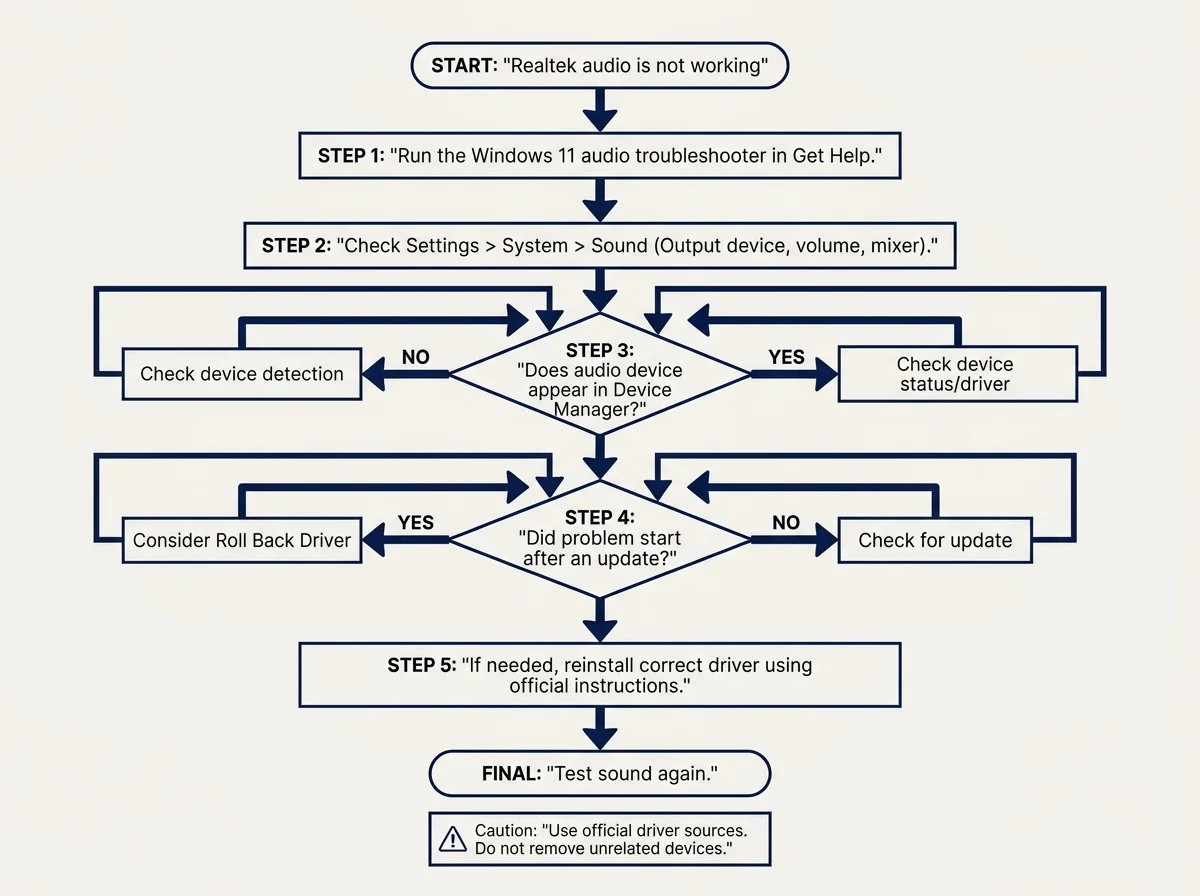
Start with the Windows 11 Get Help audio troubleshooter and the checks below before uninstalling anything. If the problem began immediately after a driver or Windows update, keep that timing in mind because rolling back the affected driver may be more appropriate than installing another package. Microsoft's sound troubleshooting guide (opens in new tab) lists these remedies in a practical troubleshooting order.
First, identify the symptom
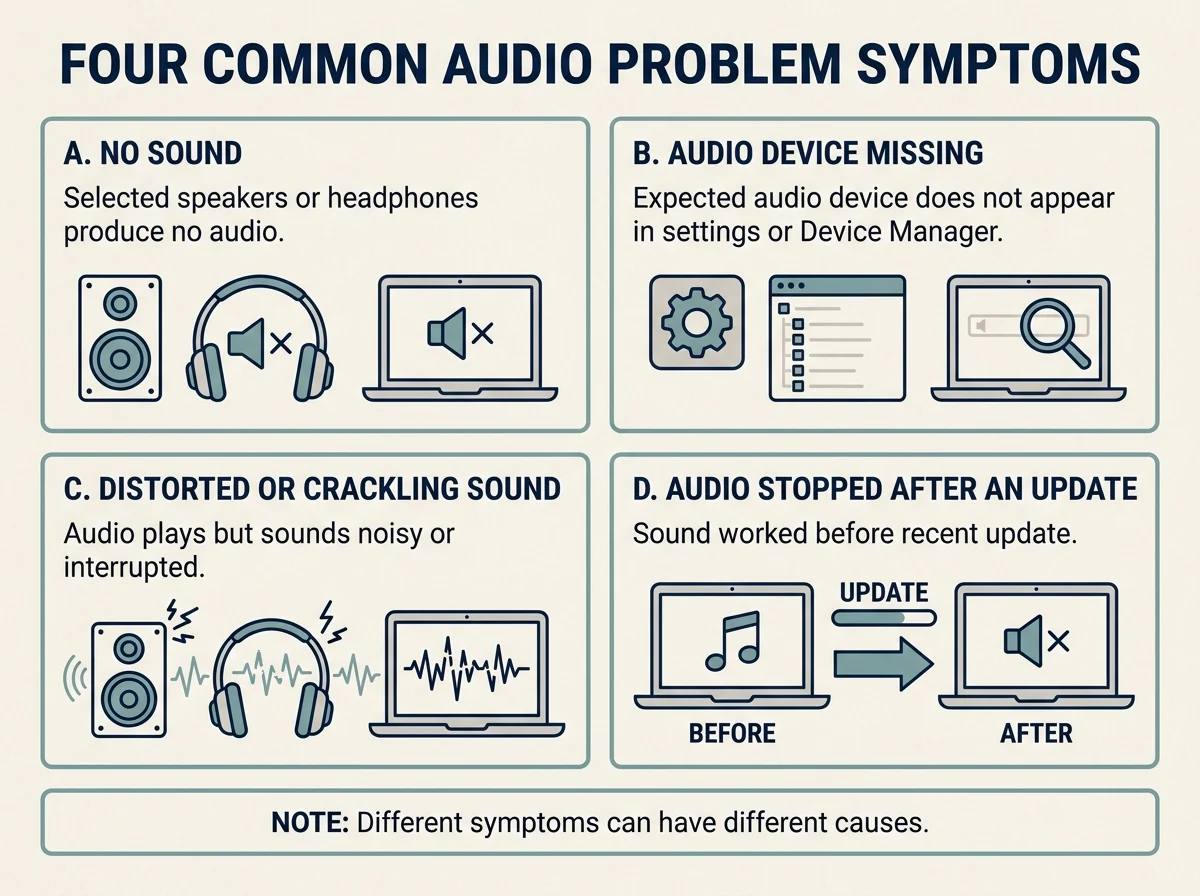
Use the symptom to choose where to start:
- No sound from speakers or headphones: Check the selected output device, mute state, and Volume mixer first.
- Realtek is missing from sound settings: Check Device Manager to see whether Windows detects an audio device.
- Sound crackles, distorts, or cuts out: Try the troubleshooter and audio-enhancement settings before changing drivers.
- Sound stopped after an update: Check Windows Update and consider rolling back the audio driver if the issue began immediately after that change.
- Only one app has no sound: Check that app's volume and output selection. The Realtek driver may still be working normally.
1. Run the Windows 11 audio troubleshooter
Microsoft recommends starting with the automated audio troubleshooter in the Get Help app on Windows 11.
- Open Start and search for Get Help.
- Open the app and search for Windows audio or sound troubleshooting if the audio troubleshooter is not immediately shown.
- Follow the diagnostic prompts and apply any suggested fix that matches your issue.
- Test sound again after the process finishes.
The troubleshooter may detect a disabled device, configuration problem, or another issue, but it will not resolve every hardware or driver fault. If the problem remains, continue with the checks below rather than repeating the same diagnostic without changing anything.
2. Check the selected output device and volume
Windows can send audio to the wrong output, such as a monitor, a Bluetooth headset, or a device that is not currently connected. This can look like a failed Realtek driver even when the driver is present.
- Open Settings > System > Sound.
- Under Output, select the speakers or headphones you actually want to use.
- Check the system volume and confirm that mute is off.
- Open Volume mixer and verify that the affected app is not muted and is using the intended output device.
- If sound works in other apps but not one application, close and reopen that application after checking its audio settings.
For app-specific sound problems, see Microsoft's guide to fixing app audio when system sounds still work (opens in new tab).
3. Check whether Windows detects the Realtek audio device
Use Device Manager to determine whether the Realtek device is present and whether Windows reports a problem.
- Right-click Start and open Device Manager.
- Expand Sound, video and game controllers.
- Look for a device named Realtek(R) Audio, Realtek High Definition Audio, or a similar model-specific name.
- If the device has a warning icon, open Properties and read the status message.
- If no Realtek device is listed, check for an audio device under other categories and use View > Show hidden devices as a diagnostic check. A hidden or missing entry does not, by itself, prove the hardware has failed.
If the device is missing entirely, confirm the exact computer or motherboard model before looking for a driver. Some PCs use audio hardware from a different manufacturer, and some OEM systems depend on customized packages. Do not install a Realtek driver just because the word "audio" appears in a support listing.
4. Turn off audio enhancements temporarily
Audio enhancements can sometimes cause sound problems, including distortion or other playback issues. Temporarily turning them off is a reversible test.
- Open Settings > System > Sound.
- Under Output, select your active audio device.
- Find Audio enhancements in the device settings, if that option is available.
- Set it to Off and test the same audio again.
- If this makes no difference, you can restore the previous setting later.
Not every device exposes the same enhancement controls. Follow the options shown for your selected output instead of looking for a menu that may not exist on your PC. See Microsoft's guide to fixing low or quiet sound in Windows (opens in new tab) for related checks.
5. Restart Windows audio services if sound still fails
A temporary problem with Windows audio services can affect playback even when the audio device appears in Device Manager. If you are comfortable using the Services console, you can restart the relevant services.
- Save your work.
- Press Windows + R, type
services.msc, and press Enter. - Find Windows Audio, right-click it, and select Restart if the option is available.
- Find Windows Audio Endpoint Builder and restart it if available.
- Test the sound again.
Service names and available actions can differ by configuration. Do not change service startup types or disable services as a general troubleshooting step. If you are using a managed work or school PC, follow your administrator's guidance.
6. Update the Realtek driver safely
If the sound problem continues, check for an appropriate driver update. Microsoft recommends Windows Update first, then Device Manager or the PC manufacturer's official support page.
Try Windows Update first
- Open Settings > Windows Update.
- Select Check for updates and install relevant available updates.
- Check Advanced options > Optional updates > Driver updates if that section is available.
- Read the driver names carefully and install an audio driver only when it is relevant to your device.
- Restart if prompted and test the sound.
An audio driver will not necessarily appear in Optional updates on every PC.
Check Device Manager
- Open Device Manager > Sound, video and game controllers.
- Right-click the Realtek audio device and select Update driver.
- Choose Search automatically for drivers and follow the prompts.
- Restart if requested.
If Windows says the best driver is already installed, a newer or customized package may still be available from your computer manufacturer. For model-specific installation guidance, see our companion guide: Realtek Audio Driver for Windows 11: Download, Install, and Update Safely.
7. Roll back the driver if the problem started after an update
If audio worked correctly before a recent driver update and failed immediately afterward, rolling back that driver may be a better next step than installing another version.
- Open Device Manager and expand Sound, video and game controllers.
- Right-click the Realtek audio device and choose Properties.
- Open the Driver tab.
- Select Roll Back Driver if the button is available, then follow the prompts.
- Restart the PC and test the same speakers or headphones.
The rollback option may be unavailable if Windows has no previous driver package to restore. Do not try to force a rollback using unrelated driver files. Microsoft's audio-after-update troubleshooting guide (opens in new tab) explains when this option may help.
8. Reinstall the audio driver if updating does not help
A driver installation can become incomplete or corrupted. Reinstalling can help, but use it after the simpler checks and a normal update attempt.
- Save open documents and close applications that use sound.
- Open Device Manager > Sound, video and game controllers.
- Right-click the Realtek audio device and select Uninstall device.
- Read the confirmation options carefully. Do not select an option to remove the driver package unless you have a suitable replacement and understand the consequences.
- Restart the PC so Windows can attempt to reinstall the audio device driver.
- Test sound. If the device is still missing or the issue returns, install the appropriate audio package from the support page for your exact laptop, desktop, or motherboard model.
Avoid third-party driver-updater utilities and unofficial download sites. Do not manually delete driver folders, change system permissions, or edit the registry just because the driver is not working.
What if Realtek is installed but there is still no sound?
A Realtek entry in Device Manager does not guarantee that Windows is using it as the active output. Check these possibilities before repeating a driver installation:
- Wrong output selected: Choose the intended speakers or headphones under Settings > System > Sound.
- App volume is muted: Review Volume mixer and the application's own settings.
- Bluetooth or HDMI output selected: Windows may be sending audio to another connected device.
- Only one app is affected: Check its per-app output selection and restart that app.
- Sound is distorted or quiet: Test with enhancements off and check the volume controls.
- Audio disappeared after Windows Update: Review the driver rollback option and the update-specific advice from Microsoft.
If none of these checks helps, record the PC model, audio-device name, driver version, Windows build, and any Device Manager status message. Those details make it easier to select the right manufacturer support page and avoid guessing.
Frequently asked questions
Why is my Realtek audio driver not showing in Device Manager?
Windows may not currently detect the device, the device may appear under another category, or the computer may use different audio hardware. Check View > Show hidden devices, identify the exact PC model, and consult its official support information. A missing entry alone does not prove that the sound hardware has failed.
Should I uninstall Realtek audio before downloading a new driver?
Not as the first step. Try the Windows audio troubleshooter, output selection, Windows Update, and Device Manager's supported update process first. If you need to reinstall, follow Microsoft's or the PC manufacturer's instructions for the exact device.
Why did my Realtek sound stop working after Windows Update?
A Windows or driver update can introduce an incompatible or partially installed audio driver. Check for additional relevant updates, update the driver using an approved source, and consider Roll Back Driver if the issue began immediately after a driver update and rollback is available.
Is Realtek always the cause when my PC has no sound?
No. The problem can be the selected output, app-specific volume, audio enhancements, a service, connected hardware, or another driver. Confirm the symptom and device status before concluding that the Realtek driver is responsible.
Official sources
- Microsoft: Fix sound or audio problems in Windows (opens in new tab)
- Microsoft: Update audio drivers in Windows (opens in new tab)
- Microsoft: Fix audio stops working after a Windows update (opens in new tab)
- Microsoft: Fix low or quiet sound in Windows (opens in new tab)
- Microsoft: Fix app audio when system sounds work (opens in new tab)
Verified Primary Sources & Citations
NextTechExplained verifies facts against official documentation, engineering whitepapers, and regulatory filings.
- Microsoft Support: Fix sound or audio problems in WindowsView Official Source
- Microsoft Support: Update audio drivers in WindowsView Official Source
- Microsoft Support: Fix audio stops working after a Windows update in WindowsView Official Source
- Microsoft Support: Fix low or quiet sound in WindowsView Official Source
- Microsoft Support: Fix app audio not working while system sounds work in WindowsView Official Source
Published by NextTechExplained
Editorial Team • Institutional Publication Byline
Articles published under this byline are prepared through rigorous research and verified against official engineering specifications, standards documentation, and primary sources. Learn more about our process on our About page and Editorial Policy.
Related Explanations & Guides
Realtek Audio Driver for Windows 11: Download, Install, and Update Safely
Find the correct Realtek audio driver for Windows 11 using Windows Update, Device Manager, or your PC maker's official support page.
Lenovo Touchpad Not Working? How to Fix It
Fix a Lenovo laptop touchpad that will not respond in Windows 11. Check the model-specific shortcut, touchpad settings, mouse connection options, and the correct Lenovo driver.
Touchpad Not Working? How to Fix a Laptop Touchpad in Windows 11
Fix a laptop touchpad that will not move, click, or respond in Windows 11. Check touchpad settings, function keys, connected mice, and drivers safely.