
Realtek Audio Driver for Windows 11: Download, Install, and Update Safely
Find the correct Realtek audio driver for Windows 11 using Windows Update, Device Manager, or your PC maker's official support page.
Editorial Team
A modern laptop and headphones on a tidy desk, illustrating safe audio driver installation
Table of Contents (15 sections)
- Before downloading a Realtek audio driver
- Method 1: Update the Realtek audio driver with Windows Update
- Method 2: Check the driver through Device Manager
- Method 3: Download the Realtek driver from your PC manufacturer's official website
- Can you download the Realtek audio driver directly from Realtek?
- What if the Realtek driver will not install?
- How to check whether the Realtek driver installed correctly
- Is the Realtek audio driver different from Realtek Audio Console?
- What about Windows 10?
- Frequently asked questions
- Do I need a Realtek audio driver?
- Is it safe to download a Realtek audio driver?
- Why does Windows say the best driver is already installed?
- Should I uninstall Realtek audio before installing a new driver?
- Official sources
To get the correct Realtek audio driver for Windows 11, start with Windows Update. If it does not offer a suitable driver, look up the exact laptop, desktop, or motherboard model on its manufacturer's official support site. Realtek audio hardware is used in many computers, but the correct driver package can depend on the PC model, audio implementation, and Windows version. A driver intended for a different device may not provide the expected audio features or controls.
Microsoft recommends Windows Update as the first way to obtain audio drivers, followed by Device Manager or the computer manufacturer's support site if needed. Use those routes before trying a generic download. See Microsoft's audio driver update instructions (opens in new tab).
Before downloading a Realtek audio driver
First, check whether Windows already has a working Realtek driver and identify your PC model. You may not need a manual download at all.
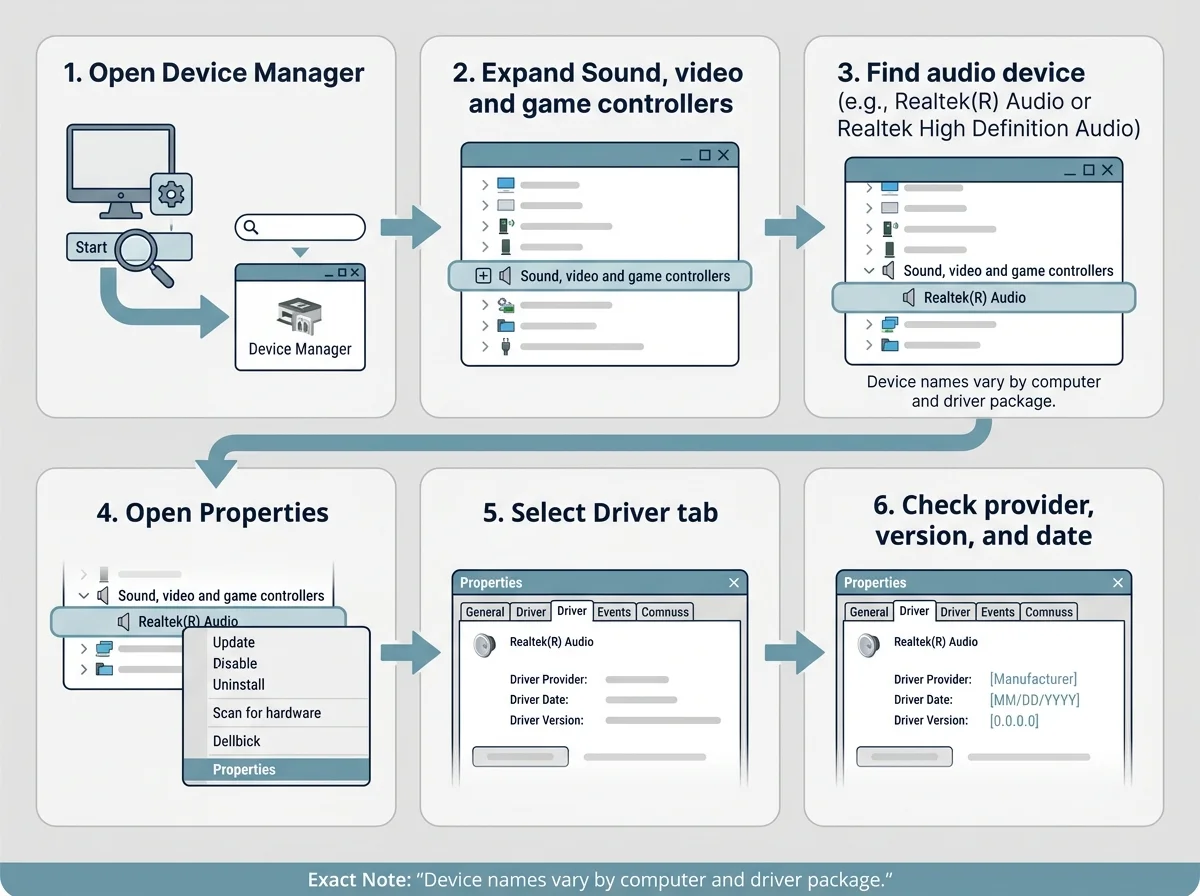
- Right-click Start and open Device Manager.
- Expand Sound, video and game controllers.
- Look for an entry such as Realtek(R) Audio or Realtek High Definition Audio. The exact name can differ.
- Right-click the audio device and choose Properties. Open the Driver tab to review its provider, version, and date.
- If no Realtek device appears, check whether an audio device has a warning icon or appears under another category. Do not assume that every computer uses Realtek hardware.
To identify the exact computer model, open Settings > System > About. You can also search Windows for System Information and look for System Model. For a custom-built desktop, the motherboard make and model may be needed instead of the case or graphics-card model.
Method 1: Update the Realtek audio driver with Windows Update
This is the recommended starting point because Windows Update can offer drivers selected for your Windows installation.
- Open Settings > Windows Update.
- Select Check for updates and install relevant available updates.
- Open Advanced options > Optional updates if that section is available.
- Expand Driver updates and look for a relevant audio driver. Read the listed name before installing it; do not select an unrelated driver simply because it is offered.
- Restart the PC if Windows asks, then test the sound.
Not every PC will show a Realtek driver in Optional updates. If there is no suitable driver listed, continue to the model-specific manufacturer route. Microsoft's guide to recommended and optional driver updates (opens in new tab) explains where to find them.
Method 2: Check the driver through Device Manager
Device Manager can ask Windows to search for a newer driver for the audio device it already detects.
- Open Device Manager.
- Expand Sound, video and game controllers.
- Right-click the Realtek audio device and select Update driver.
- Choose Search automatically for drivers and follow the instructions.
- Restart if requested and test your speakers, headphones, or microphone.
If Windows says the best driver is already installed, that does not prove that no newer package exists. A newer or customized driver may be available from your PC or motherboard manufacturer's support page. Microsoft describes both the Device Manager method and the manufacturer option in its audio driver guide (opens in new tab).
Method 3: Download the Realtek driver from your PC manufacturer's official website
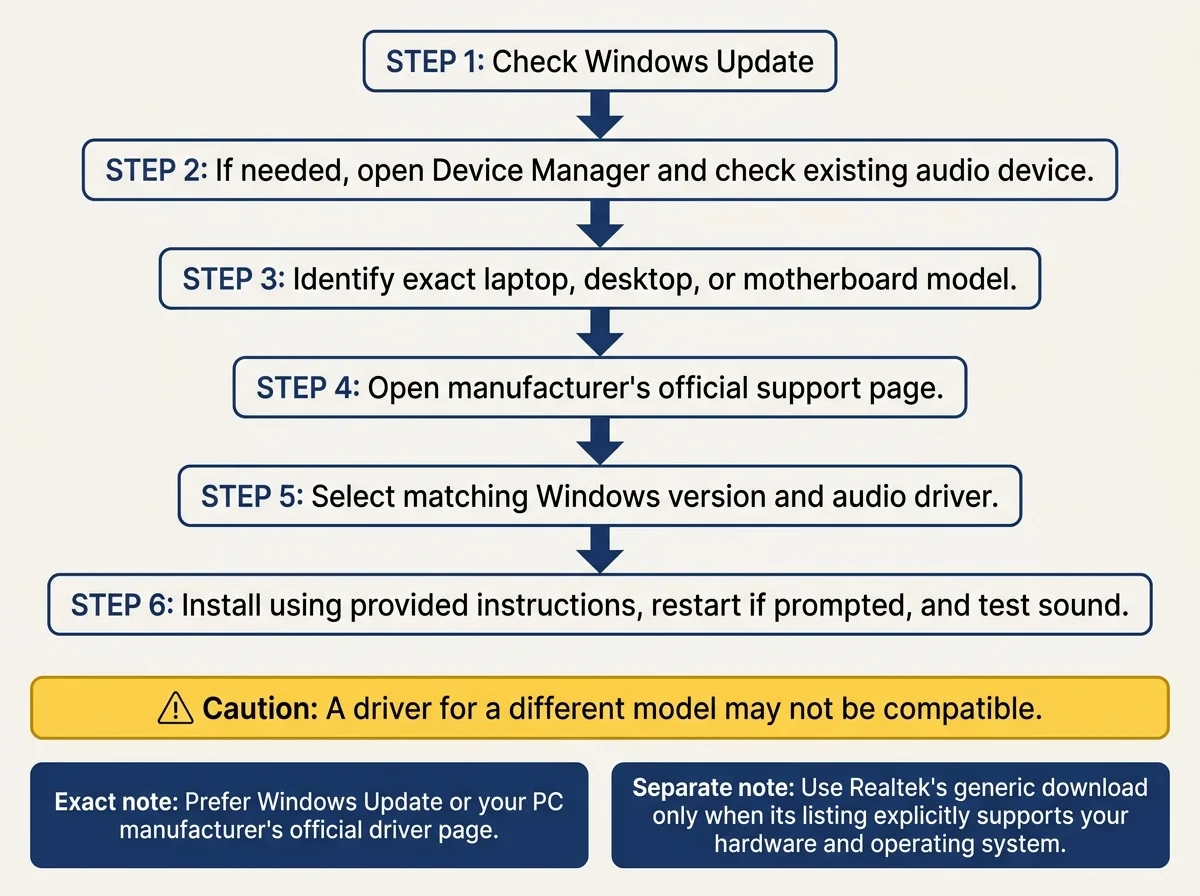
For most Windows 11 laptops and prebuilt desktop PCs, use the driver page for the exact computer model. Manufacturers can distribute audio packages that are tested for their hardware and may include model-specific audio features.
- Confirm the computer's complete model name. For a custom PC, identify the motherboard model.
- Open the manufacturer's own support website. Examples include Dell Drivers and Downloads (opens in new tab), HP Software and Driver Downloads (opens in new tab), and Lenovo PC Drivers and Downloads (opens in new tab).
- Enter the model or use the manufacturer's official product-detection option if you are comfortable with it.
- Choose the correct Windows version and system architecture shown for the device.
- Look in the Audio or Sound category for a package that mentions Realtek, if one is provided. Read the package notes and supported models before downloading.
- Run the downloaded installer and follow the manufacturer's instructions. Save your work and restart if prompted.
- Return to Device Manager and check the driver details, then test sound output and microphone input.
Do not use a driver from a similar-looking laptop or motherboard. Even within one product family, different revisions may use different audio hardware or driver packages. Avoid third-party driver-download sites and generic driver-updater utilities that promise to update every device automatically.
Can you download the Realtek audio driver directly from Realtek?
Realtek provides a PC Audio Codecs - High Definition Audio Codecs Software download page (opens in new tab). However, the generic HD Audio Codec list currently labels its listed Windows packages for older Windows versions through Windows 10, rather than listing a general Windows 11 package for every PC.
For that reason, do not treat the generic Realtek download as the default Windows 11 driver for all computers. Use it only if the official listing explicitly matches your hardware and Windows version and you understand that it is appropriate for your system. For a laptop or branded desktop, the OEM driver page is usually the safer first choice. If Realtek's page does not clearly list your operating system and hardware as supported, return to Windows Update or the PC manufacturer's site.
What if the Realtek driver will not install?
If the installer refuses to run, completes without changing the driver, or reports that the hardware is unsupported, stop rather than forcing it through compatibility settings.
- Check the model and Windows version. Make sure the package is intended for your exact device and Windows release.
- Check Windows Update. Install relevant pending updates and restart before retrying a compatible driver package.
- Read the installer notes. Some OEM packages have prerequisites or are intended for a specific system revision.
- Use the manufacturer route. If the generic package does not match, get the audio driver from the exact PC or motherboard support page.
- If sound broke after a recent driver update, consider rollback. In Device Manager, open the audio device's Properties > Driver tab and select Roll Back Driver only if the option is available. Restart and test. Microsoft notes that rollback can help when audio stops working after an update; the option may not be available on every system. See Microsoft's audio-after-update troubleshooting guide (opens in new tab).
Do not delete driver folders, change system permissions, or edit the registry just because an installer failed. Record the exact message and use the vendor's instructions for that model.
How to check whether the Realtek driver installed correctly
After installation and any required restart:
- Open Device Manager > Sound, video and game controllers.
- Open the Realtek device's Properties > Driver tab and confirm Windows lists the installed driver details.
- Open Settings > System > Sound and select the intended output device.
- Play a short test sound and check the microphone if you use one.
- If the device is present but audio still fails, follow Microsoft's Windows sound troubleshooting guide (opens in new tab). The cause could be the selected output, volume mixer, audio services, app settings, or another driver issue rather than the Realtek download itself.
A driver version number by itself does not prove that it is the newest or best package for your computer. Compare it with the version listed on the support page for your exact model, and do not replace a working OEM driver solely because a different package has a higher version number.
Is the Realtek audio driver different from Realtek Audio Console?
Yes. A driver enables Windows to communicate with the audio hardware. A companion control application, when supported by the PC, can expose extra settings such as jack detection or audio effects. Installing an app alone is not a substitute for the correct driver, and the availability of control applications depends on the PC maker's driver package and hardware.
If a control application is missing, check your PC manufacturer's supported software and driver page rather than installing a random package from a third-party download website.
What about Windows 10?
Some Realtek packages are labeled for Windows 10, but compatibility still depends on the PC and audio hardware. Windows 10 reached end of support on October 14, 2025; standard free Windows Update support and security updates have ended, although eligible devices may have options such as the Consumer Extended Security Updates program. See Microsoft's Windows 10 end-of-support information (opens in new tab).
If you are maintaining a Windows 10 computer, select a driver explicitly listed for the exact model and operating system. Do not assume that a Windows 10 package is suitable for Windows 11 or vice versa.
Frequently asked questions
Do I need a Realtek audio driver?
Only if your computer uses Realtek audio hardware that needs that driver. Many PCs use Realtek, but not all do. Check Device Manager and the documentation for your exact computer or motherboard before installing anything.
Is it safe to download a Realtek audio driver?
Use Windows Update, your computer manufacturer's official support page, or Realtek's official download page when its listing clearly supports your hardware and operating system. Avoid unofficial driver sites and packages that do not identify supported models.
Why does Windows say the best driver is already installed?
Device Manager's automatic search may not find every package available from a computer manufacturer. Check Windows Update and the support page for the exact device model before deciding that no update is available.
Should I uninstall Realtek audio before installing a new driver?
Not as a first step. Try the supported update path for your computer first. If the driver is damaged or updating does not resolve a documented issue, follow Microsoft or your OEM's reinstall instructions for that specific device.
Official sources
- Microsoft: Update audio drivers in Windows (opens in new tab)
- Microsoft: Fix sound or audio problems in Windows (opens in new tab)
- Microsoft: Optional and recommended hardware driver updates (opens in new tab)
- Realtek: High Definition Audio Codecs Software (opens in new tab)
- Dell Drivers and Downloads (opens in new tab)
- HP Software and Driver Downloads (opens in new tab)
- Lenovo PC Drivers and Downloads (opens in new tab)
Verified Primary Sources & Citations
NextTechExplained verifies facts against official documentation, engineering whitepapers, and regulatory filings.
- Microsoft Support: Update audio drivers in WindowsView Official Source
- Microsoft Support: Fix sound or audio problems in WindowsView Official Source
- Microsoft Support: Automatically get recommended and updated hardware driversView Official Source
- Realtek: PC Audio Codecs - High Definition Audio Codecs SoftwareView Official Source
- Dell Support: Drivers and DownloadsView Official Source
- HP Support: Software and Driver DownloadsView Official Source
- Lenovo Support: PC Drivers and DownloadsView Official Source
Published by NextTechExplained
Editorial Team • Institutional Publication Byline
Articles published under this byline are prepared through rigorous research and verified against official engineering specifications, standards documentation, and primary sources. Learn more about our process on our About page and Editorial Policy.
Related Explanations & Guides
What Is a Realtek Audio Driver? Do You Need It?
Learn what a Realtek audio driver does, how to check whether your PC uses Realtek audio, and when you should update or leave the driver alone.

Lenovo Touchpad Not Working? How to Fix It
Fix a Lenovo laptop touchpad that will not respond in Windows 11. Check the model-specific shortcut, touchpad settings, mouse connection options, and the correct Lenovo driver.
Realtek Audio Driver Not Working? How to Fix It
Fix Realtek audio problems in Windows 11, including no sound, a missing device, crackling audio, and problems after a driver update.