
Lenovo Touchpad Not Working? How to Fix It
Fix a Lenovo laptop touchpad that will not respond in Windows 11. Check the model-specific shortcut, touchpad settings, mouse connection options, and the correct Lenovo driver.
Editorial Team
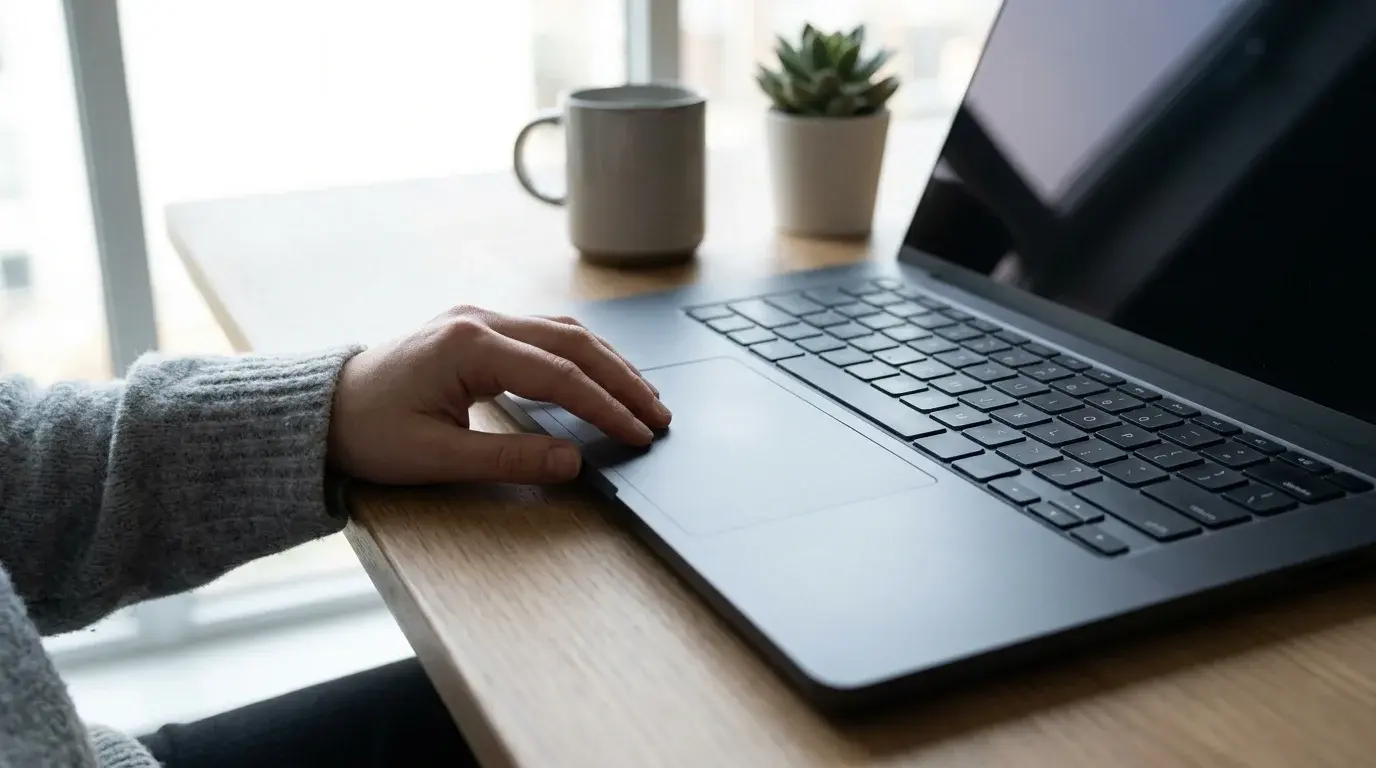
A Lenovo-style laptop on a desk illustrating troubleshooting for an unresponsive touchpad
Table of Contents (10 sections)
- First, identify the symptom
- 1. Check the touchpad function key for your Lenovo model
- 2. Turn on the touchpad in Windows 11
- 3. Check the setting for a connected mouse
- 4. Check the touchpad in Device Manager
- 5. Update the driver using Lenovo or Windows Update
- 6. Reinstall the touchpad driver only if needed
- 7. When to contact Lenovo Support
- Quick checklist
- Official sources
If your Lenovo touchpad is not working, check the touchpad shortcut for your exact model and confirm that Windows has not switched the touchpad off. Some IdeaPad and ThinkPad models use a keyboard key or key combination to enable or disable the touchpad, but the key varies by model. If the simple checks do not help, verify the Windows setting and then check the correct driver through Lenovo or Windows Update.
This guide focuses on Lenovo-specific checks. For broader Windows touchpad symptoms and general fixes, see our laptop touchpad troubleshooting guide. If the touchpad moves the pointer but the arrow itself disappears, our Windows 11 cursor visibility guide covers that separate problem.
First, identify the symptom
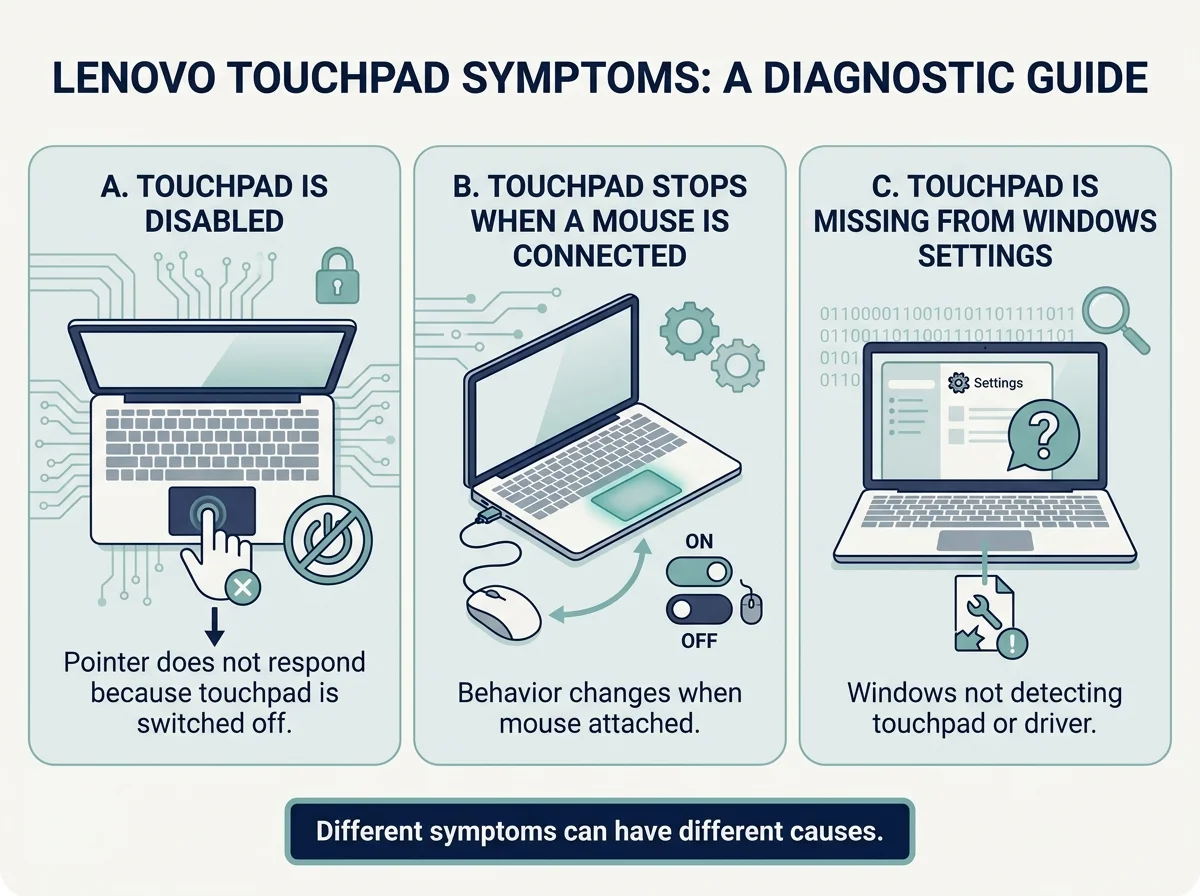
- Nothing happens when you move a finger: the touchpad may be disabled, unrecognized by Windows, or experiencing a hardware issue.
- The touchpad stopped after using a keyboard shortcut: check the touchpad function key and Windows settings first.
- The touchpad stops when a mouse is connected: check whether your Lenovo model offers a setting to leave the touchpad on while a mouse is attached.
- The Touchpad page is missing from Settings: Windows may not be detecting the touchpad or its driver correctly.
If you have a working external mouse or a ThinkPad TrackPoint, use it to navigate while troubleshooting. Otherwise, Windows Settings and Device Manager can also be navigated with the keyboard.
1. Check the touchpad function key for your Lenovo model
Some Lenovo laptops have a keyboard key with a touchpad icon. Depending on the model, it may work by itself or require holding Fn. Lenovo support documents examples such as F6 or F8 on some IdeaPad models, but these are not universal shortcuts.
- Look along the function-key row for a touchpad symbol or a symbol showing a touchpad with a line through it.
- Check the User Guide for your exact Lenovo model to identify the correct key or key combination.
- Press only the documented key. If your model requires it, hold Fn at the same time.
- Wait a moment and test the touchpad again.
Do not keep pressing random function keys. Key assignments differ between models, and some keys control other features. If the manual does not list a touchpad shortcut, move on to Windows Settings.
2. Turn on the touchpad in Windows 11
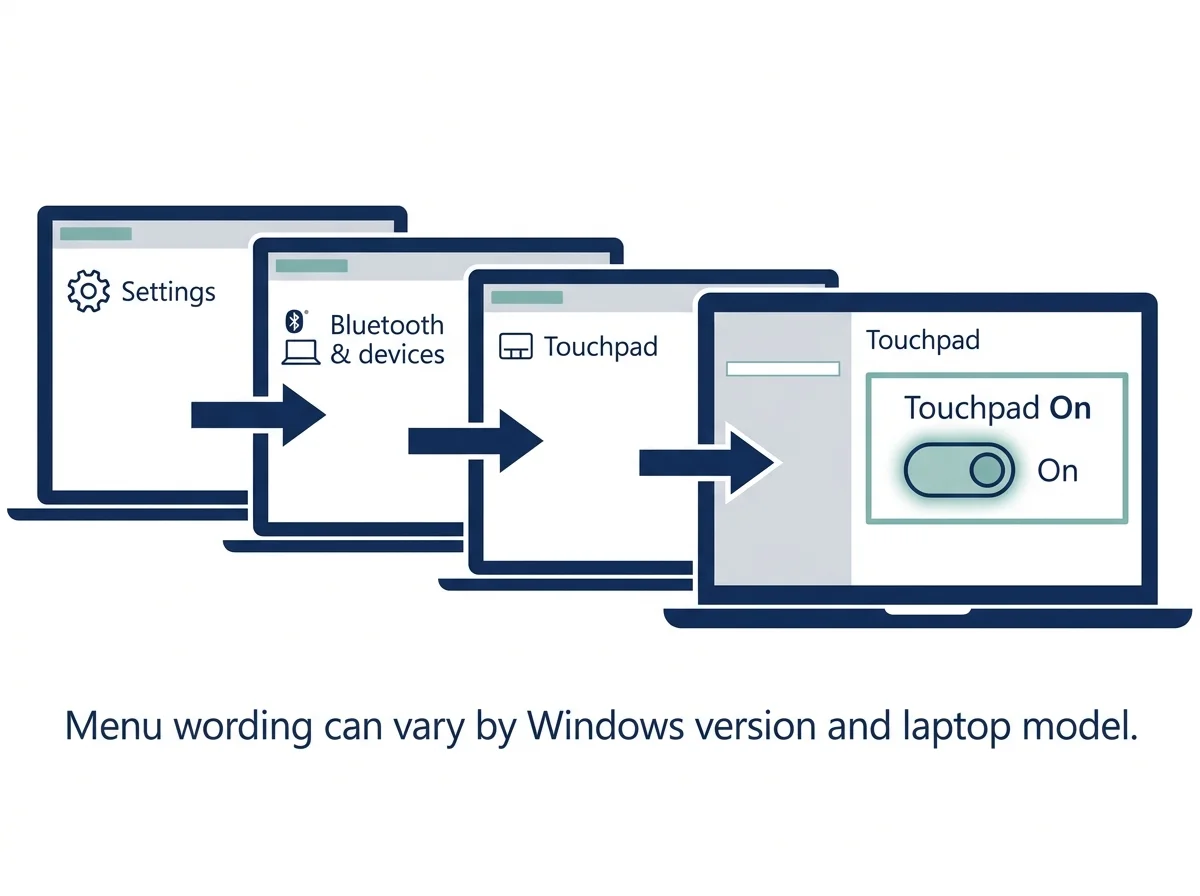
Lenovo's Windows 11 guidance places the main touchpad switch in Settings.
- Press Windows + I to open Settings.
- Select Bluetooth & devices.
- Select Touchpad.
- Set the Touchpad switch to On if it is off.
- Move a finger across the touchpad and test the pointer.
If the Touchpad page is not present, do not assume the laptop has a failed touchpad. Continue to the Device Manager and driver checks below, because Windows may not be detecting the required device or driver. Menu wording can vary slightly by Windows build and Lenovo model.
3. Check the setting for a connected mouse
Some Lenovo models provide an option similar to Leave touchpad on when a mouse is connected. If the touchpad works until you plug in a USB mouse or connect a mouse another way, look for this option on the Touchpad settings page if your device exposes it.
If the option is present, enable it and test the touchpad with the mouse connected. If the setting is absent, do not try to recreate it using a different registry setting; availability and wording depend on the device and driver.
4. Check the touchpad in Device Manager
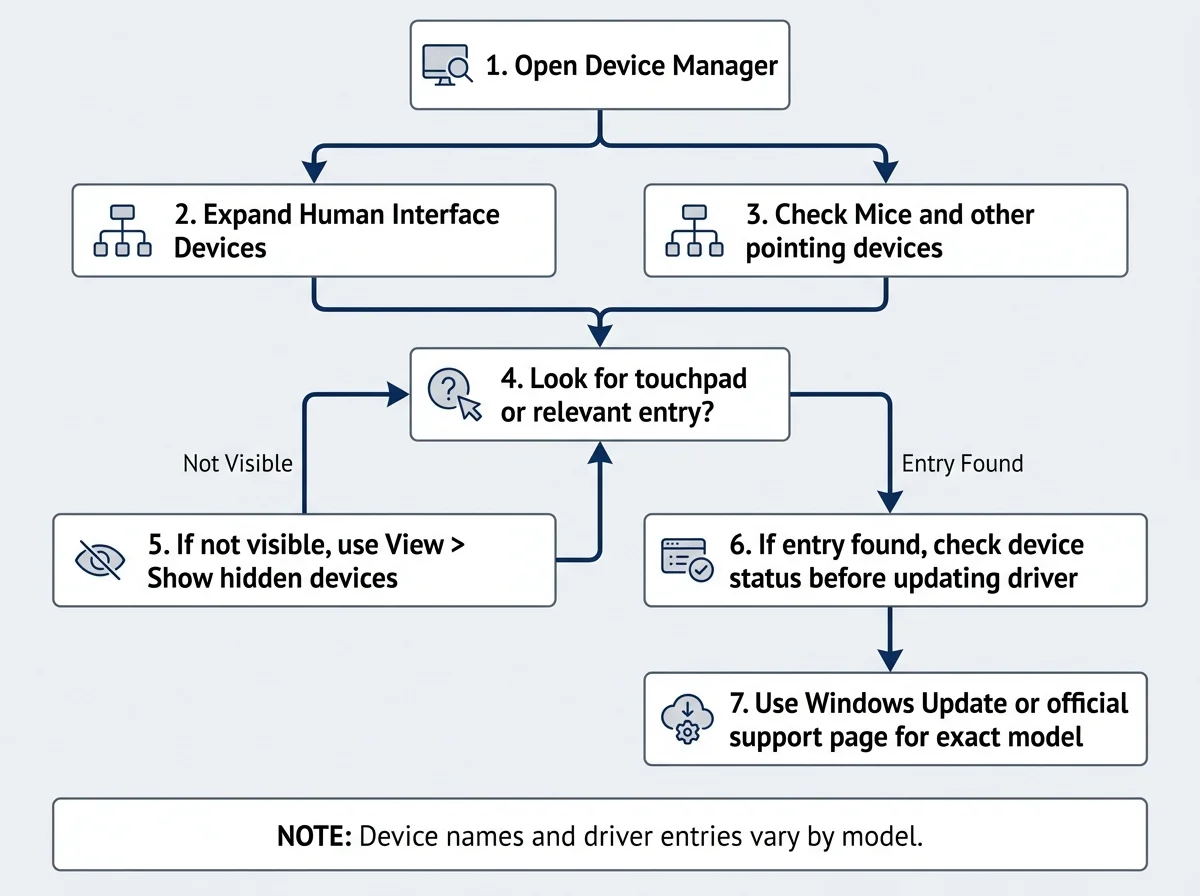
Microsoft notes that touchpads can appear in Device Manager under Human Interface Devices or Mice and other pointing devices. Lenovo's ThinkPad guidance also recommends checking whether the device is listed and whether Windows flags its driver.
- Right-click Start and open Device Manager. If you cannot use a mouse, press the Windows key, type
Device Manager, and press Enter. - Expand Human Interface Devices and Mice and other pointing devices.
- Look for a touchpad-related entry. The exact name can vary by model and driver.
- If the device is disabled, use the available Enable device option. If a warning icon appears, open the device properties and note the status before changing anything.
- If you cannot see the touchpad, select View > Show hidden devices and check whether the entry appears. A greyed-out entry may represent a device that Windows is not currently detecting.
Do not uninstall unrelated mouse, keyboard, or Human Interface Devices entries just to see what happens. If the touchpad is missing or a driver error is shown, continue with a supported driver source.
5. Update the driver using Lenovo or Windows Update
Use a trusted source for the exact computer model. Microsoft recommends Windows Update as the preferred route for touchpad drivers, and Lenovo provides drivers and update utilities through its support channels.
- Save your work and open Settings > Windows Update. Check for available updates, including relevant driver updates if offered.
- If the touchpad still does not work, open the official Lenovo Support site and identify your laptop using its exact product name or serial number.
- Open the Drivers section for that model and check for a touchpad, trackpad, mouse, chipset, or relevant input-device driver listed for your version of Windows.
- Follow Lenovo's installation instructions, then restart if the installer asks you to.
If Lenovo Vantage or Lenovo System Update is installed and offers updates for your exact model, you can use that supported utility too. Do not install a driver from an unofficial download site or assume a driver for a similar-looking Lenovo laptop is compatible.
6. Reinstall the touchpad driver only if needed
If updating the driver does not help, reinstalling the identified touchpad device through Device Manager may help Windows reload its driver. Before doing this, make sure you can navigate without the touchpad and have a way to get the correct driver if needed.
- In Device Manager, locate the touchpad entry under Human Interface Devices or Mice and other pointing devices.
- Confirm that the selected entry is the touchpad, not an unrelated keyboard, mouse, or system device.
- Use the driver reinstall steps recommended by Microsoft or Lenovo for that device.
- Restart Windows and test the touchpad.
If you are unsure which entry represents the touchpad, stop rather than uninstalling several devices. Ask Lenovo Support for guidance using the exact model details.
7. When to contact Lenovo Support
Contact Lenovo if the Touchpad setting is missing, the device is not detected after the correct driver is installed, or the touchpad remains unresponsive after the model-specific checks. Use the Lenovo support page for your exact laptop, because keys, device names, drivers, and firmware options differ across product lines.
Do not change BIOS or UEFI settings as a routine first step. Only check a firmware setting if Lenovo's instructions for the exact model identify it as relevant and you are comfortable following those instructions.
Quick checklist
- Check the documented touchpad function key for your Lenovo model.
- Confirm Settings > Bluetooth & devices > Touchpad is set to On.
- Check the mouse-connected option if your model provides one.
- Look for the touchpad under the correct Device Manager categories.
- Use Windows Update or the official Lenovo product support page for drivers.
- Avoid unofficial driver sites and do not uninstall unrelated input devices.
Official sources
Verified Primary Sources & Citations
NextTechExplained verifies facts against official documentation, engineering whitepapers, and regulatory filings.
- Lenovo Support: Touchpad does not work - IdeaPadView Official Source
- Lenovo Support: Enable or disable the TouchPad - IdeaPadView Official Source
- Lenovo Support: Touchpad or trackpad is not working - ThinkPadView Official Source
- Microsoft Support: Fix touchpad problems in WindowsView Official Source
Published by NextTechExplained
Editorial Team • Institutional Publication Byline
Articles published under this byline are prepared through rigorous research and verified against official engineering specifications, standards documentation, and primary sources. Learn more about our process on our About page and Editorial Policy.
Related Explanations & Guides
Realtek Audio Driver for Windows 11: Download, Install, and Update Safely
Find the correct Realtek audio driver for Windows 11 using Windows Update, Device Manager, or your PC maker's official support page.
Touchpad Not Working? How to Fix a Laptop Touchpad in Windows 11
Fix a laptop touchpad that will not move, click, or respond in Windows 11. Check touchpad settings, function keys, connected mice, and drivers safely.
Battlefield 6 Secure Boot Error: How to Check and Fix It on PC
Getting a Secure Boot or EA Javelin Anti-Cheat error in Battlefield 6? Check UEFI, Secure Boot, TPM 2.0, and safe next steps for your PC.