
Touchpad Cursor Disappears in Windows 11: How to Fix It
If your touchpad cursor disappears in Windows 11, check Hide pointer while typing, locate a hidden pointer with Ctrl, improve pointer visibility, and troubleshoot touchpad settings or drivers.
Editorial Team
A laptop on a desk illustrating a Windows 11 touchpad cursor visibility problem
Table of Contents (12 sections)
- First, identify which cursor disappears
- 1. Turn off Hide pointer while typing
- 2. Press Ctrl to locate a pointer you cannot see
- 3. Make the mouse pointer larger or easier to see
- 4. Check whether the touchpad is enabled
- 5. Restart and check whether the problem affects one app
- 6. Update the touchpad driver
- 7. Reinstall the driver only if updating does not help
- Quick troubleshooting flow
- If you mean the text cursor, not the mouse pointer
- When to contact the laptop manufacturer
- Official sources
If your touchpad cursor disappears in Windows 11, the touchpad may not be broken. Windows can intentionally hide the mouse pointer while you type, the pointer may be difficult to see against the screen, or the touchpad itself may have stopped responding. The quickest fix depends on whether the pointer vanishes only during typing or stops appearing and moving altogether.
First, identify which cursor disappears
- The arrow disappears while you type: Check the Windows setting called Hide pointer while typing. This behavior can be intentional.
- The pointer is hard to find but still moves: Use the Ctrl-key pointer locator, increase pointer size, or change its color.
- The pointer vanishes and will not move when you use the touchpad: Check that the touchpad is enabled, then investigate the touchpad driver.
- It happens only in one app: Test the pointer on the desktop and in another app before changing system settings.
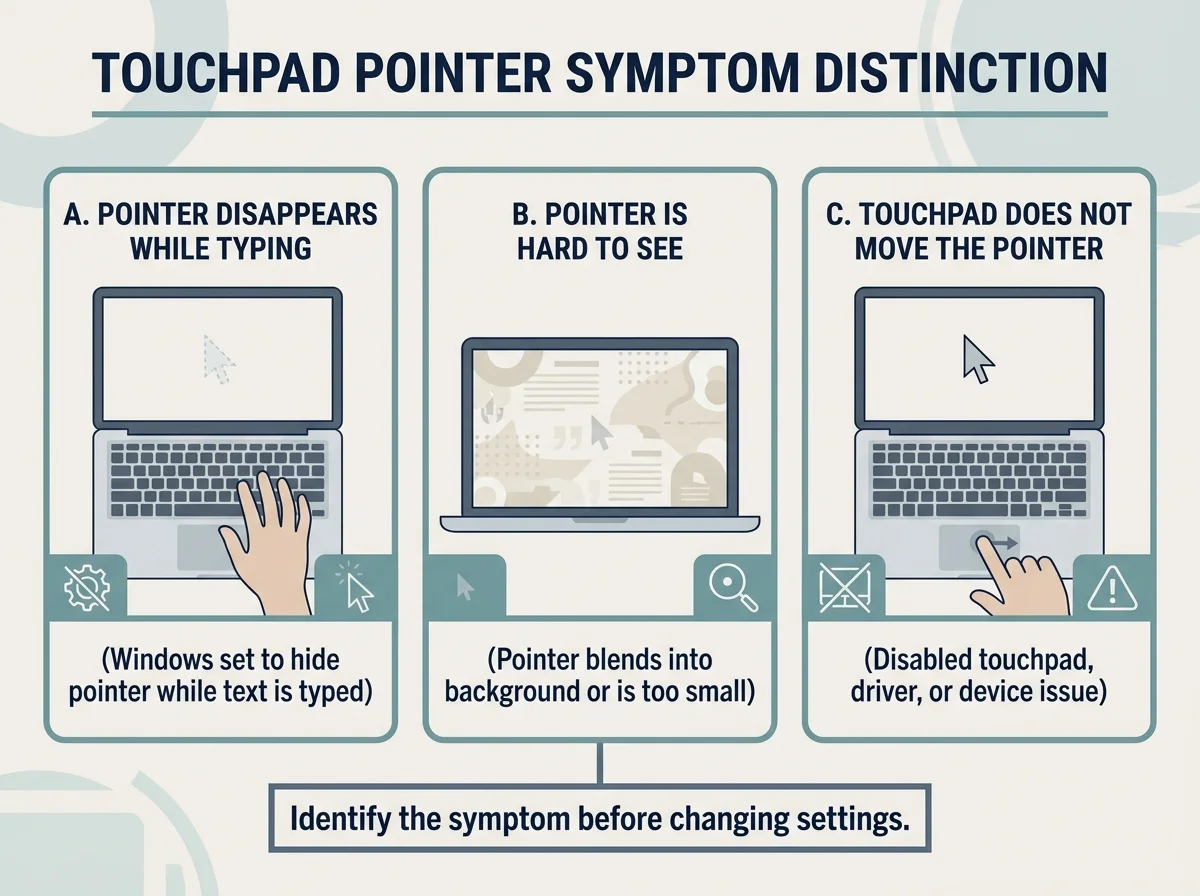
1. Turn off Hide pointer while typing
This is the first setting to check when the pointer disappears as you type. Windows includes an option that hides the pointer so it does not cover text. It can make the cursor seem to vanish even though the touchpad is still working.
- Press Windows + I to open Settings.
- Select Bluetooth & devices, then Mouse.
- Under Related settings, select Additional mouse settings.
- In the Mouse Properties window, open the Pointer Options tab.
- Under Visibility, clear Hide pointer while typing.
- Select Apply, then OK, and test the touchpad while typing.
The wording or placement can vary slightly by Windows build. If the box was already cleared, leave it unchanged and continue to the next check.
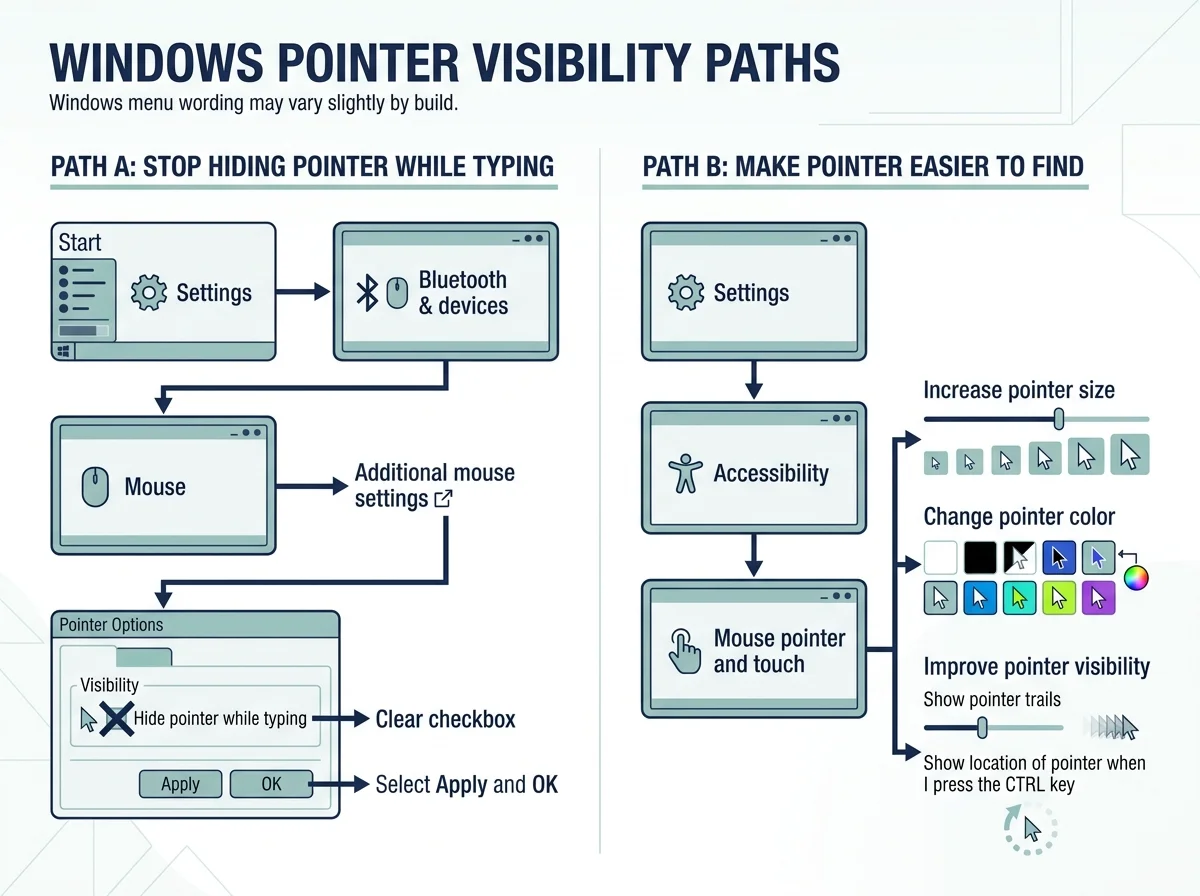
2. Press Ctrl to locate a pointer you cannot see
If the pointer may be on the screen but you cannot spot it, Windows can show a circle around it when you press Ctrl. This setting must be enabled first.
- Open Settings > Bluetooth & devices > Mouse.
- Select Additional mouse settings.
- Open Pointer Options.
- Under Visibility, select Show location of pointer when I press the CTRL key.
- Select Apply and OK.
- Press Ctrl to show a circle around the pointer's current position.
This helps locate a pointer that is present but hard to see. It will not repair a touchpad that cannot move the pointer at all.
3. Make the mouse pointer larger or easier to see
A small white pointer can be difficult to distinguish from a bright page or a light background. You can increase its size, choose a higher-contrast color, or enable pointer trails.
- Press Windows + U to open Accessibility settings.
- Select Mouse pointer and touch.
- Increase the Size slider.
- Under Mouse pointer style, try black, inverted, or a custom color that stands out against your usual apps.
- If you still lose track of the pointer while it moves, open Additional mouse settings > Pointer Options and consider turning on Display pointer trails.
These options improve visibility rather than fixing touchpad hardware or driver problems. If the pointer is invisible only in one program, check whether the problem occurs outside that app too.
4. Check whether the touchpad is enabled
If the pointer will not move when you slide a finger across the touchpad, check the touchpad setting and your laptop's own toggle key.
- Open Settings > Bluetooth & devices > Touchpad.
- Make sure Touchpad is switched on.
- Look for a touchpad icon on the keyboard's function-key row. On some laptops, the key may toggle the touchpad; on others, you must hold Fn as well.
- Use the key only when the icon or your laptop's manual identifies it as the touchpad control, then test again.
There is no universal function key for every laptop. If you cannot find a touchpad setting or icon, check the support instructions for your exact model instead of trying random keyboard shortcuts.
5. Restart and check whether the problem affects one app
A temporary driver or app issue can make pointer behavior appear inconsistent. Save your work, close the app in which the pointer disappeared, and test the desktop or another app. Then perform a normal Windows restart and test again.
If you use an external mouse, try it briefly:
- Both the touchpad and external mouse pointer disappear: Focus first on pointer visibility settings or a broader Windows/app issue.
- The external mouse works, but the touchpad pointer will not move: The touchpad setting, driver, or hardware is a more likely place to investigate.
- The pointer disappears only inside one app: Update or restart that app and check its own settings before changing device drivers.
These tests help narrow down the problem; they do not prove the exact cause.
6. Update the touchpad driver
If the touchpad is enabled but the pointer still will not move, Microsoft recommends checking Windows Update first. Driver availability varies by hardware and manufacturer.
- Open Settings > Windows Update and check for available updates.
- Install applicable updates, including relevant optional driver updates if offered.
- Restart if prompted and test the touchpad.
If the problem continues, check Device Manager:
- Right-click Start and select Device Manager.
- Look for the touchpad under Human Interface Devices or Mice and other pointing devices. The name can differ by model and driver.
- If a touchpad device is listed, open its context menu and select Update driver if that option is available.
- Follow the prompts and restart if requested.
Use Windows Update or the official support page for your laptop model for driver downloads. Avoid third-party driver-download sites.
7. Reinstall the driver only if updating does not help
If the touchpad appears in Device Manager and updating it has not solved the problem, reinstalling the device may help Windows detect it again. Before uninstalling anything, make sure you can control the computer using a USB mouse, keyboard, or another available input method.
- Open Device Manager and identify the touchpad entry under Human Interface Devices or Mice and other pointing devices.
- Confirm that you have selected the actual touchpad device, not an unrelated mouse, keyboard, or HID component.
- If the device's support instructions or Microsoft guidance recommend it, choose Uninstall device, follow the prompts, and restart Windows.
- Allow Windows to detect the device and obtain an appropriate driver, then test the pointer.
Do not remove driver software or uninstall unrelated input devices unless you know how to restore them. If the touchpad is missing from Device Manager or remains unresponsive after the correct driver is installed, consult the laptop manufacturer's official support for the exact model.
Quick troubleshooting flow
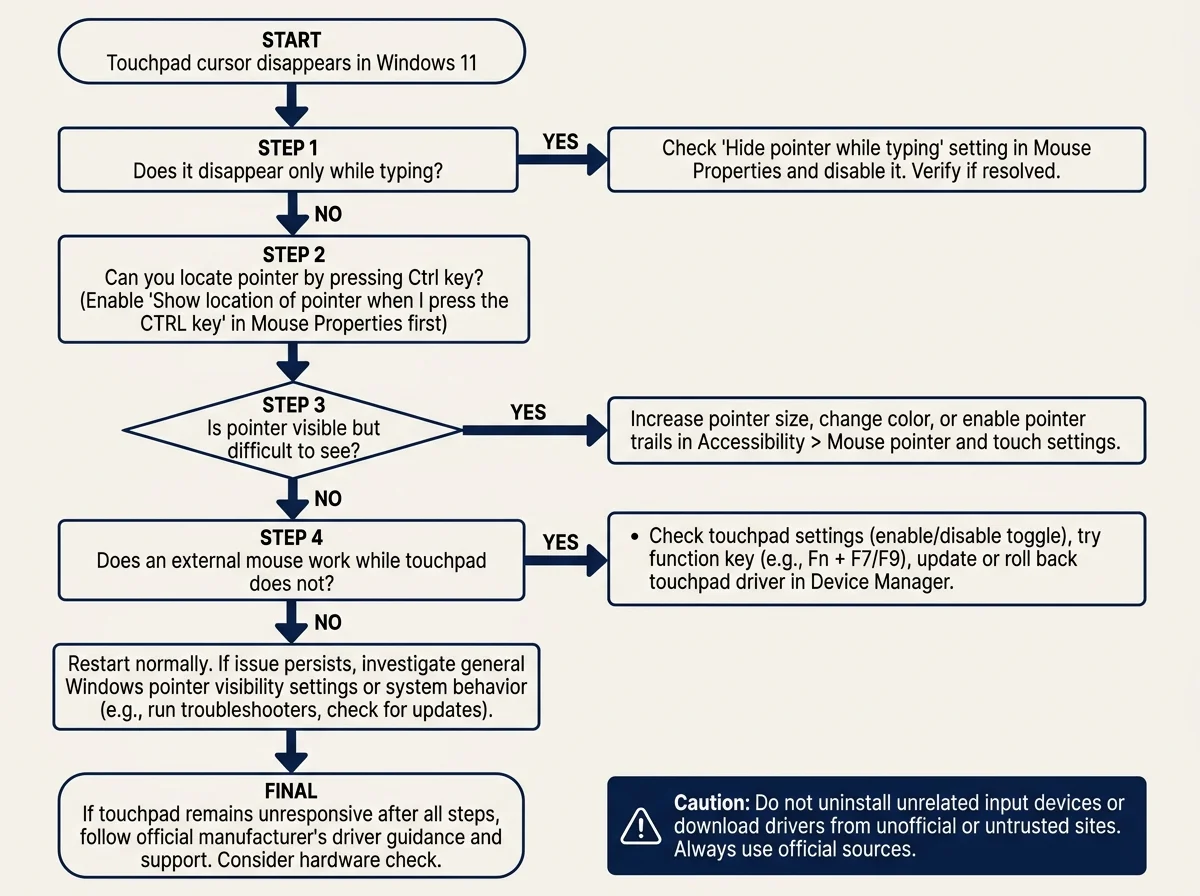
If you mean the text cursor, not the mouse pointer
The mouse pointer is the arrow moved by the touchpad. The text cursor is the blinking line inside a text field or document. If the blinking text cursor is what you cannot see, check the app's focus and Windows text cursor accessibility settings instead; changing touchpad drivers usually will not fix a text-caret visibility problem.
When to contact the laptop manufacturer
Seek model-specific help if the touchpad is absent from Windows settings and Device Manager, stops working after a hardware repair, or still fails after supported driver troubleshooting. Manufacturer-specific keys, touchpad utilities, and drivers vary by model, so use the official support page for your laptop rather than generic driver tools.
For a touchpad that will not move or click at all, see our guide to fixing a laptop touchpad in Windows 11.
Official sources
- Microsoft Support: Change mouse settings (opens in new tab)
- Microsoft Support: Make your mouse, keyboard, and other input devices easier to use (opens in new tab)
- Microsoft Support: Fix touchpad problems in Windows (opens in new tab)
- Microsoft Support: Update drivers through Device Manager in Windows (opens in new tab)
Verified Primary Sources & Citations
NextTechExplained verifies facts against official documentation, engineering whitepapers, and regulatory filings.
- Microsoft Support: Change mouse settingsView Official Source
- Microsoft Support: Make your mouse, keyboard, and other input devices easier to useView Official Source
- Microsoft Support: Fix touchpad problems in WindowsView Official Source
- Microsoft Support: Update drivers through Device Manager in WindowsView Official Source
Published by NextTechExplained
Editorial Team • Institutional Publication Byline
Articles published under this byline are prepared through rigorous research and verified against official engineering specifications, standards documentation, and primary sources. Learn more about our process on our About page and Editorial Policy.
Related Explanations & Guides
Touchpad Not Working? How to Fix a Laptop Touchpad in Windows 11
Fix a laptop touchpad that will not move, click, or respond in Windows 11. Check touchpad settings, function keys, connected mice, and drivers safely.
How to Fix Slow Startup in Windows 11
Is your Windows PC taking too long to start? Use these safe steps to check startup apps, free storage, install updates, and narrow down the cause of a slow Windows 11 startup.
Secure Boot Violation: What It Means and How to Fix It Safely
Seeing a Secure Boot Violation at startup? Learn what the error means, common causes, safe checks, and when to use official PC recovery guidance.