
How to Fix Windows Update Error 0x80070643
Troubleshoot Windows Update error 0x80070643 by identifying the failed KB update, checking for a known WinRE issue, and choosing safe next steps before changing recovery partitions.
Editorial Team

A laptop on a desk illustrating troubleshooting for a Windows update installation failure
Table of Contents (14 sections)
- 1. Find the failed update and its KB number
- 2. Run the Windows Update troubleshooter
- 3. Check basic update conditions
- 4. Check whether the error is related to Windows Recovery Environment
- A historical WinRE status-message issue
- 5. Confirm the recovery environment only when the update points to WinRE
- 6. If it is not the known WinRE scenario
- Windows 10 note
- Frequently asked questions
- What does error 0x80070643 mean?
- Does 0x80070643 always mean the recovery partition is too small?
- Should I resize my recovery partition to fix this error?
- Why does Update history still show 0x80070643 after an update worked?
- Can I ignore the error if Windows Update continues working?
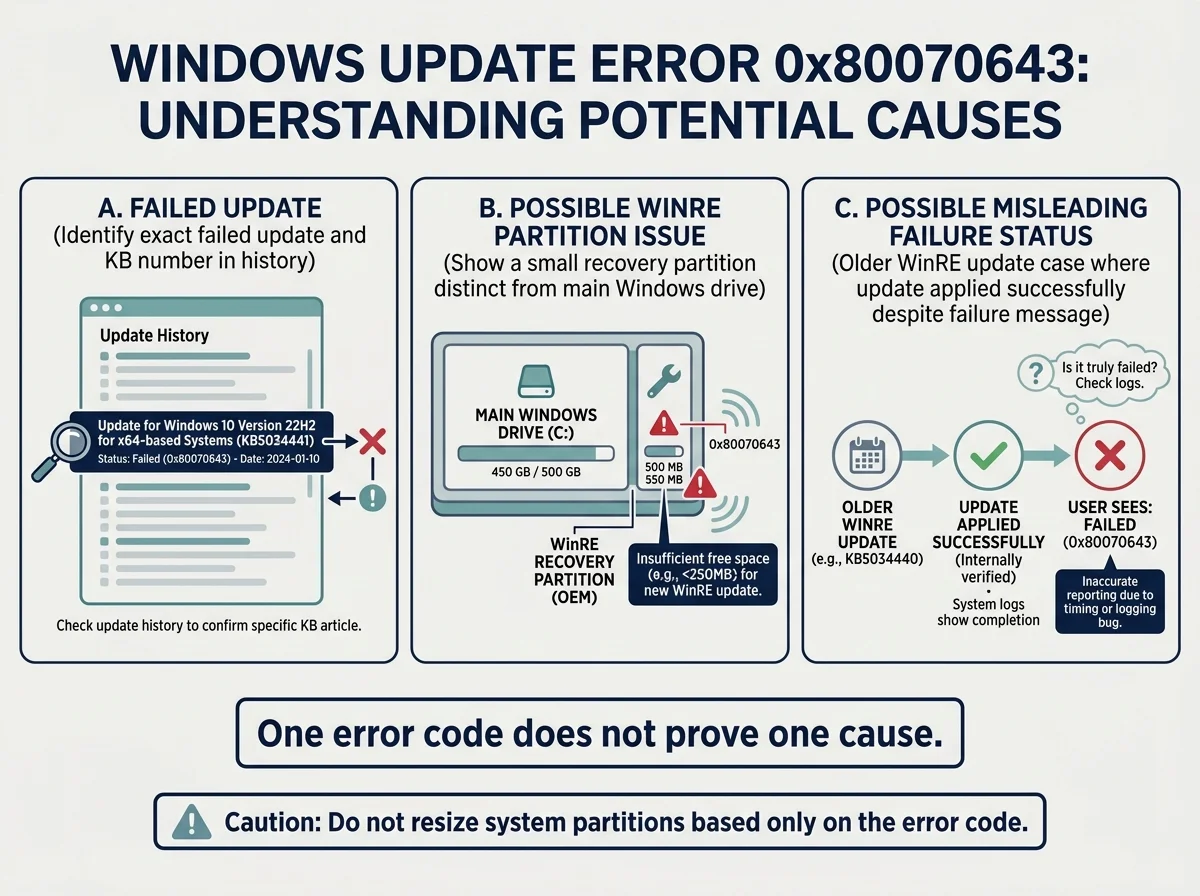
Windows Update error 0x80070643 is associated with ERROR_INSTALL_FAILURE, but the code alone does not identify one universal cause. It has appeared in different update scenarios, including Windows Recovery Environment (WinRE) servicing failures caused by insufficient recovery-partition space and a documented case where Windows Update displayed a failure message even though a WinRE update had usually installed successfully.
The most useful first step is to identify which update failed. Do not resize a recovery partition, delete system files, or run a generic repair script just because you see this code.
1. Find the failed update and its KB number
The error is much easier to diagnose once you know which update produced it.
- Open Settings.
- Select Windows Update.
- Open Update history.
- Find the update listed as failed and note its full name or KB number.
- Record whether the error appeared during a normal cumulative update, a feature update, or a specific Windows Recovery Environment update.
The KB number matters. Error 0x80070643 can describe a general installation failure, while Microsoft's documentation identifies particular WinRE updates where insufficient recovery-partition space or an inaccurate status message was relevant.
If your issue is instead that an update stays at 0%, 100%, or Checking for updates, start with our Windows Update stuck troubleshooting guide. For a different code, see our guide to Windows Update error 0x800f0922.
2. Run the Windows Update troubleshooter
For Windows 11, Microsoft recommends starting with the automated Windows Update troubleshooter in the Get Help app.
- Open Start and search for Get Help.
- Open the app and follow its Windows Update troubleshooting prompts.
- Let the diagnostic complete and follow any instructions it provides.
- Restart only if prompted or when Windows is back at a usable desktop and a restart is safe.
- Return to Settings > Windows Update and try again if the failed update is still offered.
Depending on the Windows version, the troubleshooter may also appear under Settings > System > Troubleshoot > Other troubleshooters > Windows Update. Menu wording can vary. Use Microsoft's Windows Update Troubleshooter instructions (opens in new tab) if the path looks different.
3. Check basic update conditions
Before changing system components, check the conditions that can interrupt an update.
- Confirm your internet connection is stable.
- Check Settings > System > Storage and make sure the Windows drive has reasonable free space for the update.
- Check Settings > Time & language > Date & time and enable automatic time settings if they are incorrect.
- If you use a VPN, proxy, or managed work network, consider whether it could affect access to update services. On a work or school PC, ask IT before changing organization-managed network or security settings.
- If Windows is responsive and no full-screen installation is in progress, save your work and restart normally before trying the update again.
Do not broadly disable antivirus or firewall protection as a routine fix. The error code alone does not prove that security software caused the failure.
4. Check whether the error is related to Windows Recovery Environment
A known source of 0x80070643 has been WinRE updates. WinRE is the recovery environment Windows uses for certain repair and recovery tasks. Its recovery partition is separate from the normal Windows drive, usually C:.
Microsoft documented an earlier WinRE servicing scenario where insufficient space in the recovery partition could produce the message 0x80070643 - ERROR_INSTALL_FAILURE. In this case, freeing space on C: does not necessarily address the recovery-partition constraint.
Use the KB number from Update history to decide whether this explanation applies. Do not assume every 0x80070643 error is caused by WinRE, and do not resize a partition simply because the error code matches.
A historical WinRE status-message issue
Microsoft also documented a specific issue affecting the Windows 10, version 21H2 and 22H2 WinRE update KB5057589 released on April 8, 2025. In that scenario, Windows Update could show 0x80070643 even though the WinRE update had typically been applied successfully after a restart. The inaccurate failure message could remain until a later daily scan cleared it.
Microsoft states that this particular issue was resolved in KB5063523 and later updates. Treat this as a documented historical case, not as a claim that every current failure message is harmless. If your failed entry matches KB5057589, install applicable current updates and check Microsoft's release notes before attempting recovery-partition changes.
Read Microsoft's official notes for KB5057589 (opens in new tab) and the resolution described for KB5063523 (opens in new tab).
5. Confirm the recovery environment only when the update points to WinRE
If Update history identifies a WinRE update, or Microsoft documentation for that exact KB indicates a WinRE servicing issue, you can check whether Windows Recovery Environment is configured without changing partitions.
Open Terminal or Command Prompt as an administrator.
Enter this command:
reagentc /infoReview the output for Windows RE status and the Windows RE location.
Close the terminal without changing partition settings unless you have a verified, update-specific reason to continue.
This command checks WinRE configuration. It does not by itself prove that the partition is too small or that resizing is required. If the result or error details are unclear, stop and seek qualified help rather than experimenting with disk partitions.
Microsoft's KB5028997 instructions (opens in new tab) describe manual partition resizing for specific WinRE update situations. Those steps involve disk-partition operations and should not be treated as a general fix for every 0x80070643 report.
6. If it is not the known WinRE scenario
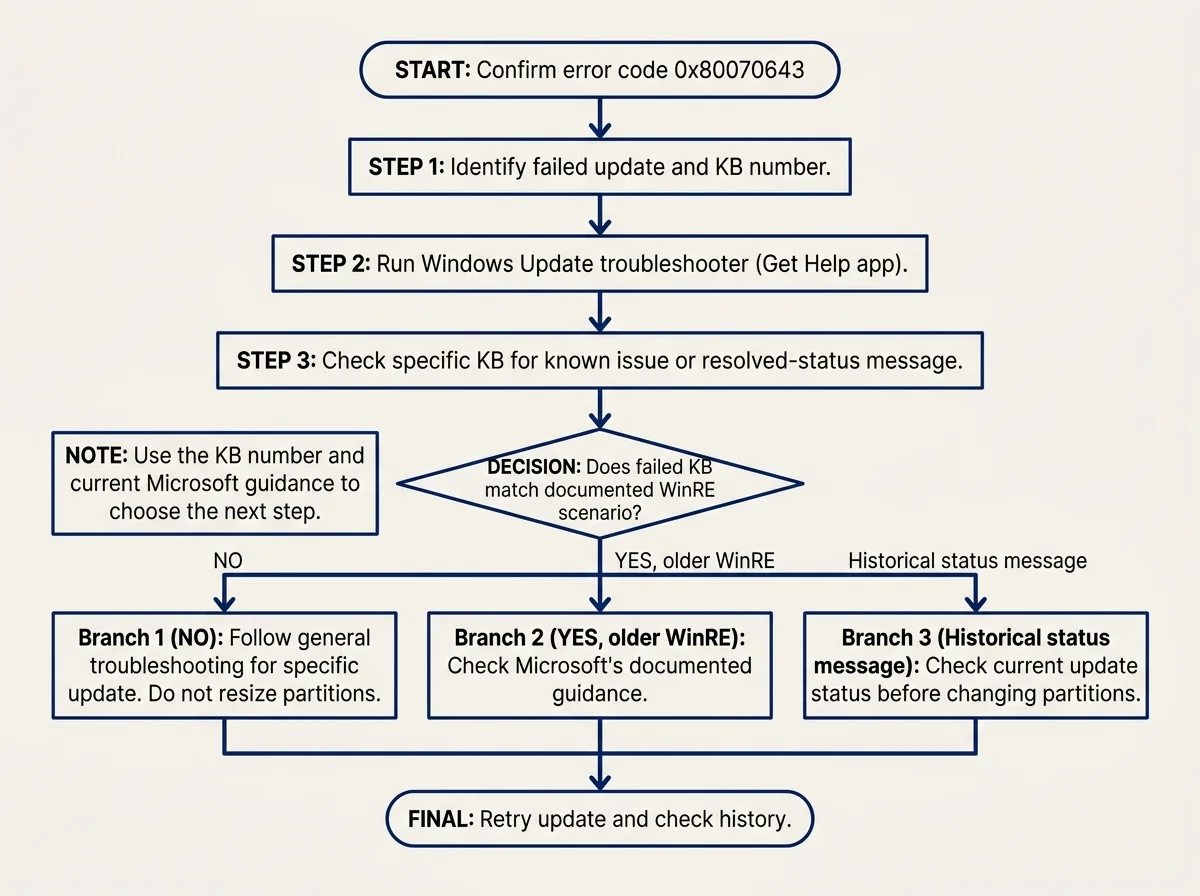
If the failed update has a different KB number or the symptoms do not match the WinRE cases above, use the general update-failure process rather than applying the partition workaround.
- Run the Windows Update troubleshooter.
- Check Windows Update history again and confirm the exact failed update.
- Install any applicable newer updates offered for your Windows version.
- If the same update still fails, follow the instructions for that exact KB or error in Microsoft's Windows update troubleshooting guide (opens in new tab).
- If this is a work-managed device or the update repeatedly fails after basic troubleshooting, contact the administrator or Microsoft support with the KB number and the exact error details.
Clearing the Windows Update download cache is sometimes recommended for persistent update problems, but it is not a specific cure for all 0x80070643 cases. Follow Microsoft's procedure only after basic troubleshooting, and do not delete recovery or system partitions as part of a general cache reset.
Windows 10 note
Windows 10 standard support ended on October 14, 2025. If the affected device is still running Windows 10, check whether it is covered by an applicable Extended Security Updates arrangement and use support guidance that matches its edition and servicing state. Microsoft's Windows 10 support status page (opens in new tab) explains the available options.
Frequently asked questions
What does error 0x80070643 mean?
It is associated with ERROR_INSTALL_FAILURE, but it does not identify one universal cause. The failed update's KB number and installation context determine the appropriate next step.
Does 0x80070643 always mean the recovery partition is too small?
No. Insufficient WinRE partition space was a documented cause in specific WinRE update scenarios, but the same code can appear in other installation failures. Identify the failed KB update before attempting a fix.
Should I resize my recovery partition to fix this error?
Not as a first step. Partition resizing is an advanced operation and should be considered only when the exact update and diagnostic evidence point to a recovery-partition problem. Follow the corresponding Microsoft instructions or get qualified help.
Why does Update history still show 0x80070643 after an update worked?
Microsoft documented this misleading failure message for the Windows 10 WinRE update KB5057589 in April 2025. That specific issue was resolved in KB5063523 and later updates, although the historical record could remain in Update history. Do not assume your own error is harmless unless the affected update and symptoms match the documented case.
Can I ignore the error if Windows Update continues working?
Do not decide from the code alone. Check which KB failed and whether the update installed successfully or remains pending. If a current update repeatedly fails, follow Microsoft's instructions for that specific update.
Verified Primary Sources & Citations
NextTechExplained verifies facts against official documentation, engineering whitepapers, and regulatory filings.
- Microsoft Support: Windows Update TroubleshooterView Official Source
- Microsoft Support: Troubleshoot problems updating WindowsView Official Source
- Microsoft Support: Windows Recovery Environment update KB5057589 for Windows 10View Official Source
- Microsoft Support: Windows Recovery Environment update KB5063523 for Windows 10View Official Source
- Microsoft Support: KB5033560 Windows Recovery Environment updateView Official Source
- Microsoft Support: Instructions to manually resize a partition for a WinRE updateView Official Source
- Microsoft Support: Windows 10 support has endedView Official Source
Published by NextTechExplained
Editorial Team • Institutional Publication Byline
Articles published under this byline are prepared through rigorous research and verified against official engineering specifications, standards documentation, and primary sources. Learn more about our process on our About page and Editorial Policy.
Related Explanations & Guides

How to Fix Windows Update Error 0x80070005 (Access Denied)
Fix Windows Update error 0x80070005 by checking administrator access, running the Windows Update troubleshooter, and diagnosing permission problems safely.

How to Fix Windows Update Error 0x800f0922
Troubleshoot Windows Update error 0x800f0922 by checking the failed update, network or VPN access, available storage, and Microsoft's current guidance before attempting advanced repairs.

Windows Update Stuck? How to Fix 0%, 100%, and Download Issues
Fix a Windows Update that appears stuck at 0% or 100%, stays on Checking for updates, or will not finish downloading or restarting with these practical steps.