
How to Fix Windows Update Error 0x800f0922
Troubleshoot Windows Update error 0x800f0922 by checking the failed update, network or VPN access, available storage, and Microsoft's current guidance before attempting advanced repairs.
Editorial Team

A laptop on a desk illustrating troubleshooting for a Windows update installation error
Table of Contents (14 sections)
- 1. Confirm which update failed
- 2. Run the Windows Update troubleshooter
- 3. Check the internet connection and VPN
- 4. Check available storage, but do not confuse drive space with EFI partition space
- 5. Check whether the failure is a known issue with that update
- 6. Retry the update after the basic checks
- 7. When to use advanced repair or get help
- Frequently asked questions
- What does Windows Update error 0x800f0922 mean?
- Can a VPN cause error 0x800f0922?
- Will freeing space on C: always fix 0x800f0922?
- Should I resize the EFI System Partition myself?
- Does this error affect Windows 10 too?
- Official sources
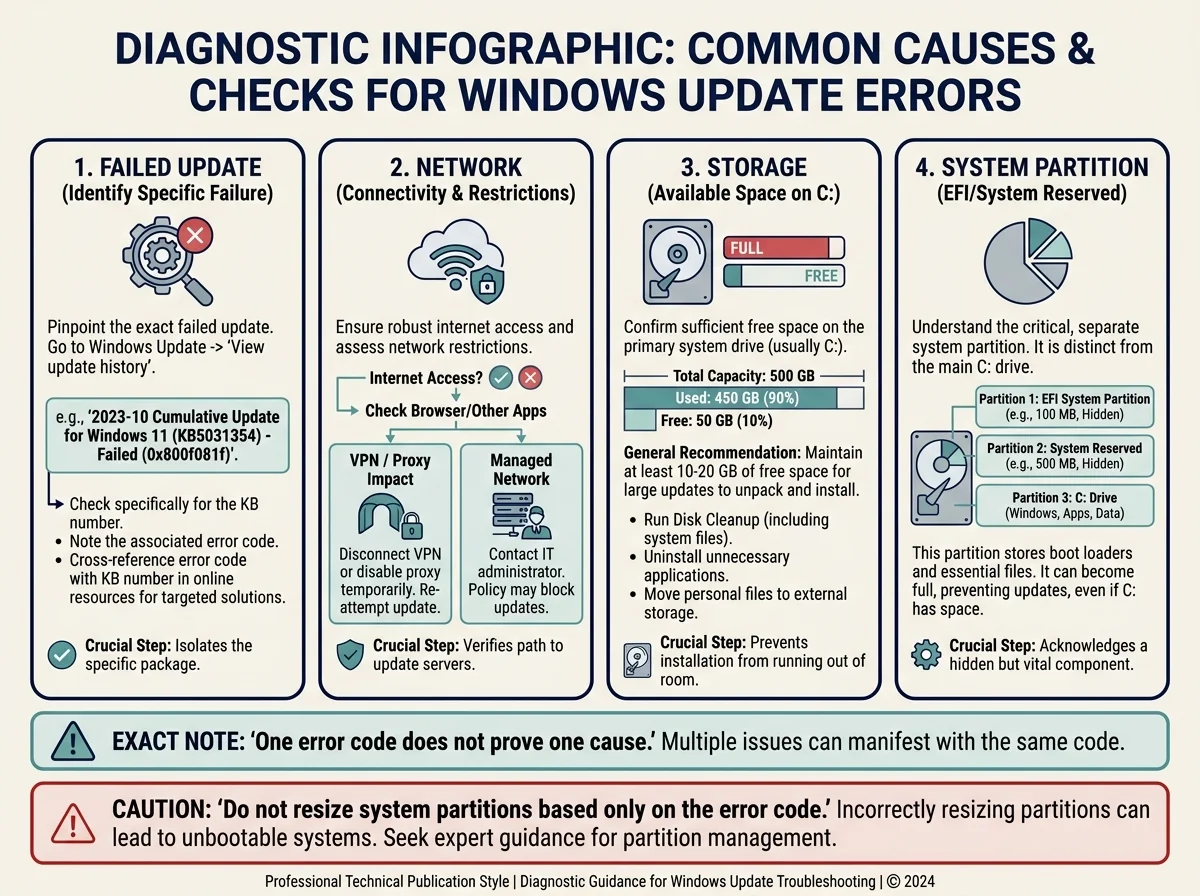
Windows Update error 0x800f0922 means an update did not complete, but the code does not point to one universal cause. Microsoft lists possible causes including a connection problem with Windows Update, insufficient free space, and problems involving .NET Framework or other Windows components. In some cases, the relevant issue is specific to a particular update or device configuration.
Start with the low-risk checks below and confirm which update failed before changing system settings. Do not resize the EFI or System Reserved partition, edit the registry, or run third-party repair tools just because this code appeared.
1. Confirm which update failed
Before trying a fix, record the exact error and the update that triggered it. The next step depends on whether the failure happened during a routine cumulative update, a feature upgrade, or a particular installation phase.
- Open Settings.
- Go to Windows Update.
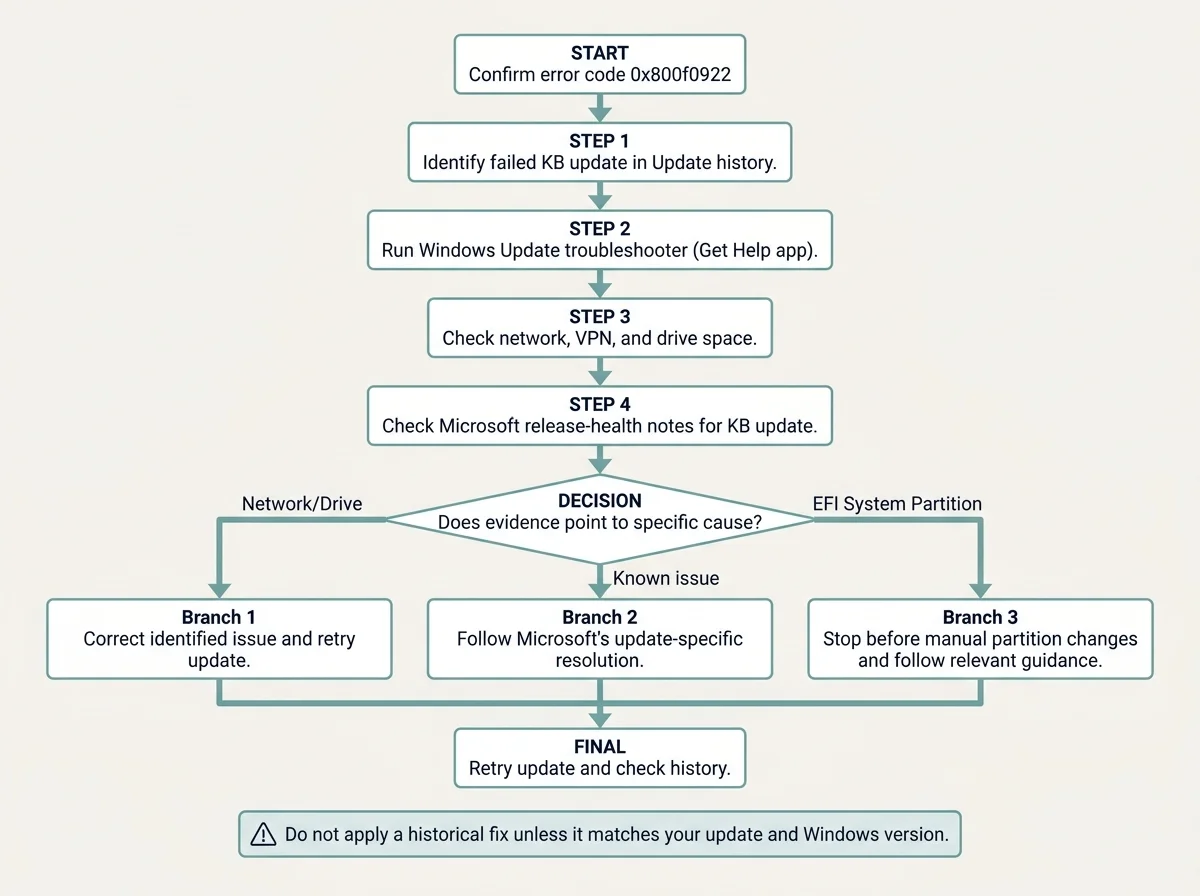
- Open Update history and find the update marked as failed.
- Note the update name or KB number and confirm the code is 0x800f0922.
- If Windows displayed a rollback message such as "Something didn't go as planned" or "Undoing changes," note when it occurred, such as during restart.
Microsoft's guide to Windows upgrade and installation errors (opens in new tab) explains how to identify the specific error code and notes that 0x800F0922 can be associated with connectivity to Windows Update servers or insufficient space in the System Reserved partition.
2. Run the Windows Update troubleshooter
For Windows 11, begin with Microsoft's automated Windows Update troubleshooter in the Get Help app.
- Open Start and search for Get Help.
- Open the app and follow its Windows Update troubleshooting prompts.
- Allow the diagnostic to finish and follow any steps it recommends.
- Restart the PC if the troubleshooter asks you to, or when Windows is back at a usable desktop and restarting is safe.
- Return to Settings > Windows Update and try again.
Depending on the Windows build, the troubleshooter may also be listed in Settings > System > Troubleshoot > Other troubleshooters > Windows Update. Menu wording can vary by version. Use Microsoft's Windows Update Troubleshooter instructions (opens in new tab) if the menus differ.
3. Check the internet connection and VPN
Microsoft notes that 0x800F0922 may appear when the PC cannot connect to Windows Update servers. A VPN or managed work network can be relevant in some cases.
- Check that Wi-Fi or Ethernet is connected and that normal websites load.
- If the connection is unstable, resolve the network issue before retrying the update.
- If you use a VPN, proxy, or work network, check whether it is required by your organization. On a personal device, you can temporarily disconnect a VPN and retry if doing so is safe and allowed.
- On a work or school device, do not bypass the organization's network or security controls. Ask IT to verify access to Windows Update instead.
- Open Settings > Windows Update and try the failed update again.
Do not disable the firewall or antivirus broadly as a routine fix. The code alone does not prove that security software is blocking the update.
4. Check available storage, but do not confuse drive space with EFI partition space
Low storage can prevent some updates or upgrades from installing. Start by checking the Windows system drive:
- Open Settings > System > Storage.
- Check how much free space is available on the drive containing Windows.
- Use Windows Storage settings or Disk Cleanup to remove files you no longer need.
- Empty the Recycle Bin only if you are certain you do not need the files inside it.
- Retry the update after confirming there is adequate free space for the update type.
There is an important distinction: free space on the Windows drive (usually C:) is not the same as free space on the hidden EFI System Partition or System Reserved partition. Deleting downloads from C: will not necessarily resolve a problem caused by a small system partition.
Microsoft documents that 0x800F0922 can be associated with insufficient free space in the System Reserved partition. If the update repeatedly rolls back during restart, especially with a message or log indicating insufficient EFI/System Reserved space, do not try to resize that partition with a random third-party utility. Partition changes can prevent Windows from booting if done incorrectly. Check Microsoft's guidance for the exact update and seek qualified support before attempting an advanced partition repair.
5. Check whether the failure is a known issue with that update
Sometimes an update fails because of a specific, documented problem rather than a general fault on your PC. Check the relevant Windows release-health page and the support article for the failed KB number before making advanced changes.
For example, Microsoft documented a May 2026 Windows 11 security-update issue involving KB5089549 that could produce 0x800f0922 on some devices with very little free space on the EFI System Partition. Microsoft marked that issue as resolved by KB5089573. This is a historical example, not a claim that the same issue affects every current update or remains unresolved.
If your failed update matches a published known issue:
- Confirm the update's KB number and your Windows version.
- Read the latest change history on Microsoft's official release-health page.
- Check whether Microsoft lists a resolution or a replacement update.
- Follow the documented resolution for your version instead of applying a generic partition fix.
See Microsoft's KB5089573 release notes (opens in new tab) and the Windows 11 resolved-issues page (opens in new tab) for the published status of that specific issue.
6. Retry the update after the basic checks
Once you have completed the relevant low-risk checks:
- Save your work and restart Windows normally if the desktop is responsive and no installation screen is active.
- Open Settings > Windows Update.
- Select Check for updates or retry the specific failed update if that option is available.
- If it fails again, record the exact error, KB number, and the phase where it fails.
If Windows is in a full-screen installation phase that warns you not to turn off the device, keep the PC powered and do not force a shutdown simply because progress is slow. If it repeatedly rolls back to the desktop, use the new failure entry in Update history to guide the next step.
7. When to use advanced repair or get help
If the troubleshooter, network checks, storage checks, and update-specific guidance do not resolve the problem, the next step depends on the evidence. Microsoft notes that 0x800F0922 can also involve .NET Framework or other Windows components, but the code alone does not identify which component failed.
- Review the specific update's Microsoft support notes and the error details in Update history.
- If a .NET feature installation or Windows component is explicitly identified in the error details, follow the Microsoft instructions for that component.
- If logs point to the EFI/System Reserved partition, get version-specific guidance before changing partitions.
- If the device is managed by an employer or school, ask IT to check update policy, network access, and device-specific servicing requirements.
- Avoid generic repair scripts, registry edits, or commands copied from unrelated error-code guides. A fix for a different Windows Update code may not apply to 0x800f0922.
For broader symptoms such as downloads stuck at 0%, 100%, or Checking for updates, see our guide to fixing a stuck Windows Update. This article focuses specifically on error 0x800f0922.
Frequently asked questions
What does Windows Update error 0x800f0922 mean?
It means the update installation failed, but there is not one cause for every PC. Microsoft lists possible connection problems, insufficient system-partition space, and issues with .NET Framework or other components. Identify the failed update and check the relevant Microsoft guidance before choosing a fix.
Can a VPN cause error 0x800f0922?
It can be relevant when the PC cannot connect to Windows Update servers. If you use a VPN or work network, check whether it affects access. For a managed device, ask IT rather than bypassing required network or security settings.
Will freeing space on C: always fix 0x800f0922?
No. Freeing space on the Windows drive can help when that drive is full, but it does not necessarily create more room in the separate EFI System Partition or System Reserved partition. Diagnose which storage area is involved before attempting advanced changes.
Should I resize the EFI System Partition myself?
Do not do this based only on the error code. Partition changes carry a risk of making Windows unbootable if performed incorrectly. First verify that the particular failed update and its logs point to a system-partition space problem, then follow update-specific Microsoft guidance or get qualified help.
Does this error affect Windows 10 too?
The code can appear on different supported Windows configurations, but the cause may depend on the update and device. Standard Windows 10 support ended on October 14, 2025; eligibility for further updates depends on applicable support or Extended Security Updates arrangements. Check Microsoft's current Windows 10 support information (opens in new tab).
Official sources
- Microsoft Support: Get help with Windows upgrade and installation errors (opens in new tab)
- Microsoft Support: Troubleshoot problems updating Windows (opens in new tab)
- Microsoft Support: Windows Update Troubleshooter (opens in new tab)
- Microsoft Support: May 26, 2026 Windows 11 update KB5089573 (opens in new tab)
- Microsoft Learn: Resolved issues in Windows 11, version 24H2 (opens in new tab)
- Microsoft Support: Windows 10 support has ended (opens in new tab)
Verified Primary Sources & Citations
NextTechExplained verifies facts against official documentation, engineering whitepapers, and regulatory filings.
- Microsoft Support: Get help with Windows upgrade and installation errorsView Official Source
- Microsoft Support: Troubleshoot problems updating WindowsView Official Source
- Microsoft Support: Windows Update TroubleshooterView Official Source
- Microsoft Support: May 26, 2026 Windows 11 update KB5089573View Official Source
- Microsoft Learn: Resolved issues in Windows 11, version 24H2View Official Source
- Microsoft Support: Windows 10 support has endedView Official Source
Published by NextTechExplained
Editorial Team • Institutional Publication Byline
Articles published under this byline are prepared through rigorous research and verified against official engineering specifications, standards documentation, and primary sources. Learn more about our process on our About page and Editorial Policy.
Related Explanations & Guides

How to Fix Windows Update Error 0x80070005 (Access Denied)
Fix Windows Update error 0x80070005 by checking administrator access, running the Windows Update troubleshooter, and diagnosing permission problems safely.

How to Fix Windows Update Error 0x80070643
Troubleshoot Windows Update error 0x80070643 by identifying the failed KB update, checking for a known WinRE issue, and choosing safe next steps before changing recovery partitions.

Windows Update Stuck? How to Fix 0%, 100%, and Download Issues
Fix a Windows Update that appears stuck at 0% or 100%, stays on Checking for updates, or will not finish downloading or restarting with these practical steps.