
How to Check Laptop Battery Health on Windows and Mac
Check laptop battery health with the Windows battery report, understand design versus full-charge capacity, and find Battery Health on a MacBook.
Editorial Team
A laptop beside its charger on a tidy desk, illustrating a laptop battery health check
Table of Contents (14 sections)
- How to check laptop battery health on Windows 11 or Windows 10
- How to read the Windows battery report
- How to check battery health on a MacBook
- How to check battery health on a laptop from its manufacturer
- Battery charge vs. battery capacity vs. charge cycles
- Why is my laptop battery draining quickly?
- When should you seek battery service?
- Frequently asked questions
- Is the Windows battery report accurate?
- Does 80% battery health mean I should replace my laptop battery?
- Why is Design Capacity the same as Full Charge Capacity?
- Can I check laptop battery health without installing an app?
- Does battery cycle count tell me exactly how much life is left?
- Sources and further reading
To check laptop battery health, use the built-in battery report in Windows or the Battery Health settings on a MacBook. On Windows 10 and Windows 11, open Command Prompt and run powercfg /batteryreport; Windows creates an HTML report with battery and usage information. On a Mac, open Apple menu > System Settings > Battery and look for Battery Health. These tools are different: the Windows report provides technical measurements when your laptop exposes them, while macOS shows a condition such as Normal or Service Recommended. See Microsoft's Windows battery guidance (opens in new tab) and Apple's Mac battery-health instructions (opens in new tab).
A laptop that drains quickly does not always have a worn-out battery. Display brightness, apps running in the background, power settings, temperature, and recent updates can also affect runtime. Check the battery information and your everyday usage together rather than relying on one number as a universal replacement rule.
How to check laptop battery health on Windows 11 or Windows 10
The Windows battery report is a useful first check because it can show the installed battery details, recent usage, and estimated capacity information reported by the laptop. The exact information depends on the computer, battery, and firmware.
Open Start and search for Command Prompt.
Right-click Command Prompt and choose Run as administrator if needed.
Enter this command and press Enter:
powercfg /batteryreportRead the file path displayed in the Command Prompt window.
Open File Explorer, go to that location, and open the generated HTML report in your browser.
Find the Installed battery, Recent usage, and Battery usage sections. Look for Design Capacity and Full Charge Capacity if those fields are provided.
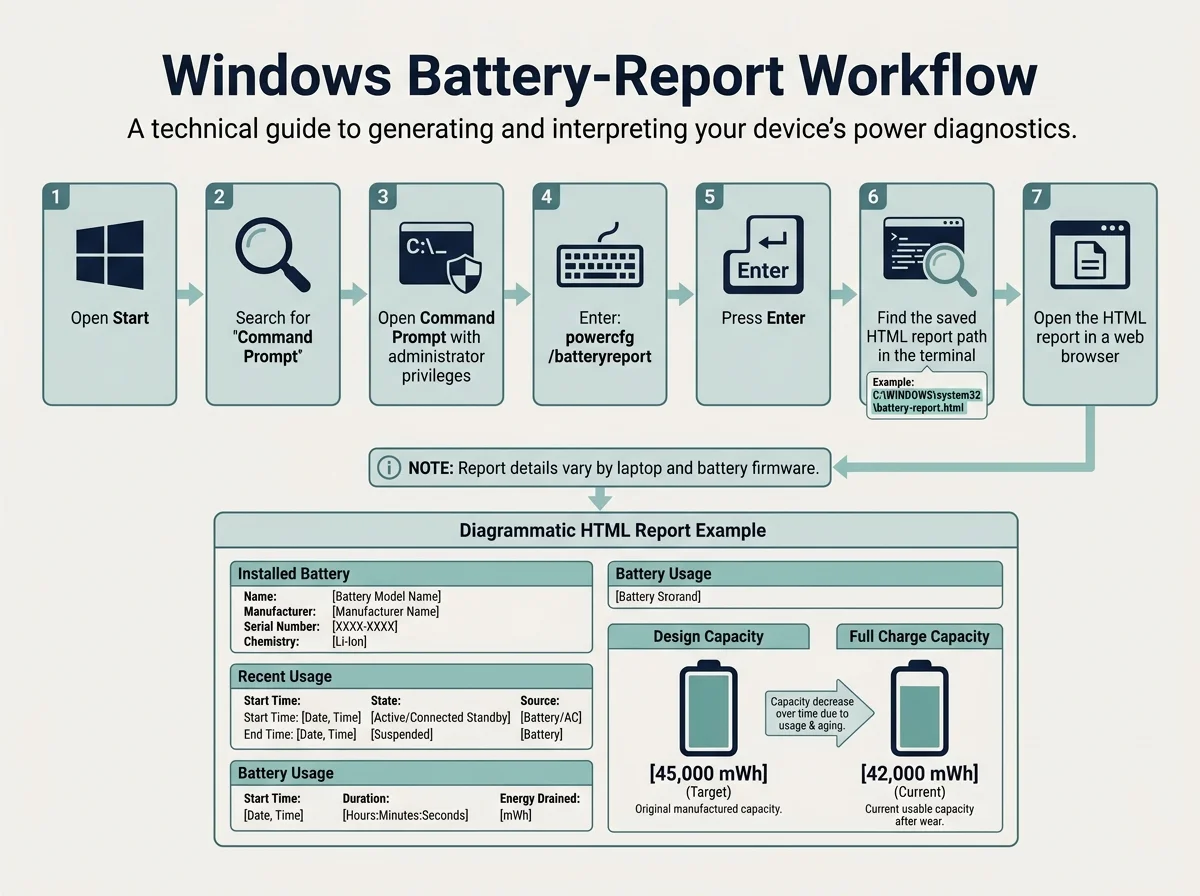
If you prefer to save the report to a known location, use a command such as powercfg /batteryreport /output "%USERPROFILE%\\Desktop\\battery-report.html". If Windows says the command cannot generate a report or the capacity fields are missing, check your laptop manufacturer's support instructions and firmware updates. Not all systems expose the same battery data.
Microsoft documents this report in its Windows battery-care guide (opens in new tab) and the powercfg command reference (opens in new tab).
How to read the Windows battery report
The two capacity fields are often the most useful starting point when both are present:
- Design Capacity: The battery capacity it was designed to hold when new, as reported by the system.
- Full Charge Capacity: The battery's estimated capacity at a full charge now, as reported by the system.
- Recent Usage: A history of power state and battery use over recent sessions.
- Battery Usage: A view of how battery power was used during the recorded period.
- Cycle Count: May be listed on some systems, but it is not available in every report.
You can calculate a rough remaining-capacity estimate when both capacity fields use the same units:
Full Charge Capacity / Design Capacity x 100
For example, if a report lists a design capacity of 50,000 mWh and a full-charge capacity of 40,000 mWh, the ratio is 80%. This is an illustrative calculation, not a real device result or a universal service threshold. Capacity is an estimate, and the values can be missing, stale, or affected by how the hardware reports battery data. Use the laptop maker's diagnostic result and service recommendations for a device-specific decision.
How to check battery health on a MacBook
macOS includes a Battery Health view on supported Mac laptops. To check it:
- Open the Apple menu.
- Choose System Settings.
- Select Battery in the sidebar. You may need to scroll.
- Look for Battery Health and read the condition shown.
- If an information button is available next to the condition, open it to view additional details such as Maximum Capacity, depending on your Mac model and macOS version.
Apple documents the common conditions as Normal and Service Recommended. Service Recommended means the battery holds less charge than when it was new or is not functioning normally. It does not mean the laptop must be replaced; review Apple's guidance or arrange service if runtime or reliability is affected.
If Battery Health is not visible, the Mac model or macOS version may not support the same screen. Consult Apple's instructions for checking Mac battery condition (opens in new tab) and its Battery settings guide (opens in new tab).
How to check battery health on a laptop from its manufacturer
Some manufacturers provide another battery status check in BIOS/UEFI, preboot diagnostics, or a support utility. These checks can be useful when the Windows report has missing data or the laptop has charging problems. The exact steps depend on the make and model, so do not assume one brand's menu path applies to another.
- Microsoft Surface: Microsoft documents using the Surface Repair Tool or Surface Diagnostic Toolkit on supported devices. Its Surface battery capacity guide (opens in new tab) explains how to compare full-charge capacity with design capacity.
- Dell: Depending on the model, battery status may be available in BIOS, SupportAssist, preboot diagnostics, or Dell power-management tools. Follow Dell's official battery health instructions (opens in new tab) for your specific system.
- Other laptop brands: Search the manufacturer's official support site using the exact model number. Avoid third-party downloads claiming to reveal hidden battery health unless you can verify the tool's source and purpose.
A BIOS or manufacturer diagnostic may use labels such as Good, Fair, Poor, or Service, but these terms and their meaning vary. Read the explanation for your model rather than treating all labels as equivalent.
Battery charge vs. battery capacity vs. charge cycles
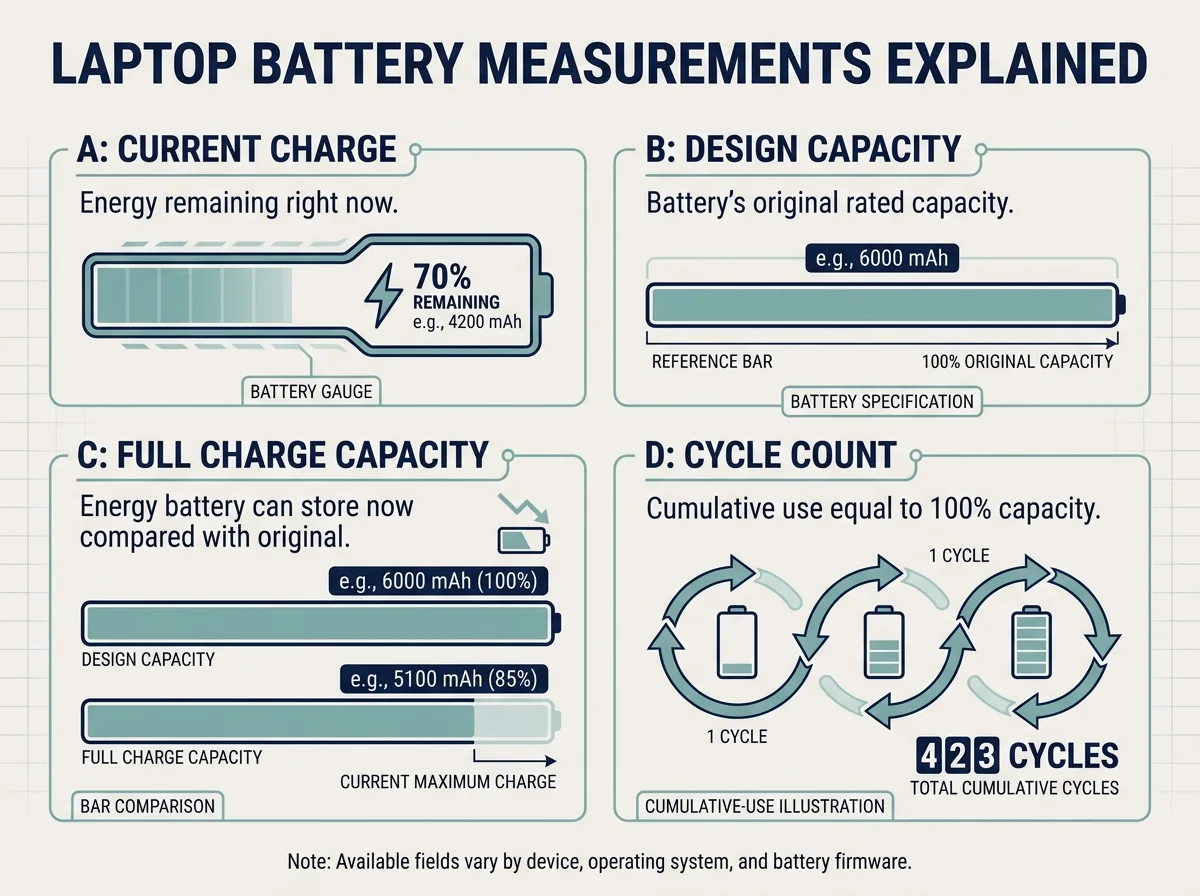
These measurements answer different questions:
- Current charge: How much power remains at this moment, usually shown as a percentage in the taskbar or menu bar.
- Design Capacity: The battery's original rated capacity as reported by the system.
- Full Charge Capacity or Maximum Capacity: An estimate of how much energy the battery can hold now when fully charged. The label depends on the operating system and tool.
- Cycle Count: A measure of cumulative battery use. A full cycle represents total use equal to 100% of the battery's capacity, which can accumulate across partial discharges. Not every laptop reports this number in the same place.
- Battery Usage: Information about power consumption over time. It can help investigate drain but is not itself a direct measurement of maximum capacity.
A laptop can show 100% current charge even when the battery has aged and stores less energy than when new. Conversely, a battery with reasonable capacity may drain quickly because of workload, poor signal, brightness, or power settings. Use the measurement that matches the question you are trying to answer.
Why is my laptop battery draining quickly?
Before deciding that the battery needs replacement, check for usage patterns that could explain the change:
- Review power usage. On Windows, use the battery report and Settings battery-usage information where available. On a Mac, review Battery settings and recent energy use.
- Check demanding apps. Video editing, games, video calls, many browser tabs, and background processes can use substantial power.
- Adjust display settings. High brightness, long screen-on periods, and keyboard lighting can affect runtime.
- Check recent changes. Drain that starts after an operating-system or driver update may be related to background work or a software issue. If your laptop loses significant charge while powered off or asleep, see our guide on Windows 11 laptop battery draining while shut down to troubleshoot Modern Standby and fast startup settings.
- Check temperature and charging behavior. Avoid leaving a laptop in a hot car or blocking its cooling vents. Use a compatible charger and inspect cables for damage.
- Run the manufacturer's diagnostics. If the runtime remains unusually short, a device-specific test can help separate battery wear from a charging or hardware fault.
If you are also checking a phone, see our guide to checking Android battery health. The available health screens and diagnostic details differ by device type and manufacturer.
When should you seek battery service?
Consider professional service if the manufacturer diagnostic reports a battery fault, the laptop shuts down unexpectedly despite showing charge remaining, charging becomes unreliable, or runtime has fallen substantially and consistently compared with your normal use. No single capacity percentage is a universal replacement rule for every laptop: the manufacturer, model, battery warranty, symptoms, and diagnostic result all matter.
Important safety note: If the battery or laptop case is visibly swollen, the trackpad or keyboard is lifting, or the case is separating, stop using and charging the laptop. Do not press, puncture, bend, or attempt to remove a swollen battery yourself. Keep it away from heat and arrange professional guidance from the manufacturer or a qualified repair provider.
Frequently asked questions
Is the Windows battery report accurate?
It reports information supplied by Windows and the laptop's battery/firmware. It is useful for trends and estimated capacity, but fields may be missing or inaccurate on some systems. Cross-check unexpected results with your laptop manufacturer's diagnostics.
Does 80% battery health mean I should replace my laptop battery?
Not automatically. Capacity ratio is only one indicator, not a universal service threshold. Follow the manufacturer-specific guidance and consider runtime, unexpected shutdowns, diagnostic warnings, warranty, and repair options.
Why is Design Capacity the same as Full Charge Capacity?
A new or lightly used battery may report similar values, and hardware or firmware can round or report estimates. Recheck the report over time and consult the manufacturer if the readings do not match the laptop's behavior.
Can I check laptop battery health without installing an app?
Yes, in many cases. Windows includes powercfg /batteryreport, macOS has Battery Health settings on supported Macs, and some manufacturers offer built-in BIOS or diagnostic checks. The information available depends on your device.
Does battery cycle count tell me exactly how much life is left?
No. Cycle count describes cumulative use, not an exact remaining-capacity measurement. Battery age, temperature, usage, and the quality of the capacity estimate also matter.
Sources and further reading
- Microsoft Support: Caring for your battery in Windows (opens in new tab)
- Microsoft Learn: Powercfg command-line options (opens in new tab)
- Apple Support: Check the condition of your Mac laptop's battery (opens in new tab)
- Apple Support: Change Battery settings on a Mac laptop (opens in new tab)
- Microsoft Support: Check Surface battery capacity (opens in new tab)
- Dell Support: Check battery health on Dell laptops (opens in new tab)
- Related guide: Windows 11 Laptop Battery Drains While Shut Down? Fix It
- Related guide: How to Check Battery Health on Android
Verified Primary Sources & Citations
NextTechExplained verifies facts against official documentation, engineering whitepapers, and regulatory filings.
- Microsoft Support: Caring for your battery in WindowsView Official Source
- Microsoft Learn: Powercfg command-line optionsView Official Source
- Apple Support: Check the condition of your Mac laptop's batteryView Official Source
- Apple Support: Change Battery settings on a Mac laptopView Official Source
- Microsoft Support: How to check your Surface battery capacityView Official Source
- Dell Support: How to check battery health status on Dell laptopsView Official Source
Published by NextTechExplained
Editorial Team • Institutional Publication Byline
Articles published under this byline are prepared through rigorous research and verified against official engineering specifications, standards documentation, and primary sources. Learn more about our process on our About page and Editorial Policy.
Related Explanations & Guides
Windows 11 Laptop Battery Drains While Shut Down? How to Find the Cause
Does your Windows 11 laptop lose battery overnight while shut down? Learn how to distinguish sleep from shutdown and diagnose battery drain safely.
Gigabyte Secure Boot: How to Enable It and Fix Common Errors
Learn how to check Secure Boot on Gigabyte and AORUS PCs, understand UEFI and key settings, and troubleshoot common BIOS messages safely.

How to Check Apple Watch Battery Health and Maximum Capacity
Check Apple Watch battery health in watchOS, understand Maximum Capacity, tell it apart from current charge, and troubleshoot faster battery drain.