
How to Check Apple Watch Battery Health and Maximum Capacity
Check Apple Watch battery health in watchOS, understand Maximum Capacity, tell it apart from current charge, and troubleshoot faster battery drain.
Editorial Team

An Apple Watch on a clean desk beside its magnetic charging puck, illustrating a battery health check
Table of Contents (17 sections)
- How to check Apple Watch battery health
- What if Battery Health is missing?
- What does Apple Watch Maximum Capacity mean?
- Current charge vs. Maximum Capacity vs. charge cycles
- How to check Apple Watch battery level and recent usage
- Why is my Apple Watch battery draining quickly?
- Should you turn on Optimized Battery Charging?
- When should you get Apple Watch battery service?
- Apple Watch battery health troubleshooting table
- Frequently asked questions
- How do I check Apple Watch battery health from my iPhone?
- Is 80% battery health bad for an Apple Watch?
- Does Apple Watch show battery cycle count?
- Why does my Apple Watch show less than 100% Maximum Capacity?
- Why did my Apple Watch battery life get worse after an update?
- Does Optimized Battery Charging fix a degraded battery?
- Sources and further reading
To check Apple Watch battery health, open Settings > Battery > Battery Health on the watch, then scroll to Maximum Capacity. This percentage estimates the battery's capacity compared with when it was new. It is different from the current battery charge shown in Control Center, and it does not tell you exactly how many hours the watch will last in every situation. Apple's current Apple Watch User Guide (opens in new tab) documents this path and explains how to view recent battery usage.
If you are checking because your watch no longer lasts as long between charges, look at both Maximum Capacity and your real-world usage. A lower capacity can contribute to shorter runtime, but workouts, notifications, display settings, background activity, temperature, and recent software updates can also affect battery life. Do not use one percentage as a universal battery-replacement rule.
Checking another Apple device too? See our guides to checking iPhone battery health and checking iPad battery health for their model-specific menus and available battery details.
How to check Apple Watch battery health
Use the watch itself rather than relying on the battery percentage shown on your paired iPhone:
- Open the Settings app on your Apple Watch.
- Tap Battery.
- Tap Battery Health.
- Scroll to Maximum Capacity and read the percentage shown.
- If the screen displays a battery message or service recommendation, read it and follow Apple's service guidance.
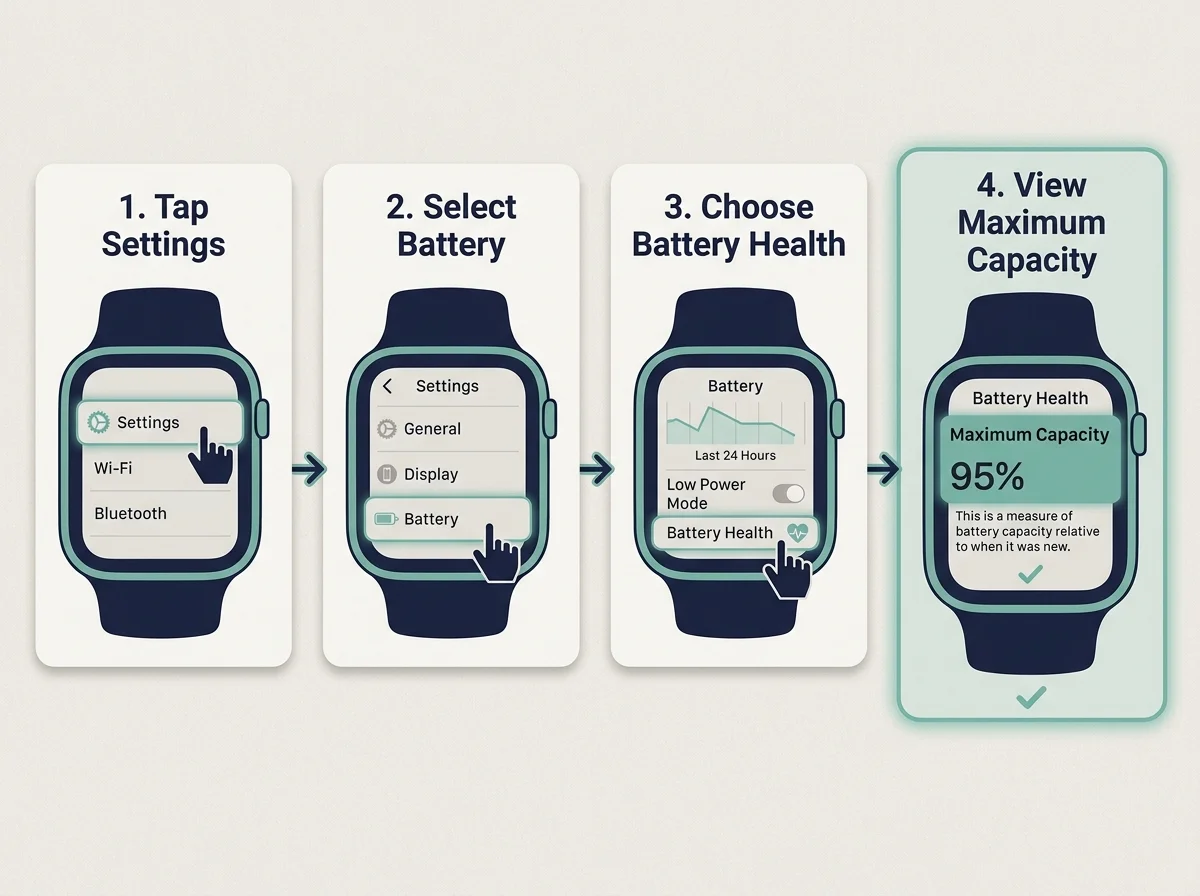
The labels or available options can vary by watch model and watchOS version. Use the settings shown on your own watch and consult Apple's guide if a menu differs.
What if Battery Health is missing?
First, make sure you are opening Settings on the Apple Watch itself. The iPhone's Watch app is useful for many settings, but the documented Battery Health steps are performed on the watch.
If you cannot find Battery Health, check the model and watchOS version, install any compatible watchOS update that is available, then restart the watch and check again. Menu availability can depend on device and software support; do not assume the battery has failed just because a menu is not where you expected it to be. Apple's battery health and usage instructions (opens in new tab) are the best reference for the current interface.
If the screen still does not match Apple's instructions, contact Apple Support or an Apple Authorized Service Provider for advice specific to your model. Avoid unknown utilities or unofficial profiles that claim to unlock hidden battery diagnostics.
What does Apple Watch Maximum Capacity mean?
Maximum Capacity is an estimate of how much energy the battery can store compared with when it was new. Rechargeable lithium-ion batteries chemically age over time, so the amount of charge they can hold generally decreases. That can mean less time between charges, even if you use the watch in the same way.
For example, a Maximum Capacity reading of 90% means the system estimates the battery can hold about 90% of its original capacity. It does not mean the watch is currently charged to 90%, and it is not a direct measurement of today's remaining battery. It also does not translate into a guaranteed number of hours because usage and settings affect runtime.
Apple notes that a watch's displayed capacity may be slightly below 100% when first activated, depending on the time between manufacture and activation. A reading below 100% by itself is therefore not proof of a fault. Read Apple's Apple Watch Battery and Performance (opens in new tab) explanation for more about battery aging and performance.
Current charge vs. Maximum Capacity vs. charge cycles
These terms describe different things:
- Current charge: How much battery power remains right now. Press the side button to open Control Center and view the battery percentage.
- Maximum Capacity: An estimate of the battery's capacity relative to when it was new. Find it under Settings > Battery > Battery Health.
- Charge cycles: A way to describe cumulative battery use. A full cycle represents using a total equal to 100% of the battery's capacity, which can add up across multiple partial uses. Do not assume the standard Apple Watch Battery Health screen provides a cycle-count field; Apple's current user-guide instructions point to Maximum Capacity there.
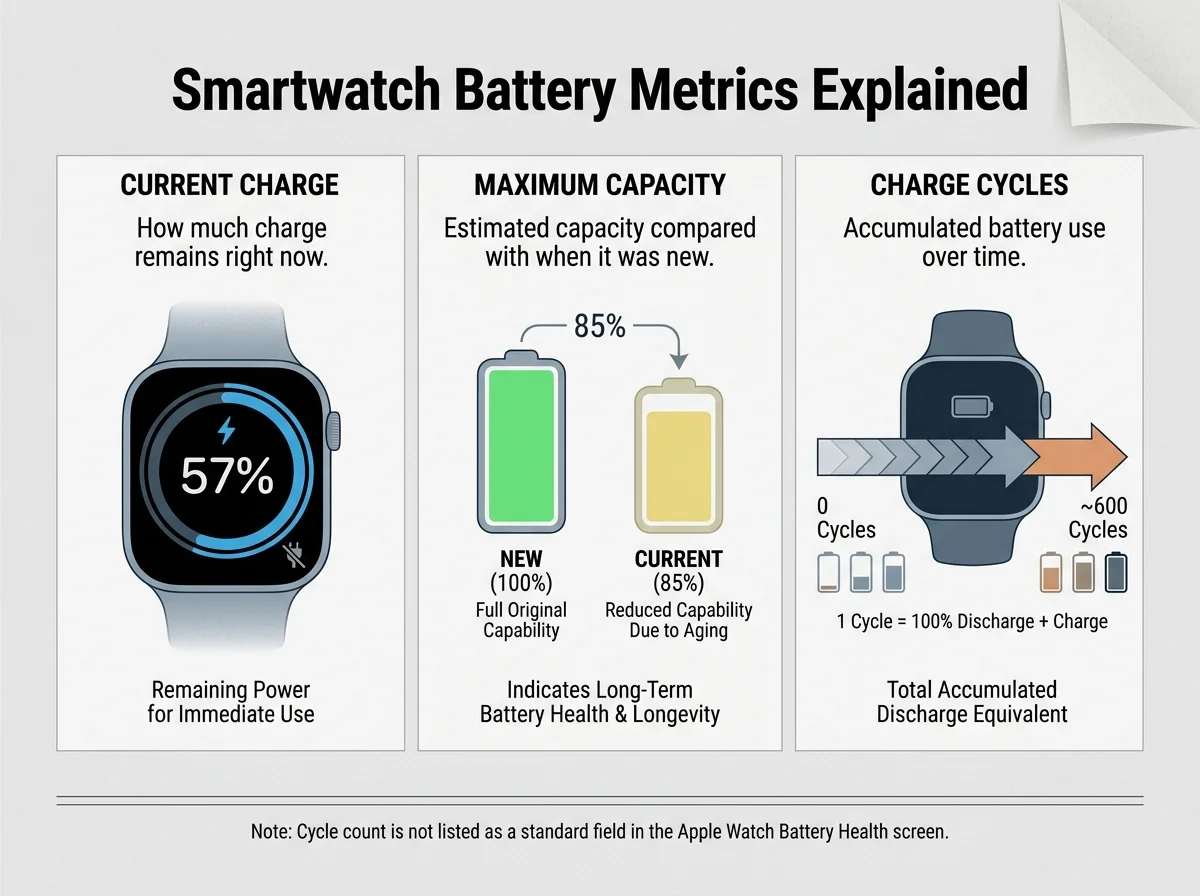
A simple comparison helps: current charge is how full the battery is now; Maximum Capacity estimates how much energy it can hold compared with when it was new; cycle use describes accumulated energy use over time. These numbers are not interchangeable, and a cycle count alone would not diagnose a battery problem.
How to check Apple Watch battery level and recent usage
If you want to know why the watch needs charging earlier than usual, start with the Battery screen:
- Open Settings > Battery on the Apple Watch.
- Review the remaining charge percentage and the recent battery-charge graph.
- Check the information showing when the watch was last charged.
- Compare the pattern with your usual day, including workouts, GPS use, audio playback, notifications, and periods of heavy app activity.
To see the current charge quickly, press the side button to open Control Center. Apple also lets you add a battery complication to a supported watch face for a glanceable charge indicator. These show current charge or recent usage, not the battery's Maximum Capacity. See Apple's check battery health and usage guide (opens in new tab).
Why is my Apple Watch battery draining quickly?
A shorter runtime does not always mean the battery is worn out. Use these checks to narrow down the cause:
- Check whether watchOS was updated recently. Background tasks can continue after an update. If the drain began immediately after installing software, give the watch a few days and then compare battery behavior again, as Apple's battery-drain guidance (opens in new tab) recommends.
- Review your recent activity. Longer workouts, GPS tracking, audio playback, cellular use, frequent notifications, and apps that refresh in the background can change power use.
- Review display and background settings. Features such as Always On display and background app refresh can use additional power on supported models. Change settings only where the trade-off makes sense for your use.
- Restart and update if appropriate. Restart the watch and check for a compatible watchOS update if the problem continues.
- Consider temperature and battery age. Avoid leaving the watch charging or sitting in hot environments for extended periods. If runtime remains far below your normal pattern, check Maximum Capacity and seek service advice if needed.
For more options, follow Apple's guide to extending Apple Watch battery life (opens in new tab). Menu options and the effect of individual settings can vary by watch model and watchOS version.
Should you turn on Optimized Battery Charging?
Apple Watch can use Optimized Battery Charging to reduce the time the battery spends fully charged. Depending on the device and software, the Battery Health screen may show Optimized Battery Charging or Optimized Charge Limit options. Apple's current guide describes these options under Settings > Battery > Battery Health; follow the settings available on your specific watch.
Optimized charging is designed to reduce battery aging, but it is not a repair for a degraded battery and it does not guarantee a particular Maximum Capacity value. If you need to understand a charging option on your model, consult Apple's guide to charging Apple Watch (opens in new tab).
When should you get Apple Watch battery service?
Consider service if the watch shows a battery-related service message, shuts down unexpectedly, or no longer lasts long enough for your normal routine despite reasonable troubleshooting. Apple Watch can alert you when battery capacity is significantly reduced so you can review service options.
Do not rely on an internet rule that says every battery below one specific percentage must be replaced. Maximum Capacity is one part of the picture; the watch's alerts, actual runtime, and Apple's assessment matter too. Start with Apple Support's battery and performance guidance (opens in new tab) or contact Apple or an Apple Authorized Service Provider.
If the watch is unusually hot, physically damaged, or you suspect a battery safety issue, stop charging it and seek professional advice. Do not open the watch or attempt to replace its battery yourself.
Apple Watch battery health troubleshooting table
| What you notice | What to check next | What not to assume |
|---|---|---|
| You cannot find Battery Health | Check Settings on the watch, your model, and compatible watchOS updates | The battery is automatically faulty |
| Maximum Capacity has declined | Compare normal runtime, on-screen warnings, and service advice | One percentage guarantees replacement is required |
| The watch charge is low right now | Open Control Center or Settings > Battery | Current charge is the same as Maximum Capacity |
| Battery drains quickly after an update | Compare usage over the next few days and check Apple's troubleshooting advice | The update permanently damaged the battery |
| The watch gets warm while charging | Keep it away from excessive heat and review Apple's charging guidance | Warmth alone diagnoses a failed battery |
| A service message appears or shutdowns recur | Contact Apple or an authorized service provider | An unofficial diagnostic app can replace a service assessment |
Frequently asked questions
How do I check Apple Watch battery health from my iPhone?
Apple's documented steps are performed on the watch: open Settings > Battery > Battery Health, then check Maximum Capacity. The iPhone Watch app can manage other settings, but use the on-watch path for the battery-health reading described in Apple's guide.
Is 80% battery health bad for an Apple Watch?
There is no universal percentage that determines whether every Apple Watch battery must be replaced. Consider the watch's service message, runtime in your normal routine, and Apple's guidance together. Contact Apple or an authorized service provider if the watch no longer meets your needs.
Does Apple Watch show battery cycle count?
Apple's current standard user-guide steps for Battery Health direct you to Maximum Capacity. They do not list a cycle-count field on that screen. Do not confuse cycle count as a battery concept with a field that Apple exposes in the watch's normal settings.
Why does my Apple Watch show less than 100% Maximum Capacity?
Maximum Capacity estimates the battery's energy-storage ability relative to when it was new. Batteries age chemically, and Apple notes that capacity may be slightly below 100% at first activation depending on manufacture and activation timing. A value below 100% alone does not prove the watch needs service.
Why did my Apple Watch battery life get worse after an update?
Some software tasks can continue in the background after an update. Apple advises allowing a few days before judging battery life after an update, then reviewing usage and following its troubleshooting steps if the issue persists.
Does Optimized Battery Charging fix a degraded battery?
No. Optimized charging is intended to reduce battery wear by managing how the watch charges. It cannot restore capacity that has already declined, and it does not guarantee a specific Maximum Capacity reading.
Sources and further reading
- Apple Watch User Guide: Check battery health and usage on Apple Watch (opens in new tab)
- Apple Support: Apple Watch Battery and Performance (opens in new tab)
- Apple Support: If your Apple Watch battery drains too quickly (opens in new tab)
- Apple Watch User Guide: Extend the battery life on Apple Watch (opens in new tab)
- Apple Watch User Guide: Charge the battery on Apple Watch (opens in new tab)
This guide follows Apple's currently published user-guide instructions. Menu labels and available charging features may change with future watchOS versions or device models, so check Apple's support guidance for your watch if the interface differs.
Verified Primary Sources & Citations
NextTechExplained verifies facts against official documentation, engineering whitepapers, and regulatory filings.
- Apple Watch User Guide: Check battery health and usage on Apple WatchView Official Source
- Apple Support: Apple Watch Battery and PerformanceView Official Source
- Apple Support: If your Apple Watch battery drains too quicklyView Official Source
- Apple Watch User Guide: Extend the battery life on Apple WatchView Official Source
- Apple Watch User Guide: Charge the battery on Apple WatchView Official Source
Published by NextTechExplained
Editorial Team • Institutional Publication Byline
Articles published under this byline are prepared through rigorous research and verified against official engineering specifications, standards documentation, and primary sources. Learn more about our process on our About page and Editorial Policy.
Related Explanations & Guides

How to Check iPad Battery Health: Supported Models and What It Means
Learn how to check iPad battery health, maximum capacity, cycle count, and battery usage, including what to do when Battery Health is missing.

How to Check iPhone Battery Health and What the Percentage Means
Learn where to find iPhone battery health, maximum capacity and cycle count, what the numbers mean, and when Apple recommends battery service.

How to Check Battery Health on Android: What Your Phone Supports
Find out how to check Android battery health, battery usage, and charge-cycle information, including the supported Google Pixel settings and what to do when the menu is missing.