
Why Does My Brother Printer Keep Going Offline?
Fix a Brother printer that keeps going offline. Check its connection, Windows print queue, duplicate drivers, Status Monitor, and model-specific network settings.
Editorial Team
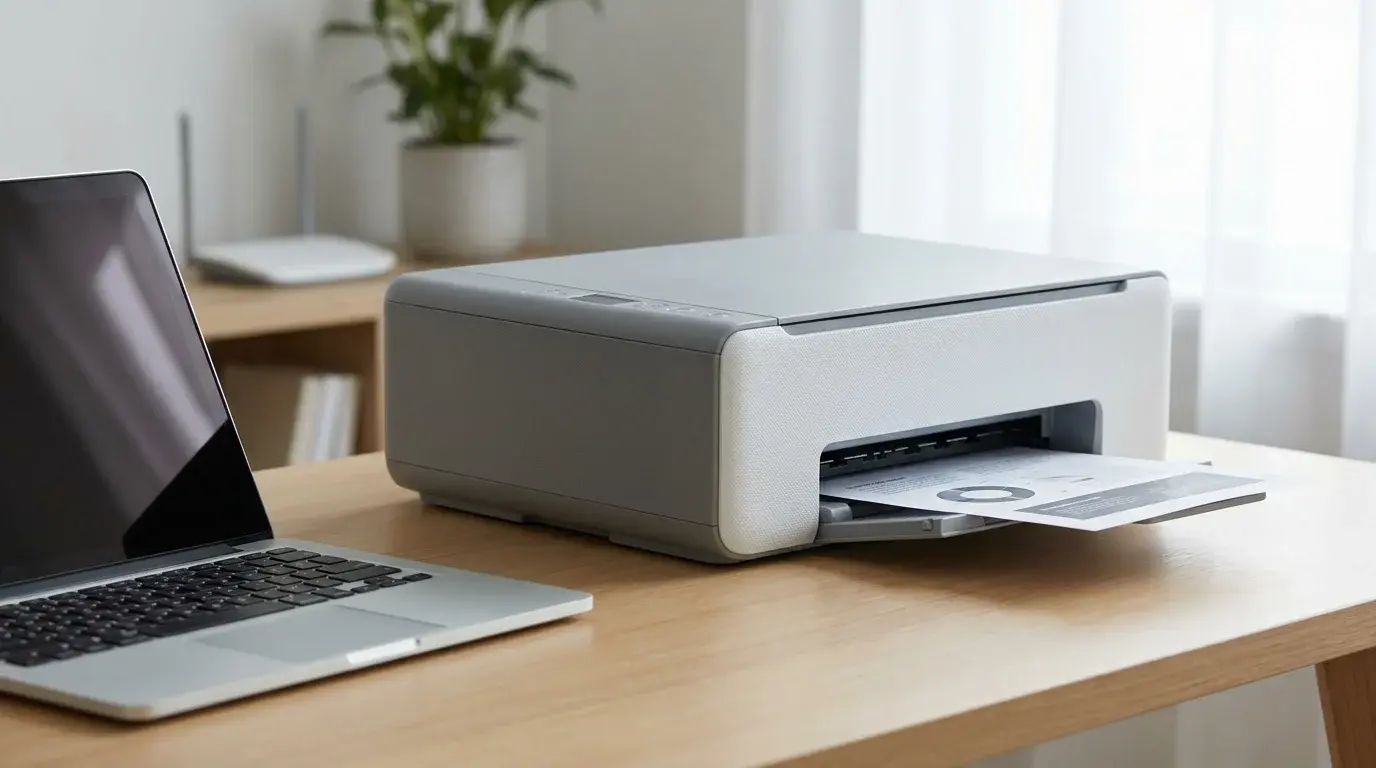
A home printer beside a laptop and wireless router, illustrating recurring printer connection problems
Table of Contents (20 sections)
- Start with these quick checks
- 1. Check whether the Brother printer is actually offline
- 2. Check the Brother printer connection
- If the printer uses USB
- If the printer uses Wi-Fi
- If the printer uses Ethernet
- 3. Clear the print queue in Windows
- 4. Select the working Brother printer entry
- 5. Check the old "Use Printer Offline" option only if it is available
- 6. Fix a Brother Status Monitor that keeps saying Offline
- 7. Restart Print Spooler if the Windows queue remains stuck
- 8. What to check on a Mac
- 9. When to reinstall the Brother driver or software
- Why does my Brother printer keep going offline again?
- Frequently asked questions
- Why does my Brother printer keep going offline but still show Wi-Fi?
- Should I turn off my firewall to fix a Brother printer?
- Should I reinstall the Brother driver every time it goes offline?
- Where can I find the correct instructions for my Brother model?
- Official sources
If your Brother printer keeps going offline, the cause may be the connection, a stuck print queue, an incorrect printer entry, or Brother's Status Monitor reporting the wrong device status. The best fix depends on whether the printer actually cannot print or only appears offline in a status window. Start with the quick checks, test a single page after each step, and avoid reinstalling everything before you know where communication is failing.
For general Windows and Mac fixes that apply across printer brands, see our guide to fixing a printer that says Offline. This article focuses on recurring Brother-specific problems, including duplicate printer entries and Status Monitor settings.
Start with these quick checks
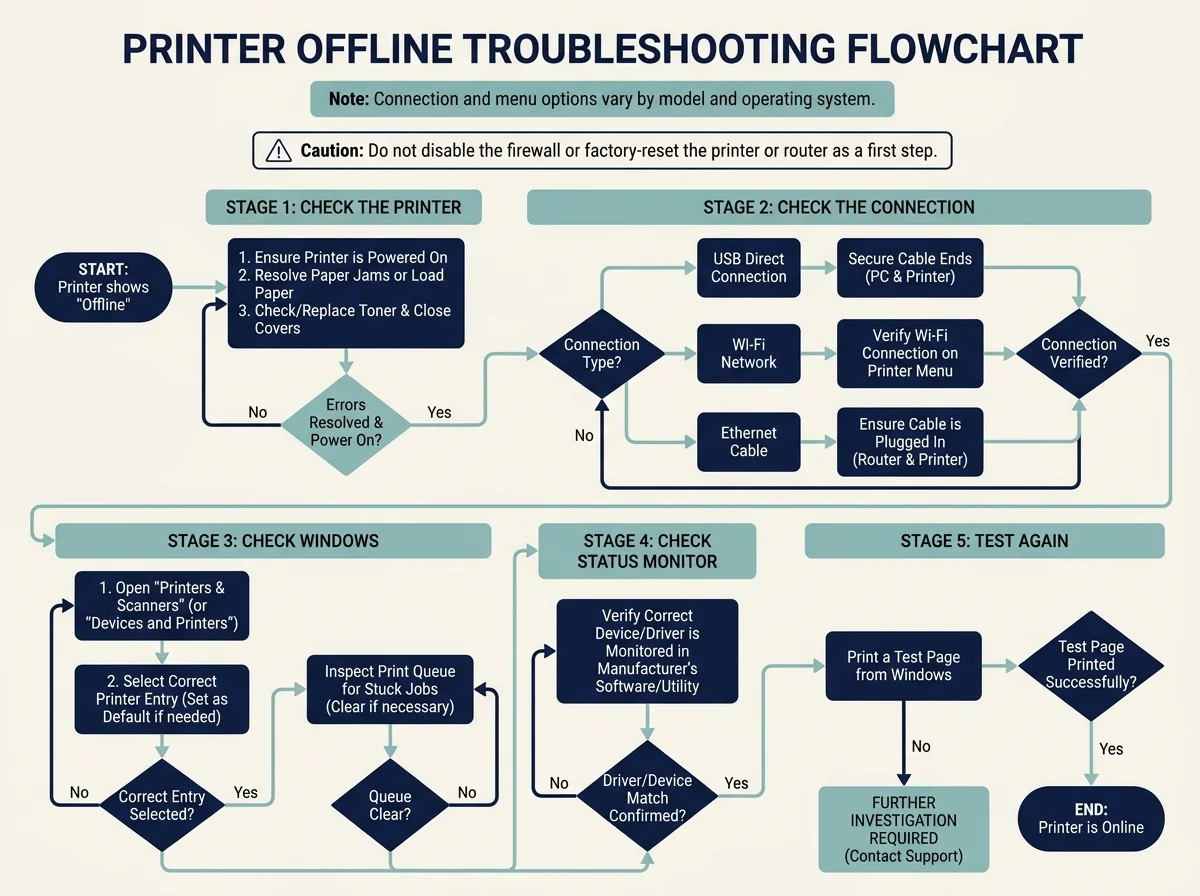
- Check the printer itself. Make sure it is powered on and awake. Clear any displayed paper jam, empty-tray, toner, ink, cover, or other hardware error before troubleshooting the computer.
- Restart the printer once. Turn it off normally, wait around 30 seconds, then turn it back on and wait for it to finish starting up.
- Check the connection type. For USB, reconnect the cable at both ends and, if possible, connect directly to the computer instead of through a hub. For Ethernet, check both ends of the cable. For Wi-Fi, check the printer's own network status rather than relying only on the computer's Wi-Fi icon.
- Check which printer is selected. If more than one Brother entry appears, you may be sending documents to an old or non-working copy of the driver.
- Open the print queue. Cancel only jobs that are stuck or no longer needed, then send one test page.
Brother's menu names and available network features vary by model. If a step below does not match your printer, use Brother's support page for the exact model rather than guessing at a menu or button.
1. Check whether the Brother printer is actually offline
First, determine whether printing fails or only the status indicator appears wrong. This distinction matters because Brother documents cases where its Status Monitor can display the status of the wrong printer driver or report Offline even when the machine can print.
- Try printing a simple test page from the computer.
- If it prints successfully, focus on the Status Monitor and which device it is monitoring.
- If it does not print, continue with the connection and queue checks below.
- If the printer display shows a hardware error, resolve that error before changing Windows or macOS settings.
Brother's official Status Monitor troubleshooting instructions (opens in new tab) explain how a mismatched driver or monitoring selection can produce an incorrect offline indication. The referenced support article is model-specific, so follow the support options for your own device if the screen differs.
2. Check the Brother printer connection
If the printer uses USB
- Confirm the printer is powered on and ready.
- Disconnect and reconnect the USB cable at both ends.
- If practical, connect the printer directly to a USB port on the computer instead of through a hub or docking station.
- If you moved the cable to a different USB port, check whether Windows has created another printer entry. Choose the working entry rather than repeatedly reinstalling the printer.
If the printer uses Wi-Fi
- Check the printer's network or wireless status using the controls available on your model.
- If your router name, password, or hardware changed recently, reconnect the printer using its supported wireless setup process.
- Make sure the computer and printer are on the intended local network. Guest Wi-Fi, network isolation, or multiple routers can prevent devices from discovering one another.
- If your model can print a network configuration page, use it to confirm the network information and IP address. Follow the model's manual for how to print that page.
- If the printer's wireless connection seems normal but printing fails, continue to the Windows or macOS checks rather than assuming the Wi-Fi itself is the only cause.
If the printer uses Ethernet
Check that the cable is firmly connected to the printer and router, switch, or network outlet. If the link still fails, use the model's network configuration page or official support instructions to check its connection details. Do not enter arbitrary network values or change router settings without identifying the actual problem.
3. Clear the print queue in Windows
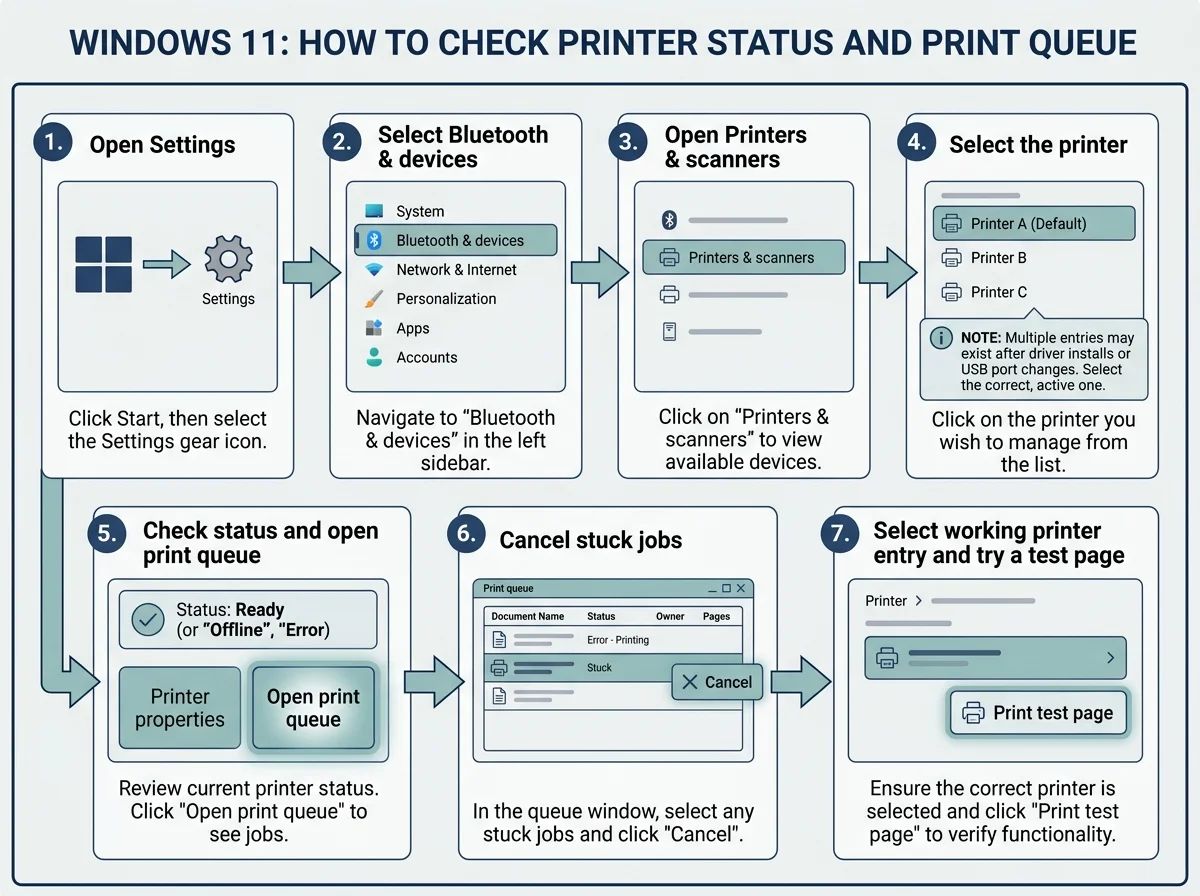
A stuck job can stop later documents from printing and make the printer appear unresponsive. In Windows 11:
- Open Start > Settings > Bluetooth & devices > Printers & scanners.
- Select your Brother printer.
- Choose Open print queue.
- Use the queue menu to cancel jobs that are stuck or no longer needed.
- Send a single test page after the queue clears.
On Windows 10, open Settings > Devices > Printers & scanners, select the Brother printer, and open its queue. Some older interfaces use different menu labels. If a job refuses to cancel, use Microsoft's instructions for fixing a print job stuck in the queue (opens in new tab) before trying more disruptive steps.
4. Select the working Brother printer entry
Windows can contain multiple entries for what looks like the same printer. This can happen after installing the driver more than once or changing the USB port. One entry may work while another remains offline.
- Open Settings > Bluetooth & devices > Printers & scanners.
- Select your Brother printer and check its status.
- If there are duplicate entries, turn on the Brother printer you intend to use and compare the entries one at a time.
- Select the entry that reports a usable status and can print a test page.
- If you want Windows to use that device by default, set it as the default printer. Otherwise, select it explicitly in the print dialog.
Brother notes that an Idle status for the selected machine in Windows 11 indicates that its driver is working in the documented troubleshooting flow. Exact status wording can differ across Windows versions and drivers. Do not remove every duplicate entry at random; first identify which entry works.
5. Check the old "Use Printer Offline" option only if it is available
The classic Use Printer Offline and Pause Printing options belong to some older Windows printer queue interfaces. They are not displayed in the same place on every Windows version, and Brother's instructions distinguish Windows 10 and earlier from Windows 11 or later.
If you are using Windows 10 or an older interface and the classic Printer menu is present:
- Open the Brother printer's queue.
- Open the Printer menu.
- If Use Printer Offline is checked, clear it.
- If Pause Printing is checked, clear it.
- Send a test page.
If you are on Windows 11 and these options are missing, do not keep searching for a button that is not in your interface. Return to the connection, selected-driver, and queue checks instead. Use Brother's offline or paused status instructions (opens in new tab) as a model-specific reference and choose your actual model on Brother Support if its instructions differ.
6. Fix a Brother Status Monitor that keeps saying Offline
If a test page prints but the Brother Status Monitor continues to show Offline, the software may be monitoring the wrong driver or displaying outdated status. Brother documents the following checks for supported models:
- Check the device being monitored. If Brother Status Monitor is installed, open its settings and confirm it is monitoring the printer driver you actually use. The control may be named Device to Monitor or similar, depending on software version.
- Check the device being displayed. If multiple Brother machines or driver entries are installed, make sure the selected display device is the correct one.
- Refresh the monitor. Close and reopen the Status Monitor, then check its status again.
- Check security software only when relevant. For a network-connected printer, security software may block the Status Monitor's communication and cause a wrong status. Do not disable your firewall wholesale. If evidence points to blocked monitor traffic, consult the security software's instructions or Brother support for the model-specific application rules.
- Repair the Brother software if needed. If the status remains wrong, use Brother's official downloads page for the exact model and operating system. Install or repair the appropriate full software package or Status Monitor only if Brother lists it for your device.
These steps are relevant when the printer can print but its monitor appears wrong. If documents still cannot print, keep troubleshooting the actual connection and queue rather than treating a display refresh as a complete fix.
7. Restart Print Spooler if the Windows queue remains stuck
The Windows Print Spooler manages print jobs. Restart it if jobs will not clear or the queue appears stuck after the ordinary queue controls fail.
- Press Windows + R.
- Type
services.mscand press Enter. - Find Print Spooler.
- Right-click it and choose Restart. If Restart is unavailable, choose Stop and then Start.
- Open the Brother queue again and try a test page.
Restarting the service can interrupt pending jobs, and it does not fix a printer that has lost its USB or network connection. Microsoft provides steps for restarting Print Spooler and clearing a stuck queue (opens in new tab). Manually deleting spool files should be a later step, used only when ordinary queue cancellation and service restart do not work and you can follow Microsoft's instructions carefully.
8. What to check on a Mac
If the Brother printer keeps going offline in macOS:
- Check for an error message on the printer and confirm its USB or network connection.
- Open System Settings > Printers & Scanners and select the Brother printer.
- Open the queue if it is available and check for paused or stuck jobs.
- If the printer is network-connected, confirm it is on the intended network and follow Brother's wireless troubleshooting instructions for the exact model.
- If the queue continues to fail, use Brother's official downloads for your Mac version to verify that the appropriate driver or software is available for the model.
Menu names vary by macOS version. Avoid resetting the entire printing system as an early step, because that can remove configured printer queues. Apple's guide to solving printing problems on Mac (opens in new tab) covers general macOS checks, while Brother's model-specific instructions should guide its connection and Status Monitor options.
9. When to reinstall the Brother driver or software
Reinstalling is a later troubleshooting step, not the first response to an Offline message. Consider it only after checking the printer itself, cable or network, correct printer entry, print queue, and Status Monitor.
- Identify the full model name from the printer label or its display.
- Open Brother's official support site and select that exact model and your operating system.
- Check the available driver and software package before removing anything.
- Follow Brother's uninstall and reinstall instructions for that model.
- Add the printer again using the connection type it actually uses, then print a test page.
Do not install a driver for a similar-looking model or use third-party driver download sites. If your device is no longer listed for your operating system, follow Brother's support guidance rather than forcing an unrelated package to install.
Why does my Brother printer keep going offline again?
If the printer works for a while and then repeatedly becomes unavailable, narrow down when the failure happens:
- After the computer wakes from sleep: check whether the printer's network connection is still available and whether the selected Windows driver can reach it.
- After changing USB ports: check for duplicate printer entries and select the working driver.
- After changing a router or Wi-Fi password: reconnect the printer to the intended network using its model-specific setup process.
- Only in Status Monitor: confirm that the monitor is showing the correct device and driver. If printing works, the displayed status may not reflect a real print failure.
- Only when several jobs are queued: check the queue and Print Spooler for stuck jobs.
- After installing or updating printer software: confirm that the correct Brother driver is selected and that it supports the installed operating system.
The recurring pattern is more useful than repeatedly restarting every device. Change one thing at a time, then test printing so you can tell which action helped.
Frequently asked questions
Why does my Brother printer keep going offline but still show Wi-Fi?
A wireless indicator only describes the printer's wireless connection; it does not prove that the computer can communicate with the correct printer entry. Check the network the printer joined, the printer selected in Windows or macOS, and the queue. If printing works but Status Monitor says Offline, verify the monitoring settings.
Should I turn off my firewall to fix a Brother printer?
No. Do not disable your firewall as a general fix. Brother documents that security software can interfere with Status Monitor communication on some network setups, but first confirm whether the printer can actually print. If the problem is limited to a status display, follow the security software's guidance or Brother's model-specific support instructions rather than turning protection off broadly.
Should I reinstall the Brother driver every time it goes offline?
No. Start with power and connection checks, the selected printer entry, and the print queue. Reinstall the official driver or software only if simpler checks fail or Brother's instructions for your model recommend it.
Where can I find the correct instructions for my Brother model?
Use Brother Support (opens in new tab) and search by the printer's exact model name. Available wireless features, Status Monitor options, driver packages, and menu paths differ among models and operating systems.
Official sources
- Brother: The printer status is Offline or Paused (opens in new tab) - model-specific connection and status checks.
- Brother: "Offline" appears on the Status Monitor (opens in new tab) - incorrect monitor status, driver selection, and software checks for listed models.
- Brother Support (opens in new tab) - select your exact model for the appropriate software and instructions.
- Microsoft: Troubleshooting offline printer problems in Windows (opens in new tab).
- Microsoft: Fix print job stuck in queue errors in Windows (opens in new tab).
- Apple: Solve printing problems on Mac (opens in new tab).
Verified Primary Sources & Citations
NextTechExplained verifies facts against official documentation, engineering whitepapers, and regulatory filings.
- Brother Support: The printer status is Offline or PausedView Official Source
- Brother Support: Offline appears on the Status MonitorView Official Source
- Brother Support: Wireless and connection troubleshootingView Official Source
- Microsoft Support: Troubleshooting offline printer problems in WindowsView Official Source
- Microsoft Support: Fix print job stuck in queue errors in WindowsView Official Source
- Microsoft Support: Fix printer connection and printing problems in WindowsView Official Source
- Apple Support: Solve printing problems on MacView Official Source
Published by NextTechExplained
Editorial Team • Institutional Publication Byline
Articles published under this byline are prepared through rigorous research and verified against official engineering specifications, standards documentation, and primary sources. Learn more about our process on our About page and Editorial Policy.
Related Explanations & Guides
How to Fix a Printer Offline: Windows, Mac, and Wi-Fi Fixes
Fix a printer that says Offline with practical checks for Wi-Fi, USB, print queues, Windows settings, Print Spooler, and Mac printer connections.
Why Is My HP Printer Offline? How to Fix It
Fix an HP printer that says Offline on Windows or Mac. Check Wi-Fi, run HP Diagnose & Fix, clear stuck jobs, and reconnect the printer safely.
How to Check Laptop Battery Health on Windows and Mac
Check laptop battery health with the Windows battery report, understand design versus full-charge capacity, and find Battery Health on a MacBook.