
How to Fix a Printer Offline: Windows, Mac, and Wi-Fi Fixes
Fix a printer that says Offline with practical checks for Wi-Fi, USB, print queues, Windows settings, Print Spooler, and Mac printer connections.
Editorial Team
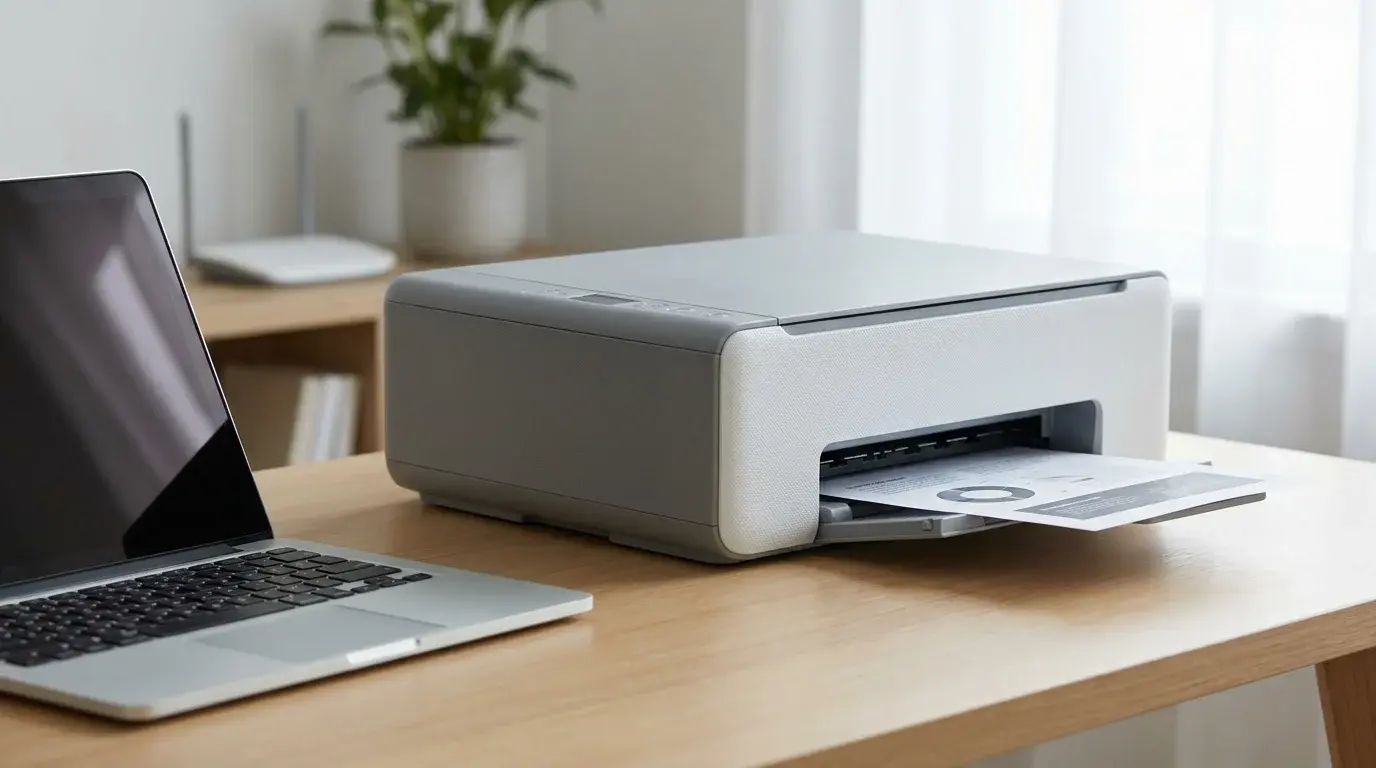
A home printer beside a laptop and a wireless router on a clean desk, illustrating printer connection troubleshooting
Table of Contents (19 sections)
- Try these quick fixes first
- How to fix a printer that says Offline in Windows 11
- 1. Confirm Windows can see the correct printer
- 2. Clear a paused or stuck print queue
- 3. Clear "Use Printer Offline" or "Pause Printing" if those options appear
- 4. Restart the Print Spooler service
- 5. Remove and add the printer again
- 6. Update or reinstall the correct printer driver
- How to fix a printer offline in Windows 10
- Why does my printer say Offline when it is connected to Wi-Fi?
- How to fix a printer offline on a Mac
- What if the printer is still offline?
- Frequently asked questions
- Why is my printer offline even though it is turned on?
- Should I delete the printer and reinstall it?
- Will restarting Print Spooler delete my documents?
- Does a printer need to be on the same Wi-Fi network as my computer?
- Can I fix an offline printer without installing software?
- Official sources
If your printer says Offline even though it is turned on, the computer may not be able to communicate with it, the printer queue may be paused, or Windows may be holding a stuck job. A Wi-Fi printer can also appear offline if it has joined a different network from the computer. Start with the quick connection checks below, then use the Windows or Mac steps that match your device. You usually do not need to reinstall printer software as the first step.
Try these quick fixes first
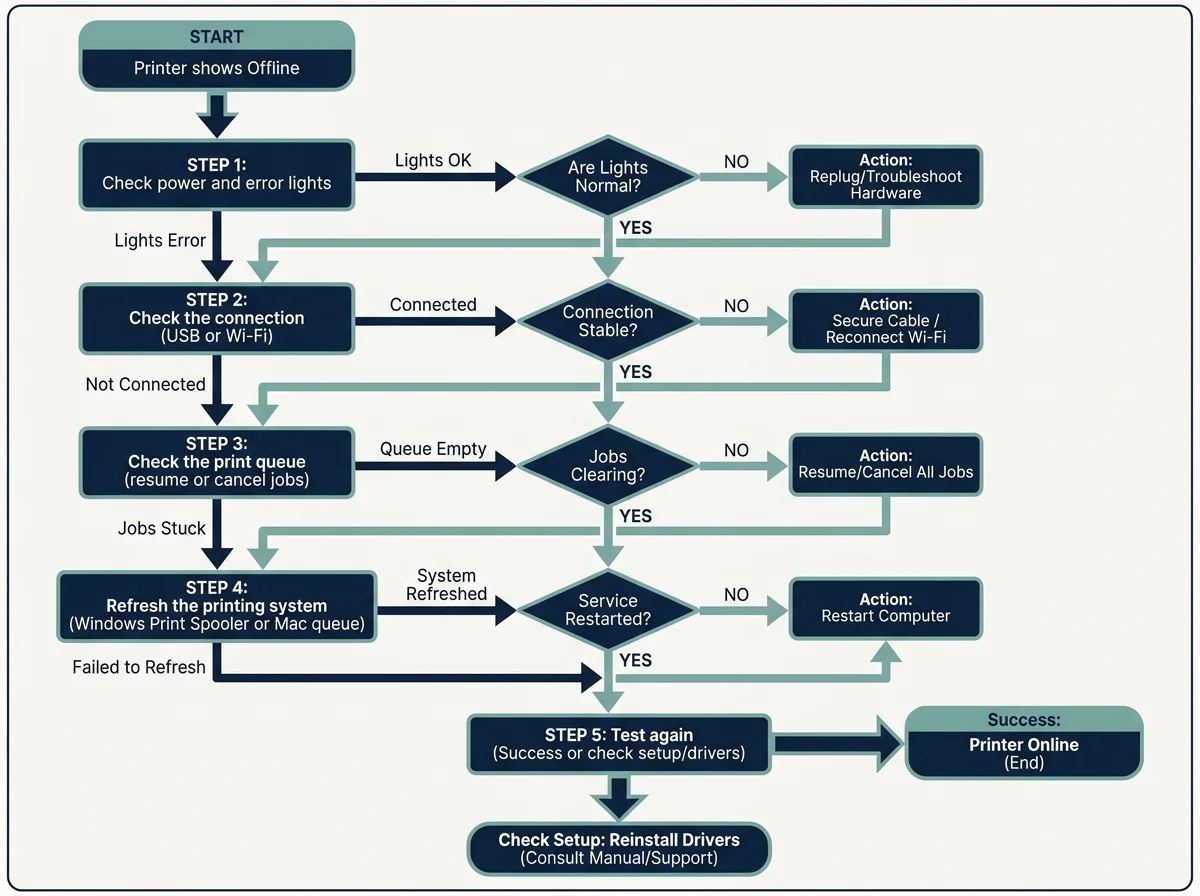
Work through these checks in order. After each one, try printing a single test page so you can tell whether the problem is resolved.
- Check the printer itself. Make sure it is powered on and ready. Look for a paper jam, an empty paper tray, low supplies, an open cover, or an error light. A device with a hardware error may not come online until that issue is cleared.
- Restart the printer. Turn it off, unplug the power cable for about 30 seconds, reconnect it, and turn it on. Wait until it finishes starting up before trying to print again.
- Check the connection. For USB, reseat the cable at both ends and try another USB port if available. For Wi-Fi, check the printer's display or network menu and make sure the computer and printer are on the same local network. Guest networks, extenders, and multiple routers can place devices on separate networks.
- Restart the computer. This can refresh the connection and the printing components without changing the printer setup.
- Check whether only one app is affected. Try printing a simple page from another application. If that works, check the original app's print dialog and selected printer rather than changing the whole printer setup.
Microsoft's official guide to troubleshooting offline printer problems (opens in new tab) recommends starting with the printer's power and network connection before moving to queue and Windows settings checks.
How to fix a printer that says Offline in Windows 11
Windows 11 includes an automated printer troubleshooter in the Get Help app. Run it first if it is available on your PC, then continue with the checks below if Windows still shows the printer as offline.
1. Confirm Windows can see the correct printer
- Open Start > Settings.
- Select Bluetooth & devices > Printers & scanners.
- Select the printer you want to use.
- Confirm that it is the correct device, especially if several similar printers or copies are listed.
If the printer does not appear in the list, skip to the section on removing and adding the printer again. If it does appear, open its print queue and check its status.
2. Clear a paused or stuck print queue
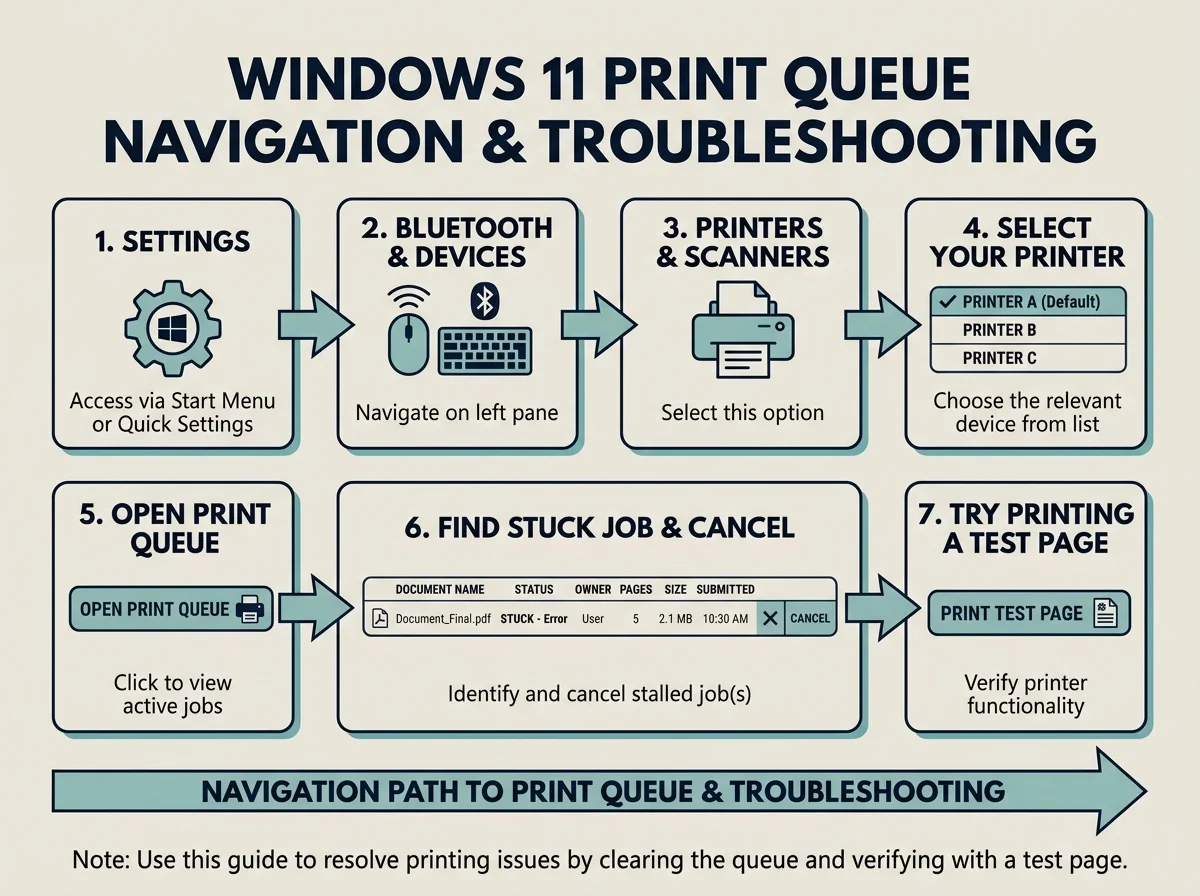
A document that is stuck or a queue that is paused can prevent later jobs from printing. In Windows 11:
- Open Settings > Bluetooth & devices > Printers & scanners.
- Select your printer and choose Open print queue.
- If jobs are waiting, cancel the failed or stuck jobs. In the newer queue window, the option may appear under the three-dot menu.
- If a job will not cancel, continue to the Print Spooler step below rather than repeatedly sending the same document.
Cancel only jobs you no longer need. Clearing the queue removes pending print jobs; it does not fix an underlying Wi-Fi or hardware problem by itself.
3. Clear "Use Printer Offline" or "Pause Printing" if those options appear
Some Windows print queue interfaces expose the classic Printer menu, including Use Printer Offline and Pause Printing. If you can see these options and either is selected, clear it. The newer queue interface may look different or may not show the classic menu; do not assume the option exists on every system.
To check the printer status, open the printer's queue from Settings > Bluetooth & devices > Printers & scanners. If the classic queue window is available, open its Printer menu and check the status options. Set the intended printer as the default if Windows is sending jobs to a different device. If Windows manages the default printer automatically and you prefer to select one manually, turn off that setting before choosing your default.
4. Restart the Print Spooler service
Print Spooler manages the Windows print queue. Restart it if jobs will not clear or the queue appears stuck.
- Press Windows + R.
- Type
services.mscand press Enter. - Find Print Spooler in the Services window.
- Right-click it and choose Restart. If Restart is unavailable, choose Stop, then Start.
- Reopen the print queue and try a test page.
Restarting the service can help with a frozen queue, but it will not fix a printer that has lost its network connection. Microsoft also provides a separate guide for print jobs stuck in the queue (opens in new tab).
5. Remove and add the printer again
Use this after checking power, connection, queue status, and Print Spooler. Removing a printer deletes that printer entry from Windows, so make sure you know how it connects and have any required setup information first.
- Open Settings > Bluetooth & devices > Printers & scanners.
- Select the affected printer and choose Remove.
- Make sure the printer is powered on and connected by USB or to the same network as the PC.
- Return to Printers & scanners and choose Add device (or Add device/Refresh, depending on the Windows version).
- Select the printer when it appears and follow the setup prompts.
- Print a test page.
If Windows cannot find the printer, check the manufacturer's setup instructions and current driver for the exact model. Avoid downloading drivers from third-party driver sites.
6. Update or reinstall the correct printer driver
If the printer repeatedly goes offline or Windows cannot communicate with it after reinstalling the device, check Windows Update and the printer manufacturer's official support page for your exact model. Some printers use a Windows-provided driver; others need manufacturer software. Do not install a driver for a similar but different model.
For newer Windows 11 PCs using an ARM-based processor, Microsoft notes that some manufacturer installers may not work correctly for printer installation. In that case, follow Microsoft's Add or install a printer in Windows (opens in new tab) guidance or the printer maker's specific instructions instead of repeatedly running the same installer.
How to fix a printer offline in Windows 10
The Settings layout differs from Windows 11. On Windows 10, open Start > Settings > Devices > Printers & scanners, select the printer, and use Open queue to inspect pending jobs. In a classic queue window, clear Pause Printing or Use Printer Offline if those options are selected, and confirm the intended printer is set as default. Restart Print Spooler if the queue is stuck, and remove and add the printer again only after checking the connection.
Windows 10 menus and driver support may differ by edition and device. Microsoft ended standard Windows 10 support on October 14, 2025, so systems still running it may no longer receive normal free security updates and technical support. Use the printer maker's support page for model-specific setup details.
Why does my printer say Offline when it is connected to Wi-Fi?
A Wi-Fi symbol on the printer does not always mean the computer can reach it. Work through these specific checks:
- Check the network name. Confirm that the printer and computer are connected to the same home or office network. If you recently changed the Wi-Fi password or router, reconnect the printer using its own screen or the manufacturer's setup app. If you are upgrading your home network or troubleshooting router bands, see our Wi-Fi 7 router upgrade guide to understand how multi-band routers handle older 2.4 GHz printers.
- Check guest networks and extenders. A guest network or some router configurations can prevent devices from seeing one another. Connect both devices to the intended local network.
- Restart network equipment only if needed. If other devices also have connectivity problems, restart the router according to the router manufacturer's instructions. If the rest of the network works, focus on the printer's connection first.
- Check the printer's own status. A printer can be connected to Wi-Fi but still show an error for paper, ink or toner, a cover, or a jam. Clear any displayed printer error before changing computer settings.
- Try the printer maker's diagnostic tool. For supported HP printers, the HP app includes Diagnose & Fix features that can check offline status, queue issues, and some driver or port problems. Other brands have their own model-specific utilities.
Do not factory-reset the router or printer as an early step. Those resets can erase network settings and require setup again.
How to fix a printer offline on a Mac
On macOS, check the print queue and the network before resetting the printing system.
- Open the Apple menu > System Settings.
- Select Printers & Scanners.
- Select the affected printer and open its queue if that option is available.
- Resume a paused queue or cancel a job that is stuck. Then try printing a small test page.
- If the printer is not available, check that it is powered on and that your Mac and printer are on the same network. For a USB printer, reconnect the cable.
- If the printer no longer appears or its queue is broken, use the add-printer control in Printers & Scanners to add it again. Follow the manufacturer's setup instructions if discovery fails.
Apple's Mac printing troubleshooting guide (opens in new tab) also describes adding a printer by address when appropriate. Reset Printing System is a last resort: it removes printers, completed print jobs, and printer presets, so you will need to add the printers again afterward. Do not reset it unless the simpler checks have failed.
What if the printer is still offline?
Use the symptom to choose the next step rather than repeating every fix:
- The printer is missing from Settings: Check power, USB, Wi-Fi, discovery, and model-specific installation instructions.
- The printer appears but jobs remain pending: Clear the stuck job and restart Print Spooler on Windows, or inspect the queue on Mac.
- The printer works from another device: Focus on the affected computer's queue, driver, default-printer selection, or network access.
- Every device reports a problem: Check the printer's own display and network connection, then the router or printer hardware.
- It goes offline again after a short time: Check Wi-Fi stability, power-saving behavior, firmware and driver updates, and any manufacturer diagnostic app available for the exact model.
If the printer continues to report a hardware error or cannot connect after these checks, consult the official support page for its manufacturer and exact model. This broad guide covers common Windows and Mac causes; menu names and available options vary by printer, operating system version, and connection type.
Frequently asked questions
Why is my printer offline even though it is turned on?
The computer may have lost its connection to the printer, the printer and computer may be on different networks, or the print queue may be paused or stuck. Check the connection first, then the queue and printer status settings.
Should I delete the printer and reinstall it?
Not as the first step. Restart the printer, confirm its connection, clear any stuck print jobs, and restart Print Spooler on Windows first. Remove and add it again if Windows still cannot communicate with it.
Will restarting Print Spooler delete my documents?
Restarting the service alone does not intentionally delete your source documents, but it can interrupt or clear pending print jobs. If you manually delete files from the spool folder, pending jobs are removed. Try canceling jobs through the normal queue interface first.
Does a printer need to be on the same Wi-Fi network as my computer?
For most home Wi-Fi printer setups, the printer and computer must be reachable on the same local network. Guest networks, network isolation settings, or separate network names can prevent discovery even when both devices have internet access.
Can I fix an offline printer without installing software?
Often, yes. Power and cable checks, built-in Windows troubleshooting, queue cleanup, Print Spooler restart, and macOS printer settings can solve common issues. A manufacturer app may help when model-specific diagnostics or setup are needed.
Official sources
- Microsoft Support: Troubleshooting offline printer problems in Windows (opens in new tab)
- Microsoft Support: Fix printer connection and printing problems in Windows (opens in new tab)
- Microsoft Support: Fix print job stuck in queue errors in Windows (opens in new tab)
- HP Support: HP Printer Offline Issues - How to Fix (opens in new tab)
- Apple Support: Solve printing problems on Mac (opens in new tab)
- Related guide: Wi-Fi 7 vs Wi-Fi 6E Router Upgrade Guide
Verified Primary Sources & Citations
NextTechExplained verifies facts against official documentation, engineering whitepapers, and regulatory filings.
- Microsoft Support: Troubleshooting offline printer problems in WindowsView Official Source
- Microsoft Support: Fix printer connection and printing problems in WindowsView Official Source
- Microsoft Support: Fix print job stuck in queue errors in WindowsView Official Source
- HP Support: HP Printer Offline Issues - How to FixView Official Source
- Apple Support: Solve printing problems on MacView Official Source
Published by NextTechExplained
Editorial Team • Institutional Publication Byline
Articles published under this byline are prepared through rigorous research and verified against official engineering specifications, standards documentation, and primary sources. Learn more about our process on our About page and Editorial Policy.
Related Explanations & Guides
Why Does My Brother Printer Keep Going Offline?
Fix a Brother printer that keeps going offline. Check its connection, Windows print queue, duplicate drivers, Status Monitor, and model-specific network settings.
Why Is My HP Printer Offline? How to Fix It
Fix an HP printer that says Offline on Windows or Mac. Check Wi-Fi, run HP Diagnose & Fix, clear stuck jobs, and reconnect the printer safely.
How to Check Laptop Battery Health on Windows and Mac
Check laptop battery health with the Windows battery report, understand design versus full-charge capacity, and find Battery Health on a MacBook.