
How to Check Samsung Battery Health on a Galaxy Phone
Check Samsung Galaxy battery health with Samsung Members diagnostics, understand Normal, Weak, and Bad results, and learn what to do if your phone shows no health percentage.
Editorial Team

A Samsung Galaxy smartphone beside a USB-C charging cable on a tidy desk, illustrating a battery condition check
Table of Contents (13 sections)
- How to check Samsung battery health with Samsung Members
- What do Normal, Weak, and Bad battery status results mean?
- Can Samsung Galaxy show battery health as a percentage?
- How to check Samsung battery usage and investigate fast drain
- Does Samsung show battery cycle count?
- When should you get a Samsung battery inspected?
- Frequently asked questions
- Is Samsung Members the best way to check Galaxy battery health?
- Why does my Samsung phone not show battery health percentage?
- Does a Normal Samsung battery status mean the battery is like new?
- Does Samsung Galaxy show battery cycle count?
- What should I do if Samsung Members says Weak or Bad?
- Sources and further reading
To check Samsung battery health on a Galaxy phone, use the Samsung Members app and run its Battery status diagnostic. Depending on the app layout, open Support > Phone diagnostics or Discover > Diagnostics > Phone diagnostics, then select Battery status. The exact labels and screens can vary by Galaxy model, One UI version, region, and Samsung Members version.
Samsung Members provides a diagnostic result, not necessarily a precise battery-health percentage. Some Galaxy devices and software configurations may expose extra battery details, such as cycle count or capacity information, while others do not. If your phone does not show a percentage, that alone does not mean the battery is damaged.
This guide explains the supported Samsung check, what the diagnostic result means, how to investigate fast battery drain, and when to contact Samsung Support. If you want the broader Android overview first, see our guide to checking battery health on Android, which explains why features vary between manufacturers.
How to check Samsung battery health with Samsung Members
Use the official Samsung Members diagnostic first. The usual steps are:
- Open Samsung Members. If it is not installed, check the Galaxy Store or Google Play Store for the official app.
- Tap Support. On some app versions, diagnostics may instead be under Discover > Diagnostics.
- Open Phone diagnostics or tap Get started under the diagnostics section.
- If a full diagnostic scan starts automatically, let it start and then follow the app's instructions. Some Samsung support instructions say to stop the full test before selecting an individual test.
- Select Battery status.
- Read the result and any recommendation shown by your device.
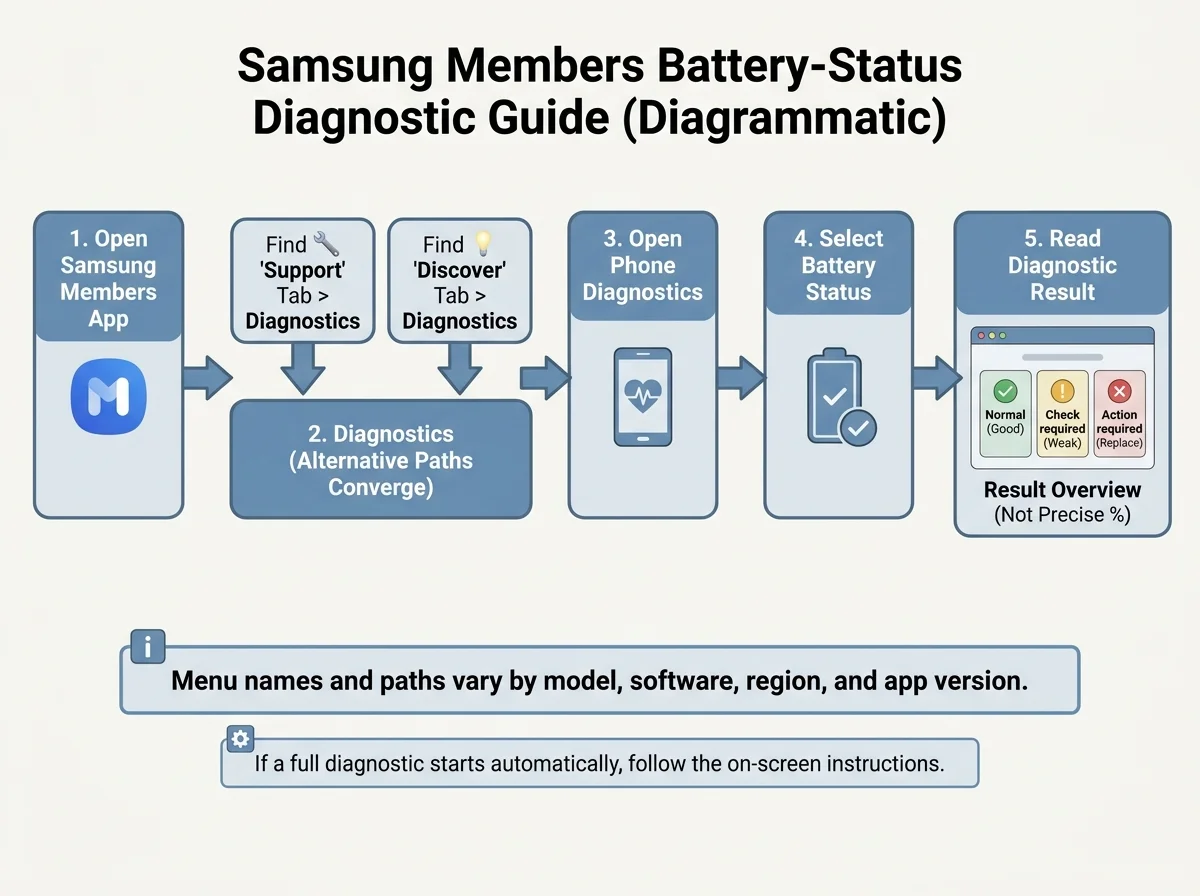
Samsung notes that diagnostic options and menu names can differ between models and software versions. If the option is not where the steps describe, update Samsung Members and your phone software, then check the guide for your particular Galaxy model. Do not install an unofficial app that claims to reveal a guaranteed hidden battery-health percentage.
What do Normal, Weak, and Bad battery status results mean?
Samsung's battery diagnostic documentation describes these common results:
- Normal: The diagnostic did not identify a battery performance issue.
- Weak: Battery efficiency may have decreased due to long-term use or environmental conditions.
- Bad: Battery life has significantly degraded. Samsung recommends getting advice from a Samsung Support Centre or service centre.
The exact wording can vary by product, region, and app version. Treat the result as a useful diagnostic indication rather than a complete measurement of remaining battery capacity or a guarantee of how many hours the phone will last. If Samsung Members gives a service recommendation, follow the guidance displayed for your device.
A Normal result also does not rule out every possible reason for short runtime. An app running heavily in the background, poor mobile reception, high screen brightness, location use, or a software issue can cause fast drain even when the battery diagnostic does not report a problem.
Can Samsung Galaxy show battery health as a percentage?
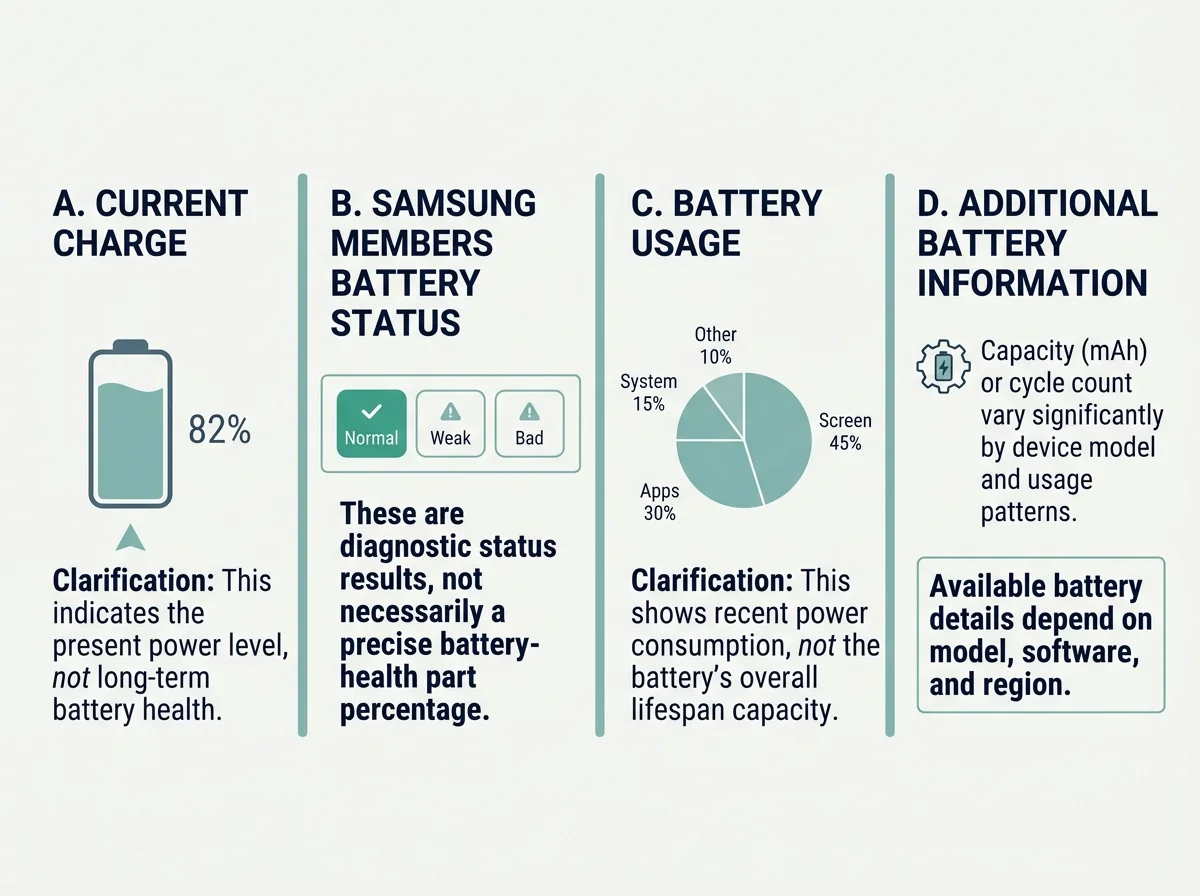
Not every Galaxy phone displays a battery-health percentage in Settings. Samsung's documented battery check for Galaxy phones is its Samsung Members Battery status diagnostic. Some devices or software configurations may also show extra battery information, but availability can vary by model, Android or One UI version, and regional software configuration.
If your phone has an additional Battery information item, you may find it in a battery or device-care section of Settings, or under Settings > About phone > Battery information on some configurations. Use that route only if the option actually exists on your device; it is not a universal Samsung menu. If the item is missing, there is no guaranteed manual switch that enables it on every Galaxy model.
Do not assume that the charging percentage in the status bar is battery health. Current charge tells you how much power remains right now. Battery health or capacity estimates how the battery compares with its condition when new. Battery usage lists where energy has been consumed over a selected period. These figures answer different questions.
How to check Samsung battery usage and investigate fast drain
If the main problem is that your Galaxy phone needs charging earlier than it used to, review battery usage separately from battery status:
- Open Settings.
- Open Battery or Battery and device care, depending on your software version.
- Review Battery usage and the apps or system components listed.
- Look for an app with unexpectedly high consumption compared with how often you use it.
- Update the app and phone software. If appropriate, restrict background activity for apps that do not need to run continuously, or audit your smartphone app permissions to control background refresh and location tracking.
- Consider common causes such as high brightness, long screen timeout, mobile hotspot use, gaming, navigation, video recording, weak cellular signal, or a recent update.
Samsung Members and Device care are different tools: the Battery status diagnostic checks battery condition, while a battery-usage report helps investigate where charge is going. Samsung also documents Device care diagnostics on supported Galaxy devices. The exact features available depend on the model and software.
If the phone began draining suddenly, restart it and check for software or app updates. If the problem persists, use Samsung Members diagnostics and consult Samsung Support rather than relying only on a third-party app's estimated health score.
Does Samsung show battery cycle count?
Do not expect every Galaxy phone to show cycle count. Samsung community support has said the availability of details such as cycle count, battery-health percentage, manufacture date, and first-use date depends on device model, Android and One UI versions, and regional software configuration. Some models may show extra information while others do not.
If your Settings menu includes a Battery information section, review the fields that are actually displayed. If it does not, Samsung Members' Battery status diagnostic remains the standard documented check. Avoid instructions that promise a hidden cycle-count screen will work on every device or region.
A charge cycle represents cumulative use equivalent to 100% of the battery's capacity; it does not have to happen in one uninterrupted discharge. Cycle count can provide context, but it does not by itself measure current capacity or prove that a battery needs replacing.
When should you get a Samsung battery inspected?
Consider professional advice if Samsung Members reports Weak or Bad, if your phone repeatedly shuts down unexpectedly, or if its runtime has become consistently much shorter. Samsung says a battery-performance degradation alert may also appear when performance has declined significantly; if you receive one, follow the on-device guidance and arrange an inspection if recommended.
Battery symptoms can have more than one cause, so do not decide on replacement based on a single percentage from an unverified app. A Samsung Support Centre can advise whether the battery needs service. If the phone or battery appears swollen, the screen or back panel is lifting, or the device becomes unusually hot during ordinary use, stop using and charging it and arrange professional service. Do not press, puncture, or attempt to remove a swollen battery yourself.
There is no single battery-health percentage that applies to every Galaxy phone. Use the Samsung diagnostic result, the symptoms you observe, and the guidance for your exact model together.
Frequently asked questions
Is Samsung Members the best way to check Galaxy battery health?
It is Samsung's documented self-diagnostic route for checking Galaxy phone battery status. Open Samsung Members, find Phone diagnostics, and choose Battery status. Menu names can vary by model, app version, and software.
Why does my Samsung phone not show battery health percentage?
Samsung does not expose the same detailed battery information on every Galaxy device. Extra fields may depend on model, One UI or Android version, and regional software configuration. Use Samsung Members to check Battery status even if Settings does not show a percentage.
Does a Normal Samsung battery status mean the battery is like new?
No. It means the diagnostic did not identify a battery performance issue based on that check. It is not necessarily a precise capacity measurement and does not guarantee the same runtime as a new battery.
Does Samsung Galaxy show battery cycle count?
Availability varies. Some device and software configurations may show additional battery information, but cycle count is not a universal field across Galaxy phones. Check the options actually present on your device and avoid assuming that instructions for another model will apply.
What should I do if Samsung Members says Weak or Bad?
Read any recommendation in the diagnostic, back up important data, and contact Samsung Support or a service centre if the result suggests inspection. If the phone is physically swollen or unsafe to handle, stop charging and using it and seek professional assistance.
Sources and further reading
- Samsung Support: Determine when your Samsung Galaxy phone battery needs replacing (opens in new tab)
- Samsung Support: Check your Samsung Galaxy device status and run diagnostics (opens in new tab)
- Samsung Pakistan: About Galaxy Battery (opens in new tab)
- Samsung Support: How to check the battery status on your Samsung Galaxy phone (opens in new tab)
- Related guide: How to Check Battery Health on Android
Verified Primary Sources & Citations
NextTechExplained verifies facts against official documentation, engineering whitepapers, and regulatory filings.
- Samsung Support: Determine when your Samsung Galaxy phone battery needs replacingView Official Source
- Samsung Support: Check your Samsung Galaxy device status and run diagnosticsView Official Source
- Samsung Pakistan: About Galaxy BatteryView Official Source
- Samsung Support: How to check the battery status on your Samsung Galaxy phoneView Official Source
- Samsung Members Community: Availability of battery information detailsView Official Source
Published by NextTechExplained
Editorial Team • Institutional Publication Byline
Articles published under this byline are prepared through rigorous research and verified against official engineering specifications, standards documentation, and primary sources. Learn more about our process on our About page and Editorial Policy.
Related Explanations & Guides
How to Check Battery Health on Android: What Your Phone Supports
Find out how to check Android battery health, battery usage, and charge-cycle information, including the supported Google Pixel settings and what to do when the menu is missing.

How to Check Apple Watch Battery Health and Maximum Capacity
Check Apple Watch battery health in watchOS, understand Maximum Capacity, tell it apart from current charge, and troubleshoot faster battery drain.
How to Check iPad Battery Health: Supported Models and What It Means
Learn how to check iPad battery health, maximum capacity, cycle count, and battery usage, including what to do when Battery Health is missing.