
How to Check iPhone Battery Health and What the Percentage Means
Learn where to find iPhone battery health, maximum capacity and cycle count, what the numbers mean, and when Apple recommends battery service.
Editorial Team

A modern smartphone on a clean desk beside a subtle battery-themed visual, representing an iPhone battery health check
Table of Contents (16 sections)
- How to check iPhone battery health
- iPhone 15 models and later
- iPhone 14 and earlier
- What does iPhone Maximum Capacity mean?
- What is a battery cycle count?
- Is your iPhone battery health bad?
- How to check which apps are using your battery
- How to keep your iPhone battery healthy
- Quick troubleshooting table
- Frequently asked questions
- How do I check iPhone battery health?
- Is 80% battery health bad on an iPhone?
- Can I check battery cycle count on every iPhone?
- Why does my iPhone battery drain quickly when health looks good?
- When should I replace my iPhone battery?
- Sources and further reading
If you want to check your iPhone battery health, open Settings and tap Battery. On iPhone 15 models and later, tap Battery Health. On iPhone 14 and earlier, tap Battery Health & Charging. The screen shows how much capacity your battery can hold compared with when it was new, plus other details that depend on your iPhone model and iOS version. Apple explains the differences between these screens in its official battery guide (opens in new tab).
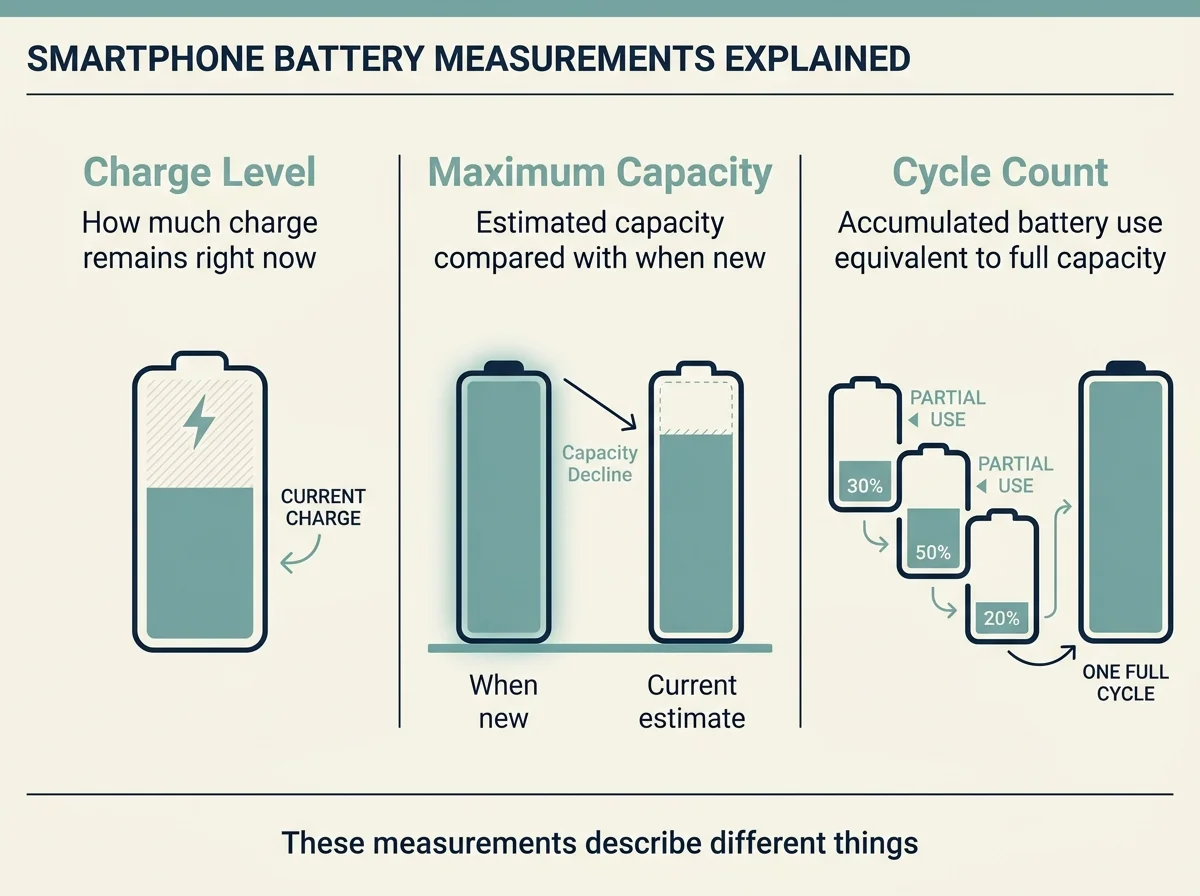
Battery health is not the same as the charge percentage at the top of your screen. Charge percentage tells you how much energy remains right now; maximum capacity estimates how much the battery can hold compared with when it was new. Use both the health screen and your real-world battery life to decide whether anything needs attention.
How to check iPhone battery health
iPhone 15 models and later
- Open Settings.
- Tap Battery.
- Tap Battery Health.
- Review Maximum Capacity, any service recommendation, and the additional battery details shown on your device.
On iPhone 15 models and later with iOS 17.4 or later, Apple says this screen can also show cycle count, manufacture date, and first-use date. The information displayed can vary by model and software version. See Apple's model-specific instructions (opens in new tab).
iPhone 14 and earlier
- Open Settings.
- Tap Battery.
- Tap Battery Health & Charging.
- Review Maximum Capacity and the Peak Performance Capability information if it appears.
The wording and available details can vary across older models and iOS versions. If you do not see the expected screen, check your exact iPhone model and install any available iOS update that supports it before assuming the battery is faulty.
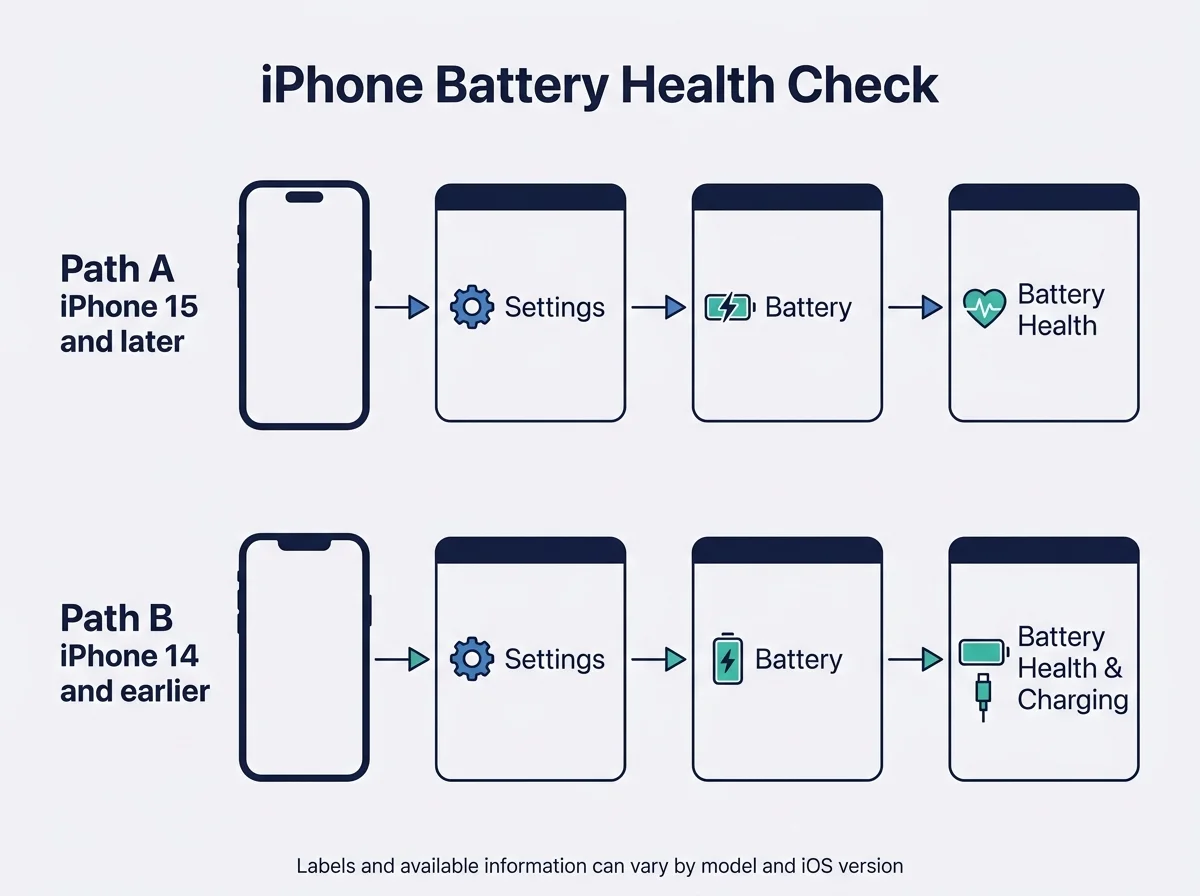
The Settings labels vary by model and software version. Use the path that matches your iPhone.
What does iPhone Maximum Capacity mean?
Maximum Capacity is an estimate of the battery's current capacity relative to when it was new. As a rechargeable battery chemically ages, it generally holds less energy, which can mean fewer hours between charges. Apple notes that battery performance also depends on factors such as temperature, charge state, and the power needed by the phone. Read Apple's explanation of battery aging and performance (opens in new tab).
For example, a displayed maximum capacity of 90% means the battery is estimated to hold around 90% of the capacity it had when new. It does not mean that your phone is always running at 90% speed, nor does it measure how much charge is left at this moment.
Do not use one percentage as a universal replacement rule. A battery at a particular capacity may still meet your needs, while another battery may be frustrating because it drains quickly or triggers a service message. Consider the on-screen recommendations, actual runtime, unexpected shutdowns, and any physical battery warning signs together.
What is a battery cycle count?
A charge cycle represents using an amount equal to 100% of a battery's capacity over time; it does not require draining the phone from 100% to zero in one sitting. For example, using 60% one day and 40% the next adds up to one cycle in Apple's explanation of lithium-ion battery cycles.
On iPhone 15 models and later with iOS 17.4 or later, the Battery Health screen can show cycle count along with manufacture and first-use dates. Older iPhones may not display those details in the same place. A cycle count gives context about use, but it does not replace the battery-health estimate or a service diagnostic.
Apple says batteries in iPhone 14 models and earlier are designed to retain 80% of their original capacity at 500 complete charge cycles under ideal conditions; iPhone 15 models and later are designed to retain 80% at 1,000 complete cycles under ideal conditions. These are design expectations, not a promise for every phone. Usage and charging conditions affect the result. Apple's battery and performance guide provides the qualifications (opens in new tab).
Is your iPhone battery health bad?
Look at the complete picture rather than reacting to one number.
- Capacity has declined gradually: Some reduction is expected as a rechargeable battery ages. Compare the health reading with how long the phone lasts during your normal day.
- The phone drains unusually quickly: Open Settings > Battery and review battery use by app and activity. High usage may be related to an app, background activity, poor signal, or recent setup and update tasks rather than battery wear alone. Apple's battery-drain guidance (opens in new tab) explains what to check.
- A service recommendation appears: Follow the recommendation shown on your iPhone and review Apple's service options. A qualified service provider can check the battery and determine whether replacement is appropriate.
- You see an "Unable to verify" message: Apple says battery-health information may not be accurate when the iPhone cannot verify the battery. Arrange a check through Apple or an Apple Authorized Service Provider instead of relying on the displayed percentage alone. Apple explains this message here (opens in new tab).
- The phone shuts down unexpectedly: This can have several causes, including the battery's ability to deliver peak power. It is a reason to review the battery status and seek support if the issue recurs, not proof of one specific failure.
A battery-health percentage alone cannot identify every cause of poor battery life. If the number looks healthy but the phone still drains quickly, start with the Battery screen's activity details before assuming a replacement is needed.
How to check which apps are using your battery
Battery health tells you about capacity; the Battery settings screen can help explain everyday drain.
- Open Settings > Battery.
- Review battery use for the current day or select a previous day if your iOS version offers that view.
- Look at which apps and system activities used the most energy.
- Tap an app where available to review its activity details.
- If drain began after installing or updating an app, compare usage across more than one day before drawing a conclusion.
Apple notes that notifications, background activity, and system processes can wake the device to check for information. You can adjust the settings for apps that use more energy than expected, but avoid disabling features indiscriminately if you rely on them. If background activity remains high across multiple applications, you can also audit your smartphone app permissions to control background refresh and location tracking. Apple's current iPhone battery guide (opens in new tab) explains how to review usage and activity.
How to keep your iPhone battery healthy
There is no setting that stops a lithium-ion battery from aging entirely, but charging habits and temperature can affect its lifespan.
- Avoid exposing your iPhone to excessive heat. Follow Apple's temperature and charging guidance for your model.
- Keep iOS updated when a supported update is available.
- Use the battery charging or optimization options available on your model and iOS version.
- If battery life changes suddenly, review app activity and recent updates before buying a replacement battery.
- If the phone's enclosure lifts, the display separates, or you suspect battery swelling, stop using the device and arrange professional service. Do not press, puncture, or attempt to replace a swollen battery yourself.
Apple provides model-specific information about charging, performance, and service in its battery and performance guide (opens in new tab).
Quick troubleshooting table
| What you notice | What to check next | What not to assume |
|---|---|---|
| Maximum Capacity is lower than last year | Compare normal runtime and any service message | A particular percentage automatically means the battery must be replaced |
| Battery drains much faster than usual | Review Settings > Battery and recent app activity | Battery wear is necessarily the cause |
| Cycle count is missing | Check your model and iOS version; the display differs by model | Every iPhone shows the same battery details |
| "Service" or a significantly degraded battery message appears | Follow the on-screen recommendation and Apple service guidance | A third-party app can reliably override Apple's assessment |
| "Unable to verify" appears | Arrange a battery check with Apple or an authorized provider | The displayed health estimate is necessarily accurate |
Frequently asked questions
How do I check iPhone battery health?
Open Settings > Battery. Tap Battery Health on iPhone 15 models and later, or Battery Health & Charging on iPhone 14 and earlier. The information shown depends on your model and iOS version.
Is 80% battery health bad on an iPhone?
It means the battery's estimated maximum capacity is around 80% of when it was new. It is not, by itself, a universal replacement rule. Consider Apple's service message, daily runtime, unexpected shutdowns, and your needs. Apple publishes design expectations for capacity retention under ideal conditions, but actual results vary.
Can I check battery cycle count on every iPhone?
No. Apple documents cycle count, manufacture date, and first-use date on iPhone 15 models and later with iOS 17.4 or later. Other models may show fewer details in Settings.
Why does my iPhone battery drain quickly when health looks good?
The capacity estimate does not identify every source of power use. Review the Battery settings screen for app activity, background activity, notifications, and recent changes. Follow Apple's battery-drain troubleshooting guidance if the problem continues.
When should I replace my iPhone battery?
Follow the service recommendation on the phone and consider whether battery life, performance, or unexpected shutdowns interfere with normal use. Apple or an Apple Authorized Service Provider can assess the battery. Seek service promptly if you suspect swelling or physical damage.
Sources and further reading
- Apple Support: About the battery and performance of iPhone 11 and later (opens in new tab)
- Apple Support: iPhone battery and performance (opens in new tab)
- Apple Support: Understand your iPhone battery usage and health (opens in new tab)
- Apple Support: If the battery in your iPhone or iPad drains too quickly (opens in new tab)
Verified Primary Sources & Citations
NextTechExplained verifies facts against official documentation, engineering whitepapers, and regulatory filings.
- Apple Support: About the battery and performance of iPhone 11 and laterView Official Source
- Apple Support: iPhone battery and performanceView Official Source
- Apple Support: Understand your iPhone battery usage and healthView Official Source
- Apple Support: If the battery in your iPhone or iPad drains too quicklyView Official Source
Published by NextTechExplained
Editorial Team • Institutional Publication Byline
Articles published under this byline are prepared through rigorous research and verified against official engineering specifications, standards documentation, and primary sources. Learn more about our process on our About page and Editorial Policy.
Related Explanations & Guides

How to Check Apple Watch Battery Health and Maximum Capacity
Check Apple Watch battery health in watchOS, understand Maximum Capacity, tell it apart from current charge, and troubleshoot faster battery drain.

How to Check iPad Battery Health: Supported Models and What It Means
Learn how to check iPad battery health, maximum capacity, cycle count, and battery usage, including what to do when Battery Health is missing.
How to Check Battery Health on Android: What Your Phone Supports
Find out how to check Android battery health, battery usage, and charge-cycle information, including the supported Google Pixel settings and what to do when the menu is missing.